How to Stop Printing from Your Computer: A Practical Guide
Learn fast methods to cancel or prevent printing from your computer across Windows and macOS. Step-by-step actions, spooler management, and policy-based controls to stop unwanted prints, with expert tips from Print Setup Pro.


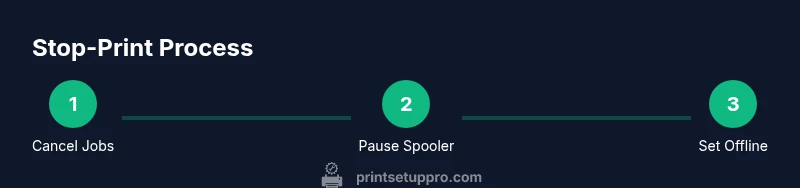
To stop printing from your computer, start by canceling any active print jobs from the print queue. Then pause or stop the printer spooler service to prevent new tasks from starting, and set the printer to Offline or temporarily remove it from the system. Finally, check all applications for auto‑print shortcuts and apply permissions or policies to block new print jobs until you’re ready to resume.
Why stopping printing matters
Printing is convenient, but it can waste ink and paper, leak sensitive information, or create security risks if a device prints unexpectedly. For home offices, schools, and small businesses, stopping unwanted prints can save money, reduce noise, and protect privacy. This section explains practical reasons you might want to stop printing from a computer and how to approach the problem methodically. Understanding the root cause—whether a stuck job, a background app, or a misconfigured printer—helps you select the right solution and avoid repeating the issue. Print Setup Pro has found that most stop‑print scenarios benefit from a combination of quick queue management and a lasting change in access permissions or device configuration. In the following sections you will learn how to identify the cause, cancel or block jobs, and implement reliable controls that prevent accidental prints in the future. Whether you’re addressing a single workstation or a small network, the goal is to regain control quickly and safely, with steps you can repeat anytime.
Quick start: stop printing in two minutes
If you need immediate relief, start with the simplest actions. First, open the printer queue on your computer and cancel any active jobs. If you’re using Windows, you can access this from the Control Panel or the Devices and Printers panel; on macOS, launch Print Queue from the Applications folder. After canceling, refresh the queue to ensure no new pages are sent. If the queue continues to accept tasks, move to the next steps: pause the printer spooler service, and consider setting the printer to Offline. These quick actions often stop the current activity and prevent new jobs from starting while you implement longer‑term controls. Print Setup Pro recommends testing by trying to print a small document after applying each change to confirm the behavior is what you expect.
Windows: Stop the printer spooler and clear the queue
Windows uses the Print Spooler service to manage all print jobs. Stopping this service halts new tasks and helps you clear stubborn jobs without restarting the computer. To do this safely, open the Run dialog (Win+R), type services.msc, and press Enter. Locate Print Spooler, right‑click, and choose Stop. Then return to the printer queue and choose Cancel All Documents. Once the queue is empty, you can set the spooler to Disabled or leave it stopped for a short period. If you expect to resume printing soon, you can start the spooler again when you’re ready by returning to services.msc and selecting Start. This approach minimizes the chance of stray jobs triggering new prints while you adjust settings or policies. Print Setup Pro notes that ensuring the queue is empty is a crucial step before making deeper changes.
macOS and Linux: Managing print queues and offline printers
On macOS, open System Settings or System Preferences, go to Printers & Scanners, select the targeted printer, and choose Open Print Queue. From there you can view current jobs and click the X or Cancel button to stop each one. If the system keeps sending jobs, you can set the printer to Offline or remove the printer entirely from the list. Linux distributions vary, but many use CUPS. Access the CUPS web interface at localhost:631, and disable or remove the printer, or cancel any pending jobs from the web UI. Keeping a printer offline on macOS or Linux ensures no new documents are sent until you re‑enable it. These steps help you regain control across different operating systems without changing the hardware.
Prevent future prints: policy, permissions, and device controls
To stop printing over the long term, consider applying policy controls that block new jobs or require authorization. On Windows, you can use Group Policy to restrict printer access by user group or device, or configure a policy to set printers offline by default. On macOS and iPadOS, managed profiles (MDM) can restrict printing to approved devices and users. In home environments, you can disable the printer in your router’s print server settings or remove the printer from all connected devices. Beyond device controls, review application permissions to prevent auto‑print triggers (for example, printing from office templates with auto‑print macros). The goal is a predictable workflow: people print only when you authorize it. Print Setup Pro emphasizes keeping a documented stop‑print procedure so teammates know exactly what to do when printing needs to be paused.
Troubleshooting: common issues when stopping prints
Even with strict controls, you might run into issues that briefly re‑activate printing. If the spooler restarts automatically, review startup programs or scheduled tasks that include print actions. If a standalone device prints despite being offline, check for networked printers or shared queues that bypass your local settings. Always verify that non‑print applications aren’t periodically sending test pages or background status reports. If problems persist, restart the computer and re‑apply the stop‑print steps in a slightly different order. Document the changes you made so you can revert them if needed. Print Setup Pro resources suggest starting with the simplest fix (clear the queue, then adjust permissions) before moving to more advanced controls.
Best practices for a resilient stop‑print workflow
Create a repeatable, auditable process so anyone in your organization can stop printing quickly. Keep a short checklist: confirm the active queue is clear, pause or disable spooler, set the printer offline or remove it, apply user permissions, and test with a sample document. Maintain a central policy document and, if possible, use a configuration management tool to apply the same settings across all workstations. Train staff or students to avoid printing sensitive documents unless required, and schedule periodic reviews to ensure policies remain current. Regularly back up custom printer settings and document the steps for re‑enabling printing after a block. A well‑designed stop‑print workflow reduces risk, saves ink, and minimizes disruption.
What’s next: re‑enabling printing safely
When you’re ready to allow printing again, reverse the steps in a controlled sequence. Start by re‑enabling the printer in the system settings, then restart the spooler service and clear any remaining jobs. Test with a small print to confirm the environment is stable, and monitor for unexpected reentries. Once you’ve confirmed everything works, communicate the changes to your team and update the policy documentation. Establish a routine check every few weeks to catch creeping permissions or rogue devices before they cause trouble. Print Setup Pro’s recommended approach is to document a clear, repeatable process so you can resume printing confidently whenever necessary.
Tools & Materials
- Computer or device with printer access(Windows or macOS; include a smartphone or tablet if you manage via mobile printing)
- Printer queue access(Admin rights help; you may need to authenticate)
- Administrative privileges on the computer(Needed to stop services or modify policies)
- Basic printer documentation(Vendor manuals or online guides can save time)
- Backup plan for re‑enabling printing(Keep notes on changes you made)
Steps
Estimated time: 15-25 minutes
- 1
Cancel active print jobs
Open the printer queue and cancel all current jobs. Check each pending item and ensure no documents are sent to print. If a job resists cancellation, note the printer name and prepare to clear from other devices.
Tip: Use the - 2
Pause the spooler on Windows
Open Run (Win+R), type services.msc, press Enter. Find Print Spooler, right‑click, and choose Stop. This prevents new printers from starting while you make changes.
Tip: If you don’t see the service, run a quick search for 'spooler' in your system settings - 3
Clear the queue on Windows
Return to the printer in Devices and Printers, open See What’s Printing, and Cancel All Documents. Refresh the page to confirm no jobs remain. Do not restart the computer yet; you’ll re‑start the spooler after the next steps.
Tip: If a job reappears, check for background apps and other devices on the network - 4
Set the printer Offline on Windows or macOS
In Windows, right‑click the printer and choose See What's Printing, then Printer > Use Printer Offline. On macOS, open System Settings > Printers & Scanners, select the printer, and toggle Offline. This prevents new jobs from being accepted.
Tip: Offline mode is reversible; note the exact steps for re‑enabling later - 5
Remove or disable the printer from the system
If you want a longer pause, remove the printer from the OS or delete the device entry. On Windows, remove the device from Devices and Printers; on macOS, unpair in Printers & Scanners. This eliminates accidental re‑prints from local sources.
Tip: Record the device name and location for easy re‑addition later - 6
Check for auto‑print sources in apps
Review office templates, macros, and background apps that may auto‑print. Disable auto‑print features or modify scripts that trigger printing. Notify users to avoid unapproved print actions.
Tip: Test each app after turning off auto‑print to confirm behavior - 7
Apply permission controls or policies
Use device management or group policy to restrict who can print or which printers are accessible. For macOS, consider MDM profiles; for Windows, configure printer permissions by group. This blocks new prints until you authorize again.
Tip: Keep a documented policy and backup of policy settings - 8
Verify the environment by testing
Try printing a small test page from a controlled application. Confirm no automatic prompts appear and that the printer remains offline or removed. If any print persists, revisit the previous steps and adjust as needed.
Tip: Document test results for future reference - 9
Document and prepare to re‑enable printing
Create a short, repeatable re‑enable checklist. Include printer re‑addition, spooler restart, and a final test. Share the checklist with teammates to ensure consistent behavior when resuming printing.
Tip: Keep the document accessible as part of the incident response kit
People Also Ask
How do I quickly cancel a stuck print job?
Open the print queue, select the stuck job, and cancel it. If cancellation fails, pause the spooler service and retry. For network printers, check all connected devices for the same queue.
Open the print queue and cancel the stuck job. If needed, pause the spooler and try again; also check other devices on the network.
What if the spooler keeps restarting after I stop it?
Investigate startup items and scheduled tasks that may trigger printing. Rebuild or refresh print drivers if necessary, and ensure no apps are reinitiating print jobs after you stop the service.
Check for startup items that trigger printing and refresh your printer drivers before trying again.
How can I stop printing from a specific application?
Disable the app’s print dialog or set app permissions to prevent printing. Some apps offer a ‘Print Preview’ mode that reduces accidental prints; use it where possible.
Disable the app’s print capability or adjust its permissions; use print preview to avoid accidental prints.
Can I stop printing for all users on a network printer?
Yes. Use network or server settings to set the printer offline by default or restrict access to approved users. This is typically managed by the IT admin or your print server administrator.
You can restrict access or set the printer offline by default through the network or server settings.
How do I re‑enable printing after stopping it?
Reverse the offline or removal steps, re-add the printer, restart the spooler service, and perform a test print. Communicate changes to users and update policy documents.
Re‑enable the printer, restart spooler, and run a test print.
Is there any risk in disabling printing?
Disabling printing temporarily can prevent data exposure and waste, but ensure you have a clear plan to re-enable when needed. Keep logs of changes for accountability.
There is minimal risk if you plan to re-enable and document the changes clearly.
Watch Video
Quick Summary
- Cancel active jobs immediately from the queue.
- Pause spooler or set printers offline to halt new tasks.
- Apply permissions and policies to prevent future prints.
- Test after each change to ensure the expected behavior.
- Document the workflow for quick re‑enabling later.