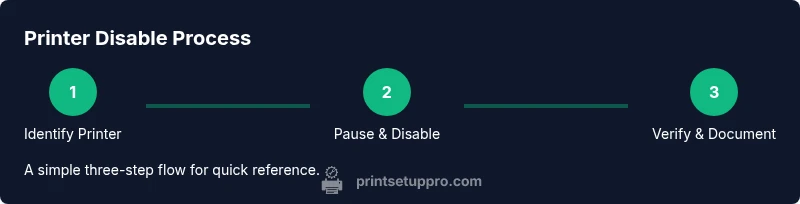
How to Disable a Printer: A Practical Step-by-Step Guide
Learn how to disable a printer quickly and safely across devices. This comprehensive guide covers local control panel methods, web admin interfaces, and OS-level workarounds for home offices and small businesses.


Why disabling a printer matters in a busy home office
Disabling a printer is sometimes necessary to protect sensitive documents, conserve energy, or prevent accidental printing when the device is not in use. This guide explains practical, device-agnostic methods suitable for home offices, student desks, and small businesses. According to Print Setup Pro, the most reliable changes start with clear authorization and a defined scope, so you know who can print again later. The Print Setup Pro team found that many users skip documentation, leading to confusion when a printer is needed again. This article uses plain language and concrete steps to help you disable a printer without disrupting other devices on the network.
Before you start: authorization, scope, and policy
Before you disable a printer, confirm you have explicit permission from the owner or IT administrator. Define the scope: which printer(s) to disable, for how long, and what outcomes are acceptable (temporary pause, permanent offline, or reallocation to another user). If you’re in a shared environment, notify affected users to avoid losing work or creating security gaps. Keep a record of the decision, date, and responsible person. This preparation reduces back-and-forth and ensures compliance with workplace policies.
Methods at a glance: local control vs. network management
There are two broad paths: local (on-device) control and network/system-wide management. Local methods include using the printer’s built-in control panel or a connected computer to pause or disable printing. Network methods involve the printer’s web interface or your IT’s centralized management tool to place the device offline or block its traffic. In many scenarios, a combination is most effective: disable the device locally to stop current jobs, then enforce a network restriction to prevent new jobs. Print Setup Pro analysis shows that choosing the right method depends on who controls the device and where it is connected.
Step-by-step method A: Disable via the printer control panel (local disable)
If your printer has a physical control panel, you can usually locate a setting named Print, Job, Network, or Offline. Select Offline or Disable Printing to halt new jobs, then confirm any prompts with your admin credentials if required. This method is quick and does not require a computer. The reason this works reliably is it prevents the device from accepting new jobs even before your network policies take effect. Pro tip: Take a quick photo of the panel screen before changing settings to document the configuration.
Step-by-step method B: Disable via the web-based admin interface (networked printers)
Access the printer’s admin console by entering its IP address or hostname in a web browser. Log in with administrator credentials, then navigate to Print Settings, Access Control, or Security. Choose Offline, Disable Printing, or Block Printing, and save changes. Some printers offer a per-user or per-role restriction—use those when multiple people share the device. Why this matters: central control reduces the chance that a single user can re-enable printing without authorization. Pro tip: Keep a record of the admin password in a secure manager and avoid sharing it loosely.
Step-by-step method C: Remove the printer from devices (OS-level removal)
On each computer or device that can print, remove or forget the printer so new print jobs cannot be sent by accident. In Windows, access Settings > Bluetooth & devices > Printers & scanners and remove the target printer. On macOS, open System Preferences > Printers & Scanners and remove the queue. On mobile devices, uninstall or forget the printer within the printing options. This step ensures users don’t see a ghost printer in their list and avoids accidental reprints. Pro tip: After removal, inform users how to reconnect later if needed.
Step-by-step method D: Add a network restriction or offline policy (if you manage a fleet)
If you manage many devices, you can apply a network rule or firewall policy that blocks the printer’s print ports or IP address. This approach prevents new jobs from reaching the printer from any device. It’s especially useful for shared office printers. Note that this method may require IT administration or access to your router or firewall. Pro tip: Test with a single device first to confirm the policy works as intended.
Step-by-step method E: Temporary suspension vs. permanent offline (planning for reactivation)
Decide whether the disable is temporary or permanent. For temporary suspensions, set an expiry date in your management tool or document the reactivation window. For permanent offlining, keep the documentation updated and communicate the change to all users. If you anticipate reactivating later, maintain access credentials and a clear reactivation procedure. Pro tip: Create a small checklist for re-enabling to avoid forgetting essential steps.
Step-by-step method F: Verification and cross-checks (final validation)
After applying the chosen method, verify the printer is truly inactive by printing a test page from at least two different devices and observing the result. Check the printer’s status in the admin console and confirm that no new jobs appear in the device queue. If any issues arise, consult the device’s logs or contact IT support. Pro tip: Document the verification results with timestamps and device names for accountability.
How to document changes and communicate with users (record-keeping best practices)
Documentation is essential when disabling a printer. Record who approved the action, which method was used, the exact settings changed, and the date. Share a brief notice with affected users about the change, expected duration, and how to request reactivation. This communication reduces confusion and helps with audits or future printer management tasks. Pro tip: Use a centralized wiki or ticketing system to track printer states and approvals.
Final checks: what Print Setup Pro recommends for best results
For most environments, a layered approach works best: local disable to stop current jobs, followed by a network-level block or OS removal to prevent new tasks, and finished with clear documentation. The Print Setup Pro team recommends re-testing after any change and keeping a record for future reference. By combining these steps, you minimize disruption and maintain control over your printing environment.