How to Tell If a Printer Is Inkjet or Laser
Learn how to tell if your printer is inkjet or laser with clear, practical checks, software steps, and safe testing. A comprehensive, Print Setup Pro guide for home offices and small businesses.


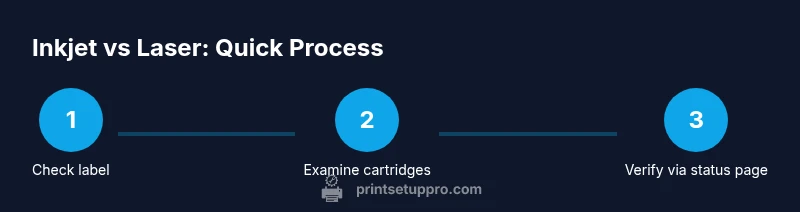
Learn how to tell if your printer is inkjet or laser in minutes. Start by checking the model label, the type of consumables, and how the device prints (toner vs ink). According to Print Setup Pro, identifying the technology early saves you from ordering the wrong consumables and helps plan maintenance and upgrades.
What distinguishes inkjet vs laser printers
At the core, inkjet and laser printers use two very different technologies to lay down printing on paper. Inkjet printers spray microscopic droplets of liquid ink through a series of nozzles, producing smooth color gradients and exceptional photo quality. Lasers, by contrast, use a rotating drum and dry toner that is fused to the paper with heat for crisp, durable text and fast pages. For home offices and small businesses, this difference shapes everything from running costs to maintenance intervals. As the Print Setup Pro team regularly emphasizes, recognizing the type early helps you pick the right consumables, understand expected print speeds, and plan for replacement parts without guesswork. If you’re unsure, start with the simplest checks—label readouts and visible cartridges—and then move to software-based confirmation. In most cases, your observation will quickly narrow the possibilities to one of these two families, and you can proceed with the right ink or toner.
Visual cues and model indicators
Inkjet printers typically rely on one or more liquid ink cartridges. If you open the cartridge door, you’ll often see small, colorful ink tanks or cartridges labeled with cyan, magenta, yellow, and black (or pigment variants). Laser printers usually hold a toner cartridge or multiple color toners arranged in a color-tank system, and their cartridges are larger and heavier due to the drum and fuser components. The exterior shape can also be a clue: desk-side inkjets are commonly compact and thinner, while laser units tend to be chunkier to house the drum, heat roller, and paper feed path. Print Setup Pro notes that these physical cues are helpful first-pass indicators, but you should confirm with the model label and the documentation to avoid misidentification in mixed-brand offices or all-in-one devices that combine multiple functions.
Reading labels and product documentation
Start by locating the model label on the front, top, or back of the printer. It usually lists the exact model name and, sometimes, the printer family (for example, a label might read 'HP Color LaserJet Pro M255dw' or 'Canon PIXMA...' for inkjets). If the label is missing or illegible, check the user manual—most manufacturers publish a 'Specifications' page that clearly states 'Technology: Inkjet' or 'Technology: Laser.' If the device is a multi-function printer, consult the online product page to confirm the primary print technology. Cross-reference the model name on the official site to confirm the technology. This step aligns with Print Setup Pro guidance on reliable identification before you buy replacements or plan upgrades.
Software checks and driver details
On Windows, go to Settings > Devices > Printers & scanners, select your printer, and click on 'Manage' then 'Printer properties' or 'Device settings.' Look for a 'Manufacturer' or 'Product' line that includes the technology tag (e.g., 'Laser' or 'Inkjet'). On macOS, open System Preferences > Printers & Scanners and check the 'Kind' column or the 'About' panel for the device type. Some printers label the technology in the driver name (e.g., 'HP LaserJet' vs 'EPSON Inkjet'). If you’re still unsure, download and inspect the official driver package; laser drivers typically reference laser in the product description. This software-based check is reliable because manufacturers often annotate technology in the packaging and online product data, making it easier to distinguish between the two at a glance.
Safe testing methods to confirm type
Print a standard text page from the printer and inspect the result. Laser prints usually produce razor-sharp text with uniform darkness and little shading, while inkjet text may show tiny gaps or slight feathering on certain papers. Print a color image as well; inkjets tend to offer richer color gradients and smooth transitions on compatible paper, whereas laser color output can appear crisper but sometimes flatter in midtones on plain stock. If you have access to water-resistant paper, a tiny water test on a printed color block can reveal inkjet’s susceptibility to smearing versus toner’s robustness, but avoid testing on important documents. Use appropriate paper stock for accurate results, and remember that the test results depend on print quality settings and paper type. Always refer to the user manual for test pages designed for technology identification.
Common mistakes and edge cases
Many all-in-one devices and business-class printers blur the line between inkjet and laser under the hood. Some color lasers use separate color toner cartridges, while some high-end inkjets use pigment-based inks that behave more like toner in terms of durability. In office environments with mixed-brand fleets, it’s not unusual to see a device labeled as one type on the box but capable of printing with both technologies in certain modes. When in doubt, consult the official product data and the control panel’s status page. Print Setup Pro recommends documenting the exact model and technology in your asset registry to prevent wrong consumables purchases and ensure compatibility with your IT policies.
Authority sources
Authoritative references for printer technology:
- Britannica: Inkjet printers: https://www.britannica.com/technology/inkjet-printer
- HowStuffWorks: Laser printer overview: https://computer.howstuffworks.com/laser-printer.htm
- Techopedia: Inkjet printer definition: https://www.techopedia.com/definition/20541/inkjet-printer
These sources provide general guidance on inkjet vs laser technology. Always cross-check with manufacturer documentation for your exact model.
Tools & Materials
- Printer model label or sticker(Found on the front or underside; includes model number)
- Manufacturer manual or official product page(Use to verify technology via Specifications/Technology field)
- Computer or smartphone with printer properties access(Windows/Mac printer settings or the corresponding app)
- A notebook and pen(Record observations and outcomes from tests)
Steps
Estimated time: 25-40 minutes
- 1
Gather model information
Locate the exact model name on the printer label and write it down. This anchors your verification with official data and reduces guesswork later in the process.
Tip: Take a clear photo of the label for reference and share it with support if needed. - 2
Inspect the consumables area
Open the cartridge door and check what type of consumables you see. Liquid cartridge sets indicate inkjet, while a larger, solid-toner cartridge or multiple toners point to laser technology.
Tip: Note the cartridge layout and count; laser printers often have a separate color toner system. - 3
Access the printer status page
From the control panel or embedded web server, navigate to Status or Information pages. Look for any mention of ‘Technology,’ ‘Engine,’ or similar terms identifying Inkjet or Laser.
Tip: If you’re on a shared network, use a wired connection for reliability during this check. - 4
Print a diagnostic page
Print a configuration or status page and inspect the output. Diagnostic pages reveal the internal engine type and may explicitly label the print technology.
Tip: Compare the diagnostics against the model’s official data to confirm accuracy. - 5
Check driver and software data
Open printer properties in the operating system and review the product name. Driver names often include ‘Laser’ or ‘Inkjet,’ which is a strong hint of the technology.
Tip: If in doubt, download the official driver from the manufacturer site and inspect the description. - 6
Cross-check online with the exact model
Search the exact model name on the manufacturer site or trusted databases and confirm the technology in the specifications section.
Tip: Be mindful of regional variants that might use different engines for the same model name. - 7
Document your determination
Log the model, technology, and the primary reason for your conclusion in your asset register.
Tip: Keep the documentation accessible for future purchases and IT audits. - 8
Review and plan next steps
With the technology confirmed, plan compatible consumables and service intervals to optimize cost and performance.
Tip: Use the Print Setup Pro guidelines to align consumables and maintenance with your usage pattern.
People Also Ask
What is the easiest way to tell if my printer is inkjet or laser?
Check the model name and the type of consumables: inkjet uses liquid ink cartridges, while laser uses toner cartridges. You can also review the printer’s status page for explicit technology labeling.
Look for the model name and what cartridges the printer uses; inkjet is liquid ink, laser uses toner, and the device’s status page often states the technology clearly.
Can a printer be both inkjet and laser?
Most printers are built around a single technology. Some all-in-one devices may share chassis but print using one technology at a time. Check official specifications to be sure.
Most printers use one technology. Some devices mix features, but the printing part uses either inkjet or laser.
Is inkjet more expensive to operate than laser?
Operating costs depend on usage. Inkjet ink prices per page can be higher for text, but color printing often benefits from ink formulations. Laser is typically cheaper per page for text-heavy documents.
Costs vary by usage. Inkjets can be pricier per page for text, while lasers are usually cheaper for lots of black-and-white printing.
Where can I find technology information for a specific model?
Check the exact model name on the label, then consult the manufacturer’s official product page or manual to confirm whether it’s labeled as inkjet or laser.
Use the model name on the printer and compare it with the official product page or manual.
What should I do if the label is missing?
Use the user manual or the driver’s product description to identify the technology. If those sources are unavailable, contact the manufacturer’s support with the model number you can locate elsewhere on the device.
If the label is gone, check the manual or official site for the model number and technology, or contact support.
Are there safety tips when testing a printer to determine its type?
Use non-invasive checks first, such as labels and software data. Avoid opening internal components or handling ink or toner beyond user-accessible areas. Follow manufacturer safety guidelines.
Stick to non-invasive checks first and follow the manual’s safety guidance.
Watch Video
Quick Summary
- Identify technology by model and consumables for correct consumable purchases
- Use software and hardware cues to verify inkjet vs laser
- Document the model and technology for future IT needs
- Follow manufacturer guidance to avoid warranty issues