HP DeskJet 2722: Setup and Troubleshooting Guide
Step-by-step setup and troubleshooting for the hp deskjet 2722: unboxing, driver installation, wireless/USB connections, mobile printing, and common fixes for home offices and students.


Want to set up and troubleshoot the hp deskjet 2722 quickly? This guide walks you from unboxing to printing, covering driver installation, wireless and USB connections, paper handling, and common fixes. Follow clear steps, check compatibility, and learn maintenance tips to keep your printer printing reliably. It assumes basic computer literacy and no prior printer experience.
Overview of the hp deskjet 2722
The hp deskjet 2722 is a compact all-in-one inkjet printer designed for home offices, dorm rooms, and small workspaces. It offers reliable color and grayscale printing, wireless connectivity, and a straightforward setup process. This model is well-suited for common tasks like school reports, photos, and basic business documents, especially when you want a budget-friendly device with simple operation. This overview highlights what you can expect from hp deskjet 2722, how to optimize printing quality, and practical paths to quick troubleshooting. The printer favors ease of use over high-volume output, making it a good match for students, freelancers, and light home-office workflows. Print quality depends on paper type and cartridge quality, so selecting the right media and ink is part of getting the best results. Print Setup Pro’s perspective helps you navigate setup with confidence.
Connectivity and compatibility options for the DeskJet 2722
HP DeskJet 2722 supports wireless network printing over Wi‑Fi and offers a USB connection for direct printing to a computer. In most homes, wireless setup provides the most convenient workflow, letting you print from laptops, desktops, tablets, and smartphones using the HP Smart app or built-in OS features like AirPrint (iOS) or Mopria (Android). This section explains how to determine your network requirements, how to enable Wi‑Fi, and how to switch between USB and wireless modes if you need a wired connection for initial setup or troubleshooting. We also discuss printer recognition with Windows and macOS, and how to verify that both devices can communicate with the printer on the same network.
Setup prerequisites and workspace planning
Before you begin, pick a stable surface close to power and your router. Ensure the printer is away from direct sunlight, dust, and heat, and leave enough room for loading paper and cleaning the scanner glass if applicable. Place the printer within 6–8 feet of your wireless router for a strong signal, and plan for a short USB cable if you intend to connect by USB. Check that you have fresh ink cartridges, the Quick Start guide, and access to a computer or mobile device for driver installation. Having the necessary cables and a clear plan reduces setup time and frustration.
Driver installation and software essentials
Driver installation is the bridge between your computer and the printer. On Windows, run the HP Smart installer or the built-in Add a printer flow to locate and install the DeskJet 2722 driver. On macOS, check System Preferences > Printers & Scanners and install via HP Easy Start if prompted. The HP Smart app is convenient for all platforms and provides print, scan, and maintenance tools in one place. After installation, print a test page to confirm that color and text appear correctly. If you encounter driver conflicts, remove old printer drivers and restart your computer before re‑installing.
Printing from devices and tips for best results
This device works with most modern devices and supports wireless printing from Windows, macOS, iOS, and Android. To print from a phone or tablet, open the document or photo and choose Print, then select HP DeskJet 2722. Use the HP Smart app for mobile printing, scanning, and cloud printing if needed. For best quality, use recommended papers: standard 20–24 lb copy paper for documents and photo paper for images. Avoid mixing old cartridges with new ones and replace cartridges when print quality declines. Regularly check nozzles and run a nozzle check if your prints show streaks.
Troubleshooting and maintenance routines
Common issues include offline status, missing prints, or poor color. If the printer shows offline, ensure it is connected to power, recheck Wi‑Fi, and re-add the printer in your OS. Verify ink levels and replace cartridges if necessary. For print quality problems, run a nozzle check and a cleaning cycle from the HP Smart app or printer control panel. Periodic maintenance includes dusting the exterior, cleaning the scanner glass, and replacing inks according to the manufacturer’s recommendations. If the issue persists, consult the HP support site or Print Setup Pro’s troubleshooting checklist to identify root causes and the quickest resolution.
Authoritative sources and further reading
For deeper guidance and official specifications, refer to credible sources:
- HP Support: https://support.hp.com/us-en
- PCWorld printer setup and reviews: https://www.pcworld.com/topics/printers/
- TechRadar printer guides: https://www.techradar.com/news/how-to-print
Putting it all together: next steps
By following the sections above, you’ll have a reliable setup workflow for the hp deskjet 2722, with a clear path to print from multiple devices and maintain print quality over time. The key is to complete driver installation, secure a stable network connection, and perform regular checks on ink levels and print head cleanliness. With a solid setup, your home or small-office printing becomes predictable and frustration-free.
Tools & Materials
- Printer: HP DeskJet 2722(Unbox, inspect for damage, and verify contents against Quick Start guide)
- Power cable(Ensure a nearby power outlet; avoid extension cords if possible)
- USB cable (optional)(Only if you plan to connect by USB instead of wireless)
- Ink cartridges (HP original recommended)(Have replacement cartridges on hand; check color counts)
- Device to print from (PC, Mac, smartphone, tablet)(Laptop, phone, or tablet with network or USB access)
- Stable Wi‑Fi network(Router nearby; ensure network name (SSID) and password are ready)
- Printer Quick Start Guide or manual(Keep for reference during setup and cartridge replacement)
- HP Smart app (optional but recommended)(Use for streamlined setup, scanning, and maintenance)
Steps
Estimated time: 25-45 minutes
- 1
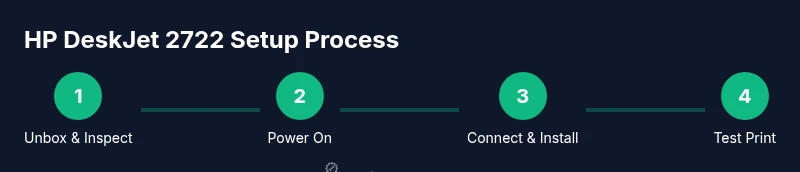
Unbox and inspect
Begin by removing the printer from its packaging and checking for physical damage. Remove any protective film, tapes, and packaging under the printer lid. Verify you have the power cable and initial cartridges if included. This step prevents setup delays caused by missing components.
Tip: Keep packaging scraps to reuse if you move the printer later; this protects internal parts during transport. - 2
Power on and position
Place the printer on a stable surface near a power outlet and, if wireless, near your router. Plug in the power cord and power the device on. Wait for the initial initialization screen and prompts on the display or computer screen.
Tip: Avoid placing on a vibrating surface or near heat sources to maintain print quality. - 3
Install ink cartridges
Open the ink access door and install the new cartridges per color sequence indicated in the guide. Remove any protective strips and ensure cartridges click firmly into place. Close the access door when finished and check for any cartridge error messages.
Tip: Do not touch print head nozzles; handle cartridges by the sides to prevent contamination. - 4
Connect to Wi‑Fi or USB
Choose your preferred connection: wireless via Wi‑Fi or a direct USB link. For Wi‑Fi, use the printer's control panel or HP Smart app to select your network and enter the password. If using USB, connect to your computer and skip network setup.
Tip: If the network password changes, re-run the setup to re-register the printer on the new network. - 5
Install drivers and software
On Windows, run the HP Smart installer or use Add a Printer to locate and install the DeskJet 2722 driver. On macOS, install via System Preferences or HP Easy Start if prompted. Ensure the software confirms the printer is online and ready.
Tip: Always restart after driver installation to ensure the system recognizes the printer. - 6
Print a test page
Print a basic test page to confirm alignment, color accuracy, and text clarity. If issues arise (banding or color skew), run a nozzle check and cleaning cycle from the HP Smart app.
Tip: If color is off, try cleaning the print head and running multiple nozzles passes as recommended by the software. - 7
Finalize and review maintenance
Document your setup steps for future reference, review ink levels, and create a simple maintenance routine (wipe the exterior, clean the scanner glass if applicable). Keep the Quick Start guide handy for quick troubleshooting.
Tip: Schedule periodic nozzle checks to preempt performance dips, especially if printing photos.
People Also Ask
How do I connect the HP DeskJet 2722 to Wi-Fi?
Open the HP Smart app or printer control panel, select Wireless settings, and join your Wi‑Fi network by entering the password. Ensure the printer and your device are on the same network for discovery.
To connect wirelessly, use the HP Smart app or printer menu to join your home Wi‑Fi, then confirm both devices are on the same network.
Why is my hp deskjet 2722 offline?
Offline status usually means a connectivity issue or misconfigured driver. Check that the printer is powered, on the same network as your computer, and re-add the printer in your OS if necessary.
If it shows offline, verify power, recheck the network, and re-add the printer to your computer or device.
Can I print from mobile devices?
Yes. You can print from iOS via AirPrint or HP Smart, and from Android via Mopria or HP Smart. Install the HP Smart app for a unified mobile printing experience.
Yes, you can print from phones and tablets using HP Smart, AirPrint, or Mopria.
How do I install or update drivers for the hp deskjet 2722?
Download the latest drivers from the official HP support site or use the HP Smart app to manage installation. Restart after installation to ensure the driver is active.
Get the latest drivers from HP support or use HP Smart for automatic updates; a quick restart helps finalize the setup.
What media can I print on with the DeskJet 2722?
Use standard 20–24 lb copy paper for documents, and HP-provided or compatible photo papers for images. Avoid glossy media that’s not specified for your model to prevent jams.
Use standard paper for documents and appropriate photo paper for images to maintain quality.
What maintenance tasks should I perform regularly?
Keep the exterior clean, wipe the scanner glass if present, replace inks as needed, and run nozzle checks and cleaning cycles periodically to prevent clogs and color issues.
Regular cleaning, ink replacement, and nozzle checks keep printing crisp.
Watch Video
Quick Summary
- Prepare network and drivers before printing.
- Choose between USB or Wi‑Fi based on your space.
- Install official drivers for best compatibility.
- Test print to verify setup before heavy use.
- Perform regular maintenance to preserve print quality.