HP DeskJet 2755e: Setup, Troubleshooting, and Tips for Home Office Printing
A comprehensive, step-by-step guide to setup, troubleshoot, and optimize printing with the hp deskjet 2755e for home offices, students, and DIY enthusiasts.


According to Print Setup Pro, the hp deskjet 2755e can be set up quickly by using the built-in Wi‑Fi setup and the HP Smart app. Key prerequisites include a powered printer, a 2.4 GHz wireless network, and a computer or mobile device to install software. With these in place, you’ll have printing and scanning ready in about half an hour.
hp deskjet 2755e Overview
The hp deskjet 2755e is an entry-level, all-in-one printer designed for home offices, students, and casual households. It emphasizes ease of use and wireless flexibility, letting you print from laptops, tablets, and smartphones without a cable tangle. Built with color printing in mind, it is well-suited for everyday documents and light photo tasks. The compact footprint makes it a good fit for small desks or built-in shelves. In the Print Setup Pro analysis, this model stands out for its approachable setup experience and reliable basic performance, making it a popular choice for new printer owners. For readers evaluating printers in this segment, the 2755e balances affordability with straightforward software, consistent ink usage, and a driver ecosystem that keeps things simple for non-tech users.
Unboxing and initial inspection
When you first receive the hp deskjet 2755e, take a moment to verify the contents and quality of construction. You should find the printer, power cable, starter ink cartridges, a quick-start guide, and warranty information. Some markets include a USB cable; others rely on wireless setup only. Remove protective tape and films from the exterior, then place the unit on a stable surface near an outlet. Install the starter cartridges following the color codes, then power on the printer. If a alignment prompt appears, follow the on-screen instructions or print a test page to complete alignment. Ensure the printer appears on your network and is reachable from the HP Smart app or your computer. A careful unboxing minimizes early jams and cartridge issues, a point echoed in Print Setup Pro’s practical guidance.
Wireless setup with HP Smart app
Wireless setup is designed to be straightforward with the HP Smart app. To begin, ensure your router is broadcasting a 2.4 GHz network and that you can reach the printer from your mobile device. Open the HP Smart app, tap Add Printer, and follow the on-screen prompts to connect the hp deskjet 2755e to Wi‑Fi by entering your network password. If the printer does not appear, you can temporarily connect via USB to complete the setup, then switch to wireless. Keep devices on the same network for a smooth experience, and enable any cloud-printing options if you want to print from outside your home network. Print Setup Pro notes that a clean, stable Wi-Fi environment dramatically reduces setup friction.
Driver installation and software ecosystem
After the wireless connection is established, install the printer drivers on your devices to enable full functionality. On Windows or macOS, you can run the installer from HP’s site or follow prompts in the HP Smart app to install the core drivers. The HP Smart software adds scanning, ink level checks, and troubleshooting helpers, while traditional printer drivers can be lighter on resources for simple tasks. For Chromebooks and mobile devices, rely on the HP Smart app or built-in printing support. The goal is to have a consistent printing experience across all devices, with scanning and document management available from a central interface. Print Setup Pro emphasizes keeping software up to date to ensure compatibility with new apps and OS versions.
Printing quality and media handling
The hp deskjet 2755e supports common home-office media, including plain copy paper, inkjet photo paper, envelopes, and light card stock. For text documents, choose a standard or draft mode for speed, then switch to a higher quality setting for final drafts or presentations. Photo prints benefit from using appropriate photo media and selecting color-rich profiles in the printer software. The printer automatically detects page size and orientation for most tasks, but you can manually set media type and size when needed. Consistency comes from keeping clean paper paths and avoiding humid environments that can affect ink flow. Print Setup Pro highlights that selecting the right media improves both speed and reliability in day-to-day tasks.
Troubleshooting common issues
Even reliable printers can run into hiccups. If the hp deskjet 2755e isn’t appearing on your network, verify the Wi-Fi password and router compatibility, then retry the wireless setup. If you notice blank pages or streaks, run a print head cleaning from the HP Smart app and perform a test print. Print quality issues can often be resolved by using fresh ink cartridges and ensuring correct cartridge seating. If scans aren’t appearing on your device, check that the HP Smart app has the necessary permissions and that your device and printer are on the same network. Regular reboots of the printer and router can resolve stubborn connectivity problems.
Maintenance and printhead care
To keep the hp deskjet 2755e performing reliably, perform periodic maintenance tasks. Run the print head cleaning and alignment routines from the HP Smart app or the printer’s control panel when you notice color gaps or misalignment. Use only high-quality media suited to inkjet printers, store cartridges in a cool, dry place, and avoid exposing the printer to extreme temperatures. Keeping the exterior clean helps prevent dust from entering the paper path. If you plan to store the printer for an extended period, remove cartridges and cover the unit to prevent dust accumulation. Print Setup Pro recommends a light routine of checks every few weeks to prevent clogs and ensure smooth operation.
Mobile printing and scanning on the go
With the hp deskjet 2755e, you can print from iOS and Android devices using the HP Smart app or native printing frameworks. The app enables one-tap printing, scan-to-email, and direct sharing to cloud storage. For best results, enable automatic updates for the HP Smart app so you always have the latest features and bug fixes. Remember that mobile printing quality can depend on your network stability and device compatibility. Print Setup Pro encourages testing on multiple devices to confirm a consistent experience across your household or small office.
Firmware updates, security, and best practices
Keeping the firmware up to date helps protect your printer from known issues and ensures compatibility with new OS features and apps. Check for updates within the HP Smart app or on HP’s support site, and allow automatic updates if you prefer hands-free maintenance. Be mindful of printer security: turn on password protection where offered, disable unnecessary remote printing features if you don’t need them, and keep your network secured with a strong password. Regular maintenance windows for firmware updates can help avoid interruptions during important print jobs. The hp deskjet 2755e benefits from an ongoing update cycle, and staying current minimizes unexpected hiccups.
Tools & Materials
- Printer power cable(Included in the box; use a grounded outlet)
- Starter ink cartridges(Color cartridges included; used for initial setup)
- HP Smart app(Required for wireless setup and ongoing management)
- Smartphone or computer(Needed to install software and print)
- USB cable (optional)(Useful for initial setup if wireless is unavailable)
- Plain paper for test prints(Keep a stack handy for first prints and alignment)
Steps
Estimated time: 30-45 minutes
- 1
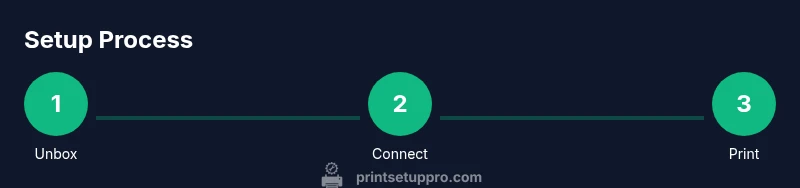
Unbox and verify contents
Open the box and confirm all components are present. Remove protective materials, then place the printer on a stable surface near an outlet. This initial check prevents missing items from delaying setup.
Tip: Keep the packaging until print setup is fully complete. - 2
Power on and install starter cartridges
Plug in the printer and turn it on. Install the starter cartridges by following the color-coded guides and let the printer initialize. A quick alignment prompt may appear afterward.
Tip: Handle cartridges by the edges and avoid touching the metal contacts. - 3
Connect to Wi-Fi with HP Smart
Open the HP Smart app, add the printer, and connect to a 2.4 GHz network. Enter your Wi‑Fi password when prompted and wait for the app to confirm a successful connection.
Tip: If the printer isn’t detected, temporarily connect via USB to finish setup, then switch to wireless. - 4
Install drivers on devices
Install the printer drivers on your computer or mobile devices via HP Smart or HP’s official site. This ensures full printing and scanning features are available.
Tip: Restart devices after installation to ensure changes take effect. - 5
Print a test page and align
Print a test page and run the printhead alignment from the HP Smart app if prompted. This helps verify print quality and correct any misalignment early.
Tip: If the test page shows color gaps, run the alignment again after a short pause. - 6
Enable mobile printing
Configure mobile printing in the HP Smart app or your device’s print settings to print from phones or tablets without cables.
Tip: Test printing from at least two mobile apps to ensure consistency. - 7
Schedule maintenance
Set up a routine to run printhead cleaning and alignment periodically based on usage. Regular maintenance prevents clogs and preserves print quality.
Tip: Keep fresh paper stock, and store cartridges in a cool, dry place. - 8
Troubleshoot common issues
If issues arise, consult the HP Smart app diagnostics, check connectivity, and verify ink levels and cartridge seating. Restarting the printer and router often resolves stubborn problems.
Tip: Document the issue and steps you took to help future troubleshooting.
People Also Ask
How do I connect the hp deskjet 2755e to Wi-Fi?
Use the HP Smart app to add the printer and select your 2.4 GHz network. Enter your password when prompted and allow the printer to complete the wireless setup. If the device doesn’t appear, connect via USB temporarily to finish setup, then switch to wireless.
Open the HP Smart app, add the printer, and connect to your 2.4 GHz network. If you have trouble, use USB temporarily, then switch to wireless once detected.
Can I print with a USB connection if Wi‑Fi is down?
Yes, you can print via USB for local printing when wireless is unavailable. Connect the printer directly to your computer and install the drivers, then resume wireless printing when the network is back.
Yes. Connect via USB to print when Wi‑Fi is down, then switch back to wireless once your network is stable.
What cartridges are compatible with the hp deskjet 2755e?
The printer uses standard HP ink cartridges designed for deskjet models. Check your region for the correct cartridge type and ensure you install them properly to avoid leaks or alignment issues.
Use the standard HP ink cartridges compatible with deskjet models and install them correctly.
How do I scan documents with the hp deskjet 2755e?
Scan tasks are accessible through the HP Smart app or compatible scanning software on your computer. Place the document on the scanner bed, select scan in the app, and choose your preferred destination (email, cloud, or local file).
Open HP Smart, choose scan, place your document, and select where to save or send it.
How can I update the printer firmware?
Firmware updates are available through the HP Smart app or HP’s support site. Check for updates periodically to improve compatibility and fix known issues.
Check for firmware updates in HP Smart or on HP’s site to stay current.
What should I do if I receive a 'low ink' warning but still print?
Even with a warning, printhead performance may degrade if cartridges are nearly empty. Replace cartridges when needed and reseat them to ensure proper contact.
If ink warnings appear, consider replacing cartridges and reseating them to ensure proper contact.
Watch Video
Quick Summary
- Begin setup with the HP Smart app for a smooth experience.
- Ensure a stable 2.4 GHz Wi‑Fi network for reliable wireless printing.
- Keep firmware and software up to date to avoid compatibility issues.
- Use the recommended media to improve print quality and reliability.
- Run periodic printhead cleaning and alignment to maintain output.