HP Envy Inspire 7955e Setup & Troubleshooting Guide
A comprehensive, step-by-step guide to set up, install drivers, connect wirelessly, print, and troubleshoot the HP Envy Inspire 7955e for home offices and small teams.


This guide shows you how to set up and troubleshoot the HP Envy Inspire 7955e, including wireless connection, driver installation, basic maintenance, and common print-quality fixes for home offices. It covers step-by-step actions, required tools, and safety tips to get you printing quickly and reliably.
Why the hp envy inspire 7955e matters for home offices
According to Print Setup Pro, the hp envy inspire 7955e is popular for compact home offices because it combines versatile all-in-one features with strong photo printing quality. The printer supports wireless printing, scanning, and copying from multiple devices, making it a practical choice for students, freelancers, and small teams. When evaluating reliability, consider cost of ink, ease of setup, and the availability of official driver support. For households that value color accuracy and convenience, this model often serves as a dependable core device. In practice, users report that initial setup is straightforward on modern networks, and ongoing maintenance remains minimal when you follow a routine cleaning schedule and use genuine ink cartridges. By following this guide, you’ll maximize uptime and keep print quality consistent across tasks.
In this guide we’ll assume you own a standard home network and a compatible device (PC, Mac, or mobile) to run the HP software. The hp envy inspire 7955e is designed to work with common home Wi‑Fi configurations, but you’ll get the best experience with a stable 2.4 GHz or 5 GHz band and a wireless signal strong enough to reach the printer from your usual work area.
Quick-start preparation: before you plug in
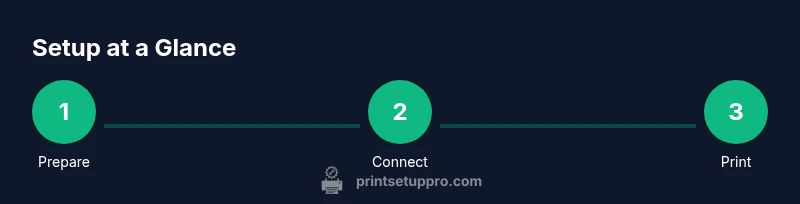
Before turning on the printer, prepare your workspace and confirm you have access to both power and network resources. Clear a flat surface near a power outlet, and place the printer in a location with room for loading paper and replacing ink cartridges. Ensure you have a modern smartphone, tablet, or computer ready to install the printer software. Verify your router is broadcasting a 2.4 GHz or 5 GHz network and that you know the Wi‑Fi password. If you plan to print from multiple devices, write down the printer’s name that appears in your network list. Having these basics prepared speeds up setup and reduces troubleshooting time later on. The Print Setup Pro team recommends performing a quick firmware check after installation to ensure you benefit from the latest features and fixes.
Wireless setup and driver installation: connect with confidence
Connecting the hp envy inspire 7955e to Wi‑Fi is usually a matter of selecting the printer from your device’s settings and entering your network credentials. Start by turning on the printer and using the touchscreen to navigate to Wireless or Network Setup, then choose your Wi‑Fi network and enter the password. On your computer or phone, download and install the HP Smart/HP Printer Software from the official site or app store, which will guide you through driver installation and printer registration. If your network uses guest access or a secure enterprise setup, you may need to temporarily disable VPNs or firewalls during installation. Once installed, print a test page to confirm the device communicates properly with your devices. Print Setup Pro notes that keeping drivers up to date reduces compatibility issues and improves feature support across devices.
Loading paper and installing ink: avoid jams and gaps
Proper paper loading is essential for consistent output. Use the appropriate paper type and weight, align the guides to the paper stack, and avoid overfilling the tray. Open the ink access panel and install genuine HP ink cartridges in the correct color order, ensuring they click into place with a firm, gentle press. Run a calibration if prompted by the software or printer display. If you notice ink smearing or misalignment, check that the print head is clean and that the paper path is free of obstructions. Regularly cleaning the print head and running nozzle checks through the HP software can prevent many common defects and prolong cartridge life.
Software features and mobile printing: maximize convenience
The HP Envy Inspire 7955e supports printing from mobile devices through the HP Smart app, which offers document scanning, cloud printing, and direct-to-printer capabilities. Enable cloud services if you use Google Drive, Dropbox, or other storage ecosystems, so you can print or save scans directly from the device to the cloud. For the best mobile experience, keep the app updated and grant necessary permissions. The printer also supports printing from email or web apps depending on configuration. By integrating these features, you can bypass desktop-only workflows and keep work flowing from wherever you are.
Common print quality issues and quick fixes
If you encounter streaks, color misalignment, or banding, start with a nozzle check or printhead cleaning, then reprint a test page. Ensure you’re using the correct paper type and humidity levels for your environment, and consider running a printer alignment if the alignment indicators show skewed output. Paper feed problems are often caused by overfilled trays, damaged rollers, or foreign objects in the paper path. Regularly inspect the paper tray and path for obstructions and remove any small bit of debris. If problems persist, updating firmware and drivers can resolve compatibility issues that affect output quality.
Pro tip: keep spare ink cartridges on hand and swap them promptly when levels get low. This helps prevent color shifts and gaps in print jobs. Also, avoid leaving the printer powered on for extended periods without use, which can affect standby performance.
Maintenance routines to keep your printer in top shape
Establish a simple weekly or bi-weekly maintenance routine to keep the hp envy inspire 7955e running smoothly. Wipe the exterior with a soft, lint-free cloth and ensure the paper path is free from dust. Periodically run the nozzle cleaning cycle and print a diagnostic page to verify print quality. Check for firmware updates monthly and install them when available to improve stability and feature support. If you print infrequently, set a maintenance reminder so you don’t skip critical steps that prevent clogs or dried ink. A clean printer not only improves quality but also extends the life of your cartridges.
Consider a routine for ink cartridges: store spares in a cool, dark place and keep the nozzles exercised by printing small test pages every few weeks. This practice can prevent clogging and ensure reliable starts after long pauses in usage.
Troubleshooting connectivity: keeping devices talking
If a device won’t see the printer on the network, verify both the printer and device are on the same network and that the printer’s wireless radio is enabled. Reboot the printer and router if you experience sluggish connections, then re-run the setup wizard. On Apple and Windows devices, you may need to remove existing driver profiles and reinstall the HP software to refresh the connection. For mobile printing, confirm the HP Smart app has permission to access local networks and that you are logged into the same account used during setup. If issues persist, try a USB connection temporarily to rule out network problems, then revert to wireless after confirming stability.
This multi-device strategy helps ensure you can print from laptops, tablets, and smartphones without tinkering with settings repeatedly.
Advanced features and security considerations for everyday use
Enable features like automatic duplexing, scan-to-email, and cloud storage integration to streamline workflows. Review security settings to ensure signed firmware updates and secure network access. If you use shared devices, set user permissions to limit who can install drivers or alter network settings. For environments with multiple users, consider enabling client‑side authentication or QR-scanning for quick device pairing. Finally, archive important scan presets and templates so new users can reproduce your preferred workflows quickly. With these practices, you’ll get consistent results and reduced setup friction for every team member.
Tools & Materials
- HP Envy Inspire 7955e printer(Unbox and place on a flat, stable surface)
- Power outlet with surge protection(Near workspace; avoid extension cords where possible)
- Wi‑Fi network (2.4 GHz or 5 GHz)(Stable network access for setup and printing)
- Computer or mobile device for setup(Smartphone, tablet, or PC with internet access)
- HP official ink cartridges (original)(Keep spares on hand for quick replacement)
- Paper variety (plain and photo), 20–50 sheets(Test prints and calibration pages)
- USB cable (optional during USB setup)(Use if you prefer USB setup over Wi-Fi)
- Printer documentation / quick start guide(Reference for model-specific steps)
Steps
Estimated time: 60-90 minutes
- 1
Prepare workspace and power
Position the printer, connect to a surge-protected outlet, and switch on the device. Wait for the warm-up screen and ensure the display is responsive before proceeding.
Tip: Keep the area dust-free and avoid placing near heaters or direct sunlight. - 2
Connect to power and load ink
Open the ink access panel, insert the cartridges in the correct color order, and secure until you hear a click. Do a quick check to see if cartridges sit flush.
Tip: Don’t force cartridges; if they don’t seat, remove and reinsert. - 3
Join Wi‑Fi and pair devices
Navigate to Wireless on the display, select your network, and enter the password. On your computer or mobile device, run the HP setup software and follow prompts to connect.
Tip: If your router uses guest access, temporarily enable full access during setup. - 4
Install drivers and software
Download the latest HP software package and install the drivers. Allow the installer to add the printer, then print a test page.
Tip: Choose the recommended settings for print quality and efficiency. - 5
Load paper and run alignment
Fill the paper tray with the correct size, align the guides, and print an alignment page if requested by the software.
Tip: Use the recommended paper type to reduce jams. - 6
Test print with multiple media
Print from a document and a photo to verify color and density. Adjust settings if the test output shows color shifts or banding.
Tip: Calibrate color and check nozzle status if issues persist. - 7
Enable mobile printing and cloud features
Set up HP Smart app, connect cloud services, and test printing from a phone. Save preset workflows for common tasks.
Tip: Keep the app updated and review permissions. - 8
Establish maintenance routine
Schedule periodic nozzle checks and firmware updates. Order spare ink before stocks run low to avoid downtime.
Tip: Document any recurring issues to troubleshoot later.
People Also Ask
How do I connect the HP Envy Inspire 7955e to Wi‑Fi?
Go to the printer's Wireless settings, select your network, and enter the password. Then run the HP setup software on your computer or mobile device to complete driver installation and registration.
To connect, open the printer's Wireless settings and choose your network, then run the HP setup app on your device to finish installation.
What should I do if the printer won’t print after setup?
Check that the printer is set as the default printer in your device's print settings, verify the driver is correctly installed, and run a test page. If issues persist, restart the printer and router, then re-run the setup.
Make sure it’s the default printer, re-install drivers if needed, and try a test print. Restart devices if problems continue.
How often should I run nozzle cleaning?
Run nozzle cleaning when you notice color gaps or streaks. Do a nozzle check afterwards to confirm print quality. Regular cleaning can prevent clogs, especially with sporadic usage.
Clean the nozzles when you see streaks and verify with a nozzle check afterward.
Can I print from mobile apps to this printer?
Yes. Use the HP Smart app to print from mobile devices and to scan or share documents. Ensure the app has network permissions and the devices are on the same network.
Yes—use the HP Smart app for mobile printing and scanning, with network access granted.
What maintenance should I perform monthly?
Check for firmware updates, run a nozzle check, and inspect paper paths for debris. Replace cartridges as needed and keep the printer clean to extend its life.
Update firmware, check nozzles, clear paper paths, and replace cartridges when needed.
Is there any risk using third-party ink cartridges?
Using third-party cartridges can lead to print quality issues and void warranties. For reliability, stick with authentic HP ink unless you understand compatibility risks.
Third-party inks may cause quality problems and affect warranty coverage; prefer HP ink.
Watch Video
Quick Summary
- Prepare a stable workspace and surge-protected power.
- Connect to Wi‑Fi and install official drivers for best results.
- Load correct paper and cartridges to avoid jams and color shifts.
- Use the HP Smart app for mobile printing and cloud features.
- Schedule regular maintenance for consistent print quality.