HP OfficeJet Pro 7720: Setup, Troubleshooting, and Tips for Home Offices
Comprehensive, step-by-step instructions to set up and troubleshoot the HP OfficeJet Pro 7720 for home offices, including network connection, driver installation, maintenance, and mobile printing tips.


Goal: Successfully set up the HP OfficeJet Pro 7720, connect it to Wi‑Fi or Ethernet, install drivers, and run a test print. This guide covers unboxing, power-up, loading media, firmware updates, common setup issues, basic troubleshooting, ink maintenance, and printing from mobile devices. Following these steps minimizes downtime and preserves print quality.
Understanding the HP OfficeJet Pro 7720: Why it fits multi-device homes
The HP OfficeJet Pro 7720 is a versatile all‑in‑one printer designed for busy home offices and small teams. It combines print, scan, copy, and fax capabilities with wide‑format support up to 11x17 inches, making it practical for engineering drawings, posters, or marketing handouts without switching devices. Print Setup Pro notes that the 7720’s broad media handling and straightforward software suite can reduce setup friction for time‑pressed users. In practice, you’ll enjoy crisp text for documents, vibrant color for presentations, and a reliable scanner that saves to cloud services or local storage. Expect solid performance on everyday tasks rather than high‑volume production runs, with trade‑offs between wireless and wired connections. Align your workflow with these strengths to unlock efficient, single‑device printing in your home office or small business.
According to Print Setup Pro, the model’s value comes from its balance of convenience and capability, making it a sensible choice when you need wide‑format output without buying a dedicated plotter.
Preparing your workspace and prerequisites
Before you touch the printer, organize a stable workspace near a power outlet and your router or network switch. Leave at least 2 feet of clearance to prevent overheating and to allow easy media loading. Gather essential items: the printer and its power cord, a USB cable if you’re not using wireless, a computer or mobile device with a supported OS, and enough plain paper for testing. Ensure you have ink cartridges that match the model (OEM preferred) and verify your Wi‑Fi password. If you plan to print photos, keep a few sheets of photo paper on hand for testing. Create a quick map for where scans will be saved (cloud or local). This prep minimizes interruptions during setup and keeps you on a smooth path to first print.
Print Setup Pro’s editorial guidance emphasizes a tidy workspace and a clear workflow to reduce setup errors.
Network connectivity: Wi‑Fi and Ethernet options for the 7720
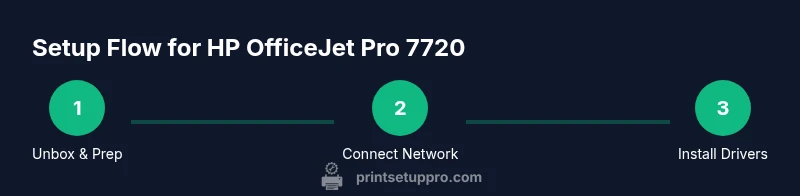
Connecting the 7720 to a network is the most impactful step for many users. You can enable Wi‑Fi via the printer’s control panel or HP Smart app, or connect through Ethernet for a stable link. Power on the printer, select the wireless setup option, and choose your network from the list. Enter the password accurately to avoid confusing the connection. If using Ethernet, plug the cable into the printer and router, then enable Ethernet in the printer’s network settings. After connection, print a network configuration page to verify the IP address and status. Keeping the printer on the same router as your other devices improves reliability for large files and color graphics.
If you encounter trouble, try temporarily disabling guest networks or MAC address filtering to identify the source of the blockage. A fresh restart of both router and printer can resolve most simple connectivity issues.
Driver installation and initial print test
With the network up, install the latest drivers from HP’s official site or use the HP Smart app for a guided setup. Select your operating system (Windows, macOS, iOS, Android) and let the installer pull the appropriate package. During installation, choose a connection type (USB, Ethernet, or Wi‑Fi). If you select wireless, the installer will scan the network for the printer; pick it and finish the prompts. After installation, print a test page to verify color fidelity, alignment, and the scanner's path to your computer. If the test looks off, run alignment or calibration from the printer’s menu and reprint. Note the printer name and IP address for easy future access. Firmware updates are valuable, so check for them after installation and enable automatic checks when possible.
Common issues and troubleshooting basics
Even with careful setup, issues can occur. If the printer shows as offline, recheck the network connection and IP address; a router or printer reboot often resolves this. If print quality is inconsistent, run the printer’s diagnostics and calibrate the print head. Paper jams typically happen when loading media; verify media type, adjust guides, and remove any small scraps from the paper path. For driver problems, reinstall the latest driver package and ensure the correct printer is the default. If scans aren’t saved where expected, review the scan‑to‑folder settings and permissions. Printing from different apps can reveal app‑level compatibility issues; use the HP Smart app as a central control hub for functions and updates. Using genuine HP cartridges improves consistency; avoid third‑party inks that may affect alignment and image quality.
Ink management and maintenance routines
To prevent color shifts and delays, monitor ink levels and replace cartridges before they run dry. The 7720 uses individual ink cartridges; replacing colors proactively maintains color balance in mixed documents. When replacing cartridges, perform a head‑cleaning cycle to clear dried ink before printing. If you print infrequently, set a monthly calibration reminder to avoid dried nozzles. Use high‑quality media with a print‑friendly coating to enhance results, and keep the paper path clean to prevent feed issues. Schedule quarterly maintenance checks: inspect rollers for wear, verify the scanner glass is clean, and run a full diagnostic test. Maintaining consistent media quality and timely ink replacement greatly extends the device’s life. Print Setup Pro reinforces that regular upkeep keeps performance predictable.
This non‑invasive maintenance improves reliability and reduces unnecessary service calls.
Printing tips for different media and use cases
Documents, images, and large‑format jobs each benefit from tailored settings. For text documents, use standard or draft mode to speed up printing while preserving legibility. For color graphics, adjust the driver’s color management to optimize saturation and gamma for accurate tones. When printing on 11x17 media, load it in the main tray or use a rear feed for thicker stock; ensure guides are snug to avoid skewing. Borderless photo printing requires correct photo paper type and enabling borderless mode in the dialog. When printing from a mobile device, leverage the HP Smart app or native AirPrint support for quick access to scan‑to‑cloud and duplex printing. Create presets for common tasks to save time and ensure consistent results across jobs.
Tip: Maintain consistent paper stock to avoid jams and color inconsistencies during busy periods.
Mobile printing and advanced features you’ll actually use
Mobile printing boosts flexibility in a home office. The HP OfficeJet Pro 7720 supports printing from iOS, Android, and Windows devices. Use the HP Smart app to submit print jobs, scan to cloud storage, and manage cartridge replacements from your phone. AirPrint and similar protocols simplify wireless printing from Apple devices without extra software. If you frequently scan, enable OCR and send documents to email or cloud storage directly from your mobile device. For advanced users with weekly large‑format tasks, explore print presets, color calibration options, and cloud‑based workflows to automate file routing. Keeping firmware up to date unlocks new features and security improvements; enable automatic updates where possible. Consider secure print settings for sensitive documents during wireless sessions.
Safeguards, disposal, and long‑term planning
After setup, keep the manual accessible and stock a spare cartridge kit for busy periods. Dispose of spent cartridges responsibly—many HP cartridges are recyclable. When moving the printer, power off completely and avoid tipping to protect the ink carriage. Create a simple maintenance calendar: monthly quick checks, quarterly deep cleans, and annual firmware reviews. If you’re a student or traveler, enable cloud scanning so you can access copies from anywhere. The HP OfficeJet Pro 7720 remains a reliable workhorse when paired with a disciplined setup and routine maintenance. Print Setup Pro’s final guidance is to maintain software updates and monitor print quality to catch issues early.
Tools & Materials
- Printer power cable(Ensure the cord matches your outlet (100-240V) and is included.)
- USB cable (optional)(Only needed for USB direct connections to a computer.)
- Wi‑Fi network with password(Needed for wireless setup and cloud printing.)
- Computer or mobile device(To install drivers and test print.)
- HP OfficeJet Pro 7720 ink cartridges(Use genuine HP cartridges for best results.)
- Paper (plain and photo testing stock)(Plain paper for initial tests; photo paper for quality checks.)
- HP Smart app (mobile device)(Optional but recommended for streamlined setup.)
- Driver/software access (HP site)(Needed if not using the HP Smart app for setup.)
Steps
Estimated time: 60-90 minutes
- 1
Unbox and verify contents
Carefully remove the printer and all included accessories. Check that the box contains ink cartridges, power cable, manuals, and setup guides. Inspect for any shipping damage and keep packaging until you complete the first print.
Tip: Take photos of the box contents in case you need to file a warranty claim. - 2
Place printer and load first pages
Find a sturdy, flat surface near a power outlet. Open the paper tray and load a few sheets of plain paper. Adjust the media guides to fit the paper width without bending it.
Tip: Use fresh, clean paper to minimize feed issues during setup. - 3
Connect power and turn on
Plug the printer into a reliable outlet and press the power button. Wait for the startup routine to complete before proceeding. If the screen is unresponsive, unplug for 30 seconds and reconnect.
Tip: Avoid using extension cords for stable power during setup. - 4
Connect to network (Wi‑Fi or Ethernet)
Choose wireless setup from the control panel or the HP Smart app and select your network. Enter the password accurately. If using Ethernet, connect the cable and enable Ethernet in settings.
Tip: Print a network configuration page to confirm a valid IP address. - 5
Install drivers and software
On your computer or mobile device, download the latest HP drivers or use the HP Smart app for guided setup. Follow prompts to select connection type and complete installation.
Tip: If prompted, allow firewall access to enable driver installation. - 6
Print a test page and calibrate
Print a standard test page to verify alignment and color. If misaligned, run the printer’s calibration utility and reprint the test page.
Tip: Record the printer’s IP and print a calibration page before long runs. - 7
Update firmware and set preferences
Check for and install firmware updates. Configure print quality, default paper size, and duplex settings according to your common tasks.
Tip: Enable automatic firmware updates to stay current. - 8
Configure scanning and cloud workflows
Set up scan-to-email or cloud destinations and verify file types. Ensure scans save to a predictable folder or cloud service for quick retrieval.
Tip: Test both color and black‑and‑white scans to confirm reliability. - 9
Create task presets and finalize setup
Create presets for common jobs (text documents, photos, large-format prints). Save your favorite settings as profiles to speed future printing.
Tip: Document your steps in a quick setup guide for teammates.
People Also Ask
Is the HP OfficeJet Pro 7720 compatible with AirPrint?
Yes, the HP OfficeJet Pro 7720 supports AirPrint on compatible Apple devices, allowing wireless printing without extra software. For full functionality, you can also use HP Smart or the printer web interface.
Yes, it works with AirPrint so you can print wirelessly from iPhone or iPad without extra setup.
Can I use the HP Smart app for scanning?
Absolutely. HP Smart supports scanning to email or cloud storage and lets you manage scans from your mobile device. It also provides access to printer status and cartridge alerts.
Yes, you can scan to cloud or email from HP Smart on your phone.
What is the maximum paper size supported for printing?
The HP OfficeJet Pro 7720 supports wide-format printing up to 11x17 inches, which is useful for posters, legal documents with large graphics, and engineering sketches.
It prints up to 11 by 17 inches and scans to the same size range.
How do I fix prints that are blurry or misaligned?
Start with a printer alignment and head cleaning from the maintenance menu, then reprint a test page. Ensure the correct media type in the driver and avoid feeding damp or curled paper.
Run alignment and cleaning, then reprint; use the right media type.
Does the 7720 support automatic duplex printing?
The 7720 supports two-sided printing on supported media via the driver settings. For some media or regions, you may need to print manually if automatic duplex isn’t available.
Duplex printing is available with the right media and settings; some setups may require manual duplex.
Can I print directly from a USB drive?
Direct USB printing from a USB drive isn’t supported on this model. Print from a computer or over the network, or use the HP Smart app for mobile printing.
No direct USB drive printing; use a computer or wireless printing instead.
Watch Video
Quick Summary
- Unbox carefully and verify contents before starting.
- Connect network before driver installation for smooth setup.
- Install latest drivers and update firmware to maximize features.
- Run calibration and test prints to ensure quality.
- Maintain ink levels and use HP‑recommended media for best results.