HP OfficeJet Pro 9020: Complete Setup, Print, and Troubleshooting Guide
A comprehensive, beginner-friendly guide to setting up, connecting, printing, scanning, and maintaining the HP OfficeJet Pro 9020 for home offices and small teams.


This guide walks you through setting up and optimizing the hp officejet pro 9020 for a reliable home-office workflow. You’ll unbox, install software, connect to Wi‑Fi, load media, run alignment, enable mobile printing, and establish basic maintenance. Follow the step-by-step process to minimize troubleshooting and keep print quality consistent across documents, photos, and scans.
hp officejet pro 9020: An Overview for Home Offices
The hp officejet pro 9020 is designed to balance performance and affordability for home offices, freelancers, and small teams. This all-in-one inkjet device offers printing, scanning, copying, and optional fax functionality in a compact footprint. For many users, its strength lies in reliable color output for documents and presentations, quick warm-up, and a straightforward software setup. According to Print Setup Pro, the model’s best value comes from a well-planned initial setup that minimizes post-purchase troubleshooting. When you choose the hp officejet pro 9020, you’re aiming for a device that handles daily tasks with predictable results and reasonable running costs. In practice, you’ll find it compatible with common operating systems, supports wireless printing from mobile devices, and includes essential scanning features that save time on digitizing documents. The key takeaway is that this model is well suited for households and small workgroups that want a flexible, easy-to-manage printer without a large footprint or steep learning curve.
Why the hp officejet pro 9020 Works Well for Small Teams
For small teams and busy home offices, the hp officejet pro 9020 delivers a practical balance of speed, quality, and cost efficiency. It supports color documents with crisp headings and graphs, plus reliable black-and-white text for invoices and reports. The built‑in scanner and user-friendly software help digitize paper records quickly, while wireless and mobile printing options keep work flowing when team members are away from their desks. Print Setup Pro emphasizes that choosing a model with consistent page yields and predictable consumable costs minimizes total ownership over a 12–24 month period, especially when print volumes fluctuate. This makes the 9020 a sensible choice for students, freelancers, and small offices that want a single device to cover daily print, copy, scan, and occasional fax tasks.
Planning Your Setup: Environment, Network, and Paper
Successful deployment starts with a quiet, well-ventilated space away from heat sources and moisture. Ensure there’s a stable power supply and adequate desk space for the printer plus your primary input tray. Network readiness is crucial: if you’ll print wirelessly, confirm your router supports modern WPA2/WPA3 standards and that both your computer and mobile devices can see the printer on the same network. The hp officejet pro 9020 handles a range of media sizes and types, from plain copy paper to presentation stock; however, selecting the correct paper type in printer preferences improves color accuracy and paper handling.
What’s in the Box and How to Prepare
Unbox the printer carefully and verify all accessories are present: power cable, user guide, starter ink cartridges, and setup CD or URL. Remove protective tape and packaging, then install the starter cartridges following the color-coded guide. Before first use, place a few sheets of plain paper in the input tray and reset the printer to factory defaults if you’ve previously connected it to another network. This preparation reduces misfeeds and ensures the printer starts with clean rollers and fresh consumables.
Wireless Setup and Software Installation
Wireless setup typically involves selecting the printer from your device’s Wi‑Fi menu and then installing the latest HP software from HP’s official site or the HP Smart app. During installation, you’ll be prompted to sign in to or create an HP account, which enables ongoing management of ink levels, maintenance reminders, and remote printing. If you need USB or Ethernet connectivity, the setup still benefits from a stable network link, as software updates and cloud-print options rely on a dependable connection. The result is a responsive, secure printing environment across devices.
Daily Use: Printing, Scanning, and Maintenance
Once configured, the hp officejet pro 9020 should handle most tasks with minimal intervention. Use the control panel or the HP Smart app to start prints, scan documents to email or cloud storage, and adjust basic settings like duplex printing or color intensity. Regular maintenance—such as aligning print heads, cleaning nozzles, and updating firmware—preserves print quality and reduces the risk of paper jams. In practice, setting up automatic maintenance reminders can save time and prevent unexpected downtime during busy weeks.
Troubleshooting Common Issues and Quick Fixes
Common problems include connectivity drops, print quality issues, and occasional paper jams. A quick first step is to restart the printer and confirm it has the latest firmware. For connection problems, re-run the wireless setup and verify that you’re connecting to the correct network with a strong signal. Poor print quality often indicates clogged nozzles or expired ink cartridges; running a print head cleaning routine from the software can resolve most issues. If jams occur, gently remove the jammed sheets in the direction of paper travel and inspect the rollers for nicks or debris. With these basics, most everyday problems can be resolved without professional service.
Cost Considerations: Ink, Paper, and Efficiency
Ink costs are a factor in total ownership, so consider using standard-capacity cartridges for routine printing rather than high-yield variants unless your volume justifies the cost. Paper choice matters too: a good-quality, consistent thickness reduces jams and charging errors. Efficiency can be boosted by enabling two-sided printing, using draft or grayscale modes for internal documents, and scheduling print jobs to align with off-peak network usage if you share the printer across multiple users. Print Setup Pro’s guidance here emphasizes planning your consumable budget alongside your typical monthly print volume to avoid sticker shock at refill time.
Final Quick-Start Checklist
- Confirm the hp officejet pro 9020 is placed on a stable surface with access to power and a network signal.
- Install drivers and app software from the official source and sign into your HP account if prompted.
- Load the appropriate paper type and enable duplex printing for efficiency.
- Run a test print and alignment to verify color accuracy and page alignment.
- Enable mobile printing (HP Smart, AirPrint, or Google Cloud Print) for flexible workflows.
Authority Notes and Practical Tips
The hp officejet pro 9020 can be a dependable backbone for home offices and small teams when configured properly. Regular firmware updates, careful cartridge management, and appropriate media choices are essential for long-term performance. For readers seeking independent validation, energy-efficient operation and easy maintenance align with best practices recommended by energy-focused guidelines from public sources.
Tools & Materials
- Power cable(Use the original power supply; avoid extensions if possible)
- Printer unit (hp officejet pro 9020)(Ensure no visible damage on arrival)
- Starter ink cartridges(Install and prime as per manual)
- Input paper (A4/Letter)(Plain paper for setup and test pages)
- USB or Ethernet cable (optional)(Use if you prefer a wired connection)
- Smartphone or computer with internet(For software installation and mobile printing)
- Router with stable Wi-Fi(Recommended for reliable wireless printing)
Steps
Estimated time: 40-60 minutes
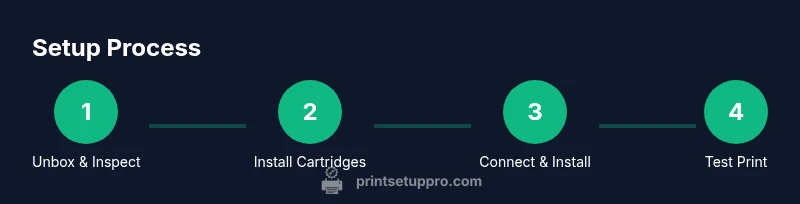
- 1
Unbox and inspect the printer
Carefully unpack the hp officejet pro 9020 and confirm all components are present. Remove tape and protective packaging, then check for any shipping damage. This avoids hidden issues that could affect setup.
Tip: Take a photo of the contents if you notice any damage for warranty purposes. - 2
Install starter ink cartridges
Open the cartridge access area and install each color cartridge in the designated slot. On first power-up, let the printer prim eink to calibrate color output.
Tip: Keep cartridges upright and avoid touching the nozzles to prevent clogs. - 3
Load paper and adjust trays
Place a stack of plain paper in the main tray and adjust the guides to the paper width. Confirm the media type is set to a standard weight in printer settings.
Tip: Use high-quality, flat paper to minimize jams during start-up. - 4
Power on and select language
Connect the power cable, power up, and choose your preferred language and region on the control panel. This establishes the baseline for defaults.
Tip: If the screen stays dark, check the power connection and try a different outlet. - 5
Connect to Wi‑Fi and install software
From the control panel, select the wireless setup wizard and connect to your home or office network. On your computer or phone, install the official HP software or HP Smart app to complete the setup.
Tip: Prefer a 2.4 GHz network if dual-band performance is inconsistent. - 6
Print a test page and align
Print a test page to verify alignment and color accuracy. If misalignment appears, run the alignment utility from the software until the test page comes out clean.
Tip: Small misalignment on the first page is normal; run the alignment a second time if needed. - 7
Enable mobile printing and maintenance reminders
Set up HP Smart or AirPrint to print from phones and tablets. Enable automatic firmware updates and schedule maintenance reminders for ink levels and nozzle checks.
Tip: Regular checks reduce run-outs and unexpected downtime.
People Also Ask
Is the hp officejet pro 9020 compatible with Mac and Windows?
Yes, this model supports common Windows and macOS versions. Install the official drivers or use the HP Smart app for seamless printing and scanning across devices.
Yes, it works with both Windows and Mac, using official drivers or the HP Smart app.
Can I print from my phone with the hp officejet pro 9020?
Absolutely. You can print from iOS or Android using Apple AirPrint, Google Cloud Print (where supported), or the HP Smart app for direct mobile printing.
Yes, you can print from your phone using AirPrint or the HP Smart app.
What about ink usage and cartridge replacement?
Use genuine HP ink for optimal quality and reliability. Replacement frequency depends on your print volume and color usage; monitor ink levels via the HP software.
Ink replacement depends on usage; monitor levels in the HP software and use genuine HP ink.
How do I fix paper jams in this model?
Gently remove jammed paper following the paper path, then inspect and clean the input rollers. Use the rear access panel if jams occur behind the paper tray.
Open the rear panel and gently pull out the jammed paper along the path.
Why won’t the printer connect to Wi-Fi?
Verify your network credentials, ensure the printer is within range, and re-run the wireless setup. If needed, temporarily disable guest networks or security settings that could block the printer.
Check the network, re-run setup, and ensure the printer is on the same network as your devices.
Where can I find official drivers for this model?
HP’s official support site provides the latest drivers and software for the hp officejet pro 9020. Select the correct OS version to download matching software.
Get drivers from HP’s official support site, choosing the right OS.
Watch Video
Quick Summary
- Connect the printer to a stable network for reliable printing.
- Install official drivers before printing to ensure compatibility.
- Run alignment and a test page after setup to verify quality.
- Enable mobile printing to simplify workflows across devices.