HP Smart App Printer Setup: A Practical Step-by-Step Guide
Print Setup Pro guides you through using the HP Smart app for printer setup, Wi‑Fi connection, firmware updates, and common troubleshooting for a smooth network.


Using the HP Smart app for printer setup lets you install, connect to Wi‑Fi, and manage your HP printer from a phone or tablet. This guide walks home-office users, students, and small businesses through a practical, step‑by‑step process to get printing quickly and securely with the HP Smart app.
Why the HP Smart app is a smart choice for printer setup
The HP Smart app is designed to simplify the entire printer setup journey, especially for home offices, students, and small businesses. By guiding you from unpacking to first print, the app minimizes the number of separate tools and drivers you need to manage. You’ll typically install the app on a mobile device, sign in with your HP account, and let the app walk you through connecting to your Wi‑Fi network. This approach reduces the risk of missed steps and network conflicts, and it centralizes status checks, ink or toner levels, and ink replacement reminders in one convenient place. Print Setup Pro notes that relying on a single, official app can also improve security by keeping firmware checks, driver updates, and network configuration in sync with the device you carry. As you prepare, keep in mind that the HP Smart app is frequently updated to add features and patch vulnerabilities, so ensure your app is current before starting.
In practice, using the HP Smart app means you can switch between printers (if you have more than one) from a single interface, print from mobile devices without installing printer-specific software on every computer, and receive helpful prompts if you need to adjust settings for best results. For educational users and DIY enthusiasts, this streamlines projects that require quick, reliable access to a printer without a complex setup routine. Print Setup Pro recommends using the app to manage routine maintenance tasks, firmware checks, and reminders to keep your printer performing at its best.
Preparing your environment for HP Smart app setup
Before you install or open the HP Smart app, take a moment to prepare your environment for a smooth setup. Start with a stable Wi‑Fi network that supports the printer’s capabilities (2.4 GHz is widely supported; some printers also work on 5 GHz). If you’re using a guest network, check whether it restricts device discovery and printer communication; you may need to enable printer traffic on your network or temporarily disable client isolation. Gather essential details: your Wi‑Fi SSID, password, and the printer’s model information. If you plan to use cloud features or mobile scanning, sign in to or create an HP account so the HP Smart app can sync settings across devices. Ensure your mobile device is updated to the latest operating system version and has a healthy internet connection to download and install the app.
For users on shared networks or campuses, Print Setup Pro suggests testing the network with a quick ping to the router after you’ve connected the printer to ensure there’s no firewall interference that would block printer discovery. Keeping the printer powered on and near your router during setup helps minimize connection dropouts and speeds up the initial pairing.
Installing and configuring the HP Smart app
Start by downloading the HP Smart app from your device’s official store (iOS App Store or Google Play). Open the app, grant necessary permissions (location, notifications, etc.), and log in with or create your HP account. The app will detect available printers nearby or allow you to add a printer manually by selecting its model. Follow the guided prompts to configure language, location, and preferred print settings. It’s common for the app to propose a firmware update during setup—accepting it can improve performance and security. If you encounter authentication prompts, ensure your HP account is active and email verification is complete. As you configure, take a moment to set up basic preferences, such as default paper size and print quality, to streamline future print jobs.
Tip: If the app asks you to enable notifications for status alerts or ink reminders, consider enabling them to stay informed about maintenance cycles and cartridge levels. If you have multiple printers, you can add each one to your account and switch between them from the main dashboard, reducing switching time for different projects.
Connecting your HP printer to Wi‑Fi using the app
With the printer powered on and the app ready, the next step is to connect the printer to your Wi‑Fi network. The HP Smart app typically provides a guided flow: you’ll select your network from a list, enter the password, and wait for the printer to confirm a successful connection. If your printer supports a temporary Wi‑Fi Direct setup, you may be prompted to connect directly to the printer’s own network for initial configuration, then switch back to your home router. In many cases, the app will push the Wi‑Fi credentials to the printer automatically, so you don’t have to type long strings on the printer’s control panel. Ensure you’re within range of the router to maintain a stable connection during this process. Print Setup Pro emphasizes not leaving the printer powered off or the app closed during the initial handoff, as drops in connectivity can require restarting the setup flow.
If you run into a failure, verify that the wrong network name isn’t selected and that your router isn’t blocking essential printer traffic. If your printer has a captive portal, you may need to complete a one-time network login via the printer’s screen or the app before continuing.
Printing a test page and verifying results
After the app confirms a successful connection, print a test page to verify the setup. The HP Smart app makes this straightforward: tap the test print or sample document option, choose a test image or text, and confirm before sending. If the test print fails, double‑check the printer’s paper tray, ink/toner status, and paper size settings in the app. Sometimes a misconfigured print quality or paper type can cause the test to fail even when the network is healthy. If your test prints, check alignment and color accuracy, and adjust settings in the app if needed. Print Setup Pro notes that keeping the printer’s firmware up to date improves test print reliability and reduces the likelihood of driver mismatches across devices.
For multi‑user setups, consider enabling a shared print queue in the app so different devices can access the same printer without reconfiguring connections. If issues persist, a quick power cycle of both the printer and router can resolve stubborn connectivity problems.
Firmware updates and driver considerations within the app
Firmware updates are a core part of maintaining compatibility and security, and the HP Smart app will prompt you when an update is available. It’s best to run updates through the app when prompted, as this ensures the printer’s onboard software aligns with the app’s driver components. If you use the printer with a computer that requires drivers, the app handles most tasks without separate driver installations, but check for any optional driver updates recommended by HP or your operating system. Always back up or record critical print settings before updating firmware, in case the update resets preferences. Print Setup Pro reminds readers that firmware updates can occasionally cause brief downtime; plan your print schedule accordingly.
If you’re managing multiple devices (phones, tablets, or computers), ensure each device has the latest app version to minimize compatibility issues. HP often folds in cumulative improvements, so a recurring maintenance check is wise.
Using HP Smart app across devices and accounts
The HP Smart app is designed for cross‑device use, letting you access the same printer from different phones or tablets associated with your HP account. To use the same printer on another device, simply sign in with the same HP account and re‑select the printer from the app. This capability is particularly helpful for households or small teams where different users need quick printing access. If you share the printer with others, consider enabling guest access or creating user profiles to manage permissions. Print Setup Pro highlights the value of centralized management for reduced setup time and fewer configuration errors when switching devices.
For students moving between dorm rooms and home, this approach saves setup time and ensures consistent print settings across devices. If you rely on cloud printing or mobile scanning, ensure you’ve enabled those features in the app’s settings and linked the associated cloud accounts.
Security and privacy considerations when using mobile printer apps
Mobile printer apps introduce new vectors for privacy, so it’s important to balance usability with security. Keep your app and device updated to minimize vulnerabilities. Use strong, unique passwords for your HP account, enable device lock (PIN, biometric) on your phone, and periodically review connected devices in the HP Smart app. When on public networks, avoid sending sensitive documents unless you’re on a trusted network or using the app’s secure cloud features with encryption. HP also provides controls for scanning data retention and cloud storage; understand how long documents are stored in the app’s cloud and choose auto‑delete settings if privacy is a priority. Print Setup Pro recommends enabling two‑factor authentication where available and regularly auditing your account’s connected devices to prevent unauthorized access.
Common pitfalls and quick fixes
Even with clear prompts, you may encounter setup snags. Common issues include selecting the wrong Wi‑Fi band, printer not appearing in the app, or firmware updates failing due to a weak internet connection. A practical fix is to temporarily disable VPNs, ensure your router’s firmware is up to date, and retry the setup flow. If the printer remains undiscovered, try the direct connection method (Wi‑Fi Direct) for initial setup, then reconnect to your home network. Keep a backup plan handy, such as a device restart and re‑adding the printer after a brief power cycle. Print Setup Pro suggests documenting the model and firmware version so you can reference it quickly when troubleshooting or seeking support.
Summary: why this approach works in real life
Using the HP Smart app for printer setup brings a streamlined, centralized workflow to everyday printing tasks. It reduces the number of separate steps, keeps firmware and drivers in one place, and makes it easier to manage multiple printers and users. A well‑executed setup supports faster test prints, more reliable wireless connections, and better ongoing maintenance reminders. If you’re a home office user, student, or DIY enthusiast, this approach minimizes downtime and frustration, enabling you to focus on your projects rather than printer maintenance.
Tools & Materials
- Smartphone or tablet with internet access(Ensure you have iOS 12+/Android 9+ or newer for compatibility with the HP Smart app.)
- HP Smart app installed(Download from the official App Store or Google Play; keep it updated.)
- HP printer powered on(Place near the router during setup; have power cable available.)
- Wi‑Fi network name (SSID) and password(Prefer a stable 2.4 GHz network if issues arise; have guest network credentials only if required.)
- Optional USB cable for direct setup (older models)(Some older printers support USB‑to‑PC setup as an alternative path.)
Steps
Estimated time: 25-40 minutes
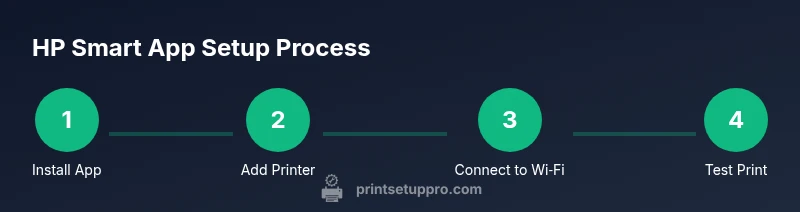
- 1
Install the HP Smart app
Download and install the HP Smart app from your device's official store. Open the app, grant required permissions, and sign in or create an HP account. This first step readies the app for printer discovery and network configuration.
Tip: If you already have the app, ensure it’s updated to the latest version before proceeding. - 2
Add your printer to the app
Within the app, choose Add Printer and allow the app to scan for nearby devices. Select your printer model from the list and confirm the pairing.
Tip: If the printer doesn’t appear, bring the device closer to the printer and ensure both devices are on the same network or use Wi‑Fi Direct for initial pairing. - 3
Connect printer to Wi‑Fi via the app
Follow the guided prompts to select your home network and enter the password. The app will push the network settings to the printer and confirm when the connection is successful.
Tip: If prompted to enable a guest network, decide based on your network’s security policy; recheck credentials if the connection fails. - 4
Verify printer readiness and default settings
After connection, check paper size, print quality, and default tray within the app. Adjust as needed for typical documents you print, such as drafts, photos, or reports.
Tip: Set a preferred default tray and paper size to speed up future print jobs. - 5
Print a test page
Use the app’s test print feature to confirm successful communication between device and printer. Review alignment, color, and margins on the test page.
Tip: If colors are off, recalibrate color settings or run a print head cleaning via the app. - 6
Check for firmware updates
If prompted, install any available firmware updates to ensure compatibility and security. Updates may require a brief pause in printing while the printer restarts.
Tip: Keep the app open and connected during updates to prevent partial installs. - 7
Enable cloud printing and reminders (optional)
If you use cloud or mobile scanning features, enable them in the app and sign in to associated accounts. Set up ink/maintenance reminders to stay ahead of print quality issues.
Tip: Only enable cloud services you trust and that bind to your HP account. - 8
Document settings and share access
Document your printer’s typical settings and connect other devices if needed. Share printer access with trusted users if you’re in a small team or family setup.
Tip: Maintain a simple access policy to avoid conflicting print jobs.
People Also Ask
Do I need a USB cable for HP Smart app setup?
Usually not. The HP Smart app guides you through wireless setup, though a USB cable can help for initial discovery on older printers.
Most users don’t need a USB cable; the app handles wireless setup, but a USB cable can assist with older models if needed.
Can I use the HP Smart app with multiple printers?
Yes. You can add multiple printers to the same HP account and switch between them from the app’s main dashboard.
Yes, you can manage several printers from one account in the HP Smart app.
What if the app can’t find my printer?
Check that both devices are on the same network, restart the printer and app, and ensure the printer is in setup mode. If needed, try Wi‑Fi Direct for initial pairing.
If the printer isn’t found, restart devices and verify setup mode; you can use Wi‑Fi Direct to pair first.
Should I update firmware before using the printer?
Updating firmware generally improves compatibility and security; perform updates when prompted by the app.
Yes—update firmware when prompted to ensure optimal performance and security.
Does HP Smart support older printer models?
Most recent HP printers support HP Smart, but some very old models may have limited app features; check HP’s compatibility page for your model.
Most newer HP printers work with HP Smart; older models may have limited features.
Is cloud printing secure on mobile devices?
Cloud printing is secure when you enable encryption and use trusted networks; review app privacy settings to control what data is stored.
Cloud printing is secure when you use encryption and trusted networks; manage settings in the app.
How do I troubleshoot print quality issues?
Run a print head cleaning and alignment from the app, check ink or toner levels, and verify paper type and settings align with your documents.
Run cleaning and alignment from the app, check supplies, and confirm paper settings.
Can I set up HP Print with this app on multiple devices?
Yes—install the app on each device and sign in with the same HP account to access the shared printer.
You can install the app on multiple devices and access the shared printer via the same account.
Watch Video
Quick Summary
- Start with the HP Smart app and power on the printer.
- Connect to the correct Wi‑Fi network and verify the connection.
- Update firmware when prompted for best results.
- Print a test page to confirm successful setup.