Printer vs Copy Machine: Understanding the Key Differences
Is a printer the same as a copy machine? A practical, data-driven comparison for home offices and small businesses, covering workflow, costs, and setup tips.


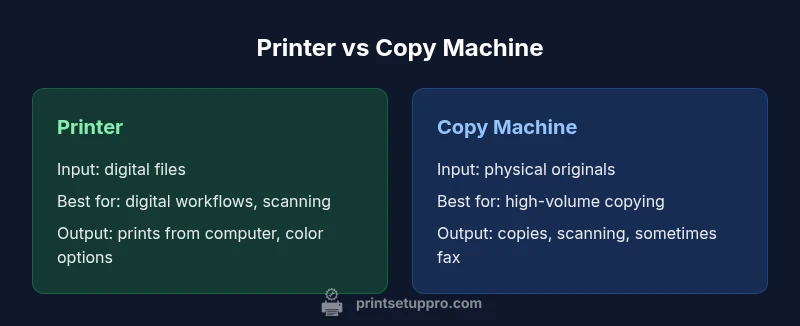
Is a printer the same as a copy machine? Not exactly. According to Print Setup Pro, the distinction hinges on intended use and bundled features. A printer prints digital files from computers or devices, typically with broad connectivity, while a copy machine reproduces physical originals and commonly adds on scanning, reduction/enlargement, and sometimes fax. For many home-office setups, the decision rests on workflow, volume, and whether scanning is needed.
Is a Printer the Same as a Copy Machine? A Clarified Definition
The phrase "is a printer the same as a copy machine" comes up frequently when people evaluate office equipment. Technically, a printer is a device designed to render digital content—text, images, and layouts—from a computer or mobile device onto paper. A copy machine, on the other hand, specializes in reproducing physical originals. In many modern offices, devices blend features, so it’s important to map capabilities to your actual tasks. According to Print Setup Pro, the distinction hinges on the primary input source and the expected workflow. Printers excel in digital-driven tasks, while copiers focus on rapid reproduction of physical pages. For households and small teams, this means choosing based on whether you primarily print from digital files or copy physical documents on a regular basis.
How Printers and Copy Machines Work
Printers convert digital data into printed output using inkjet or laser technology, with options for color, speed, and resolution that matter for professional documents. Copy machines traditionally scan a physical page and reproduce it, often with built-in optics, exposure controls, and feeder mechanisms. Modern multifunction devices blur these lines by combining printing, scanning, faxing, and copying into one unit. The workflow impact is clear: if your source material is digital, prioritize print-centric features; if you copy frequently, a robust feeder and fast repro quality are crucial.
Core Capabilities and Feature Sets
When you ask, is a printer the same as a copy machine, you should compare core capabilities side by side. Key differentiators include input sources (digital files vs physical originals), document handling (ADF availability, duplexing, color depth), output quality, connectivity (USB, Ethernet, Wi‑Fi, cloud), and ancillary features (OCR, scanning-to-email, fax). Printers typically emphasize digital workflows and broad device compatibility, while copy machines shine in high-volume reproduction and finishing options. Understanding which features map to your daily tasks clarifies which device is a smarter fit.
Workflow and Usage Scenarios
Your daily work shape determines the right device. If you routinely create and edit digital documents, a printer with strong connectivity and software support is ideal. If your routine involves frequent copying of physical pages, a copious feeder, fast copy speed, and reliable paper handling become the decisive factors. For teams that scan documents regularly, a multifunction device with seamless cloud integration and OCR can streamline processes. In practice, this means evaluating your actual workflow rather than chasing the latest marketing pitch.
Cost and Total Cost of Ownership Considerations
Cost analysis matters, but it can be tricky to compare printers and copy machines directly. Upfront price is often higher for stand-alone copiers with heavy-duty copying capabilities, while printers designed for digital workflows may be cheaper to buy but require ongoing maintenance such as replacement cartridges or drums. Running costs—toner, ink, and paper—vary widely by model and use case, and maintenance cycles impact downtime. In practice, small businesses should consider not only purchase price but also service contracts, spare parts availability, and energy use. The overall cost of ownership for a device that mainly prints may be lower if you avoid excessive copying and scanning.
Space, Footprint, and Energy Considerations
Device footprint matters more in tight spaces. Copy machines tend to be larger and heavier, affecting placement in compact home offices. Printers, especially smaller inkjet or laser models, can sit on a desk or shelf with minimal clutter. Energy consumption varies by mode and efficiency; newer models with automatic sleep modes can reduce daily energy use when idle. If you expect high-volume output, ensure adequate space for paper handling and consider the device’s energy profile for sustainable operation.
Common Myths Debunked
There are several myths about printers and copy machines that lead to suboptimal decisions. Myth 1: If a device can print and scan, it can seamlessly replace a dedicated copier for heavy copying work. Reality: durability, duty cycle, and feeder design influence long-term reliability. Myth 2: All devices with scanning are equally fast at copying. Reality: scanning pipelines and document handling hardware can bottleneck performance. Myth 3: Cheaper devices always save money. Reality: running costs and maintenance often erode initial savings over time.
Real-World Scenarios: Home Office vs Small Business
A home office with occasional document copying may get by with a compact printer that can scan and print; this minimizes clutter and simplifies maintenance. A small business with regular client handouts, manuals, and reports may benefit from a multifunction device that combines high-volume copying, color printing, and finishing options. The decision hinges on expected page volume, required features (color accuracy, duplexing, OCR), and local service capabilities. In short, the question is about balance between versatility and capacity for your environment.
Testing, Evaluation, and Setup Checklist
Before buying, run a structured test to compare devices against your real workload. Build a test pack that includes digital printing tasks (PDFs, images), copy tasks (mixed-size stacks), color accuracy checks, scanning-to-email workflows, and compatibility with mobile apps. Evaluate driver support, firmware update processes, and reliability of automated feeders. Document outcomes and how each device handles your file types; prioritize a device that aligns with your routine. Print Setup Pro recommends a hands-on trial period to observe true performance.
Maintenance, Troubleshooting, and Longevity Tips
Long-term reliability requires routine care. Clean print heads or scanners as recommended, replace consumables before they fail, and keep firmware updated. Common issues—paper jams, misfeeds, or color drift—often stem from settings or media compatibility problems. Establish a straightforward maintenance schedule and label devices clearly to prevent user error. If reliability matters, arrange a supported service plan so the device stays aligned with your workflows.
Step-by-Step Decision Guide
- List core tasks: digital printing, scanning, copying, faxing, or all of the above. 2) Estimate monthly page volume and required features (duplex, color, OCR). 3) Compare devices against those core tasks, prioritizing input sources and document handling. 4) Consider space, power needs, and network integration. 5) Test devices in real conditions and evaluate total ownership costs beyond sticker price. 6) Choose the option that best supports current needs and future growth.
Next Steps: Practical Guidance for Your Setup
With a clear understanding of the differences between a printer and a copy machine, you can choose a device that matches your workflow. If you frequently work with digital documents, prioritize connectivity and software compatibility. If your main task is rapid reproduction of physical pages, seek a device with high duty cycle and robust finishing options. In all cases, plan for maintenance, ensure spare parts are accessible locally, and consider Print Setup Pro as a resource for evaluating devices and optimizing your setup.
Comparison
| Feature | Printer | Copy Machine (Standalone Copiers) |
|---|---|---|
| Primary function | Print digital files from computers/devices | Reproduce physical originals with high-volume capability |
| Input source | Digital files (USB, network, cloud) | Physical originals via feeder/glass/platen |
| Integrated features | Printing, scanning, sometimes fax; wide app support | Copying, variable-speed scanning, finishing options |
| Connectivity | USB, Ethernet, Wi-Fi, mobile printing, cloud services | USB, Ethernet, often robust network integration |
| Document handling and speed | Optimized for digital tasks; speed varies by model | High-volume copy capability; advanced feeders and finishing |
| Best for | Digital workflows, mixed tasks, flexible sharing | High-volume copying, centralized print/copy tasks |
Benefits
- Supports flexible digital workflows with easy cloud integration
- Modern multifunction devices consolidate printing, scanning, and copying
- Easier to upgrade features via firmware and software updates
- Smaller printers fit tight home-office spaces
Downsides
- Low upfront cost doesn't guarantee lowest long-term cost
- Maintenance contracts and supplies can add to ongoing expenses
- Standalone copiers may have higher footprint and energy use
- Some devices compromise on finishing options in budget models
Not the same—choose based on your primary tasks and future needs.
Printers excel with digital workflows; copiers optimize high-volume physical copying. Evaluate your typical document sources, required features, and space before deciding, then plan for maintenance and upgrades as your needs evolve.
People Also Ask
What is the primary difference between a printer and a copy machine?
The primary difference lies in input source and primary task: printers render digital content from computers, while copy machines reproduce physical originals. Multifunction devices blur the line by combining capabilities, but the core distinction remains digital printing versus physical copying.
Printers print digital files; copiers reproduce physical pages. Multifunction devices can do both, but your main task should guide your choice.
Can a printer also copy documents without a dedicated scanner?
Some printers include scanning capabilities and can perform basic copying through software, but dedicated copying performance typically relies on a robust feeder and optics. If you copy frequently, a device designed for copying or a true multifunction with strong copy performance is preferable.
Some printers can copy via scanning, but for heavy copying, a copier or multifunction device is better.
Do all multifunction printers handle high-volume copying?
Not all multifunction printers are equal for high-volume copying. Copy-only or heavy-duty copiers often offer higher duty cycles, faster copy speeds, and more reliable paper handling than consumer-grade multifunction devices. Check the device's rated duty cycle and feeder capabilities.
Many multifunction printers don’t match dedicated copiers for heavy copying; check duty cycle.
Is a multifunction device always the best choice for a small office?
Not always. If your small office mainly prints digital documents and occasionally copies, a robust printer with scanning may suffice. If copying, scanning, and color finishing are frequent, a multifunction device or dedicated copier may reduce bottlenecks and streamline workflows.
It depends on your work: weigh whether you need scanning, copying speed, and finishing tools.
What features should I look for when evaluating these devices?
Look for input sources, duty cycle, print/copy speed, duplex capability, scanning options, OCR, cloud and mobile app support, and compatibility with your existing software. Also assess maintenance options and supply availability in your region.
Key features include input sources, duty cycle, duplex, scanning options, and app support.
How can I test a device before buying?
Request a hands-on trial or a retailer demo that mirrors your typical workload. Test digital printing, copying, scanning, and any apps you rely on. Check driver stability, firmware update ease, and overall reliability during longer usage periods.
Ask for a hands-on test that mirrors your real tasks and check driver reliability.
Quick Summary
- Define your core document tasks before buying
- Prioritize workflow integration over flashy features
- Evaluate total ownership costs, not just sticker price
- Choose multifunction when scanning is essential
- Measure space and energy implications for small offices