Kodak Mini Printer: Setup, Troubleshooting, and Tips
Learn how to set up, connect, and troubleshoot your Kodak Mini Printer. This Print Setup Pro guide covers wireless pairing, app usage, paper loading, and common fixes for reliable photo printing.


This how-to guide shows you how to set up and troubleshoot a Kodak Mini Printer for reliable wireless printing from a smartphone or computer. You’ll learn prep steps, connection options, common issues, and quick fixes for smooth photo prints. According to Print Setup Pro, following official setup workflows minimizes downtime and improves first-pass print success of the kodak mini printer.
Introduction to Kodak Mini Printer: What you’ll accomplish
The kodak mini printer makes mobile photo printing easy, compact, and fast. In this educational guide from Print Setup Pro, you’ll learn how to prepare the device, pair it with your phone or computer, load media correctly, and print high-quality photos consistently. We’ll cover wireless pairing, app setup, and practical tips to avoid jams, color inaccuracies, and connection drops. By following these steps, you’ll reduce downtime and improve print success with the kodak mini printer, whether you’re at home or on the go. According to Print Setup Pro, a well-planned setup reduces troubleshooting time and yields reliable results across common mobile platforms.
What You Need Before You Start
Before you dive in, gather a few essentials to ensure a smooth setup for the kodak mini printer: a charged printer, a phone or computer, the official Kodak app or the latest firmware, the proper photo paper, and a stable power source. Print Setup Pro notes that using the correct media and keeping firmware updated reduces connectivity issues and print artifacts. Having a tidy workspace and charging the printer beforehand also speeds up the process and minimizes interruptions.
Step-By-Step Setup Overview
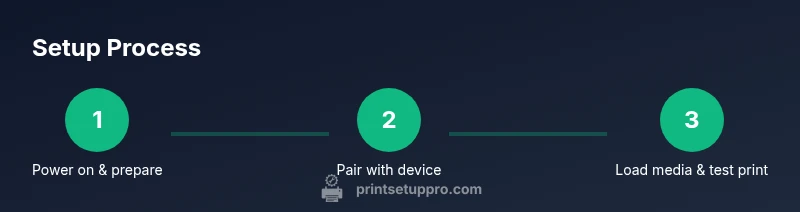
The kodak mini printer setup involves powering on, installing the app, pairing, loading media, and running a test print. In this guide we’ll provide a structured sequence of actions with troubleshooting tips. Expect to spend about 30-40 minutes for a complete setup, including a calibration print. The process is designed to be repeatable, so you can reproduce consistent results for future prints.
Connectivity and Mobile Printing Options
Kodak mini printer supports Bluetooth and, depending on model, optional Wi‑Fi. You can print directly from iOS or Android devices using the Kodak app. For best reliability, keep the app updated and grant necessary permissions (location, storage, camera). Print Setup Pro’s analysis shows that proper pairing and permission management reduce repeated connection prompts and speed up printing workflows.
Loading Paper and Handling Media
Use the recommended photo paper designed for the Kodak mini printer’s print chemistry. Load sheets with the printable side facing up and align the stack as directed in the user manual. If media feeds skew or jam, re-seat the stack and verify there are no bent corners or damaged sheets. Proper loading is essential for crisp edges and accurate color reproduction.
Printing Quality: Color, Brightness, and Calibration
To achieve accurate colors, use calibrated images and leverage the app’s color presets. The kodak mini printer tends to reproduce bright, vivid photos best on glossy media, while matte finishes may appear softer. When colors look off, recalibrate within the app and reprint a test image. Keep ambient lighting consistent during calibration to avoid perceived color shifts.
Maintenance and Regular Care
Regularly clean the printer exits, feed path, and contact points with a lint-free cloth. Store the printer in a cool, dry place away from direct sunlight and moisture. Schedule firmware checks every few months to maintain compatibility with the kodak mini printer and to benefit from performance improvements and bug fixes. A simple monthly check reduces the risk of sticky residue affecting print quality.
Authoritative Sources and Safety Considerations
For additional guidance, consult trusted sources on printer maintenance and consumer safety. Print Setup Pro cites the FTC consumer guidelines and reputable tech publications to supplement practical steps for the kodak mini printer. Always follow the manufacturer’s safety recommendations to avoid overheating or electrical issues, and use only authorized media and accessories.
Print Setup Pro Verdict
Print Setup Pro recommends following the official setup flow, keeping firmware current, and using authentic media. With proper care, the kodak mini printer delivers consistent results and fewer troubleshooting sessions. The verdict emphasizes routine maintenance and using the app’s built-in diagnostics to catch issues early, ensuring dependable output for home projects and on-the-go printing.
Tools & Materials
- Kodak Mini Printer unit(Ensure the device is charged or connected to power during setup)
- Power cable or USB-C/USB-A cable(Use the included cable when possible)
- Smartphone or computer(With the Kodak app installed and updated)
- Kodak compatible photo paper(Follow model-specific paper types)
- Stable Bluetooth or Wi-Fi-enabled device(For initial setup if needed)
- Cleaning soft cloth(For routine cleaning of the media path)
Steps
Estimated time: 30-40 minutes
- 1
Power on and prepare the printer
Charge or connect the printer, then turn it on. Confirm the status light indicates readiness for pairing. Have paper loaded and within reach to minimize hand movements during setup.
Tip: Keep the printer near your primary device to reduce wireless range issues. - 2
Install and update the Kodak app
Download the Kodak app on your phone or computer and check for firmware updates. Install any updates before pairing to ensure compatibility with the latest features.
Tip: Enable auto-updates for ongoing compatibility. - 3
Pair the device via Bluetooth or Wi‑Fi
Open the app and follow the pairing prompts. Choose Bluetooth or Wi‑Fi, depending on your model and comfort with setup. Confirm the printer appears in the app list.
Tip: Stay within the recommended pairing distance during setup. - 4
Load the photo paper correctly
Open the media tray and insert the correct paper type with the printable side facing up. Align the stack as directed and close the tray firmly to avoid misfeeds.
Tip: Do not exceed the tray’s maximum stack depth. - 5
Print a test image from the app
Select a simple test image and print to confirm color, alignment, and edge sharpness. If needed, adjust margins and brightness in the app settings before a full print run.
Tip: Use a high-contrast subject for easier calibration. - 6
Run calibration and save presets
If the app offers color calibration, run it and save presets for future prints. Document the working settings for quick reuse next time.
Tip: Save multiple presets for different photo types (vivid, balanced, monochrome). - 7
Perform basic maintenance after use
Wipe the exterior, inspect the paper path, and remove any scraps. Store the printer in a cool, dry place away from direct heat.
Tip: A quick post-print wipe reduces the risk of residue buildup.
People Also Ask
How do I connect the Kodak Mini Printer to my phone?
Open the Kodak app, enable Bluetooth or Wi‑Fi, and follow on-screen pairing prompts. Ensure the printer is powered on and in pairing mode.
Open the Kodak app, choose pairing, and follow the prompts to connect your phone to the printer.
Is the Kodak Mini Printer compatible with iPhone and Android?
The Kodak Mini Printer supports modern iOS and Android devices via the Kodak app. Check for set-up instructions in the app for your model.
Most iPhone and Android devices can print via the Kodak app after pairing.
How do I load paper and replace media?
Open the media tray, insert the correct paper type with the printable side up, and confirm the media is detected by the app.
Load the specified paper with the printable side facing up and confirm via the app.
What should I do if prints are discolored or faded?
Check the media type, recalibrate in the app, and test print a calibration image. Ensure the brightness and color settings align with the image.
Recalibrate color in the app and test print a calibration image.
How long does a battery last during printing?
Battery life depends on usage; print in moderate sessions and recharge as needed. Use a charged battery for consistent performance.
Battery life varies with use; keep a charge on hand for reliable prints.
Watch Video
Quick Summary
- Prepare the device and media before starting.
- Follow the app-guided pairing for stable connections.
- Use genuine media for best color and adhesion.
- Regular maintenance prevents jams and preserves output quality.
- Keep firmware and app up to date for reliability.