Lexmark B2236dw: A Complete Setup and Troubleshooting Guide
Learn how to set up the Lexmark B2236dw printer, connect to Wi-Fi or USB, install drivers, print from mobile, and troubleshoot common issues in a home office or small business.


In this guide you will learn to set up the Lexmark B2236dw printer, connect it to Wi-Fi or a wired network, install the necessary drivers, and troubleshoot common issues. You’ll complete a quick network check, perform a driver install from Lexmark’s site, and run a test print to confirm everything is working.
Lexmark B2236dw: Why it matters for your workspace
The Lexmark B2236dw is a compact monochrome printer designed for home offices, student desks, and small businesses. It supports wireless and wired network connections, making it convenient to share across multiple devices without tethering to a single computer. For people who print frequently—homework, receipts, invoices, or drafts—the B2236dw can streamline workflows and reduce clutter. The Print Setup Pro team highlights how a reliable setup reduces downtime and makes multi‑device printing straightforward. By choosing a straightforward setup path, you can minimize frustration and get back to work quickly with consistent results.
What you’ll need before you start
Before you begin assembling or wiring cables, gather a few items to ensure a smooth setup. The Lexmark B2236dw accommodates USB and wireless connections, so decide whether you will print primarily over Wi‑Fi or via a direct USB link to a computer. Have the printer’s power cord, a computer (Windows, macOS, or a mobile device), and a working network ready. Print Setup Pro notes that having your network credentials handy speeds up the process and reduces repeated steps. If you plan to print from a mobile device, enable any required mobile printing features on your network and confirm compatibility.
Connecting to power and the network: USB, Ethernet, or Wi‑Fi
Power up the printer and wait for the status lights to stabilize. Decide how you want to connect: USB for direct PC printing, Ethernet for a wired network, or Wi‑Fi for wireless sharing. Use the printer control panel to select your preferred network option, then complete the on‑screen prompts. If you are using Wi‑Fi, ensure the printer is within range of the router and that your network supports 2.4 GHz devices, which many printers rely on for compatibility. Print Setup Pro emphasizes verifying connection stability with a quick test page.
Driver installation and software setup across platforms
Download the latest Lexmark B2236dw drivers from Lexmark’s official support site for your operating system (Windows, macOS, or Linux if available). Run the installer and choose your connection type (USB, Ethernet, or wireless) when prompted. After installation, print a test page to confirm the driver is correctly communicating with the printer. If you encounter issues, reinstall the driver or use the printer’s built‑in diagnostics to pinpoint the problem. Print Setup Pro highlights that using official drivers reduces compatibility problems and improves security.
Printing tests and basic troubleshooting
With the driver installed, perform a few test prints: a single page, a duplex job if supported, and a page from a mobile device if you plan to print on the go. If the page fails to print, check the printer queue, verify the correct default printer is selected, and confirm paper is loaded correctly with appropriate size settings. Common issues include the printer showing as offline, driver conflicts, or wireless connectivity drops. Use the printer’s status lights and the software’s diagnostics to identify and fix these issues. Print Setup Pro reminds readers to keep firmware up to date for stability and security.
Maintenance and longevity tips
Regular maintenance preserves print quality and extends the device’s life. Clean the exterior and the paper path gently with a soft, lint‑free cloth, replace toner when print darkness diminishes, and perform firmware updates via the Lexmark support site when available. Establish a simple monthly check schedule to review paper supply, tray alignment, and connectivity status. By establishing routine care, you reduce the risk of unexpected downtime and keep the B2236dw performing reliably.
Tools & Materials
- Power cord(Ensure it matches your region's plug type and is in good condition.)
- Computer or mobile device(Needed to download drivers or print from apps.)
- USB cable (optional)(Only if you plan to print directly from a computer via USB.)
- Internet access / Wi‑Fi network(Required for wireless printing and driver download.)
- Printer driver/software from Lexmark(Download latest from Lexmark’s official site for best compatibility.)
Steps
Estimated time: 60-90 minutes
- 1
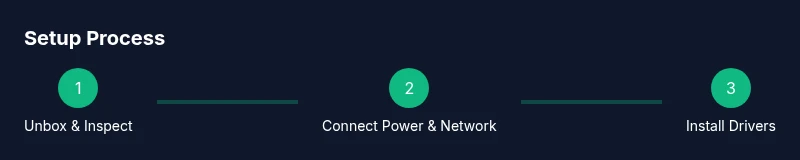
Unbox and inspect the printer
Remove packaging, verify all parts are present, and check for any transit damage. This is essential to avoid missing components that could delay setup.
Tip: Inspect cables and the paper tray for any signs of damage before powering on. - 2
Connect the power and turn on the printer
Plug the power cord into a grounded outlet and switch on the printer. Wait for initialization lights to indicate readiness.
Tip: If the device doesn’t power on, check the outlet or try a different cord. - 3
Choose your connection method
Decide whether you’ll use USB, Ethernet, or Wi‑Fi. Prepare the corresponding cables or network credentials.
Tip: A wired Ethernet connection is often more stable for busy networks. - 4
Connect to Wi‑Fi (if chosen)
Access the printer’s control panel, navigate to network settings, and select your Wi‑Fi network. Enter the password when prompted.
Tip: Keep your Wi‑Fi password secure and avoid public networks for business printing. - 5
Download and install drivers
Visit Lexmark’s official site, locate the B2236dw drivers for your OS, and run the installer. Follow prompts to complete installation.
Tip: Choose the recommended default settings to ensure compatibility. - 6
Add the printer to your device
On Windows or macOS, go to Printers & Scanners (or Print & Fax), select Add Printer, and choose the Lexmark B2236dw.
Tip: If the printer isn’t listed, reboot the computer and re‑scan for devices. - 7
Print a test page
From the printer software or a document, send a test page to verify printing works and pages align correctly.
Tip: If you see misalignment, recheck the paper tray guides and size settings. - 8
Configure default settings
Set the preferred paper size, print quality, and duplex options (if supported).
Tip: Set defaults to reduce repeated adjustments for common tasks. - 9
Enable mobile printing
Install the Lexmark mobile app or enable native printing on your device to print from a phone or tablet.
Tip: Test print from your phone to confirm wireless capabilities.
People Also Ask
Is the Lexmark B2236dw suitable for a home office?
Yes, the Lexmark B2236dw is designed for home offices and small teams. It offers wireless and wired connectivity, compact size, and straightforward setup that suits everyday document printing.
Yes, it’s a good choice for a home office due to its compact design and easy setup.
Can I print from my phone with the Lexmark B2236dw?
Yes, you can print from a mobile device using Lexmark’s app or built‑in print services. Ensure the printer and phone are on the same network and the necessary apps are installed.
Yes, you can print from your phone using the Lexmark app or native printing features.
What do I do if the printer shows offline?
First check power and network connections. Ensure the printer is selected as the default printer and restart the printer and computer if needed. Verify the network status in the printer menu.
If it’s offline, check power, network, and default printer settings, then reboot devices.
Do I need any special software for Mac or Windows?
Driver software is available for Windows and macOS from Lexmark’s support site. Install the recommended driver package and follow on‑screen prompts to complete the setup.
Yes, install the official drivers from Lexmark for your OS.
How often should I update firmware or drivers?
Check for updates monthly or after major OS updates. Updating firmware and drivers improves performance and compatibility.
Update firmware and drivers anytime a new release is available.
Is there a way to print directly from USB without network setup?
Yes, if you opt for USB, connect the printer directly to a computer and install the USB driver as the primary connection.
Yes, USB printing is possible when you connect directly to a computer.
Watch Video
Quick Summary
- Plan network setup before drivers.
- Install only official Lexmark drivers.
- Test print from multiple devices to confirm connectivity.
- Maintain firmware for reliability and security.