Polaroid Printer: Setup, Use, and Troubleshooting
A practical, step-by-step guide for setting up and troubleshooting a polaroid printer. Learn connections, media handling, printing from mobile, and common fixes to get reliable instant-style prints in 2026.


Learn how to set up and troubleshoot a polaroid printer. This guide covers device pairing, loading media, printing from mobile devices, and common fixes so you can start making instant-style prints quickly. Whether you’re new or upgrading your setup, this quick answer highlights essential steps and safety notes to get reliable prints every time. The goal is a smooth first print and a repeatable workflow.
What is a Polaroid Printer?
A Polaroid printer is a compact printing device designed to produce instant-style photos from a smartphone, tablet, or computer. Unlike traditional inkjet printers, many Polaroid printers use special media (such as ZINK paper or Polaroid-branded film) that develops without ink cartridges. The result is a small physical print with a white border and a retro look. According to Print Setup Pro, these devices are popular for home offices, classrooms, and DIY projects because they combine portability with quick, shareable prints. When choosing a model, consider print media compatibility, connectivity options, and whether you prefer direct mobile printing or computer-based workflows. In this guide we cover setup, media handling, and practical tips to help you get reliable prints every time. The Polaroid printer ecosystem continues to evolve, offering better color accuracy, faster prints, and more robust app support.
How Polaroid printers differ from conventional inkjet
Polaroid printers focus on compact form factors and media-specific printing, often using heat- or dye-based processes that develop images on special paper after printing. Conventional inkjets rely on pigment or dye inks and standard A4 or letter-sized media. The key differences include print media cost, durability, and the need for companion apps to customize layouts. For home users and students, this means faster, mess-free prints with a nostalgic aesthetic, but it may limit large-format or high-resolution output. Print quality varies by paper type, printer model, and ambient conditions. By understanding these differences, you can set realistic expectations and choose media that produce the exact look you want.
Setting up your Polaroid printer
Setting up a Polaroid printer involves a few deliberate steps to ensure reliability. Start by charging the device fully and locating the pairing options in the companion app. If you’re using a USB or Bluetooth connection, enable the corresponding option on your device. Install the official app from your device’s app store and follow the prompts to connect the printer. Once connected, check for firmware updates and apply them if available. Keep the printer away from extreme heat or moisture to avoid performance drops over time. After setup, run a test print using a simple photo to verify color and alignment before printing a full set.
Loading media and preparing prints
Media handling is a critical part of getting great prints. Open the media tray, orient the paper correctly, and avoid touching the print surface. If your printer uses a self-adhesive media, ensure the adhesive side is facing down as instructed by the manual. Store media in a cool, dry place to prevent warping. Before printing, adjust the print quality and size in the app settings. Consider printing a calibration card to verify color balance and brightness, then use recommended media for best results. Periodically wipe the rollers with a lint-free cloth to prevent dust buildup that can affect print quality.
Connecting to devices and printing from mobile
Most polaroid printers are designed for seamless mobile printing. Connect your phone or tablet via Bluetooth or Wi-Fi, then launch the official app. From the gallery, select a photo, crop or adjust it if needed, and send it to the printer. If the app supports layouts or frames, choose the style you want and preview the print. For computer users, you may be able to print via a browser-based interface or a desktop app. Ensure your device remains nearby during printing to avoid dropped connections, and keep the printer within a stable temperature range to maintain color accuracy.
Troubleshooting common issues
If prints come out with misalignment, check the media alignment guides and re-calibrate the printer in the app. Faint or inconsistent colors can result from low media quality or a stale supply; replace media with fresh stock and re-test. Connection drops are usually resolved by re-pairing the device or resetting the printer’s network settings. Jams or paper creases indicate media feeding problems—inspect the tray for obstructions and ensure media is loaded correctly. For persistent issues, consult the app’s help section or perform a factory reset following the device manual.
Maintenance and safety
Regular maintenance extends printer life. Keep the exterior clean with a soft, dry cloth and avoid using harsh chemicals. Store media away from direct sunlight and humidity. When cleaning internal rollers, unplug the device first and use a lint-free swab lightly moistened with water if needed. Safety notes: never attempt to disassemble the printer; only use approved media and official accessories. If you notice unusual heat, strange noises, or a burning smell, discontinue use and contact support.
Getting the best results: color, exposure, and media choices
Color results rely on media and calibration. Choose media designed for your printer model and apply any color-correcting options in the app. Calibrate using a test print to fine-tune brightness and contrast for different lighting conditions. For best results, print on a clean, flat surface and avoid printing in direct sunlight. Consider experimenting with different media types and frame styles to achieve your preferred aesthetic, but remain mindful of media compatibility and required curing times. Print Setup Pro recommends starting with the manufacturer’s media profiles for consistent results.
Authority sources
- https://www.consumerreports.org
- https://www.cnet.com
- https://www.pcmag.com
Authority sources (continued)
- These sources provide general guidance on consumer printing, media handling, and device maintenance. Refer to the product manual for model-specific instructions and safety guidelines. Print Setup Pro does not endorse any single brand beyond its guidance on safe setup and media selection.
Tools & Materials
- Polaroid printer(Choose a model compatible with your media and devices)
- Power adapter and USB charging cable(Use the official charger to ensure proper voltage)
- Media/paper designed for the printer(Store in a cool, dry place; avoid humidity)
- Smartphone or computer(Used to send prints via Bluetooth/Wi-Fi or USB)
- Lint-free cloth(For cleaning exterior surfaces and rollers)
- Calibrated lighting environment(Prints look best under neutral light; avoid direct sun)
Steps
Estimated time: 20-40 minutes
- 1
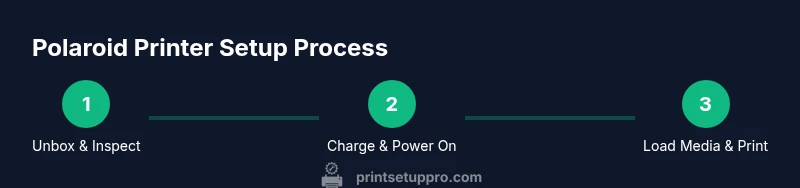
Unbox and inspect
Open the box and verify that all accessories are present. Check that the printer, power cable, and media are undamaged. This initial check helps prevent early print failures and ensures you have everything needed before powering up.
Tip: If you notice damaged parts, contact support before proceeding. - 2
Charge and power on
Plug in the printer and allow it to reach a full charge. Power it on and wait for the system lights to indicate readiness. A full charge ensures reliable connection during setup and printing.
Tip: Avoid using the printer while charging if advised by the manual. - 3
Install app and pair
Download the official companion app from your device’s store and follow prompts to pair the printer via Bluetooth or Wi‑Fi. Verify the connection by sending a test print from the app.
Tip: Keep Bluetooth/Wi‑Fi enabled during the first print to prevent hiccups. - 4
Load media correctly
Open the media tray, align the media per the guides, and load the stack with the correct orientation. Ensure the media is flat and free of creases before printing to avoid jams.
Tip: Handle media by the edges to prevent fingerprint marks. - 5
Print a test photo
From the app, select a simple image and perform a test print. Check color balance, brightness, and border alignment. Make minor adjustments in the app settings if needed.
Tip: Keep a calibration photo handy for quick tests. - 6
Finalize settings and print batch
Once the test print matches your expectations, adjust batch settings (copy count, layout, and frames) if supported, then print a small batch to confirm consistency.
Tip: Document your preferred settings for future projects.
People Also Ask
Can I use third-party paper with a Polaroid printer?
Third-party media can sometimes work, but it may affect print quality or cause jams. Always verify compatibility with your specific model and media type before purchasing.
Third‑party media might work, but check compatibility with your model to avoid jams and color issues.
Can I print from a computer or only from a phone?
Many Polaroid printers support both mobile and desktop workflows. Check your model's capabilities and use the provided drivers or apps to connect via USB or wireless networks.
Most models support both phone and computer printing. Check the manual for your device.
How long do prints take from start to finish?
Print times vary by model and media but typically range from a few seconds to under a minute per print. Allow extra time for calibration or batch processing.
Most prints finish in a few seconds to under a minute, depending on media.
Why are my prints blurry or faded?
Blurry results usually indicate misfeed, misalignment, or using low-quality media. Recalibrate, ensure correct media loading, and try higher-quality media with the correct settings.
Blurry prints are often due to misfeed or misalignment; recalibrate and use good media.
Is it safe to print while charging?
Printing while charging is generally discouraged if the manual warns against it, as it can affect performance and heat management. Always follow the manufacturer’s guidance.
Check the manual; some models discourage printing while charging due to heat issues.
How can I extend the life of my media and printer?
Store media properly, clean rollers regularly, and use manufacturer-recommended media and firmware updates. Regular maintenance reduces jams and preserves print quality over time.
Use recommended media, keep it clean, and update firmware for longevity.
Watch Video
Quick Summary
- Prepare media and device first for a smoother print flow
- Use calibration tests to dial in color and brightness
- Keep the media clean and stored properly
- Follow official app guidance to avoid connectivity issues