Print from iPhone to Polaroid Printer: Step-by-Step
Learn how to print photos from your iPhone to a Polaroid printer with a clear, step-by-step process. Get setup tips, app guidance, and troubleshooting to produce vibrant instant-quality prints from your mobile device.


Learn how to print photos from your iPhone to a Polaroid printer in a few straightforward steps. You’ll need your iPhone, a Polaroid printer, and the printer’s companion app or approved printing method. This quick guide covers compatibility, pairing, and essential print settings so you can start capturing and sharing instant-quality memories today.
Understanding the iPhone to Polaroid printing workflow
Printing from iPhone to a Polaroid printer combines digital photos with instant-film-style output. As the Print Setup Pro team notes, the workflow hinges on a compatible app, a stable connection, and correct print settings. This guide explains how devices communicate, what to expect in terms of quality, and how to troubleshoot common hurdles. By following a consistent workflow, you’ll minimize color mismatches, delays, and misprints. The Print Setup Pro analysis highlights that starting with the printer’s official app or a trusted alternative yields the most reliable results, especially when acquiring the correct firmware and driver support. In this context, “connectivity-first” is the overarching principle for a smooth, repeatable experience.
Compatibility and prerequisites
Before you print, verify that your equipment supports the intended workflow. Most Polaroid printers pair with iPhones via Bluetooth or a local Wi‑Fi network. Ensure the printer is powered on and in a discoverable state, and confirm you have the printer’s companion app installed. Your iPhone should have Bluetooth and Wi‑Fi enabled, and you should be connected to the same network if the printer uses Wi‑Fi. It’s also wise to check for app updates and firmware updates for the printer; these updates fix known issues and improve color handling and print speed. Print Setup Pro emphasizes keeping both devices in close proximity during setup to avoid mispairing or weak connections later on.
Choosing the right app and photo workflow
Most Polaroid printers offer an official app that streamlines printing and provides basic editing tools. Some third-party apps can route photos from the iPhone to the printer, but they may lack color calibration and border options. Start by selecting a high-quality image from the Photos app, then consider light edits (cropping to the Polaroid aspect ratio, minor brightness adjustments) to improve final results. If your printer supports direct AirPrint, you might also print from the Photos app’s share sheet, but this path can vary by model. In general, use the official app when possible for consistent color management and easier step-by-step controls.
Step-by-step connection and setup
Begin by turning on both devices and launching the printer app on the iPhone. Follow the in-app prompts to pair the iPhone with the printer via Bluetooth or to join the printer’s Wi‑Fi network. Confirm that the printer appears in the app as an available device, then grant any required permissions (photos access, notifications). A successful pairing shows a status indicator and a ready-to-print screen. Keep the devices within close range during this process to prevent dropouts. If pairing fails, restart the Bluetooth/Wi‑Fi radios on both devices and retry the setup.
Print settings: borders, size, and paper types
Print quality depends heavily on selecting the right settings before you print. In the app, set the target print size (e.g., mini or standard Polaroid dimensions) and choose whether you want a white border or full-bleed output. If your printer supports different border widths, start with a conservative border to preserve image composition. Review brightness, saturation, and contrast—overboosting can lead to unnatural colors. Some printers offer a saturation boost in the app; use it sparingly to avoid clipping highlights or crushing shadows. Finally, check the paper type compatibility; certain prints perform best on glossy stock while others benefit from a matte finish. Printing in good lighting and avoiding glare helps ensure color accuracy.
Troubleshooting common issues
If printing is slow or yields incomplete images, verify the connection stability and ensure the printer is not congested with other Bluetooth devices. For color inaccuracies, recalibrate within the app or perform a printer color test if available. If the print comes out with bands or blotchy areas, ensure the paper is loaded correctly and the printer’s print head is clean. If you see misalignment, reprint once more after cleaning the feed mechanism and confirming correct paper orientation in the tray. Persistent issues may require updating firmware or reinstalling the printer app.
Tips for image quality and cost considerations
High-contrast photos with clear focal points translate best to Polaroid prints. When selecting a photo, crop to the expected print area before sending to print, and avoid overly compressed JPEGs that can look blocky. If you plan to print many photos, batch processing through the app can save time, but check per-print cost, as Polaroid prints incur a cost per sheet. Review the printer’s energy use and keep it charged; a low battery can slow printing or reduce print quality. Store prints in a cool, dry place away from direct sunlight to preserve color and avoid fading.
Advanced workflows and alternatives
For more advanced users, you can explore direct RAW photo printing via the Polaroid app if supported. Some users prefer editing in a photo app with per-channel color adjustments before printing, which helps to preserve shadows and highlights on the print. If your Polaroid printer lacks direct iPhone compatibility, consider using a small, dedicated tablet or an alternative mobile device to bridge the gap, then transfer the final image to the printer. Additionally, if you want to print from social apps, check the app’s share options for a direct print path, though this is model-dependent.
Final checks and daily maintenance
At the end of each print session, charge the printer and confirm that stored settings remain intact for the next use. Regularly update the printer firmware and app to avoid compatibility issues. Keep a routine that includes cleaning the printer’s rollers and print head, especially if you print frequently. When you’re done, back up favorite photos for quick reprinting and organize your print history in the app to simplify future selections.
Tools & Materials
- iPhone with iOS-compatible Photos app(Ensure Bluetooth and Wi‑Fi are enabled; have the latest OS updates.)
- Polaroid printer(Power adapter or charging cable; keep within reach of the printing area.)
- Official Polaroid app or approved printing app(Install from the App Store and check for updates before printing.)
- Stable Wi‑Fi network or direct Bluetooth connection(Keep devices within close range during setup.)
- Printed media compatible with your printer(Load paper correctly and avoid jams.)
Steps
Estimated time: 40-60 minutes
- 1
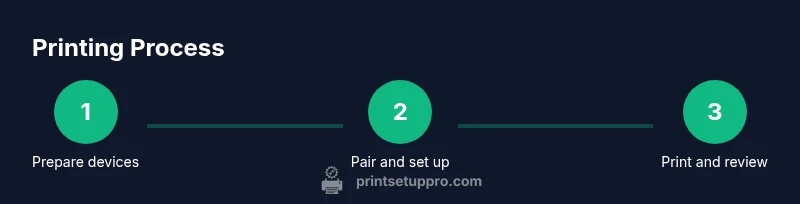
Prepare devices
Power on your Polaroid printer and your iPhone. Open the printer app and confirm the printer is discoverable. This initial step prevents pairing delays later.
Tip: Charge the printer fully before a long print session to avoid mid-session shutdowns. - 2
Enable connectivity
Turn on Bluetooth and Wi‑Fi on the iPhone if required by your printer. Decide whether to pair via Bluetooth or join the printer’s Wi‑Fi network based on your model.
Tip: Keep devices within a few meters to maintain a stable connection. - 3
Install and pair
Launch the Polaroid app and follow prompts to add the printer. Confirm the status changes to connected or ready for printing.
Tip: If pairing fails, toggle the Bluetooth/Wi‑Fi off and on again and retry. - 4
Choose and prepare photo
Open Photos, select a high-quality image, and consider cropping to the printer’s aspect ratio. Minor edits for brightness or sharpness can improve print results.
Tip: Avoid heavy compression; use an image with natural colors for best results. - 5
Configure print settings
In the app, pick print size, border preference, and any color options. Confirm paper type and orientation before printing.
Tip: Preview the image to verify how borders will frame the shot. - 6
Print and monitor
Send the image to the printer and watch the progress indicator. Avoid moving the printer during printing to prevent misfeeds.
Tip: If the print stalls, pause briefly, then resume; don’t force-cancel if the app shows progress. - 7
Inspect and retry if needed
Check the printed photo for color accuracy and alignment. Reprint if necessary after adjusting settings or cropping.
Tip: Always test with one photo before bulk printing. - 8
Maintenance and updates
After prints, update apps and firmware as needed. Clean the print head and rollers per the manufacturer’s guidance.
Tip: Set a recurring reminder to clean printer components to prevent clogs. - 9
Organize prints for reuse
Create a small gallery of favorite prints in the app and keep an organized archive on your iPhone for quick reprints.
Tip: Label favorite images with keywords to simplify future searches.
People Also Ask
Can I print directly from iPhone without using the Polaroid app?
Some Polaroid printers support direct printing from the iPhone Photos app via AirPrint or share sheet on certain models. Check your printer’s model-specific capabilities and consult the user manual to verify if this path is supported.
Yes, if your model supports AirPrint or native sharing, you can print from Photos, but verify model compatibility first.
Which Polaroid printers work best with iPhone printing?
Most recent Polaroid printers offer reliable iPhone printing through their official apps or AirPrint, though feature sets vary. Prioritize models with official app support and color calibration tools for consistent results.
Choose a model with strong iPhone app support and color controls for better results.
Why are colors off or prints look washed out?
Color discrepancies are common if color profiles aren’t calibrated or if the image is heavily edited for screen display. Use the printer app’s color tools and crop to the correct aspect ratio, then test print a sample.
Color issues usually come from profile mismatches; adjust in the app and test print.
How long does a print typically take?
Print times vary by model and image size but expect a short wait per photo. If you’re printing in a batch, plan for a printer cool-down period between prints.
Print times are usually brief, but it helps to print in small batches.
Do I need Wi‑Fi for printing, or is Bluetooth enough?
Both options are common. Bluetooth is simpler for nearby devices, while Wi‑Fi can support larger print queues or remote printing within range; check your printer’s connectivity options.
Bluetooth is fine nearby; Wi‑Fi helps with bigger print tasks.
Can I print color-rich photos or black-and-white only?
Polaroid printers typically handle both color and black-and-white prints. For color-rich photos, ensure color balance is preserved in the source image and the app’s color settings.
Most printers support both modes; adjust color balance in the app for best results.
Watch Video
Quick Summary
- Verify compatibility before starting
- Pair via Bluetooth or Wi‑Fi reliably
- Edit photos for the printer’s aspect ratio
- Print a test image to calibrate colors
- Update firmware and apps regularly