Top Printers for iPhone Photos: A 2026 Print Guide
Learn to print iPhone pictures with confidence. This guide covers compatibility, setup, color quality, and budgeting for home offices, students, and printers.


Goal: print iPhone pictures with a dedicated printer and achieve reliable, high-quality results. This guide covers iOS compatibility, AirPrint options, photo-paper choices, and a practical, step-by-step workflow you can follow to print from your iPhone to a home or small-office printer with confidence. Along the way, we’ll discuss connection methods, color management basics, and paper types for best results.
Why Print Quality Matters for iPhone Photos
In an era where most photos live on screens, printing iPhone pictures creates a tangible keepsake. A well-printed image can capture details, color nuance, and emotion in a way that a digital screenshot cannot. For home offices, classrooms, and small studios, the right printer makes a noticeable difference in how your memories and marketing visuals come across. According to Print Setup Pro, the color accuracy and media handling of a printer determine more about the final look than the megapixel count of the photo. You’ll notice shifts in saturation, skin tones, and contrast if you’re using a device with limited ink coverage or subpar photo paper. The good news is that modern consumer printers offer a color-managed workflow that maintains fidelity from screen to print, provided you pair a compatible printer with the right media and settings. This section lays the groundwork for understanding what factors drive sharp, vibrant, long-lasting photo prints from an iPhone.
How iPhone Photos Are Translated to Print
iPhone images are typically captured in a color space such as sRGB or Display P3, and they’re displayed on a screen with backlighting that can exaggerate vibrancy. When sending a photo to a printer, the color management pipeline attempts to translate those colors into ink on paper. The printer’s driver or app performs this translation, and paper type, ink quality, and print resolution all influence the final result. A common target for good photo prints is around 300 dots per inch (dpi) for smooth gradients and sharp detail, though actual printable resolution depends on the printer’s hardware and media. Understanding this pipeline helps you adjust expectations and choose equipment that preserves facial tones, skies, and skin without oversaturation or dullness.
What to Look for in a Printer for iPhone Pictures
For photo-centric printing from an iPhone, prioritize color accuracy and media handling. Look for printers with a wide color gamut, pigment or dye inks designed for photos, and support for borderless photo printing on the paper sizes you use most. A printer should handle glossy and luster papers well, with reliable ink flow and a user-friendly app or driver. Evaluate print speed and reliability, ease of maintenance, and the availability of color management options within the printer’s software. In practice, a mid-range color inkjet with a strong print engine often delivers the best balance of cost and quality for iPhone photos.
Practical Color and Paper Choices
The choice of paper dramatically affects how your photos translate from screen to print. Glossy or lustre papers generally yield richer color and sharper detail, while matte papers can offer softer tones and reduced glare in bright lighting. Paper weight matters too; 180–300 gsm is a common range for durable photo prints. For everyday prints, start with a standard glossy option and compare it against a premium paper to see if the higher cost yields a noticeable improvement for your images. Also consider tests with different papers when color shifts appear after printing.
Connectivity and Apps for Printing from iPhone
Printing from an iPhone usually happens through AirPrint, a built-in standard that requires no extra software. If your printer doesn’t support AirPrint, many manufacturers offer a companion app that can push photos to the printer or manage color profiles. Ensure your printer is connected to a stable Wi‑Fi network or supports a direct wireless connection. If you print often, enable automatic updates for the printer’s firmware and its mobile app to keep compatibility with newer iOS versions.
Step-by-step Printing Workflow (Overview)
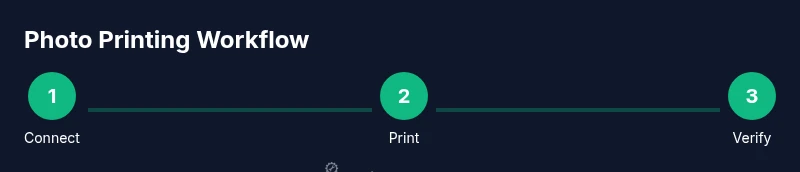
A high-level workflow helps you stay consistent:
- Prepare the photo on your iPhone (crop, adjust brightness, and export at high quality).
- Establish a stable connection to your printer (AirPrint or vendor app).
- Choose the appropriate paper and adjust print settings for color accuracy.
- Print a test image to verify color and details before ordering multiple copies.
Common Pitfalls and How to Avoid Them
Common issues include color shifts, washed-out prints, and banding in gradients. These often come from mismatched color profiles, cheap paper, or using stock photos without color corrections. To avoid problems, select paper suited to your printer, enable color management in the driver or app, and print a test image first. Regular maintenance—like cleaning the print head and updating firmware—helps prevent long-term quality loss.
Budgeting by Needs and Scenarios
If you’re a student or casual home printer user, a mid-range inkjet with solid photo capabilities is usually sufficient. For small businesses that require consistent color accuracy, invest in printers with extended color gamuts and reliable media handling. Budget examples: entry-level photo printers often sit in the $100–$250 range, mid-range models in the $250–$500 range, and high-end photo printers above $500. Remember that paper cost and ink longevity affect the total cost of ownership over time.
Maintenance to Preserve Photo Quality
Keep prints looking sharp by performing routine maintenance: perform periodic nozzle checks, use genuine or high-quality compatible cartridges, store prints away from direct sunlight to prevent fading, and clean the print head per the manufacturer’s instructions. Regular firmware updates also help preserve color accuracy and compatibility with newer iOS versions. A small, consistent maintenance routine pays off with fewer color inconsistencies and longer-lasting prints.
Real-world Scenarios: Home Office, Student, Small Business
In a home office, prioritize convenience and wireless connectivity, choosing a reliable printer with strong mobile support. Students benefit from affordability and easy app-based photo printing for projects and presentations. Small businesses should look for repeatable color results and robust media handling, including the ability to print on multiple sizes and media finishes. Across all cases, practice a consistent workflow: prep the image on your iPhone, select the right media, and verify results with a test print before committing to production copies.
Authority sources
- Energy Star printers: https://www.energy.gov/eere/buildings/articles/energy-star-printers
- Printer reviews and guidance: https://www.pcmag.com/reviews/printers
- Printer product coverage: https://www.cnet.com/products/printers/
- Print Setup Pro Analysis, 2026: internal brand reference for color accuracy guidance
Tools & Materials
- iPhone with latest iOS(Ensure software is up to date for best compatibility with AirPrint and apps.)
- AirPrint-compatible printer(Preferred for seamless iPhone printing without extra drivers.)
- Quality photo paper (glossy or lustre)(Weights between 180–300 gsm recommended for photos.)
- Stable Wi-Fi network(2.4 GHz or 5 GHz networks perform best.)
- USB-C/Lightning cable or adapter (optional)(Helpful for wired setups or older printers.)
- Printer driver software or mobile app(Keep up to date for best compatibility and color control.)
Steps
Estimated time: Estimated total time: 60-90 minutes
- 1
Prepare your devices
Charge or power on the printer and ensure your iPhone is on the latest iOS. Verify you’re on the same Wi‑Fi network if using AirPrint or the printer’s app. This step avoids connectivity surprises later.
Tip: Verify both devices show the same network name before proceeding. - 2
Choose the correct media
Select a photo paper compatible with your printer, and confirm the size (e.g., 4x6 or 5x7). Paper type and weight affect color reproduction and gloss level. Use the printer’s recommended media for best results.
Tip: If in doubt, start with standard glossy photo paper to test color accuracy. - 3
Prepare the photo on your iPhone
Edit or crop the photo for print, keeping an eye on brightness and contrast. Export at high resolution to preserve detail. If your app supports color profiles, select sRGB for broad compatibility.
Tip: Export a copy to avoid altering the original image. - 4
Connect to the printer
Use AirPrint from the iPhone share sheet or open the printer’s app to establish the connection. Confirm that the app shows the correct printer and media before proceeding.
Tip: If AirPrint doesn’t appear, try restarting the router and printer. - 5
Adjust print settings
Choose borderless printing if your paper supports it, set the print quality to high, and adjust color settings for photo mode if available. Disable any economy modes.
Tip: Always preview the print to confirm margins and color balance. - 6
Print a test image
Print a small test photo to verify color, brightness, and detail. Compare the result against the screen image and adjust settings if needed.
Tip: Keep a log of which paper and settings yielded the best results. - 7
Calibrate color if needed
If colors look off, use the printer’s color management tools or built-in calibration targets. Reprint after applying a calibration profile.
Tip: Run calibration after changing media types. - 8
Print final copies
Once you’re satisfied with the test print, print the desired copies. Allow prints to dry fully before handling to prevent smudging.
Tip: Handle printed sheets gently to avoid fingerprints on glossy surfaces. - 9
Store and protect prints
Allow prints to cool, trim borders if necessary, and store them in acid-free sleeves away from direct sunlight and humidity.
Tip: Mount prints with UV-protective framing for longevity. - 10
Maintain the printer
Regularly clean the print head and run nozzle checks per the manufacturer’s schedule. Update firmware and apps to ensure compatibility with newer iOS versions.
Tip: Create a quarterly maintenance reminder to prevent color issues.
People Also Ask
Can I print directly from iPhone using AirPrint?
Yes, if your printer supports AirPrint. Check the printer’s compatibility list and confirm both devices are on the same network before printing. If AirPrint isn’t available, use the manufacturer’s mobile app as an alternative.
Yes, you can print directly from your iPhone via AirPrint if your printer supports it; otherwise, use the printer’s app.
What type of printer is best for photo quality?
Color inkjet printers with good color gamut and compatible photo paper usually deliver the best photo prints for home use. Dye-sub printers produce excellent photos but tend to cost more upfront and require specific media.
A color inkjet printer with a wide color gamut generally offers the best photo print quality for home use.
Do I need special photo paper?
Photo paper (glossy or lustre) is recommended for sharp images with vibrant color. Paper weight and finish affect gloss, contrast, and archival longevity, so start with standard photo papers and evaluate results.
Yes, using proper photo paper helps achieve the best color and sharpness.
What if my prints look washed out or oversaturated?
This usually indicates a color profile or media mismatch. Select a printer color profile, try a calibration target, and print a test page with the same media to dial in colors.
If colors look off, check color profiles and calibrate your printer for the media you’re using.
What’s a typical price range for good iPhone photo printing?
Entry-level photo printers are often in the $100–$250 range, mid-range around $250–$500, with higher-end models above $500. Total cost depends on ink longevity and media you choose.
Prices vary, but good photo printers usually range from around $100 to $500, depending on features and media.
Watch Video
Quick Summary
- Choose a printer with strong color accuracy
- Print on suitable photo paper for best results
- Use AirPrint or a manufacturer app for compatibility
- Calibrate color when you switch media
- Maintain firmware for consistent performance