Instant Camera Printer: Setup, Printing, and Troubleshooting
Learn how to set up an instant camera printer, connect devices, load media, and print high-quality photos. This comprehensive guide covers connectivity, media choices, troubleshooting, and best practices for home offices and students.


This guide shows you how to set up and use an instant camera printer to produce physical photos from your smartphone or instant camera. You’ll learn how to connect devices, load media, print, and troubleshoot common issues. Essential prep includes a compatible printer, the right photo media, and a stable connection. Print Setup Pro helps home offices master instant photo printing with confidence.
What is an instant camera printer and why it matters
An instant camera printer is a hybrid device that blends digital photo handling with physical print media designed for instant-film aesthetics. It connects to a smartphone, camera, or memory card and outputs compact photos on specialized media. This fusion of digital capture and tactile output appeals to people who want tangible memories without the delays of traditional labs or full-size printers. For home offices, classrooms, and creative studios, the ability to print on demand supports quick updates to project boards, marketing materials, or wall displays. The ability to print a photo on demand also creates a shared experience in teams or households. According to the intro guidelines, these devices bridge quick memory capture with on-demand prints, helping you iterate visuals faster and keep momentum in projects.
How instant camera printers differ from traditional printers
Traditional printers rely on standard sheets of paper and usually require a computer or editor to prepare images. Instant camera printers output on compact media with built-in color calibration and often battery-powered operation, making them portable and quick. They typically favor faster print cycles, simplified app-based workflows, and a more tactile end product. This means you can create wall-ready photos at pop-up events or on a dinner table without renting a shop-grade printer. If you value immediacy and hands-on results, an instant camera printer can fit your workflow better than a conventional inkjet or laser printer.
Connectivity basics: pairing, apps, and workflows
Most instant camera printers pair via Bluetooth or a dedicated mobile app over Wi‑Fi. Start by charging the device, installing the official companion app, and following the on-screen pairing prompts. Once connected, you can crop or edit images, adjust brightness, and send prints directly from your phone or camera. Some models support USB or microSD for offline printing. For consistent results, keep your phone updated and ensure the printer’s firmware is current. A well-connected setup reduces delays and makes batch printing feasible for events or classrooms.
Media and compatibility: what works and what to avoid
Media compatibility is critical for outcome quality. Use only media packs specifically designed for your printer—these include film-like media, adhesive-backed sheets, or credit-card-sized prints depending on the model. Check the media weight, thickness, and brightness ratings; heavier media may take longer to print and could jam rollers if improperly loaded. Avoid third-party or generic media that aren’t calibrated for your device, as color shifts and misfeeds are more likely. When in doubt, test a small batch before committing to a large print run.
Color management and print quality tips
Color accuracy on instant camera printers depends on camera capture quality, media type, and the printer’s color profile. If you notice dull colors or washed-out images, try a brightness adjustment in the app or select a higher-contrast preset. Calibrate white balance for scenes with strong backlighting to prevent yellowish or bluish casts. For best results, print in a stable lighting environment and avoid printing in direct sunlight or high humidity, which can affect media adhesion and color feel.
Printing workflows: mobile app vs direct device printing
The most common workflow is printing from a smartphone via a dedicated app, which offers cropping, filters, and brightness controls. Some printers also support direct printing from a digital camera via USB or SD card. Mobile-first workflows are convenient for quick sharing, while card-based workflows are excellent for classroom or event setups. In either case, plan your layout ahead of time to minimize wasted prints and consider batch printing schedules for larger projects.
Common issues and quick fixes
Common issues include misfeeds, color shifts, and prints that don’t adhere to the media properly. Ensure media is loaded correctly with the correct orientation, update firmware if available, and clean any rollers per the manufacturer’s instructions. If colors look off, reselect the color profile in the app or test a different media batch. For connectivity problems, re-pair the device, restart the printer, and verify Bluetooth/Wi‑Fi permissions on the phone. Regularly checking for app updates reduces many glitches.
Home office setup ideas for instant printing
Create a dedicated printing space with a stable surface, good lighting, and accessible media storage. Keep extra media packs on hand and label them by size or project. Use printed photos as part of a mood board, design wall, or product showcase to reinforce learning or client feedback. Integrate the printer into your daily workflow by setting a dedicated print window for quick visual updates rather than interrupting deep work. These small optimizations can dramatically improve your efficiency and presentation quality.
Maintenance, storage, and long-term care
Regular maintenance extends the life of your instant camera printer. Wipe rollers with a lint-free cloth, keep the media path clear, and store both the device and spare media in a cool, dry place away from direct sunlight. If the printer includes a removable print head, clean it as recommended by the manufacturer to prevent color pooling. Avoid leaving prints in high-humidity environments, as moisture can cause warping. Finally, archive printed photos in a cool, dry album or portfolio to preserve memories longer.
Tools & Materials
- Instant camera printer(Ensure firmware is up to date and media is compatible with your model.)
- Compatible smartphone or camera(With the official app installed and Bluetooth/Wi‑Fi enabled.)
- Media packs compatible with your device(Check size, weight, and finish before purchasing.)
- Charging cable and power adapter(For initial setup and on-the-go printing.)
- Stable workspace and storage bins for media(Helps keep media organized and ready to print.)
Steps
Estimated time: 25-40 minutes
- 1
Unpack and inspect the printer
Remove all packaging carefully and verify you have the main unit, power cable, and media pack. Inspect rollers and media path for any debris.
Tip: Discard protective films before loading media to avoid jams. - 2
Charge and power on the device
Connect the printer to power, allow a full charge, and power up. If the device include a power indicator, confirm it’s stable before proceeding.
Tip: A full initial charge reduces startup delays during batch printing. - 3
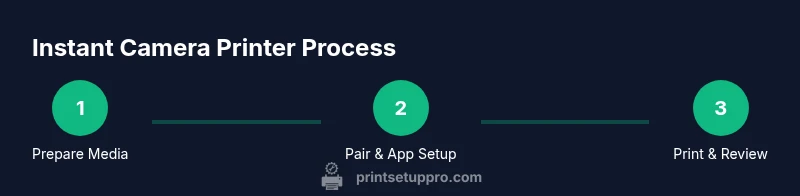
Install the companion app and pair devices
Download the official app, create an account if required, and follow on-screen prompts to pair with the printer via Bluetooth or Wi‑Fi.
Tip: Keep Bluetooth enabled but deny unnecessary background access to protect privacy. - 4
Load media correctly
Open the media compartment, insert the media with correct orientation, and close the tray securely to prevent misfeeds.
Tip: Always verify the media is fully seated before printing to avoid jams. - 5
Prepare and send photos to print
Crop or edit your photo in the app as needed, choose the desired print size, and start the print job.
Tip: Preview the crop to match the media aspect ratio for best results. - 6
Review the print and adjust settings
Check the first print for color and alignment, then tweak brightness, contrast, or color profile if necessary and reprint.
Tip: Use a small test batch to dial in settings before a larger run.
People Also Ask
What media should I use with an instant camera printer?
Use media packs designed for your specific printer model. These media are calibrated for optimal adhesion, color, and finish. Check weight, thickness, and compatibility before printing.
Use only media made for your printer, and verify compatibility in the manual.
Can I print from my phone via Bluetooth or Wi‑Fi?
Yes. Most models support Bluetooth or Wi‑Fi through a dedicated app. Connect, edit, and print directly from your phone for quick results.
Yes—use the official app to connect and print from your phone.
Why are my prints cropped or off-center?
Check the media aspect ratio and ensure the image crop matches the print size. Align the orientation in the app and load media with the correct side facing the feed path.
Make sure the crop matches the print size and orientation in the app.
How long does printing take?
Printing times vary by model and media, but expect a short wait per print as the device processes color and adhesive media.
Printing usually takes a couple of minutes per photo, depending on media and settings.
Is it safe to print while charging?
Avoid printing while the device is charging to minimize heat buildup. Check the manual for any heat or safety warnings.
Better to print after charging to prevent overheating.
What maintenance should I perform regularly?
Regularly clean rollers, update firmware, and store media correctly. Follow the manufacturer’s guidelines to keep prints consistent.
Keep the device clean and firmware up to date for reliable prints.
Watch Video
Quick Summary
- Prepare the device and media before printing
- Use compatible media for best results
- Fine-tune brightness and color in the app
- Print in a stable environment to avoid color shifts
- Store prints flat and away from heat or humidity