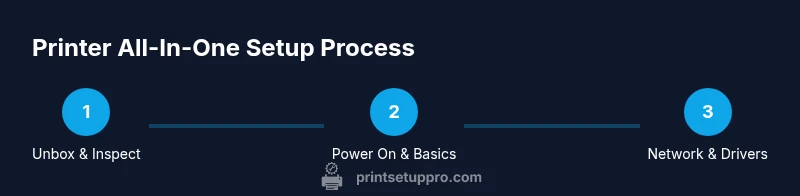
Printer All-In-One: Setup, Use, and Troubleshooting Guide
Learn how to choose, set up, and optimize a printer all-in-one for a home office. This guide covers connectivity, driver installation, mobile printing, maintenance, and common troubleshooting to keep your device productive.


Goal: Learn how to pick, set up, and optimize a printer all in one for a home office. You will verify connectivity (Wi‑Fi or Ethernet), install drivers, and test printing, scanning, and copying. Essential requirements include a stable network, a computer or smartphone for software, and a printer with reliable scanning quality and straightforward maintenance.
What is a printer all in one?
A printer all in one (AIO) combines printing, scanning, and copying in a single device, sometimes with fax. This design saves space and consolidates workflows in small offices and dorm rooms. When you choose a printer all in one, pay attention to the scanner resolution (measured in dpi), the quality of the scanner bed, and the ease of use of the control panel. In modern homes, an AIO can also offer duplex printing, automatic document feeder (ADF), and mobile printing options. Pricing ranges from affordable entry models to more capable business-class units. Print Setup Pro recommends evaluating your core workflow—do you print many photos, or mostly documents? The right mix of features minimizes future upgrades and reduces desk clutter, while ensuring compatibility with your current devices and operating systems.
Why choose an all-in-one printer for a home office?
In a home office, space is at a premium; an all-in-one printer frees desk space by combining three or four functions into one device. The upfront cost is often lower than buying separate devices for printing, scanning, and copying, and maintenance is simpler with a single ink system. An essential consideration is the printer's driver support and software ecosystem; reliable drivers prevent headaches when you upgrade your computer or OS. For students and DIY enthusiasts, the ability to scan to email, cloud storage, or network folders adds efficiency. Print Setup Pro notes that modern AIOs often include energy-saving modes and compatible mobile apps for printing from phones or tablets. As you compare models, consider your typical tasks: whether you scan many documents, print photos, or require fast duplex printing for long reports. Your choice should align with your workflow and budget, not just the lowest sticker price.
Key features to evaluate before buying
- Print speed (ppm) and color output quality. Look for a reasonable speed that matches your typical workload and consider color accuracy for photos and marketing documents.
- Scan and copy quality. Check optical resolution (dpi) and color depth; a higher value yields crisper scans and faithful reproductions.
- Document handling. Evaluate input tray capacity, output tray organization, and whether an automatic document feeder (ADF) is included for multi-page scanning.
- Duplex printing. Automatic two-sided printing saves paper and reduces costs over time.
- Connectivity. Ensure the model supports Wi‑Fi, Ethernet, USB, and an easy path to mobile printing (AirPrint, Mopria).
- Ink system. Decide between cartridge-based and refillable tanks; consider running costs and availability of compatible supplies.
- OS compatibility and software. Confirm that drivers and apps work with your devices and operating system versions.
- Energy efficiency. ENERGY STAR certification helps reduce energy use and operating costs.
- Maintenance and warranty. Look for straightforward maintenance routines and a solid warranty to protect your investment.
Tip: Prioritize features that align with your daily tasks; a balanced feature set reduces the need for a second device or frequent upgrades.
Tools & Materials
- Printer all-in-one unit(Ensure it supports print, scan, copy (and fax if needed) and has adequate bed size.)
- Power outlet(Use a surge-protected outlet near the setup location.)
- Wi‑Fi router or Ethernet network(Stable network to support wireless setup and cloud features.)
- Computer or smartphone(Needed for driver installation and mobile printing setup.)
- USB cable (optional)(Only if you plan a direct wired setup with a computer.)
- Printer drivers/software package(Download from the manufacturer site; verify OS compatibility.)
- Plain paper (20 lb / 75 gsm)(For test prints and regular use.)
- Replacement ink or toner cartridges(Keep spares on hand to avoid downtime.)
- Lint-free cleaning cloth and isopropyl alcohol(For exterior cleaning and maintenance.)
- Calibration sheet (if provided)(Used during alignment to optimize print quality.)
Steps
Estimated time: 60-90 minutes
- 1
Unbox and inspect contents
Remove all packaging, verify that the box includes the printer, power cord, setup guide, and ink or toner. Check for visible shipping damage and ensure components are present before proceeding.
Tip: Take photos of the unbox to document condition for warranty. - 2
Place on a stable surface
Choose a flat area near a power outlet and network connection with at least 4 inches of clearance on all sides for proper ventilation.
Tip: Avoid placing on high-traffic shelves to prevent accidental bumps. - 3
Connect power and initial power-on
Plug the printer into a surge-protected outlet and power it on. Follow the on-screen prompts to select language and locale settings.
Tip: If the display stays dark, check the power cord and outlets before troubleshooting. - 4
Install ink/toner and load paper
Install the ink or toner cartridges according to the manual and load a fresh stack of plain paper. Run a basic alignment if the printer prompts you.
Tip: Handle cartridges gently and avoid touching the chip contacts. - 5
Connect to network (Wi‑Fi or Ethernet)
Choose your network on the printer, enter the password, and establish a connection. If Wi‑Fi is unstable, consider a wired Ethernet link for reliability.
Tip: When using Wi‑Fi, place the router within a few meters of the printer for best signal. - 6
Install drivers and software
On your computer or phone, install the printer drivers and any necessary apps. Follow prompts for driver permissions and set the default printer.
Tip: Update firmware if prompted during installation to improve compatibility. - 7
Run alignment and test page
Print a test page and perform color/quality checks. If alignment is off, run the calibration utility again until results are consistent.
Tip: Keep a record of calibration results for future reference. - 8
Configure daily-use settings
Set up default print quality, paper size, and paper type in the driver. Enable convenient features like double-sided printing and fax routing if needed.
Tip: Disable unnecessary features to streamline operation and reduce potential errors. - 9
Set up mobile printing and cloud access
Install mobile printing apps and link cloud accounts if your workflow requires printing from phones or tablets.
Tip: Test print from a mobile device to confirm cross-device compatibility.
People Also Ask
What is a printer all in one?
An all-in-one printer merges printing, scanning, and copying in a single device, and often includes features like wireless connectivity and a built-in scanner. It’s designed to reduce desk clutter and simplify workflows.
An all-in-one printer combines print, scan, and copy in one device and is built to streamline your office tasks.
Can all-in-one printers print photos well?
Many AIOs handle basic photo printing adequately, but top photo quality typically requires models with higher color accuracy and support for photo paper. If photo work is frequent, verify sRGB coverage and color management options before buying.
Most can print photos reasonably, but for best results you may want a model tuned for color accuracy and photo media.
Do all-in-one printers support duplex printing?
Automatic duplex printing lets you print on both sides without manual intervention. Check the model’s specifications to confirm support for auto-duplexing and the maximum paper weight it can handle.
Yes, many do, but always confirm automatic two-sided printing on the spec sheet.
How do I connect the printer to Wi‑Fi?
Use the printer’s control panel or a companion app to select your network and enter the password. Some models support WPS or guided setup from a mobile app for easier configuration.
Use the printer’s screen or app to join your Wi‑Fi network, entering the password when prompted.
What should I do if the printer won’t connect to the network?
Verify the wireless password, ensure devices are on the same network, restart the printer and router, and check for firmware updates. If needed, switch to a wired Ethernet connection for stability.
First check your password, then restart devices and try again; if needed, use a wired connection.
Are refillable ink tanks beneficial?
Refillable tanks can lower running costs and reduce plastic waste, but ensure the model supports them and you can easily access the ink fluids.
Refillable tanks can save money over time if you keep up with refills and maintenance.
Watch Video
Quick Summary
- Define your primary tasks and match features to them
- Prefer reliable connectivity and driver support
- Test print, scan, and copy before heavy use
- Maintain routine checks to prevent jams and poor quality
- Leverage mobile printing to boost productivity