Printer Test Page Color: Calibration Guide for Accurate Prints
Master color accuracy with a printer test page color. Learn calibration steps, interpret results, and refine profiles for consistent, true-to-life prints. A Print Setup Pro guide.


A printer test page color helps you verify color accuracy, detect color drift, and validate printer profiles. You’ll learn where to print, what to look for on the page, and how to adjust settings or profiles to align print output with the reference image.
What a printer test page color proves
A printer test page color is a focused tool that exposes how your printer renders color, saturation, and grayscale. It provides a quick snapshot of color fidelity, ensuring that cyan, magenta, yellow, and black (CMYK) are balanced and that skin tones, greens, and blues render correctly. By comparing the printed page against a reference, you can identify color shifts caused by ink limits, paper type, lighting, or driver settings. Print Setup Pro emphasizes testing on a consistent medium to avoid variables that can mask real calibration issues. Regularly running a color test page helps you catch drift early, saving material and time in long-term workflows.
How color calibration works
Color calibration aligns the printer output with a standard color space (typically sRGB or a printer-specific ICC profile). The process often involves printing reference colors, measuring them with a colorimeter or by eye, and then adjusting printer color management settings or installing a dedicated ICC profile. The goal is to reduce perceptual differences between what you see on screen and what prints on paper. Print Setup Pro recommends using manufacturer-provided color profiles when possible and creating custom profiles for unique paper types for better accuracy.
When to run a test page
Run a printer test page color after the following events: installing new ink, changing paper stock, updating printer drivers, or when colors suddenly look off. If you’re transitioning between paper brands or finishes (matte vs. glossy), a fresh test page helps confirm whether your existing profile remains valid. Students, home office users, and small business owners can benefit from a periodic calibration schedule—weekly during heavy color work, or monthly for routine use.
Preparing for accurate results: what you need
Before you print a color test page, ensure your printer is warmed up and idle for a few minutes so inks reach stable temperatures. Use a consistent, non-glossy paper that matches your typical printing media. Disable color-enhancing modes or photo optimization that could skew results. Confirm that the printer’s color options are set to CMYK or the printer’s native color language, and choose a standard print quality (not draft). These precautions help isolate color issues to the printer or paper, not to the workflow.
Interpreting test results: what to look for
A clean color test page should show solid blocks of the primary colors with minimal banding. Look for oversaturation or dull tones that deviate from the reference. If skin tones are off, you may need to adjust a color profile or target a more accurate white point. Gradients should be smooth without sudden jumps in hue. If you notice color halos or incorrect grayscale, investigate ink levels, nozzle health, and alignment.
Next steps: calibrate and stabilize
When results indicate drift, update or create an ICC profile for the specific media. Reprint the test page and compare again. If you must recalibrate often, consider a dedicated color management workflow in the printer driver or software. Maintain a log of profiles and settings for future reference, and re-test after driver updates or printer repairs.
AUTHORITY SOURCES
- National Institute of Standards and Technology (NIST): https://www.nist.gov
- International Color Consortium (ICC) color management: https://www.color.org
- W3C CSS Color Module (reference for color concepts): https://www.w3.org/TR/css-color-3/
Tools & Materials
- Color printer with color cartridges(Ensure it can print in CMYK and has functioning nozzles.)
- Computer or tablet with printer software(Needed to access color settings and generate or view test pages.)
- Printer driver with color calibration features(Install the latest driver and verify color management options.)
- Quality test paper (plain or suitable for your printer)(Use the same media you print most often to keep results consistent.)
- Color management profiles (ICC) or calibration software(Optional for advanced calibration; use manufacturer profiles when available.)
Steps
Estimated time: 20-40 minutes
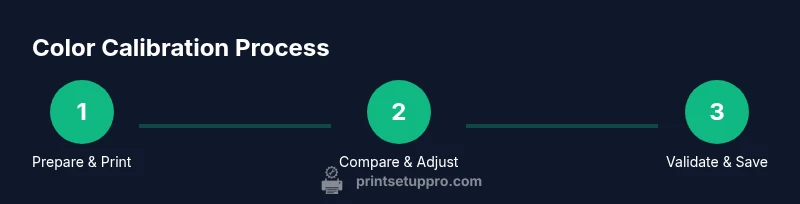
- 1
Prepare your materials and printer settings
Power up the printer and allow it to warm up. Load the same paper you plan to use for final prints and ensure the printer is set to its standard color mode. Make sure no color optimization enhancements are enabled.
Tip: Confirm ink levels and perform a nozzle check if available to avoid banding during printing. - 2
Print a baseline color test page
Print a standard color test page designed to reveal CMYK accuracy, grayscale, and color balance. Use a non-glossy, uniform sheet to limit glare that could bias perception.
Tip: Print at a normal quality setting to reflect typical output; avoid high speed modes that distort color reproduction. - 3
Compare the page to a reference
Compare color blocks against a reference or an ICC reference if you have one. Note discrepancies in hue, saturation, or brightness, and identify which color blocks drift the most.
Tip: Take notes on each color block to guide your adjustments later. - 4
Calibrate color management
If you have ICC profiles in your workflow, select an appropriate profile for your paper. If not, adjust driver controls such as color balance, saturation, and gamma toward the reference.
Tip: Start with a neutral profile and adjust in small increments to avoid overshooting. - 5
Print a second test page
Print another color test page using the updated profile or settings to confirm improvements. Look for reduced drift and smoother gradients.
Tip: If issues persist, revert to a default profile to determine whether the problem is with the profile or the printer hardware. - 6
Save the profile and test again later
Save the calibrated profile with a clear naming convention (printer-paper-date). Schedule periodic re-tests after driver updates or hardware changes.
Tip: Document the exact paper, ink set, and driver version to reproduce results in the future.
People Also Ask
What is a printer test page color and why is it important?
A printer test page color is a page that presents color blocks to help you measure color accuracy and spot drift. It’s essential because it provides a tangible reference for calibrating your printer and ensuring prints match expectations.
A color test page shows you if your printer’s colors are accurate, so you can calibrate settings to get true-to-life prints.
Why do my test colors look off compared to the screen?
Screens display in RGB, while printers use CMYK. Color management and ICC profiles bridge that gap. If profiles aren’t matched to the paper, colors will drift.
Color on screen vs. print differ because screens use RGB and printers use CMYK, plus profile mismatches can cause drift.
How do I calibrate printer color on Windows and macOS?
Install or update the printer driver with calibration features, select an appropriate ICC profile for the paper, and print a test page to verify changes. Repeat until the printed colors align with the reference.
Update the driver, pick a profile for your paper, print a test, and adjust until it matches the reference.
Can I skip test pages if I already have profiles?
Even with profiles, a test page validates accuracy for your current paper and ink setup. It confirms the profile applies correctly and helps catch drift over time.
Profiles help, but a test page confirms you’re still accurate with current paper and ink.
How often should I run a color test page?
Run a color test page after major changes (ink, paper, driver updates) or on a monthly basis if you do color-critical work.
Test monthly if you rely on color accuracy, or after any major ink, paper, or driver change.
What if gradients show banding on the test page?
Banding often indicates nozzle issues, paper pick problems, or driver settings. Start with a nozzle check, ensure clean print heads, and adjust dithering or resolution in the driver.
Banding can mean clogged nozzles or improper settings; check nozzles first and adjust driver options.
Watch Video
Quick Summary
- Run color tests consistently to catch drift early
- Use ICC profiles or calibrated driver settings for accuracy
- Compare test pages to a reference for actionable insights
- Document and save calibration results for future use
- Re-test after driver updates or paper changes