Printer Cable Guide: Connect Your Printer to Your Computer
A practical, step-by-step guide to choosing and using the correct printer to computer cable (USB, USB-C, Ethernet). Learn how to connect, install drivers, and troubleshoot for reliable printing.


Goal: connect your printer to computer using the right printer to computer cable and correct port. This guide covers USB, USB-C, Ethernet, and older parallel cables, plus quick checks to confirm visibility and print readiness.
Why the Right Cable Matters
Selecting the correct printer to computer cable is foundational for reliable printing and long-term usability. The wrong cable or connector can lead to intermittent detection, data errors, or driver conflicts that frustrate a workflow. According to Print Setup Pro, using a properly matched cable reduces connection errors and improves stability, especially in shared or mixed-OS environments. This section explains how cable quality, port compatibility, and proper shielding affect data integrity, speed, and ease of setup. You’ll learn to identify the best match for USB, USB-C, Ethernet, and legacy parallel interfaces, and how to avoid common mismatches that cause flaky prints or skipped jobs. By the end, you’ll feel confident selecting the right cable for your printer model and workspace layout.
Common Cable Types for Printer to Computer Connections
Most modern printers connect via USB (Type-A to Type-B or USB-C on newer models), Ethernet (RJ-45 for network sharing), or USB-C direct connections. USB cables are typically inexpensive and widely supported, but you’ll want to match the port type on both devices. USB-C can carry power and data in a single cable, which is convenient for newer laptops. Ethernet is ideal when multiple users share the same printer over a network, eliminating the need for a direct PC connection. For very old printers, a Parallel IEEE 1284 cable might still exist, though it’s increasingly rare. Shielded, properly rated cables help minimize interference, especially in cluttered desk setups. The takeaway: pick the cable type that matches both devices, and avoid adapters when a direct connection is available.
How to Identify the Right Cable on Your Printer and Computer
Begin by inspecting both devices for port types. Look for USB-A, USB-B, USB-C, Ethernet (RJ-45), or parallel ports. If the printer’s port doesn’t match your computer, you may need a compatible adapter, but adapters can add latency or reduce reliability. Check the user manuals or the manufacturer’s support site for recommended cable types and minimum data-rate requirements. If you’re unsure, physically compare connector shapes and count pins, then verify with a quick online search. The goal is a cable that fits snugly without requiring force, ensuring a clean, reliable connection from the printer to the computer.
How to Choose Between USB, USB-C, and Ethernet
USB cables are affordable and universal for direct PC connections, making setup quick in a single-user workspace. USB-C is common on modern laptops and can simplify cabling by reducing adapters, but confirm printer support. Ethernet provides network-wide access and is ideal for shared printers in homes or small offices; it also avoids tying up a computer’s USB port. When selecting, consider proximity (short vs long cable length), power needs (some printers supply power via USB-C), and driver availability for your OS. If in doubt, start with USB or Ethernet, as those are the most widely supported across devices.
Step-by-Step Quick Setup for Windows
- Power off both printer and computer to protect ports and start with a clean state. 2) Identify the correct cable type based on your ports (USB-B for most printers; USB-C or USB-A depending on devices). 3) Connect the cable firmly and power on the printer first, then the computer. 4) Allow Windows to detect the device; if prompted, install or update drivers from the printer manufacturer. 5) Add a printer via Settings > Devices > Printers & scanners and complete the setup wizard. 6) Print a test page to confirm behavior. Time: ~15-25 minutes.
Step-by-Step Quick Setup for macOS
- Verify your printer and Mac ports (USB-C, USB-A, or Ethernet). 2) Connect with the appropriate cable and power on the printer, then the Mac. 3) macOS should automatically detect the printer; if not, open System Preferences > Printers & Scanners and click the plus button to add it. 4) Install any recommended drivers or software if prompted by the system. 5) Print a test page from a document to verify correct alignment and color. 6) If issues occur, check for updates in System Preferences and the printer’s firmware portal. Time: ~12-20 minutes.
Troubleshooting Common Cable Problems
Common issues include a loose connection, a damaged cable, or a port mismatch. Ensure both ends are firmly seated, inspect the cable for cuts or kinks, and try a different, known-good cable if problems persist. Disable power-saving features on USB hubs if the printer disappears from the list, and verify the port is not shared with another device that could cause contention. Update firmware and drivers if the printer fails to respond, and reset the printer’s network settings if Ethernet connectivity becomes unstable. If problems continue, consult the printer’s manual for port-specific guidance and check OS compatibility notes.
Cable Length and Quality Considerations
Long cables can introduce signal degradation, especially with older USB standards. Use the shortest cable that fits your setup and prefer shielded cables from reputable brands. For networked setups, Ethernet can support longer distances with less risk of interference, but ensure your network switches and routers are functioning well. Always store cables away from heat sources and avoid bending near connectors, which can damage the wires. Quality matters more than length when you want reliable, repeatable results across multiple print jobs.
Authority sources
- https://www.nist.gov
- https://www.usb.org
- https://www.iso.org
If you need more authoritative guidance, these sources offer standards and best practices that underpin common printer-to-computer wiring practices.
Verdict
The Print Setup Pro team recommends using a direct, well-matched printer to computer cable (prefer USB-C or USB-A to USB-B for compatibility, or Ethernet for shared setups) and keeping drivers up to date. A clean, properly connected cable setup minimizes errors and speeds initial calibration. For most home offices and small offices, USB or Ethernet provide the best mix of reliability and accessibility. Print Setup Pro endorses testing with a printed page to confirm edge-to-edge quality and color accuracy before heavy workflows.
Extra tips for a clean setup
Label cables at both ends for easy future maintenance, keep a short spare cable of the same type, and create a simple labeling system for each device in your workspace. Use cable organizers to prevent tangling near your printer and computer, reducing wear on connectors. Regularly check for firmware updates that improve compatibility and fix known issues with USB or Ethernet connections. A well-organized cabling scheme saves time and reduces frustration during busy work sessions.
Tools & Materials
- USB-A to USB-B cable(Common for older printers; ensure USB 2.0/3.0 compatibility and correct port on both devices)
- USB-C to USB-C cable(For printers and computers with USB-C ports; check printer supports USB-C data only or USB-C power delivery)
- USB-C to USB-B cable(Useful when printers have USB-B but devices are USB-C only; verify adapter support)
- Ethernet cable (RJ-45)(Network connection for shared printers; terminate with proper endpoints on router/switch)
- Shielded USB extension cable (optional)(Only if you need extra reach and your setup has interference from nearby devices)
- Printer power cable(Essential for operation; ensure it is the correct model for your printer)
- Adapters (only if necessary)(Avoid reliance on adapters if a direct match is available; adapters can degrade performance)
Steps
Estimated time: 15-25 minutes
- 1
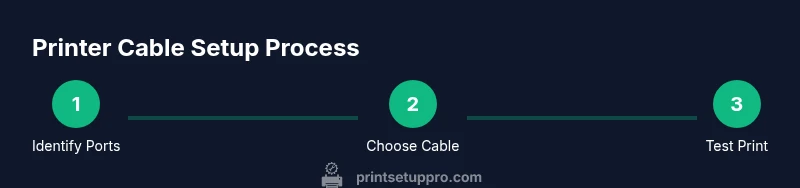
Identify ports on both devices
Inspect printer and computer to determine which cable type fits: USB-A/B, USB-C, or Ethernet. Confirm driver support for the OS you’re using.
Tip: If ports don’t match, look for a direct-matching cable first before considering adapters. - 2
Select and prepare the cable
Choose the cable that matches both devices’ ports and confirm it is in good condition with no visible wear.
Tip: Do not reuse an aged or kinked cable; a fresh, shielded cable reduces interference. - 3
Connect the cable and power on
Attach the cable securely to both devices and power on the printer first, then the computer or router for Ethernet.
Tip: Listen for a small click indicating a secure connection at both ends. - 4
Install or update drivers
Let the OS detect the printer automatically or install the latest drivers from the manufacturer site if prompted.
Tip: Use the manufacturer’s driver package rather than generic print drivers when available. - 5
Add and test the printer
In Windows or macOS, add the printer in the printers list and print a test page to verify setup.
Tip: If the test page misaligns, recalibrate printer settings and verify color profiles. - 6
Troubleshoot if needed
If the printer isn’t detected, recheck cable, ports, and driver installation; consider a network reset for Ethernet.
Tip: Restart devices after driver updates to ensure changes take effect.
People Also Ask
What is the difference between USB and USB-C for printers?
USB-C is newer and can carry data and power more flexibly, which reduces the number of adapters needed. USB-A to USB-B is still common for many printers, but always verify printer port compatibility and driver support for your OS.
USB-C is newer and often more convenient, while USB-A to USB-B remains common for older printers. Check port compatibility and drivers.
Can I use a network Ethernet cable instead of USB?
Yes. Ethernet connects the printer to a network allowing multiple devices to print without a direct USB cable. It’s ideal for shared offices or homes with several computers.
Yes. Ethernet lets multiple devices print over the network; USB is for a direct connection.
How long can a USB printer cable be before quality becomes an issue?
USB cables perform best when kept reasonably short. If you need more reach, consider a high-quality shielded cable or a USB hub that’s powered to maintain signal integrity.
Keep USB cables reasonably short; consider a powered hub for longer setups if needed.
What should I do if the printer isn’t detected after connecting?
Double-check the cable connection, port types, and whether the correct driver is installed. Try a different cable and restart devices after installation.
Check connections, ports, and drivers. Try another cable and restart after installing drivers.
Do I need to install printer drivers on macOS differently than Windows?
macOS can often auto-detect printers, but you may still need vendor drivers for full functionality. Windows usually prompts for driver installation during setup if needed.
Mac can auto-detect, but vendor drivers may be required for full features; Windows may prompt for drivers.
Is Ethernet always better for multiple users?
Ethernet is typically better for shared printers because it avoids tying up a single computer’s USB port and can provide robust network access.
Ethernet is usually the better option for shared printing in a network.
Watch Video
Quick Summary
- Choose the correct cable type that matches both devices.
- Ethernet is ideal for shared printers; USB is best for direct connections.
- Update drivers and test with a real print to verify success.
- Avoid forceful connections and long, unshielded cables when possible.
- Maintain cables and document your setup for quick future fixes.