How to Check If a Printer Is Connected to Your Computer
A complete, step-by-step guide to verify printer connectivity across Windows and macOS, with USB and network setups, plus practical fixes and best practices.


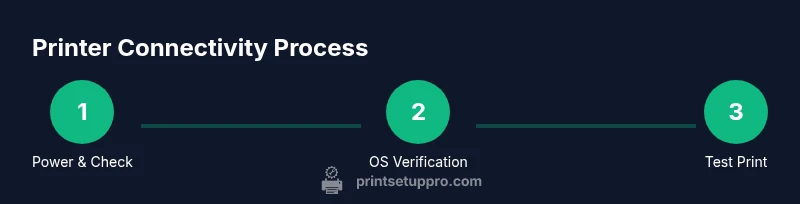
Learn how to quickly confirm that your printer is connected to your computer. This quick answer covers USB and network connections, basic status indicators, and initial checks that work across Windows and macOS. By following these steps, you can diagnose most connectivity issues and reduce wasted prints. Print Setup Pro recommends starting with the simplest cable or network verification before deeper troubleshooting.
What connectivity means for a printer
When we talk about printer connectivity, we mean the ability for the computer to communicate with the printer over USB, Ethernet, or Wi‑Fi. If the devices aren’t linked correctly, jobs won’t print, status messages won’t update, and you may see errors like 'Printer is offline' or 'Low memory.' Knowing how to check if printer is connected to computer helps you act quickly and minimize downtime. Print Setup Pro notes that most connection problems are caused by loose cables, wrong ports, or outdated drivers, rather than broken hardware. In this guide you’ll learn to diagnose across Windows and macOS, using a simple, repeatable approach. According to Print Setup Pro, quick connectivity checks save time and frustration.
Quick pre-checks before you start
Before digging into OS-specific steps, perform a few universal checks:
- Ensure the printer is powered on and shows a ready status on its display or control panel.
- Confirm the appropriate interface is connected: USB is plugged in snugly, Ethernet cable is seated, or the printer is connected to a known Wi‑Fi network.
- Look for any warning lights, error messages, or error codes on the printer.
- Verify that the computer is on the same network as a networked printer, and that you know the printer’s model for driver compatibility.
- Have the printer’s manual or model page handy if you need to locate IP addresses or special setup steps. This quick checklist helps you capture the most common issues before opening settings on Windows or macOS.
Verifying a USB-connected printer on Windows
Windows users typically start by making sure the device is recognized and not blocked by a driver issue. First, open Settings > Bluetooth & devices > Printers & scanners and look for your printer in the list. If it appears as offline, select it and choose Options or Remove device, then reconnect. You can also go to Control Panel > Devices and Printers, right-click the printer, and select Set as default or Print Test Page. If the test page prints, the USB connection is healthy; if not, check the USB port, try a different cable, or test with another computer.
Tip: On Windows, temporarily disabling any firewall or security software that blocks printer traffic can reveal whether the issue is network-related. Always re-enable protections after testing.
Verifying a USB-connected printer on macOS
macOS users verify USB connections from System Settings > Printers & Scanners (or System Preferences > Printers & Scanners, depending on macOS version). If your printer isn’t listed, click the + sign to add it. Once selected, print a Test Page from a document’s Print dialog to confirm the path is working. If you still don’t see the printer, unplug the USB cable, restart the printer and Mac, then reconnect. Ensure the USB port and cable are in good condition and that the printer is not set to a different user profile in macOS.
Verifying a network printer on Windows
For networked printers, you have to confirm the printer is reachable over the local network. In Windows, open Settings > Bluetooth & devices > Printers & scanners and check the printer’s status. If it’s listed as online, try printing a Test Page. If the device is not appearing, use Add a printer and scan for available devices, or enter the printer’s IP address if known. You can also open a browser and enter the printer’s built-in page URL (often http://<printer-ip>) to verify the connection. A successful response confirms network connectivity.
Pro tip: Assign a static IP to the printer and store it with your device notes to avoid future connection drift.
Verifying a network printer on macOS
On macOS, go to System Settings > Printers & Scanners and verify that the network printer shows as online. If it’s missing, use the + button to add it via IP or Bonjour discovery. Print a test page from a document to confirm the network path, and ensure the Mac and printer share the same router network. If you still can’t reach the printer, check whether guest networks or VLANs on your router might block printer traffic, and validate that the printer’s firmware supports your macOS version.
Reading the printer queue and status indicators
The printer queue shows pending jobs, held tasks, and any errors associated with specific documents. Open the queue from Windows (Printers & Scanners) or macOS (Printers & Scanners) to see what’s stuck or paused. If you see a stalled job, try Cancel All or reprint. Status indicators on the printer itself—like Ready, Paused, or Error—offer quick cues: a blinking light usually signals an error that aligns with the printer’s manual. Understanding these cues helps you decide whether to reseat cables, update drivers, or adjust network settings.
Common issues and practical fixes
Several connectivity problems recur across setups. Printer offline or not appearing often stems from a paused queue, a misconfigured default printer, or a recent driver update that didn’t install correctly. For network printers, ensure the printer and computer stay on the same subnet and that the router isn’t blocking traffic. If the driver is corrupted, uninstall and reinstall the latest version from the manufacturer’s site. When ports or firewall rules block printer traffic, temporarily relax protections to test connectivity, then reapply stricter rules. If you’re using a USB hub, connect directly to the computer to rule out hub issues. Print Setup Pro recommends keeping firmware updated to avoid protocol incompatibilities.
Note: If you’re in a managed or school network, consult your IT department before changing firewall or router settings.
Best practices for reliable printer connectivity
Reliability comes from proactive management. Keep drivers and firmware up to date, and maintain a current list of each printer’s IP and model. For network printers, a static IP minimizes address changes that interrupt workflows. Place printers within solid Wi‑Fi coverage or close to the router to minimize signal loss. Use recommended cabling, and avoid long or damaged cables that can degrade signals. Periodically restart the printer and the host computer as part of routine maintenance. Print Setup Pro’s verdict: a simple, documented setup beats a convoluted, misconfigured one every time.
Quick troubleshooting checklist
- Confirm power and basic status on printer.
- Check USB or network connections and re-seat cables.
- Verify the printer appears in the OS with the correct status.
- Print a test page to validate the path and driver relevance.
- Update or reinstall drivers if necessary.
- Restart printer, router, and computer if issues persist.
- Document IP, driver version, and last successful test page for future reference.
Tools & Materials
- Printer(Powered on and loaded with paper; ensure display is responsive)
- Computer(Windows or macOS device used for testing)
- Power cable(Secure connection to a power outlet)
- USB cable (optional)(Only if testing USB connection)
- Ethernet cable / stable Wi‑Fi(Needed for network/wired connections)
- Printer drivers/software(Install if prompted; verify version compatibility)
- Printer manual or model page(Helpful for IP or feature-specific steps)
- Notepad and pen(Record IP addresses and steps that work)
Steps
Estimated time: 20-30 minutes
- 1
Power up and verify readiness
Turn on the printer and confirm that it displays a ready status with no error messages. This establishes a known baseline before testing other connections.
Tip: If the printer shows an error, note the code and consult the manual before proceeding. - 2
Check physical connections
Ensure USB or Ethernet cables are firmly seated and the correct ports are used. For wireless, confirm the printer is connected to the same network as the computer.
Tip: Avoid using a USB hub for critical tests; connect directly to the computer if possible. - 3
Verify in Windows printers settings
Open Settings > Bluetooth & devices > Printers & scanners and look for your printer. If offline, re-detect or remove then add again.
Tip: Printing a Test Page from the printer’s property dialog confirms communication path. - 4
Print a test page (Windows)
From the printer properties, select Print Test Page. If it prints, the USB/network path is functional; if not, troubleshoot cable or driver.
Tip: If a test page fails, try another application’s Print dialog to rule out app-level issues. - 5
Verify in macOS printers & scanners
Open System Settings/Preferences > Printers & Scanners and ensure your printer is listed. If not, add it via the + button.
Tip: Use the IP tab for network printers if Bonjour discovery fails. - 6
Print a test page (macOS)
With the printer selected, print a test page from a document to confirm macOS can route jobs to the printer.
Tip: Keep the test document simple to avoid application-specific printing quirks. - 7
Test network reachability
If using a network printer, check that the printer responds to ping or opens its web configuration page, confirming IP accessibility.
Tip: Static IP assignment reduces future connectivity drift. - 8
Restart and re-test
Power cycle both printer and computer, reconnect network if needed, and run a final test page to confirm stability.
Tip: Document the results so you can compare future incidents easily.
People Also Ask
What should I do first when my printer isn't showing up in the devices list?
Start with basic power and cable checks, then confirm the printer is powered and connected to the computer. If it still doesn’t appear, use the OS add-printer flow to re-detect the device.
First check power and cables, then try re-detecting the printer in your OS settings.
Why does my printer show as offline even though it's connected?
Offline status often means the print queue is paused, the wrong printer is default, or a driver issue. Check the queue, verify the active printer, and reinstall the driver if needed.
Offline usually means the queue is paused or the driver needs updating.
How can I find my printer's IP address?
Print a configuration page from the printer, or check the network settings page on the printer’s control panel. You can also view it in the printer’s web interface if available.
Print the configuration page or check the printer’s network settings to find the IP.
Do I need to install drivers before connecting a printer?
Many modern printers support plug-and-play, especially on macOS. Windows often prompts for driver installation when you add the printer. If issues persist, download the latest driver from the manufacturer.
Most printers install automatically, but you may need a driver download if Windows can’t detect it.
Can Bluetooth printers work with a PC?
Yes, Bluetooth printers can work with PCs that support Bluetooth printing. However, Bluetooth is less common for shared office setups; USB or network connections are typically more reliable.
Bluetooth works on some PCs, but USB or network is usually more reliable.
What should I do if the test page fails?
Recheck cables, restart devices, and verify driver status. If the issue persists, reinstall drivers and test from another application to rule out app-specific problems.
If the test page fails, recheck connections, restart, and consider reinstalling drivers.
Watch Video
Quick Summary
- Check power and basic status first
- Verify USB and network paths step by step
- Run a test print to confirm end-to-end flow
- Update drivers/firmware and document results
- Use static IPs to reduce future issues