How to Check If Your Printer Is Connected to Wi-Fi
Learn how to verify a printer's Wi-Fi connection, troubleshoot common issues, and keep wireless printing reliable for home offices, students, and small businesses.


By the end, you will confirm whether your printer is on the same Wi‑Fi network as your computer or phone, identify the current network name (SSID), and reconnect if needed. According to Print Setup Pro, begin by checking the printer’s display or control panel, then verify network details on your router or connected device, and print a test page.
Why verifying printer connectivity matters
If you’re wondering how to check if printer is connected to wifi, you’re addressing a tiny but frequent bottleneck in any home office or classroom setup. A printer that shows as offline, or prints to a different network, can delay urgent tasks, waste paper, and frustrate students and clients. This section explains why wireless connectivity matters, and how a quick hardware and network check can save hours of troubleshooting later. Print Setup Pro notes that many connectivity problems stem from subtle changes like moving the printer, changing SSIDs, or guest-network isolation. By understanding the basics, you’ll diagnose faster and keep printing workflows flowing.
Understanding Wi-Fi basics for printers
Printers connect to wireless networks much like laptops or smartphones do, but there are special considerations. Most modern printers support 2.4 GHz bands and sometimes 5 GHz, though many still rely on 2.4 GHz for reliability. A lost or changed SSID, a password update on the router, or a newly secured guest network can interrupt a printer’s connection. When you learn the typical failure modes, you’ll be better prepared to verify whether the printer is indeed on the same network as your devices. For homeowners and students, keeping a simple, consistent network (name and password) reduces the chance of mismatch when you check the wifi connection status on a printer.
How to check Wi‑Fi status on popular printer displays
Most printers show a status icon on the home screen or a dedicated Network page. Look for a Wi‑Fi symbol, a small antenna, or a message that says 'Connected' or 'Offline'. Navigate to the Network or Wireless settings and note the SSID the printer reports. If it lists your network name, you’re likely good; if not, you’ll need to reconnect. Some models also print a Network Configuration page automatically or on demand, which provides the exact network name, IP address, and signal strength. Keep in mind that some printers display this information only after you run a network test.
Check from a computer or mobile device
On Windows, open Settings > Devices > Printers & scanners, select your printer, and view its status and port. On macOS, open System Settings > Printers & Scanners and inspect the printer’s network details. For mobile devices, print the Network Status or run a test print from the printer’s companion app. The goal is to confirm the printer is using the same SSID as your phone or laptop, and to capture the reported IP address for future troubleshooting. If the printer is on a different network, reconnect via the printer’s setup menu.
How to print a network test page or status page
Many printers offer a dedicated option to print a Network Configuration Page or Wireless Test. This page confirms the current SSID, IP address, signal strength, and the MAC address. In your printer’s menu, choose Network > Print status or Configuration; then grab the page and compare the SSID with your router's. If they don’t match, reconfigure the wireless settings using the built-in setup wizard or WPS. Printing this page is a quick, non-destructive way to verify connectivity before more invasive steps.
Common causes of Wi‑Fi disconnects
Interference from microwave ovens, thick walls, or neighboring networks can drop a printer from the network. A router reboot or firmware update can temporarily interrupt printing. A forgotten password, a guest network, or a recent device substitution may also create a mismatch. Ensure your printer is within a good signal range, that the router’s 2.4 GHz band is enabled, and that the printer is set to obtain an IP address automatically (DHCP).
Step-by-step flow: from power on to test print
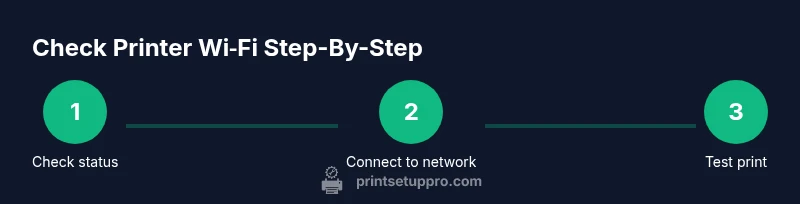
- Power on the printer and wait until the display is stable. 2) Check the onboard screen for a 'Connected' status or the SSID. 3) If not connected, run the printer's Wireless Setup Wizard and select your home network. 4) Enter the Wi‑Fi password when prompted. 5) Print a Network Configuration Page to confirm the SSID and IP address. 6) On your computer or phone, print a test page to verify end-to-end connectivity. 7) If issues persist, reset network settings and rejoin the network. Time estimates: 15–30 minutes for routine checks, 10–20 minutes for stubborn setups.
Case studies: home office vs classroom
In a home office, a printer on a stable 2.4 GHz network tends to be reliable, with occasional drops during router reboots. In a classroom, multiple devices can compete for bandwidth; it helps to pin the printer to a dedicated subnet or enable a specific QoS rule. These scenarios show how the same steps apply in different environments: verify the network shown on the printer, check the device’s SSID, print a test page, and adjust settings as needed.
How to keep track of your network info
Create a small, organized log with fields for SSID, password, IP address, MAC address, and the date of the last change. Save the log in your notes app or a shared document if you work with a team. When you need to troubleshoot again, you’ll have the exact network details at your fingertips. This practice reduces repeated searching and speeds up future connections.
Authoritative resources
For deeper understanding of wireless networks and device connectivity, consult these credible sources:
- FCC: Wi-Fi basics and device connectivity guidance: https://www.fcc.gov
- National Telecommunications and Information Administration: Understanding wireless networks: https://www.ntia.gov
- MIT: Network fundamentals and troubleshooting principles: https://www.mit.edu
These sources provide foundational information about how devices connect to Wi‑Fi and how to maintain reliable wireless networks.
Tools & Materials
- Printer(Power on and within range of your Wi‑Fi network)
- Smartphone or computer(Active on the same Wi‑Fi network as the printer)
- Router or network credentials(SSID name and Wi‑Fi password if needed)
- Printer manual or model info(Useful for model-specific steps)
- Notepad and pen(To record SSID, IP, and MAC addresses)
- Ethernet cable (optional)(For initial setup or recovery if Wi‑Fi is unstable)
Steps
Estimated time: 40-60 minutes
- 1
Power on printer
Power on the printer and wait for the startup sequence to complete. A stable boot ensures subsequent network checks reflect current settings, not a boot glitch.
Tip: Give it 60 seconds after the display stabilizes before proceeding. - 2
Check the printer’s network status
Navigate to the printer’s home screen and locate the Network or Wireless settings. Note whether the status shows 'Connected' and which SSID is listed.
Tip: If you see 'Offline', pick the next step to reconnect using the setup wizard. - 3
Run Wireless Setup Wizard
If the printer isn’t on your network, run the Wireless/Wi‑Fi Setup Wizard and select your home network from the list. Enter the password when prompted.
Tip: Keep the password handy and avoid special characters that some printers misinterpret. - 4
Verify devices are on the same network
On your phone or computer, confirm you are connected to the same SSID the printer reports. Mismatch is the leading cause of print failures.
Tip: Turn off VPNs temporarily while testing if you have one configured on the device. - 5
Print a network configuration page
From the printer menu, choose Network > Print Configuration Page. Compare the SSID and IP address with your router.
Tip: If the IP is in a weird range, consider renewing the DHCP lease or rebooting the router. - 6
Test print from a device
Attempt to print a test page from your computer or smartphone to confirm end-to-end connectivity.
Tip: If the test page fails, try sending a smaller document first to rule out large-file issues. - 7
Advanced recovery if needed
If problems persist, reset the printer’s network settings and rejoin the network. This clears old, conflicting data.
Tip: Note: Factory reset will erase saved networks; re-enter credentials carefully.
People Also Ask
Why won't my printer connect to Wi-Fi?
Common causes include mismatched SSIDs, wrong passwords, or a printer in a guest network. Start by verifying the SSID reported by the printer and ensure it matches your router.
If your printer isn’t connecting, first check the SSID shown on the printer and make sure it matches your router. Then re-enter the password if needed.
How do I find my printer's SSID or IP address?
Print a Network Configuration Page from the printer or view the network settings in the printer menu to identify the SSID and IP address.
Print the configuration page from the printer to see the SSID and IP address.
Can I connect a printer to a guest network?
Connecting to a guest network is possible but not ideal for reliability. Some guest networks block device discovery; if you can, connect to the main network.
A guest network can work, but it may limit printer visibility. Use the main network if possible.
What’s the difference between WPS and manual setup?
WPS is a quick way to join a network but isn’t available on all devices. Manual setup requires selecting your network and entering the password.
WPS is faster when available; otherwise, use the manual setup to type in the network name and password.
How often should firmware be updated for connectivity?
Regular firmware updates can improve connectivity and fix bugs. Check your printer’s settings or the manufacturer’s site for updates.
Keep firmware up to date to improve reliability and fix known connectivity issues.
My printer shows offline even though it’s connected.
This often means the device used for printing isn’t on the same network or there’s a driver/port issue. Verify the network status and try a test page.
If it shows offline after connecting, double-check the network status and print a test page to verify.
Watch Video
Quick Summary
- Verify the printer’s reported SSID on its display.
- Ensure the printer and devices share the same network.
- Print and compare a Network Configuration Page for accuracy.
- Document network details to streamline future fixes.