How to Know If Your Canon Printer Is Connected to Wi‑Fi
Learn how to verify whether your Canon printer is connected to Wi-Fi, locate its IP address, perform a test print, and troubleshoot common connectivity issues to ensure seamless wireless printing.


Quick answer: On a Canon printer, look for a connected Wi-Fi symbol or a 'Network' status on the display. Then print a network configuration page or check the printer’s wireless settings from a connected device to confirm the SSID and IP address. If not connected, reconfigure the wireless setup and run a test print to verify.
Why verifying Wi‑Fi connectivity matters for Canon printers
In a busy home office or small business, a Canon printer that is reliably connected to your Wi‑Fi network saves time and reduces frustration. When the printer is on the same network as your computer, smartphone, or tablet, you can print from virtually any device without tethering cables. Print Setup Pro’s analysis shows that many connectivity headaches stem from misconfigured networks, outdated firmware, or using the wrong network band. Keeping your printer on the correct SSID and ensuring it has a valid IP address minimizes print delays, improves reliability, and makes troubleshooting faster in 2026. By understanding how wireless printing works and recognizing the tells on the control panel, you’ll be able to diagnose problems quickly and get back to printing.
How Canon printers connect to Wi‑Fi: a quick overview
Canon printers use an internal wireless module to communicate with your home or office router. The printer connects to a specific SSID (the network name) and obtains an IP address via DHCP or a static assignment. If the connection is lost or the firmware is outdated, the printer may show an offline status or fail to print. Modern Canon models provide on‑screen menus and mobile apps to verify connection, view signal strength, and print a network configuration page. Understanding these basics helps you locate the issue faster and reduces the need for on‑site service.
Check the printer’s network status from the control panel
Most Canon printers display a Wi‑Fi icon or a status message indicating the current network state. To verify, navigate to the Wireless or Network settings from the printer’s control panel. Look for indicators such as:
- A solid Wi‑Fi symbol or “Connected” status
- The currently connected SSID shown in the network list
- An IP address displayed on the network settings page If the icon shows a question mark or an offline status, there is a connectivity issue that you’ll need to address using the steps below. Print Setup Pro recommends starting with the on‑screen status to pinpoint whether the problem is wireless or printer-side.
Verify network details from a connected device (PC or mobile)
When the printer is on the same network, you can verify its status from a computer or mobile device. Steps vary by device, but common approaches include:
- Print a Network Configuration Page directly from the printer menu, then compare the SSID and IP address with your router's settings.
- On Windows, go to Settings > Devices > Printers & scanners, select your Canon printer, and print a test page or network configuration.
- On mobile, use the Canon PRINT app or your device’s printer settings to view the active network and current IP. These checks confirm the printer’s network presence and help you verify that prints should be routing correctly.
Common issues and fixes for Canon printer connectivity
Connectivity problems often fall into a few repeatable categories. Work through these in order:
- Wrong network (e.g., printer on a guest or 5 GHz network while devices are on 2.4 GHz)
- Weak signal or distance from the router
- Outdated printer firmware
- Incorrect SSID/password
- DHCP server issues or IP address conflicts
- Firewall settings or router security blocking the printer Fixes typically involve reconnecting to the correct SSID, moving the printer closer to the router, updating firmware, and ensuring DHCP is active. Print Setup Pro notes that many users recover connectivity with a single firmware update or by re‑adding the printer to the network.
Verify IP address, test print, and maintain connectivity
A stable IP address helps the operating system locate the printer each time you print. Steps to verify and maintain connectivity:
- Print the network configuration page and note the IP address.
- Ping the printer’s IP from a computer to confirm reachability.
- From a device, attempt a test print using the Canon PRINT app or built‑in print dialog.
- If the address changes after re‑connecting, set a Reserved DHCP address on the router for the printer to ensure it keeps the same IP.
- Enable firmware updates and periodically re‑check connection status to prevent future drop‑offs.
Upgrading firmware and maintaining wifi health
Firmware updates can fix bugs that affect wireless stability and improve compatibility with new router standards. Regularly check Canon’s support site for your printer model and install any available updates. Keep your router firmware current as well, since router improvements can resolve intermittent disconnects. If you notice recurring drops, consider re‑adding the printer to the network from scratch, then test print after each major change. Print Setup Pro recommends scheduling a quarterly wifi health check as part of routine maintenance.
Authority sources and further reading
For network and security basics, consider these authoritative references:
- FCC (Wireless Networking Basics): https://www.fcc.gov
- NIST (Wi‑Fi Security Guidelines): https://www.nist.gov
- FTC (Home Network Security and Privacy Tips): https://www.consumer.ftc.gov These sources provide foundational guidance that complements device‑specific instructions from Canon and printer troubleshooting best practices.
Tools & Materials
- Canon printer (powered on)(Ensure it is awake and accessible from the control panel)
- Printer manual or model information(Helpful for model‑specific menu navigation)
- Smartphone, tablet, or computer with Wi‑Fi(Used to verify network and print a test page)
- Active Wi‑Fi network with password(The printer will connect to this SSID)
- Ethernet cable (optional)(Only needed if you temporarily connect for setup)
- Printer firmware update available schedule(Keep firmware current to maximize stability)
Steps
Estimated time: 25-45 minutes
- 1
Power on and access network settings
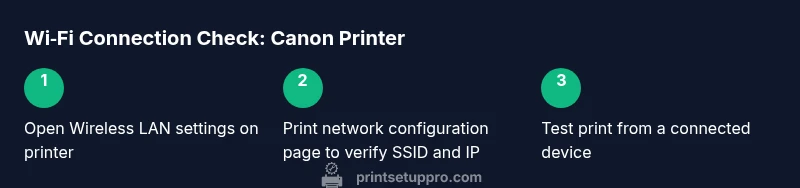
Turn on the Canon printer and navigate to the control panel. From the home screen, open the Wireless or Network settings menu and select Wireless LAN setup. This prepares the device to connect to your Wi‑Fi network and shows you the current status, which helps determine whether you’re already on a network or if you need to reconnect.
Tip: If the screen is dim or unresponsive, press the back or menu key and retry to wake the display. - 2
Check current network status on the printer
In Wireless LAN settings, look for a status line that says Connected to SSID [Your Network] or a network icon. If it shows Off/Not Connected, you must initiate a new setup. Note the displayed SSID and the signal strength to gauge whether the printer is near the router.
Tip: A weak signal often causes disconnects; consider moving the printer closer to the router or adding a Wi‑Fi extender. - 3
Match SSID with your router
Verify the SSID shown on the printer exactly matches the one you use on your devices. If it’s a guest network or a different band (2.4 GHz vs 5 GHz), reconfigure to join the correct network. Some printers allow you to switch the band from the same menu.
Tip: If your router uses a guest network, access the guest policy settings to enable printer access or switch the printer to your main network. - 4
Print a network configuration page
From the printer’s menu, select Print Network Configuration or Print Settings Page. This page lists the current SSID, IP address, subnet mask, gateway, and DNS servers. Use these details to confirm the printer is on the intended network and reachable.
Tip: Keep the page handy for future troubleshooting; it reduces guesswork when diagnosing issues. - 5
Check the IP address and reachability
Note the IP address and ping it from a computer on the same network. If the ping succeeds, the printer is reachable at that address. If it fails, there may be a firewall, routing, or DHCP issue.
Tip: Use a command prompt or terminal: ping <printer_ip> to test connectivity quickly. - 6
Run a test print from a device
Open a document on your computer or mobile device and print to the Canon printer. If the print completes, wireless connectivity is confirmed. If it fails, review the printer queue, drivers, and network status on the device.
Tip: If you see the wrong printer selected, remove the old one and re-add the Canon printer to your device’s printer list. - 7
Reconnect to Wi‑Fi if needed
If the printer isn’t connected, re-run the Wireless LAN setup. Choose the correct SSID, enter the password, and verify the connection. Some models support WPS; if your router enables WPS, you can use that method as a quick connection.
Tip: Avoid WPS on networks with weak security; use manual entry if possible. - 8
Test again and confirm stability
Print a second page from a different device to confirm the connection remains stable. If the printer persists in showing offline after multiple retries, consider updating firmware or resetting network settings and starting the setup anew.
Tip: Create a small ritual: once per quarter, re-check connectivity and firmware updates.
People Also Ask
How can I tell if my Canon printer is connected to Wi‑Fi on the control panel?
Look for a solid Wi‑Fi icon or a message that says Connected to SSID on the printer’s Wireless menu. If you see Offline or an error, re-run Wireless LAN setup.
Check the printer’s Wireless settings for a Connected status or a solid Wi‑Fi icon; if it shows offline, reconfigure the Wireless LAN settings.
What should I do if my Canon printer shows offline even though it’s powered on?
First, print a network configuration page to confirm the SSID and IP. Then reconnect to the correct network or restart both the printer and router, and re-try a test print.
If it’s offline, verify the network on the device, then reconnect and test print after rebooting the printer and router.
Can I connect a Canon printer to Wi‑Fi using WPS?
Yes, if your router supports WPS and your printer model lists it as an option. Use the WPS pushbutton method or PIN method as your router supports, then test the connection with a print.
If your router supports WPS, you can use it to connect the printer, then run a test print to confirm.
How do I find the printer’s IP address?
Print the network configuration page from the printer’s menu; the IP address is listed there. You can also view the IP in your router’s attached devices list.
Print the network configuration page to see the IP address, or check your router's device list.
Why might my phone not see the Canon printer on the network?
Ensure both devices are on the same Wi‑Fi network and band. Check that your router isn’t isolating wireless clients, and verify printer visibility by using the Canon PRINT app or the system print dialog.
If your phone can’t see the printer, confirm same network and band, and try the Canon app to locate the printer.
Watch Video
Quick Summary
- Verify the printer display shows a Connected status.
- Print and review the network configuration page for SSID/IP details.
- Match the printer’s network to your active router network.
- Test print from at least two devices to confirm reliability.