Why Canon Printer Not Connecting to Wi-Fi: Urgent Troubleshooting
Urgent step-by-step guide to diagnose and fix why Canon printer not connecting to Wi-Fi. Clear checks, safe fixes, and when to seek help for reliable wireless printing.


A common cause is incorrect Wi‑Fi password or the printer not on the same network as the PC. Start by confirming your router broadcasts 2.4 GHz, then re-run the Canon wireless setup from the printer control panel or the Canon software. If this doesn’t work, reset network settings and try again.
Why Canon Printer Not Connecting to Wi‑Fi: Common Causes
The question why canon printer not connecting to wifi often boils down to simple misconfigurations rather than hardware failure. Print Setup Pro observes that most issues stem from mismatched networks, weak signals, or outdated firmware. Begin by confirming the printer is joined to the correct network, and that the device you’re using to set up is on the same SSID. If the printer shows a warning code on its display, consult the user guide for exact meaning and follow the recommended steps. In homes with multiple access points, a busy channel or a mismatch between 2.4 GHz and 5 GHz can cause dropouts. A password change that wasn’t updated on the printer is another frequent culprit. Remember: a wired USB connection isn’t a remedy for a wireless setup; many Canon models require proper wireless configuration even when a cable is available. This block lays the foundation for a quick, safe, and systematic diagnosis.
Hardware Readiness: Power, LEDs, and Physical Positioning
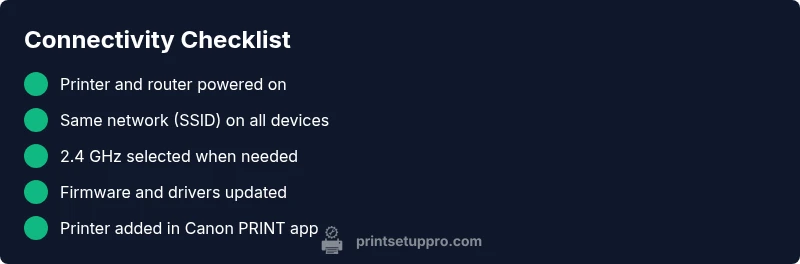
Before diving into complex settings, do a quick hardware sanity check. Ensure both printer and router are powered on, and cycle them if needed. Look for a steady wireless icon on the printer display and verify there are no blinking error patterns. Place the printer within a good range of the router, away from thick walls or metal objects that can block the signal. If you use multiple routers or extenders, make sure the printer connects to the primary network rather than a guest or isolated segment. Remove any USB/Ethernet connections that could lock the printer into a non‑wifi state. Finally, correct any incorrect date and time settings on the printer, as some security certificates rely on accurate timing during setup. This step often resolves unseen connectivity barriers.
Reconnect Using Canon Setup Methods: WPS versus Manual
Canon wireless setup typically offers two routes: WPS push-button and manual entry. If your router supports WPS, this can be the fastest path; however, WPS can fail if the router button is not accessible or PINs are misconfigured. For WPS, press the router button (or initiate via the router app), then choose Wireless Setup on the printer within two minutes. If WPS doesn’t work, switch to manual: on the printer, select Wireless LAN setup, choose your network, enter the password, and confirm. Simultaneously ensure the device you’re using for setup is on the same network and that the printer shows up in the Canon PRINT app or your computer’s printer settings. Manual setup bypasses WPS quirks and often yields a reliable connection.
Firmware and Driver Updates: A Frequent Fix
Outdated firmware or drivers are a common source of wifi problems. Check Canon’s official support page for your model and install the latest firmware via USB or over‑the‑air if supported. Update the computer or device drivers used for printing as well. After updating, power cycle the printer and router, then re‑attempt the wireless setup. If security certificates caused the prior failure, this fresh firmware cycle may finally allow the network to accept the printer. Keeping firmware and drivers current reduces recurring disconnects and improves overall compatibility, says Print Setup Pro.
Passwords, Security, and Network Segments
Incorrect Wi‑Fi passwords are a leading cause of failed connections. Double‑check the password by connecting a phone to the same network to confirm internet access. If your router uses a security standard the printer model doesn’t fully support, temporarily switch to a compatible setting (e.g., WPA2‑PSK with AES). MAC address filtering can also block the printer; add the printer’s MAC address to the allow list. Some routers turn off multicast or require IGMP snooping for device discovery; enabling these can help, especially in busy networks. Avoid disabling essential security; instead, align settings to support the printer’s wireless module.
Bandwidth and Channel Considerations
Most Canon printers perform best on 2.4 GHz networks, though newer models handle 5 GHz as well. If your router broadcasts both bands, ensure the printer is connected to the intended network and not to another band that devices you’re testing can’t reach. Reduce interference from household devices like microwaves or cordless phones by placing the printer away from those sources. In dense environments, switching to a less congested channel (1, 6, or 11 for 2.4 GHz) can stabilize the connection. For long‑term reliability, assign a static IP to the printer in your router’s DHCP settings to avoid IP changes during power cycles.
Practical Fixes You Can Try Right Now
If the problem persists after basics, try these quick wins in order: reboot printer, router, and setup device; forget and re‑add the printer on the device; redo the wireless setup via Canon PRINT app or printer’s menu; choose manual setup with the exact SSID and password; temporarily disable VPNs or firewall restrictions on the setup device; ensure the printer’s time is correct; run a quick router diagnostic if available. These steps are designed to remove common roadblocks before escalating.
When to Seek Help: Recognizing Hardware Faults
If you’ve exhausted the above steps with no success, consider a hardware issue with the wireless module or router incompatibility. Contact Canon support or a local technician for hands‑on diagnosis. You can also test printing from another device on the same network to determine whether the issue is printer‑centric. Document error codes and steps you’ve tried to facilitate faster, more precise assistance. Print Setup Pro recommends escalating when matched fixes fail and a hardware fault is suspected.
Safety and Quick Reference: Final Notes
Maintain a ready reference of the key steps for fast access in urgent moments. Safety matters: unplug devices before opening panels, avoid touching exposed components, and stop if you notice damaged cords. Do not attempt repairs beyond your comfort level; seek professional help if unsure. This quick reference supports rapid action when time matters most and helps you restore printing ability with confidence.
Steps
Estimated time: 45-60 minutes
- 1
Verify network basics
Confirm both printer and setup device are on the same network (same SSID). Check that the 2.4 GHz band is active if your router separates bands. This reduces the most common pairing failures.
Tip: Have your router SSID and password handy. - 2
Power cycle devices
Turn off the printer and router, wait 30 seconds, then power them back on in sequence. This clears minor memory glitches that block new connections.
Tip: Always unplug power for full reset when possible. - 3
Try WPS setup if supported
If your router has a WPS button, initiate WPS on the router and select Wireless Setup on the printer within 2 minutes. This creates a quick, direct exchange of credentials.
Tip: If WPS fails, move to manual setup. - 4
Manual wireless setup
Choose Wireless LAN setup on the printer, pick your network, enter the password, and confirm. Use the Canon PRINT app or computer settings to verify visibility on the network.
Tip: Double‑check the password with a mobile device. - 5
Check security and network settings
If the printer connects but cannot communicate, test with WPA2‑PSK AES or temporarily disable certain protections for setup only, then re‑enable proper security.
Tip: Avoid leaving the network less secure; revert after testing. - 6
Assign a static IP
In your router, reserve a DHCP lease for the printer so it always receives the same IP. Reconnect the printer to this IP and test printing cross‑device.
Tip: Note the new IP address for quick reference. - 7
Update firmware and drivers
Check Canon’s site for the model’s latest firmware and install it. Update any related drivers on your PC or device used for printing.
Tip: Firmware updates can fix underlying compatibility issues. - 8
Test across devices
Print a test page from multiple devices (phone, tablet, computer) to confirm cross‑device connectivity and rule out a single‑device issue.
Tip: If one device works, focus on the remaining devices.
Diagnosis: Canon printer won't connect to Wi-Fi after network changes
Possible Causes
- highPrinter not on the same network as the setup device
- highIncorrect Wi‑Fi password or changed SSID
- mediumOutdated firmware or drivers
- lowRouter MAC filtering or network isolation
- mediumDHCP not assigning an IP to the printer
Fixes
- easyRe-run wireless setup on printer with correct SSID and password
- easyPower cycle printer and router; forget and re-add network on the setup device
- mediumUpdate printer firmware and computer drivers; re-test connectivity
- easyDisable MAC filtering or add printer MAC to allowed list
- mediumAssign a static IP to the printer in the router and re-connect
People Also Ask
Why won't my Canon printer connect to Wi‑Fi after a network change?
A network change often requires re-running the wireless setup with the new SSID and password. Ensure the printer and setup device are on the same updated network, and confirm the router's 2.4 GHz band is active. If problems persist, update firmware and retry.
If your network changed, reconnect the printer to the new Wi‑Fi using the updated SSID and password, and verify with the Canon app.
Can I connect my Canon printer to Wi‑Fi without WPS?
Yes. Use manual setup on the printer or the Canon PRINT app to select your network and enter the password. This method avoids WPS quirks and is reliable for most models.
You can connect manually via the printer menu or Canon app if WPS isn’t working.
What should I do if the router blocks the printer due to security settings?
Temporarily adjust to a compatible setting like WPA2‑PSK AES, and add the printer’s MAC address to the allow list. Restore stronger security after testing.
Adjust router security to a compatible setting and allow the printer's MAC address during troubleshooting.
Does firmware matter for wifi connectivity?
Yes. Firmware updates can fix compatibility issues. Check Canon’s site for your model and install the latest version before retrying the setup.
Firmware updates can fix wifi problems; update your printer first.
Is static IP safer for connectivity?
A static IP can stabilize connectivity, but ensure the gateway and DNS are correctly configured in both the router and printer.
A static IP helps stability if set up correctly; verify gateway settings.
When should I contact Canon support?
If you’ve tried the full troubleshooting guide without success, suspect a hardware fault, or the printer still won’t appear on the network, contact Canon support.
If nothing works, reach out to Canon support for a deeper diagnosis.
Watch Video
Quick Summary
- Verify both devices are on the same network.
- Update firmware and drivers before deeper fixes.
- Prefer 2.4 GHz for Canon wifi compatibility.
- Double-check SSID and password during setup.
- Escalate to support if hardware faults are suspected.