Canon Printer WiFi Setting: A Complete 2026 Guide
Step-by-step instructions to set up Canon printer wifi setting, troubleshoot connectivity, and secure wireless printing for 2026. Learn methods, testing, and maintenance tips for reliable multi-device printing.


Learn how to configure the canon printer wifi setting and connect your Canon printer to your home or office network. This quick guide covers choosing a setup method, linking the printer to a wireless network, installing drivers or the Canon PRINT app, and testing the connection. It applies to most Canon models with built-in Wi‑Fi and emphasizes safe, stable configuration.
Understanding Canon Printer WiFi Settings
Canon printer wifi setting connects a printer to a wireless network so you can print from multiple devices without USB cables. This guide focuses on reliable, secure configuration across common Canon models with built-in Wi-Fi. According to Print Setup Pro, consistent results start with a clear network, proper credentials, and the latest firmware. We’ll walk you through each choice, from connection methods to post-setup checks, with practical tips for home offices and classrooms. By the end, you’ll be able to print from laptops, desktops, and mobile devices with confidence. We’ll also discuss how to verify the printer’s IP address to avoid conflicts on crowded networks and how to disable less secure options after setup. The goal is a stable, secure, and fast wireless printing environment for all your devices.
Wireless Networks and Canon Models: 2.4 GHz vs 5 GHz
Most Canon printers support 2.4 GHz networks, and many newer models are dual-band capable. Print connections over 2.4 GHz tend to be more reliable at longer distances, while 5 GHz can offer faster speeds at close range. Print Setup Pro analysis shows that for most home and small office setups, 2.4 GHz provides broader compatibility across devices, printers, and routers. If your router supports band steering, you may experience smoother transitions between bands. However, some older Canon units may only work reliably on 2.4 GHz. When in doubt, start there and test from multiple devices to confirm consistent printing.
Connection Methods: WPS, Direct Connect, and Standard Wireless Setup
Canon printers offer several ways to join a network. WPS can simplify the initial pairing, but it has known security caveats and may not be available on all models. Direct Connect (a temporary direct link to the printer) can help during installation when a network isn’t ready yet. The most robust option is standard wireless setup, where you select your home network from the printer’s menu and enter your password. If your router uses features like guest networks, you may need to allow printer traffic or switch to a dedicated network for printers. The method you choose should balance ease of use with ongoing security.
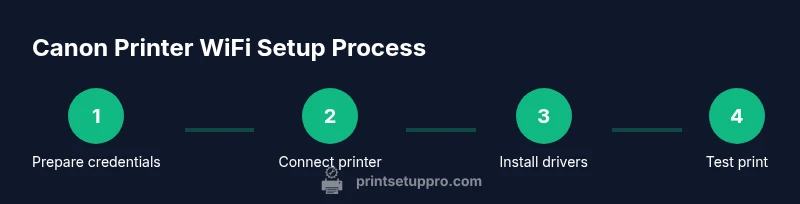
Step-by-Step Setup Flow (Windows): Prepare, Connect, Install, Test
The Windows setup flow begins with preparing your network credentials and ensuring the printer is powered on. Navigate to the printer settings and select Wireless LAN Setup or equivalent. Choose your Wi‑Fi network from the list and enter the password accurately. After the printer connects, install the Canon printer drivers or use the Canon PRINT app to complete the software side. Finally, print a test page to verify connectivity. If the test fails, double-check the SSID and password, restart devices, and re-run the setup.
Step-by-Step Setup Flow (macOS): Prepare, Connect, Install, Test
Mac users can also perform wireless setup through System Preferences or the Canon software suite. Begin by verifying your network details, then access the printer’s wireless settings from the printer control panel. Select your network, enter the password, and confirm the printer reports a connected status. Install or update Canon drivers, or use AirPrint if supported, then print a test page. If Mac devices do not see the printer, ensure the printer is on the same subnet and that firewall settings aren’t blocking printer discovery.
Step-by-Step Setup Flow (Mobile): Prepare, Connect, Install, Test
Mobile setup often goes through the Canon PRINT app on iOS or Android. Start by connecting your phone or tablet to the same Wi‑Fi network you want the printer on. Open the app, follow the on-screen prompts to locate the printer, and complete the credential entry. The app can install drivers automatically on many devices, enabling seamless mobile printing. After setup, print a test photo or document from your phone to confirm end-to-end connectivity.
Installing Drivers and Software: Why It Matters
Drivers and software bridge the printer hardware with your devices. On Windows or macOS, ensure you have the latest Canon drivers installed from the official Canon support site. The Canon PRINT app provides additional features like print from mobile and scan-to-email on compatible models. Keeping drivers up to date reduces compatibility issues and improves security. Some printers support AirPrint or Mopria out of the box, which can simplify usage on supported devices without separate drivers.
Verifying Connectivity: What to Check If Printing Fails
If the test print fails, start with simple checks: confirm the printer shows as connected to your Wi‑Fi network, verify the IP address, and ensure the devices you’re printing from are on the same network. Reboot the printer, router, and client device if necessary. Check for firmware updates on the printer and router since outdated firmware can cause intermittent connectivity. Make sure firewall settings aren’t blocking printer-related ports and that the printer isn’t on a network isolation setting that prevents device discovery.
Security and Maintenance: Best Practices for 2026
After configuring the canon printer wifi setting, disable WPS if it was used, and enable WPA2/WPA3 security on your router. Regularly check for firmware updates to address security vulnerabilities and performance improvements. Change passwords for your printer’s admin interface if it’s exposed, and consider enabling a guest network separate from your main devices. Keep your router’s firmware current and review printer access logs periodically to detect unwanted activity. These practices help maintain a safer printing environment while keeping performance high.
Cross-Device Testing and Printing Ergonomics: Real-World Scenarios
Test printing from a laptop, a desktop, and a mobile device to confirm cross-device compatibility. If you work across Windows, macOS, iOS, and Android, ensure that the printer shows up in each platform’s printer list. Consider printing draft copies on regular paper first to save ink and time while you calibrate color and alignment. Finally, set up a simple print job workflow for recurring tasks to minimize setup friction for everyone in the household or small office.
Maintenance, Documentation, and Next Steps
Maintain a tidy print network by labeling devices, keeping documentation of network settings, and noting the printer’s current firmware version. Store this information in a central location for quick reference during future upgrades or troubleshooting. If you upgrade your router or change service plans, repeat the setup steps to re-establish connectivity. For ongoing confidence, review these steps annually or whenever you add new devices to the network.
Tools & Materials
- Canon printer with Wi-Fi capability(Ensure firmware is up to date.)
- Stable Wi-Fi network (SSID and password)(Prefer 2.4 GHz for compatibility; 5 GHz can be used if supported.)
- Windows PC, Mac, or mobile device to configure printer(Keep within range of the router during setup.)
- Printer drivers or Canon PRINT app(Download from Canon support site if needed.)
- Updated printer firmware(Check for latest version before starting setup.)
Steps
Estimated time: 15-25 minutes
- 1
Verify network details
Locate your Wi‑Fi name (SSID) and password. Confirm that your router is broadcasting on a compatible band and that there are no access restrictions blocking new devices.
Tip: Have credentials ready and copy them carefully to avoid mis-typing. - 2
Power on printer and access settings
Turn on the printer and open the control panel. Navigate to Wireless LAN Setup or Wireless Settings to begin pairing.
Tip: If the screen is dim, wake the device by pressing any button briefly. - 3
Choose setup method
Choose Standard Wireless Setup for most users. If your router supports WPS and you trust it, you may use WPS for a faster initial connection.
Tip: Avoid leaving WPS enabled long-term to reduce security risk. - 4
Select network and enter password
From the printer’s network list, select your SSID and enter the Wi‑Fi password exactly. Confirm the connection status on the screen.
Tip: Double-check capitalization and symbols in the password. - 5
Install drivers or app
On your computer, install the latest Canon drivers or use the Canon PRINT app on mobile to finalize the software configuration.
Tip: If prompted, allow the installer to install printer services or profiles. - 6
Print a test page and verify
Run a test print from a couple of devices to ensure cross-device connectivity and color accuracy.
Tip: If colors look off, run a printer alignment/calibration from the maintenance menu.
People Also Ask
Can I set up Canon printer wifi setting without a USB cable?
Yes. Most Canon printers support wireless setup through the control panel or Canon PRINT app, avoiding USB connections during setup. Some models may offer AirPrint or Mopria compatibility as alternatives.
Yes, wireless setup is usually possible through the printer menu or the Canon PRINT app, so you can avoid using a USB cable.
What should I do if the printer doesn’t appear on the device list?
First verify the printer is connected to the same Wi‑Fi network as your computer or mobile device. Restart the printer and router, then retry the setup. Ensure firmware is current and that the network allows device discovery.
If the printer isn’t showing up, confirm on the same network, restart devices, and try again with updated firmware.
Is using WPS safe for ongoing use?
WPS can simplify initial setup but has known security weaknesses. It’s best to disable WPS after the printer connects and rely on standard WPA2/WPA3 protection.
WPS is convenient for setup but less secure, so disable it after connecting.
How do I find the printer’s IP address?
You can print a network configuration page from the printer or view the status in the printer’s wireless settings menu. The IP address helps with direct device testing and firewall rules.
Print a network page or view the IP in the printer’s settings to locate it quickly.
Why is wireless printing slower or intermittent?
Intermittent performance is often caused by signal interference, router congestion, or distance. Move closer to the router, minimize obstacles, and limit competing devices on the network.
Intermittent printing is usually due to signal strength—try moving closer to the router and reducing interference.
Can I print from multiple platforms like Windows, macOS, and mobile?
Yes. Most Canon printers support printing from Windows, macOS, iOS, and Android. Use standard drivers or built-in printing frameworks like AirPrint or Mopria where available.
Yes, you can print from Windows, Mac, and mobile devices with the right drivers or built-in print support.
Watch Video
Quick Summary
- Verify network details before starting.
- Choose a reliable setup method for your router.
- Test printing from all devices to confirm connectivity.
- Disable vulnerable features after setup for security.