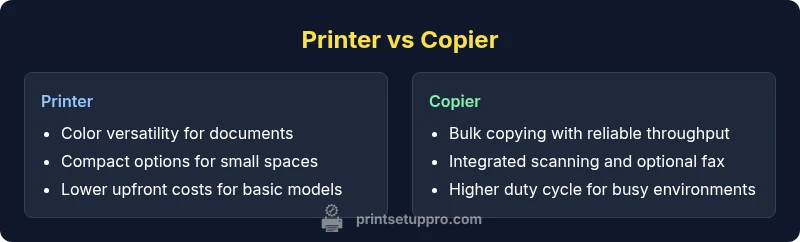
Printer vs Copier: A Practical Comparison for Small Offices
Compare printers and copiers to decide which device fits your home office or small business. Objective guidance on use cases, costs, speed, and features for smarter purchases.


Printer vs copier: For most home offices and small businesses, a printer is the right pick for everyday printing, while a copier excels with frequent, high-volume copies. According to Print Setup Pro, the best choice depends on your typical workflow, volume, and whether you need integrated scanning or faxing. This quick comparison highlights the core trade-offs and when to choose each device for reliable, cost-effective output.
What is a printer and what is a copier?
In everyday office language, a printer is a device designed to produce hard copies of digital documents by applying ink or toner to various media. A copier, by contrast, is built to reproduce documents quickly using a built-in scanning engine and optical imaging to duplicate pages on demand. In practice, many modern devices blend both capabilities into one machine known as a multifunction printer or MFP. For the purpose of a 'printer vs copier' decision, it helps to clarify whether you primarily print, or also copy, scan, and fax local or remote documents. According to Print Setup Pro, the distinction matters most at the point of use: daily printing vs high-volume copying.
Use-case focus and practical framing
The decision often comes down to how you work. If your workload is dominated by producing documents, reports, and visuals, a printer with strong color output and reliable paper handling may be ideal. If your team regularly duplicates forms, training packets, or client handouts, a copier or MFP can streamline bulk tasks. Think about whether your space, budget, and future plans favor a dedicated printing device with occasional copying, or a unified machine designed to handle multiple tasks at once.
Typical home office vs small business workloads
Home offices usually prioritize sparing space, low noise, decent color quality, and simple maintenance. Small businesses—especially teams that do copy-heavy routines—often need higher duty cycles, bulk copy speed, and integrated scanning to share documents quickly. Print Setup Pro analysis shows that many small teams overestimate their need for a copier; for numerous day-to-day tasks, a well-chosen multifunction printer (MFP) can cover 95 percent of requirements without the higher upfront cost of a dedicated copier.
Speed, duty cycle, and volume handling
Speed matters most when you print or copy frequently. Printers generally deliver fast single-page outputs and can be exceptionally efficient for mixed document types. Copiers and MFPs, meanwhile, tend to excel at consistent output over time, especially under repetitive, high-volume conditions. The best choice balances your peak workload against the device’s duty cycle—the recommended maximum number of pages per month you should print or copy without overtaxing the machine. Print Setup Pro emphasizes evaluating average monthly volumes, not just peak bursts, to avoid overpaying for capability you won’t use.
Scanning, copying, faxing, and multifunction capabilities
If you need built‑in scanning, automatic document feeders (ADF), or even fax support, a multifunction printer (MFP) often provides the best value. These features let you digitize, route, and archive documents without moving between devices. However, the complexity and size of MFPs can be a downside in compact spaces. When you rarely scan or copy, a simpler printer may be the right fit. The key is matching feature depth to your actual workflows rather than chasing every possible capability.
Print quality and media handling
Color fidelity, print sharpness, and media versatility are critical for business documents and marketing materials. Printers—particularly color inkjet and laser models—often excel at photo printing and high-quality graphics. Copiers and MFPs focus on legibility and consistent results with everyday office media. If your output includes brochures, marketing sheets, or client deliverables, prioritize devices with robust color accuracy and dependable media handling (various weights and sizes) to avoid jams or color gaps.
Connectivity and software integration
Modern printers and MFPs offer a range of connectivity options: USB, Ethernet, Wi‑Fi, and mobile printing via apps. Cloud printing and collaboration features simplify workflows when staff work remotely or share devices. Look for compatibility with your device ecosystem (Windows, macOS, iOS, Android) and the ability to integrate with document management or cloud storage. Strong software ecosystems reduce friction when moving files to and from the device, whether you print from your laptop, phone, or a shared drive.
Cost of ownership and consumables
Initial price is only part of the total cost of ownership. Printers often have lower upfront costs but can incur higher consumable costs for color printing or frequent maintenance. Copiers and MFPs typically demand higher upfront investment, yet the per-page cost can be more favorable for high-volume use. It’s essential to estimate ongoing expenses for toner or ink, replacement parts, service visits, and energy. Print Setup Pro analysis suggests focusing on page yield, consumable pricing, and expected replacement intervals to avoid surprises over time.
Maintenance, reliability, and service considerations
Reliability matters more as volumes grow. Consumables and maintenance schedules influence device uptime and user satisfaction. A device with widely available replacement parts and accessible service networks reduces downtime and total costs. Check support options, warranty terms, and service response times. A well-supported printer or copier ecosystem minimizes the risk of extended outages and keeps your workflow flowing smoothly.
Security, privacy, and management features
Security features like user authentication, secure print, and encrypted data transfer help protect sensitive documents. Smaller devices often rely on straightforward security settings, while enterprise‑grade deployments may require centralized management, audit trails, and remote monitoring. If your organization handles confidential information, prioritize devices with robust security options and administrator controls that align with your risk tolerance.
Environmental impact and energy efficiency
Energy use, material waste, and lifecycle considerations matter for sustainability-minded buyers. Look for energy‑efficient designs, automatic power-down modes, and consumable recycling programs. While both printers and copiers have improved in this area, choosing a device with an efficient workflow and responsible maintenance can reduce your environmental footprint over its lifetime.
Practical decision framework: steps to decide
Create a simple decision checklist: list your monthly printing and copying volumes, desired speed, need for color vs monochrome output, required scanning/fax, space constraints, and total ownership costs. Rank each criterion and compare devices against your checklist. If your workload is variable, consider an adaptable MFP that can scale with your needs. Finally, test devices in real-life settings to validate performance, noise, and reliability before purchase.
Common myths and misconceptions to debunk
A common belief is that copiers are always faster or that color output is excessive for office tasks. In reality, modern printers can rival or exceed copier speeds for many jobs, especially with duplex and web-enabled features. Another misconception is that size equals capability; compact units can offer surprisingly robust performance while saving space. Use hands-on testing and real-world scenarios to separate hype from practical value.
How to test models in your space: a practical approach
Before buying, arrange a trial period or in-store test with models under consideration. Assess print speed for typical document types, scan quality, ease of use, and reliability across diverse media types. Check the user experience for everyday tasks like printing from mobile devices, saving scans to storage locations, and sharing devices across teams. A structured test helps you avoid surprises once the device is installed.
Getting the right model: a concise buyer checklist
End with a clear, actionable checklist: confirm your primary use case (print vs copy heft), specify required features (scan, fax, mobile printing), determine the ideal footprint, estimate total cost of ownership, review security needs, and verify service and warranty options. This disciplined approach reduces buyer’s remorse and ensures your device aligns with long-term goals.
Comparison
| Feature | Printer | Copier |
|---|---|---|
| Primary use case | Daily document printing with color options and flexible media | High-volume copies with built-in scanning and sometimes fax |
| Upfront cost | Typically lower for consumer printers | Higher for professional copiers or MFUs |
| Cost per page | Generally lower at light volumes with ink or basic toner | Can be lower per page at high volumes with bulk toners |
| Speed and throughput | Fast for single-page prints and mixed documents | Optimized for bulk copies and consistent output |
| Media handling | Wide media support including photo paper and specialty stock | Strong paper handling in bulk with standard media |
| Integrated features | Print, scan, and basic copying on single device | Copy, scan, and sometimes fax with workflow features |
| Connectivity | Wi‑Fi, Ethernet, USB, mobile printing | Enhanced networking, centralized management, secure print |
| Security and management | Basic security features and encryption | Advanced secure print, user authentication, and monitoring |
Benefits
- Lower upfront cost for entry-level printers
- Good color output and media versatility
- Compact options fit small spaces
- Wide availability of models and suppliers
- Strong mobile and cloud printing support
Downsides
- Higher consumable costs with frequent color printing
- Copier-like workloads may outpace standard printers
- Maintenance can be more frequent at high volumes
- Some MFPs are bulky and harder to place in tight spaces
Printer is the default choice for most home offices; copier shines for high-volume copying and integrated bulk workflows
Choose a printer for everyday tasks, color work, and space efficiency. If your core need is bulk copying with scanning, a copier or MFU may deliver lower long-term costs and smoother workflows.
People Also Ask
What is the main difference between a printer and a copier?
The main difference is purpose: printers focus on producing documents from digital files, while copiers reproduce physical copies quickly and in bulk, often with built-in scanning. In many offices, multifunction devices blur these lines by combining both capabilities.
Printers create new documents from your files, while copiers copy existing pages quickly, and many devices now combine both functions in one unit.
Can a printer replace a copier for high-volume office use?
A printer can handle moderate volumes, but copiers are typically more cost-efficient and faster for bulk copying. If you do large runs regularly, a copier or multifunction printer with bulk-copy features is usually a better fit.
Printers work well for everyday tasks; for big copy runs, a copier or a high-volume MFU is usually more efficient.
Are there printers with built-in copy/scan/fax features?
Yes. Most modern printers are multifunction devices (MFPs) that can copy and scan, and some offer fax as an option. Always verify the exact feature set in the product specs.
Many printers include copy and scan; some also support fax. Check the specs to be sure.
What should I consider when choosing between a printer and a copier for a home office?
Consider monthly print and copy volumes, color needs, space, connectivity, and total cost of ownership. If you need bulk copies and scanning, a multifunction device may be best; for light use, a color printer might suffice.
Think about how many pages you copy each month, whether you need scans, space, and total running costs.
Do printers support mobile printing or cloud printing?
Most printers support mobile and cloud printing via apps or drivers. Ensure compatibility with your devices and preferred cloud services for a smoother workflow.
Yes, many printers print from phones and the cloud with the right apps.
Quick Summary
- Assess monthly volumes to guide device choice
- Prioritize color quality for creative or marketing output
- Prefer an MFU if you need scanning and copying in one device
- Evaluate total cost of ownership, not just upfront price
- Test devices in your real work environment before buying