Difference Between Printer and Photocopier: An Analytical Guide
Explore the difference between printer and photocopier, covering core functions, output quality, costs, and best-use scenarios for home offices and small businesses. A Print Setup Pro guide.


Printer and photocopier devices share a surface similarity, but their core functions diverge. The difference between printer and photocopier is mainly in output purpose, workflow, and build: printers focus on producing high-quality documents from digital files, while photocopiers reproduce physical documents at speed and scale. For most home users, a modern printer handles both capture and output with scanning; professional needs may favor a dedicated photocopier.
What the difference between printer and photocopier means for everyday work
Understanding the difference between printer and photocopier helps you choose the right device for your home office, school, or small business. The difference between printer and photocopier is not just a label—it's about how you feed, process, and use the output. According to Print Setup Pro, the gap is most evident in features like scanning, duplex copying, and media handling. The Print Setup Pro team found that total cost of ownership is often the deciding factor for small teams, especially for mixed usage that includes document creation, scanning, and occasional copying.
This article uses a practical framework to compare devices based on core functions, output quality, and long-term costs. By keeping the focus on real-world workflows, you can map your needs to a device type that minimizes friction and maximizes productivity. The goal is not to prescribe a single winner but to help you identify the best fit for your specific use-case and environment.
Core Functions: Printing, Copying, Scanning, and Fax
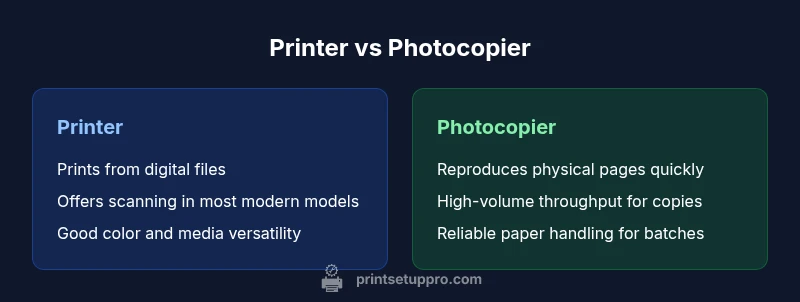
Most readers will interact with printers or photocopiers through several core functions. Print devices convert digital files into physical output, supported by scanning to create digital copies or editable documents. Photocopiers reproduce physical pages directly, often at higher copy speeds and with robust paper handling. Multifunction devices (MFDs) blend both worlds, offering print, copy, scan, and sometimes fax in a single chassis. The practical takeaway is to assess whether you need digital-to-physical flow, physical-page throughput, or a balance of both. As you evaluate options, prioritize features that directly reduce bottlenecks in your everyday tasks, such as fast scanning for a home office or a high-duty-cycle copier for a small business.
From a workflow perspective, consider whether you primarily work with digital content or physical documents. If most work originates as files, a printer-centric device with strong scanning and cloud integration may be ideal. If you frequently reproduce hard copies for clients or archival purposes, a photocopier or MFD designed for high-volume copying will likely deliver the best value.
Technology Basics: Inside How Output Is Produced
The underlying technology differences drive how outputs look and feel. Printers typically use inkjet or laser mechanisms. Inkjet is versatile for photos and color graphics on a variety of media, while laser printers excel with crisp text and fast announcements of dense documents. Photocopiers rely on xerography, an electrostatic process that transfers toner from a drum to paper. This mechanism is optimized for volume, durability, and quick turnaround—especially important in busy offices. Scanning capabilities in modern devices bridge the gap by converting physical pages to digital formats for editing, emailing, or storage. The choice between ink/toner quality, print resolution, and archival durability will steer which device type best meets your needs.
Output Quality, Speed, and Media Handling
Output quality matters differently depending on your use-case. For text-heavy documents, laser printers usually deliver sharp, clean type, while color graphics benefit from high-end inkjet systems or color laser configurations. Photocopiers emphasize repeatable reproduction of a page, with consistent density across a batch. Media handling capabilities—such as paper sizes, thickness tolerance, and duplexing—often dictate the best fit. If you routinely print envelopes, card stock, or labels, confirm media compatibility and feed flexibility. For studios or classrooms, robust color output and reliable scanning can increase productivity and reduce manual rework.
Cost of Ownership and Maintenance
Owning either device means balancing upfront cost against ongoing consumables and maintenance. Printers typically have lower upfront prices, but recurring ink or toner costs can add up, especially for color jobs. Photocopiers demand higher initial investment and may require periodic maintenance contracts, but their per-page costs can be favorable at high volumes. In mixed-use environments, a multi-function printer with scalable ink or toner options often yields predictable monthly costs. Print Setup Pro emphasizes evaluating total cost per page and service plans when comparing options, rather than sticker price alone.
Real-World Scenarios: Home Office vs Small Business vs Student
For home offices, a compact multifunction printer that handles print, scan, and occasional copy often provides the best balance of space, cost, and capability. Students may benefit from affordable color output and robust scanning, enabling quick digitization of notes and assignments. Small businesses with client-facing tasks may prioritize reliability, security features, and fast duplex copying. In each case, assess peak workload, document types, and the need for mobile/cloud workflows to ensure the selected device stays productive between maintenance windows.
Setup, Connectivity, and Security Considerations
A modern device should integrate with your existing network, cloud services, and devices across platforms. Look for easy setup wizards, wireless printing, and mobile app support, along with password protection and user-access controls. If you share a device across a small team, consider built-in authentication to protect sensitive documents and reduce waste. Connectivity options—USB, Ethernet, Wi-Fi, and Bluetooth—affect setup complexity and multi-user reliability. Print Setup Pro recommends mapping your actual use-case to the connectivity model most likely to minimize hassles and maximize uptime.
Comparison
| Feature | Printer | Photocopier |
|---|---|---|
| Core Function | Print from digital files; scan-to-digital workflows | Copy from physical documents; limited or no printing from digital sources |
| Output Quality | Strong text, color options vary by model | Optimized for fast, repeatable copies of physical pages |
| Typical Speed | Pace varies by model; scalable for home offices | Very fast for copy jobs in high-volume settings |
| Total Cost of Ownership | Lower upfront; ongoing ink/toner costs | Higher upfront; potential long-term savings on volume |
| Best For | Home offices, mixed tasks, cloud printing | High-volume copying environments, archival copies |
| Maintenance & Upgrades | Flexible, frequent upgrades possible | Rugged, longer maintenance cycles; often needs service contracts |
Benefits
- Flexible for mixed tasks and cloud printing
- Compact designs ideal for small spaces
- Integrated scanning and document management in many models
- Lower upfront costs for basic printers
- Broad media support in modern printers
Downsides
- Photocopiers excel in speed and volume for copies
- Dedicated copiers can be bulky and expensive
- Printers require ongoing consumables (ink/toner)
- Color output can be costly per page on some printers
- MFPs may require more upfront planning for optimal security
Printers are the versatile choice for mixed-use scenarios; photocopiers win in high-volume physical copying.
If most work is digital-to-physical with occasional copying, choose a capable printer with scanning. If your primary need is fast, reliable copying of many physical pages, a dedicated photocopier (or MFP optimized for high-volume copying) is superior. Print Setup Pro’s guidance is to match workload with device strengths for long-term efficiency.
People Also Ask
What is the fundamental difference between a printer and a photocopier?
The core difference lies in workflow and output: printers convert digital files into physical outputs, while photocopiers reproduce physical pages directly. Printers are more versatile for mixed tasks, whereas photocopiers optimize high-volume copying of existing documents.
Printers turn digital files into prints; photocopiers copy physical pages, often faster and in bulk.
Can a printer double as a photocopier?
Many printers are part of multifunction devices that include scanning, copying, and sometimes fax. They can copy, but dedicated photocopiers are typically faster and built for higher-volume replication.
Many printers can copy, but dedicated photocopiers copy faster and handle bulk well.
Which is cheaper to own for a small office?
Printers usually have lower upfront costs, but per-page costs depend on ink or toner use. Photocopiers may incur higher upfront costs but can offer lower long-term costs at high copy volumes.
Printers are cheaper upfront; photocopiers can be cheaper per page when you copy a lot.
Do printers have the same scanning capabilities as photocopiers?
Printers and MFPs often include scanning capabilities, which allow digitization of documents. Photocopiers focus on rapid page copying; scanning features depend on the model.
Scanners are common on multifunction devices, but pure photocopiers may lack scanning options.
What should I look for when buying a printer or photocopier?
Prioritize workload, print volume, color needs, media support, and connectivity. Check total cost per page, maintenance options, and whether scanning or cloud features matter for your workflow.
Think about your typical tasks, pages per month, and how you’ll connect the device to your setup.
Are multifunction devices a good compromise?
Yes, for many users an MFD covers printing, copying, scanning, and sometimes fax in one unit, often with manageable cost and space requirements. Ensure you evaluate security and maintenance plans.
MFDs can be a great all-in-one solution if they fit your space and budget.
Quick Summary
- Assess workload to decide device type
- Prioritize total cost per page over upfront price
- Choose multifunction devices for mixed tasks
- Favor high-volume copying devices for constant batches
- Ensure media handling and scanning meet your needs