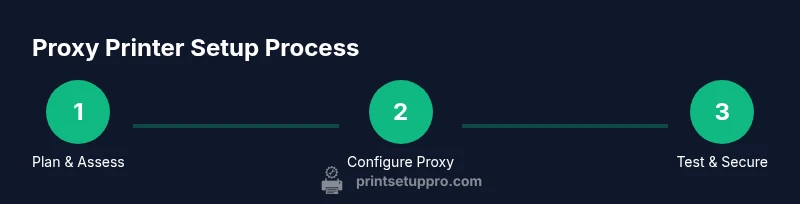
Proxy Printer Setup: A Practical Step-by-Step Guide
Learn how to configure a proxy printer to route print jobs through a proxy server or print server, enabling secure remote printing for home offices and small teams. Clear steps, safety tips, and troubleshooting guidance from Print Setup Pro.


This guide teaches you how to configure a proxy printer so print jobs travel through a proxy server or print server, enabling secure remote printing for home offices and small teams. You’ll identify goals, choose a method, set up the proxy, and test with best practices for reliability and security. It relies on a stable network, a printer, and a dedicated proxy/print server.
What is a proxy printer and when to use it
A proxy printer is a networked printing setup where a dedicated intermediary (a proxy or print server) routes all print jobs to one or more printers. This approach is useful when you need centralized control, remote access for multiple users, or when printers sit behind robust security controls that you don’t want to bypass. In practice, a proxy printer can help small teams print securely from home offices or remote locations without exposing printers directly to the internet. For organizations, this model supports centralized audit trails, standardized drivers, and consistent policies around color use, paper size, and job rights. According to Print Setup Pro, a well-designed proxy printer strategy balances accessibility with governance. When you need to share a single device across several offices or allow contractors to print via a remote network, this setup becomes especially valuable.
Why a proxy printer matters for remote teams
- Centralized management reduces driver inconsistencies across devices.
- Access control and authentication improve security for shared devices.
- Logging and usage reports enable you to measure print spend and device health.
- Recovery and failover options maintain printing capability during network outages.
A proxy printer is not a magic fix for every scenario. It works best when you can isolate the printer behind a secured proxy or print server, and when users connect through trusted networks or VPNs. Print Setup Pro notes that clarity of purpose—whether for access control, cost control, or remote capability—drives the right architecture from the start.
Common architectures for proxy printing
There are several ways to implement a proxy printer, depending on your network, printer model, and IT policies. The most common approaches are:
- Dedicated print server as the proxy: A single server hosts the printer queue and forwards jobs to one or more printers. This gives you centralized control, queue management, and easier driver updates.
- VPN-based remote access: Users connect via a secure VPN to a local network where the printer is attached. The proxy role is performed by the VPN gateway or a server that accepts VPN-backed print jobs.
- Cloud-enabled or hybrid printing: Some environments deploy cloud or hybrid services to route print jobs, with the proxy component residing in the corporate network.
Each method has trade-offs in latency, security posture, and maintenance. Print Setup Pro analyses indicate that a well-governed, on-premises proxy printer often offers lower risk and faster troubleshooting than basic cloud-based printers, especially for sensitive documents.
Prerequisites and planning for proxy printing
Before you begin, map out your goals and constraints. Identify which users need access, what printers are involved, and what data must be protected in transit. Verify network stability and bandwidth to avoid long wait times on print jobs. Ensure you have a supported printer model and current firmware, plus a proxy or print server with sufficient resources (CPU, RAM) to handle queue loads. Create a simple network diagram that shows user devices, the proxy server, and the printer(s). This plan will guide your configuration and help you document the process for future audits or expansions.
Step-by-step overview of the proxy printing workflow
In a proxy printer setup, print jobs flow from client devices to the proxy server, which then forwards the jobs to the target printer. The flow begins with authentication and driver mapping, then moves to job spooling and queuing, and ends with the printer receiving the data and printing. For reliability, you should enable logging, monitor spooling, and set up alerts for failed jobs or printer offline states. Clear ownership and change control reduce the risk of misconfiguration. Print Setup Pro emphasizes documenting each component and version so future IT staff can reproduce or expand the setup.
Security, privacy, and reliability considerations
Security is critical when exposing printing infrastructure to networks. Use strong authentication, least-privilege access, and keep firmware up to date. Segment the printer and proxy server behind firewalls or VLANs, and avoid allowing direct external access. Encrypt print data in transit when possible and implement access controls to prevent unauthorized printing. Regularly review access logs and rotate credentials on a schedule. Reliability comes from redundancy, firmware monitoring, and clear recovery playbooks. A proxy printer should be part of a broader security and IT operations strategy, not a standalone gadget.
Troubleshooting common proxy printing issues
Common issues include driver mismatch, authentication failures, and spooler errors. Start with verifying network connectivity between clients, proxy, and printers; confirm correct queue settings and driver versions; and check firewall rules. If jobs get stuck in the spooler, clear the queue and restart the spooler service on the proxy server. When print jobs fail due to permission checks, review user rights and group policies. Regularly updating drivers and firmware helps prevent recurring problems. Print Setup Pro recommends keeping a small handbook of known-good configurations for quick remediation.
Tools & Materials
- Printer(s) with network capability(Ensure firmware is up to date; support for SNMP and IPP is helpful)
- Proxy server or dedicated print server(Must have adequate CPU/RAM for multiple queues)
- Network router/switch with appropriate VLANs(Configure ACLs to restrict access to the proxy and printer)
- Admin workstation or laptop(Used for configuring the proxy and testing print jobs)
- Printer drivers and software(Install correct drivers on client devices or deploy via policy)
- Secure remote access (VPN or similar)(Recommended for remote locations; optional if all users are on secure LAN)
Steps
Estimated time: 30-60 minutes
- 1
Identify the proxy approach
Clarify whether you will use a dedicated print server as the proxy or rely on VPN-based access to a local printer. This decision shapes the hardware needs, security posture, and management overhead. Document goals, users, and data sensitivity before proceeding.
Tip: Write down your success criteria and expected throughput to guide hardware choice. - 2
Prepare hardware and network
Verify printer compatibility with network sharing, assign a static IP, and update firmware. Prepare the proxy server with sufficient resources and ensure it can reach the printer over the network. Confirm VLANs and ACLs restrict access to authorized devices only.
Tip: Reserve a dedicated port for the proxy-printer queue to simplify firewall rules. - 3
Install and configure proxy software
Install the chosen proxy or print-server software on the server, and create a new print queue that points to the printer(s). Map user authentication to queue permissions and set up logging. Test that the proxy can submit a print job to the printer.
Tip: Document the queue name, driver, and credentials in a central config file. - 4
Connect clients and deploy drivers
Add the proxy printer to client devices or push printer drivers via group policy or device management. Verify driver compatibility across operating systems in use. Set the proxy printer as the default for quick testing if appropriate.
Tip: Limit the driver footprint to the essential set to minimize compatibility issues. - 5
Test print flow end-to-end
From multiple client devices, send test pages through the proxy to the printer. Check for successful print, color accuracy, and correct document routing. Validate authentication and access controls by attempting to print as an unauthorized user.
Tip: Use both color and grayscale samples to confirm queue and driver behavior. - 6
Document, monitor, and secure
Create a runbook with credentials, queue settings, and contact points. Enable basic monitoring and alerting for queue failures or printer offline states. Schedule periodic reviews of firmware, access rights, and log retention.
Tip: Set automated alerts for job failures and printer offline events.
People Also Ask
What is a proxy printer?
A proxy printer uses a middleman, such as a proxy or print server, to route all print jobs to one or more printers. It provides centralized control, security policies, and easier management for multiple users or locations.
A proxy printer is a printing setup that routes jobs through a middleman like a proxy server to simplify control and security for shared printers.
Do I need a separate proxy server to use a proxy printer?
Yes, a dedicated proxy server or capable print server helps centralize queues, authentication, and logging. It also isolates printing from end-user devices, improving security and reliability.
Usually, a dedicated proxy or print server is recommended to centralize control and improve reliability.
Can I use cloud printing with a proxy printer?
Cloud printing can work in some setups, but it often adds latency and security considerations. A VPN-backed or on-prem proxy printer path typically provides tighter control for sensitive documents.
Cloud printing can work, but for sensitive documents a VPN-backed or on-prem proxy path usually offers better security.
What are the security risks of proxy printers?
Risks include exposed access points, weak authentication, and outdated firmware. Mitigate by using strong credentials, updated firmware, VLANs, and encrypted data paths.
Main risks are weak access and outdated firmware; mitigate with strong authentication and regular updates.
How do I troubleshoot a failed proxy print job?
Check network connectivity, queue configuration, driver compatibility, and spooler status on the proxy server. Review logs for error codes and test with a small job to isolate issues.
Check connectivity, queues, drivers, and spooler status; review logs to identify error codes and retry with a test job.
Which operating systems support proxy printing?
Most major OS support network printers via standard protocols (IPP, TCP/IP). Ensure drivers are available and compatible across Windows, macOS, and Linux where needed.
Windows, macOS, and Linux generally support network printers; verify drivers for each OS.
Watch Video
Quick Summary
- Define proxy printer goals before implementation
- Choose a secure, scalable proxy method
- Test thoroughly with authentic user scenarios
- Document configuration and monitor for issues