Network Printer Setup Guide: Connect, Configure, Troubleshoot
A practical, step-by-step guide to setting up a network printer, sharing across devices, and troubleshooting connectivity, driver, and security issues for home offices and small businesses.


This guide shows you how to connect a network printer to your home or small office network, configure IP addressing, assign access, and verify printing from multiple devices. Start with a wired baseline, then expand to wireless if needed, and test on Windows, Mac, and mobile platforms. Print Setup Pro designed this for clarity and reliability.
Why a network printer matters in modern homes and small offices
A network printer connects to your home or office network, enabling multiple devices to print without direct USB connections. This is essential for households with laptops, desktops, tablets, and smartphones, or for small teams sharing a single device. A well-configured network printer reduces clutter and IT overhead while speeding up everyday tasks like submitting assignments, printing receipts, or producing client-ready documents. In this Print Setup Pro guide, we walk you through deciding wired vs wireless connections, mapping IP addresses, sharing across devices, and basic security considerations. By centralizing printing, you improve collaboration, conserve desk space, and gain better control over print quality and cost. A network printer also scales more easily as your household or small business grows. The Print Setup Pro team emphasizes starting with a simple, reliable wired connection to establish a solid baseline before expanding to wireless access. This approach minimizes troubleshooting later and helps you build a dependable printing backbone for all your devices. According to Print Setup Pro, starting with a wired baseline reduces variables and makes later wireless expansion smoother.
Core concepts: IP address, DHCP, and printer sharing
Before connecting devices, it's important to understand the basic networking terms that affect printing reliability. An IP address uniquely identifies a printer on your local network. DHCP (Dynamic Host Configuration Protocol) can assign addresses automatically, but a reserved DHCP lease or a static IP helps avoid address changes that break your printer’s reach. Printer sharing means devices on the same network can submit print jobs without installing USB cables. Modern network printers support IPP (Internet Printing Protocol) for cross‑platform compatibility, SMB or LPR for Windows environments, and sometimes Apple Talk or AirPrint depending on the model. In practice, plan a single address plan for the printer and document the chosen method. This reduces confusion when adding new computers or mobile devices later. Print Setup Pro encourages documenting your network plan as part of your initial setup so everyone knows how printing is wired and where to look for settings if something goes wrong.
Wired vs wireless: choosing the right approach
Wired printing via Ethernet is typically more stable and faster, with fewer interference issues. It also simplifies energy management because devices learn their address through a fixed path. Wireless printing offers flexibility: you can place the printer where you want within Wi‑Fi range and print from smartphones and tablets easily. The trade-off is potential signal interference, distance limitations, or additional steps to connect devices to the correct network. If you start with a wired connection, you can always enable wireless later by configuring the printer’s wireless mode and securing the access, which often results in fewer user support calls. In small offices, a hybrid approach can be practical: use Ethernet for desktop workstations and keep wireless for mobile devices and guest devices. Ensure your wireless network uses strong encryption (WPA3 where possible) and a separate network or VLAN for printers in higher‑risk environments.
Printer protocols and driver considerations
Printers expose network protocols that govern how a computer talks to the device. IPP is a clean, cross‑platform standard favored by most modern printers; SMB (Windows) and LPR are legacy protocols still relevant for certain environments. When you install drivers, choose the version that matches your operating system (Windows, macOS, iOS, Android) and the printer’s model. For Mac users, AirPrint compatibility can simplify setup; Windows users may rely on the vendor’s drivers or Windows built‑in classes. If you’re sharing the printer across multiple OSes, enable a universal printing path (IPP) and install the vendor’s printing app on each device. Keep firmware current and review available security settings in the printer’s web interface, such as enabling secure print, disabling unused protocols, and turning on firmware auto‑update if available.
Planning the setup: prerequisites and architecture
Start by determining where the printer will live in your network and how devices will access it. Gather the printer’s model number and download the latest drivers from the vendor’s site. Decide on an IP addressing strategy: static IP vs DHCP reservation. Create a basic network map that shows the printer, router, and the main devices that will print. If security is a priority, plan for a dedicated printer VLAN or a firewall rule that limits printer communication to approved devices. Finally, ensure you have a simple test plan: print from at least three devices, verify color accuracy, and confirm that a PDF print is not cropped or shifted.
Common setup patterns: home vs small office
For a home setup, a single printer often suffices with a simple wired or basic wireless connection. In a small office, you may want a shared printer with a dedicated print server or dedicated print queue on a file server, along with standard user permissions. In either case, maintain a documented IP address for the printer and a consistent driver policy across devices. Regularly review print queues to catch hung jobs, and consider enabling secure print to protect sensitive documents. This section helps align expectations and reduces troubleshooting later.
Security considerations for network printers
Network printers can be attack surfaces if left unsecured. Keep firmware up to date, enable password‑protected admin access, and disable protocols you don’t need (Telnet, FTP, or older IPP variants) to minimize exposure. Use a strong, unique network password and consider enabling features like pull‑printing or encrypted print jobs if your printer supports them. If possible, segment printers on a separate VLAN and restrict printer access to authorized devices. Regularly review access logs and monitor for unusual activity.
Maintenance and troubleshooting tips
Establish a regular maintenance routine: update firmware, clean the printer’s sensors, check for paper jams, and calibrate color and alignment. When problems arise, start with the basics: confirm the printer is powered on, connected to the network, and has a reachable IP. Reinstall the driver on affected clients, remove and re-add the printer, and test from another device to determine whether the issue is device‑specific or network‑wide. If printing fails intermittently, check for interference on Wi‑Fi channels, router QoS settings, and ensure the printer is not on a guest network. Keep a small troubleshooting log to track recurring issues.
Authority sources and further reading
Key references for network printer best practices include links to respected standards and IT security resources. For convenience, this section lists widely recognized sources you can consult as you configure or audit a network printer. These references help reinforce best practices around IP management, secure printing, and firmware maintenance, and they complement model‑specific manuals.
Tools & Materials
- Network-enabled printer (or print server)(Supports IPP/SMB/LPR and network protocols.)
- Ethernet cable (Cat5e/6) or stable Wi‑Fi access(Use wired when reliability matters; ensure length is sufficient.)
- Router or access point on the same network(DHCP server available or ability to set static IPs.)
- Laptop/PC or mobile device to configure printer(Used for driver installation and queue management.)
- Printer drivers or software package(Install on every client device that will print.)
- Printer IP address or DHCP reservation(Requires a stable address to avoid reconfiguration after reboots.)
- Printer documentation or model number(Helpful for model-specific steps and troubleshooting.)
Steps
Estimated time: 60-90 minutes
- 1
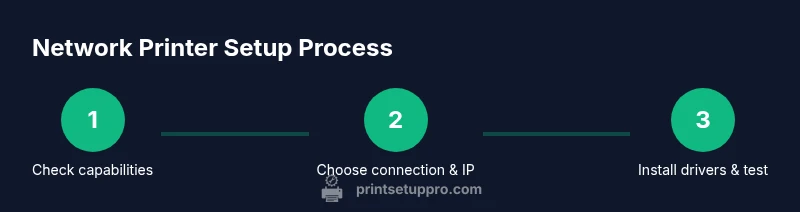
Check printer capabilities
Review the printer manual or web interface to confirm network support and the protocols it can use (IPP, SMB, LPR). This step sets expectations for compatibility with your devices and operating systems.
Tip: Look for a built‑in status page or a network setup wizard in the printer UI. - 2
Decide connection type and IP strategy
Choose between wired Ethernet for reliability and wireless for flexibility. Decide whether to assign a static IP or reserve a DHCP lease to keep the address stable over time.
Tip: DHCP reservation is often easiest for most home networks. - 3
Physically connect the printer to the network
Plug the printer into the router via Ethernet or join the printer to the Wi‑Fi network using the printer’s control panel or web interface.
Tip: If using Wi‑Fi, verify signal strength in the printer’s status page. - 4
Set a stable IP address
Configure the printer with a static IP or configure a DHCP reservation to prevent address changes after reboots or network updates.
Tip: Document the IP address and keep it in a central place for IT support. - 5
Install drivers on client devices
Download and install the latest drivers for Windows, macOS, iOS, and Android from the printer vendor. This ensures optimal compatibility and features.
Tip: Prefer the vendor’s driver package over generic print drivers when possible. - 6
Add the printer on Windows devices
Open Settings > Devices > Printers & scanners > Add a printer, select the network printer, and complete the installation prompts.
Tip: Print a test page from the dialog to verify the connection. - 7
Add the printer on macOS devices
Go to System Settings > Printers & Scanners, click Add, choose the network printer, and install any required software.
Tip: If AirPrint is available, you may bypass driver installation for simpler setups. - 8
Configure sharing and permissions
Set access rights and sharing options so only approved devices can print. Enable secure print if available to protect sensitive documents.
Tip: Document the permitted devices and tests for onboarding new users. - 9
Test print across devices and finalize
Print from at least three devices (PC, Mac, mobile) to confirm consistent results. Verify color, alignment, and edge-to-edge printing where applicable.
Tip: Keep a brief log of successful tests and any issues for future reference.
People Also Ask
What is a network printer?
A network printer attaches to your local network and allows multiple devices to print without direct USB connections. It enables centralized management and easier sharing across home or small office environments.
A network printer connects to your local network so many devices can print without cables.
Should I use a static IP or DHCP reservation for my printer?
A static IP or a DHCP reservation keeps the printer’s address stable, preventing reconfiguration on every reboot or router update. This helps avoid print failures due to a changing address.
A fixed IP keeps printing smooth and predictable across devices.
How do I add a network printer to Windows?
Open Settings > Devices > Printers & scanners, click Add a printer, and follow the prompts to select the network printer. Install any recommended drivers during setup.
Go to settings, add a printer, and follow the prompts.
Can I print from mobile devices to a network printer?
Yes. Use AirPrint on iOS devices or the printer’s app on Android. Ensure devices are on the same network or have secure access configured.
Yes, you can print from phones and tablets.
What are common issues when the printer is not seen on the network?
Common causes include wrong network, IP address changes, disabled protocols, or missing drivers. Verify the device is on the same network, has a reachable IP, and that the appropriate driver is installed.
Check network, IP, and drivers when the printer isn’t visible.
What are essential security practices for network printers?
Keep firmware updated, enable password protections for admin access, disable unused protocols, and consider network segmentation for sensitive environments.
Update firmware and secure access to reduce risk.
Watch Video
Quick Summary
- Set a stable IP first to avoid ongoing reconfiguration.
- Prefer a wired baseline before enabling wireless access.
- Test printing on all target devices to confirm visibility and compatibility.
- Secure the printer with updated firmware and restricted access.