How to Scan on an HP Printer: A Complete Guide
Learn how to scan documents with an HP printer—from setup to saving files. This home-office guide covers USB, wireless, and app scanning, plus common troubleshooting.


You can scan documents on an HP printer by using the control panel, HP Smart app, or your computer’s scanning utilities, depending on your setup. This guide covers USB, wireless, and app-based methods, plus tips for choosing settings, saving formats, and handling common issues. You’ll finish with a reliable workflow for home offices and small teams.
What scanning on an HP printer means
Scanning on an HP printer means converting physical pages into digital files using a flatbed scanner or an automatic document feeder (ADF). The resulting files can be saved on your computer, sent to email, or uploaded to cloud storage. According to Print Setup Pro, mastering scan on hp printer starts with understanding the hardware options (flatbed vs. ADF) and the software you will use to save and share the results. In practice, most home offices rely on the built-in scan feature on the printer’s control panel, the HP Smart app, or standard desktop tools like Windows Fax and Scan or macOS Image Capture. The goal is to create clean, searchable copies of documents while preserving layout, text clarity, and color when needed. This article walks you through available methods, how to choose the right settings, and how to troubleshoot common hiccups.
Hardware and software options for HP scanning
HP printers offer several paths to scan quickly and reliably. The primary options are the built-in control panel on the printer, the HP Smart app on mobile devices, and desktop utilities like Windows Scan or macOS Preview/Image Capture. If you frequently scan multi-page documents, an HP printer with an Automatic Document Feeder (ADF) can save time by feeding pages automatically. For occasional or one-off scans, the flatbed glass is simpler and often higher quality for single pages or fragile papers. In addition, you may choose to scan directly to email, cloud storage, or a connected drive depending on your model and network configuration. HP software packages typically provide presets for PDF, JPEG, and TIFF outputs, so you can tailor results to your workflow.
Document preparation and scan formats
Before scanning, prepare the document to avoid distortions and jams. Remove staples, creases, and any moisture, and place the page face-down on the scanner glass or align pages in the ADF. Check the document for readability—clear text, no background shadows, and sufficient contrast. Decide on the destination format: PDF for multi-page documents, JPEG for simple images, or TIFF when you need lossless quality. If your device supports OCR, enable it to produce searchable PDFs. Some HP software also lets you choose color, grayscale, or black-and-white scanning. Keeping a consistent color profile helps later when you search or share files.
Choosing scan settings: resolution, color, and file types
Scan resolution strongly influences readability and file size. For everyday documents, 150–300 dpi is often sufficient; for detailed forms or graphics, 300–600 dpi may be better. Color scans preserve subtle hues, while grayscale reduces file size when color isn’t important. If you plan to archive, see if your software supports PDF/A for long-term preservation. Always test a quick preview to confirm that text is crisp and that margins are correct. Save in the most practical file type for your workflow—PDF is ideal for documents; JPEG is convenient for images; TIFF is best for archival-grade quality.
Using HP Smart and Windows scanning apps
HP Smart is the most common mobile option for HP printers, enabling you to scan from iOS or Android devices directly to email, cloud storage, or local apps. On Windows, use the built-in Windows Scan tool or the HP software suite if installed. On macOS, Preview or Image Capture can access the printer’s scanner via the printer’s driver. To scan via HP Smart, open the app, choose Scan, select the destination, set color/mono and resolution, and press Scan. For desktop tools, select your printer, choose the scan mode (color, grayscale, or black and white), adjust resolution, and save the output to your preferred folder.
Best practices for organizing scanned documents
Create a consistent naming convention for scanned files (e.g., YYYYMMDD_ClientName_DocumentType_Version). Use folders that mirror your workflow (invoices, receipts, contracts) and implement a predictable retention policy. If you perform OCR, rename searchable PDFs with keywords to improve findability. Consider automating cloud backups and enabling two-factor authentication for cloud storage. Regularly review your scanning setup to ensure compatibility after printer firmware updates. Consistency in naming and storage reduces time spent locating documents and minimizes errors during audits.
Troubleshooting common scanning problems
If scans look blurry or distorted, check the document alignment and ensure the lid is fully closed. Verify that the correct scanner model is selected in the software, and confirm you’re using the recommended resolution for your document type. If the device isn’t detected, ensure the printer is on the same network as your computer or that the USB cable is securely connected. For large multi-page PDFs, ensure the ADF is clean and pages are properly fed. If you encounter color issues, select the appropriate color mode and reset the scanner’s color calibration in the software.
Security, privacy, and storage considerations
Always scan sensitive documents to a secure location and, if possible, enable encryption for stored files. When sharing scans via email or cloud storage, use secure transfer methods and apply password protection to PDFs where feasible. Keep firmware and scanning software up to date to minimize vulnerabilities. Lastly, ensure that access to the scanner and storage locations is controlled by user permissions, especially in shared home-office setups.
Tools & Materials
- HP printer with scanning capability (flatbed or ADF)(Ensure the model supports the scan features you intend to use (flatbed, ADF, or both))
- Computer, tablet, or smartphone(Used to initiate scans via HP Smart or desktop scanning tools)
- USB cable (optional for direct USB scans)(Useful if you’re scanning from a computer without network access)
- HP Smart app or compatible scanning software(Install for mobile or desktop scanning workflows)
- Paper stock and clean scanning glass(Remove staples and ensure pages are flat and clean)
Steps
Estimated time: 15-25 minutes
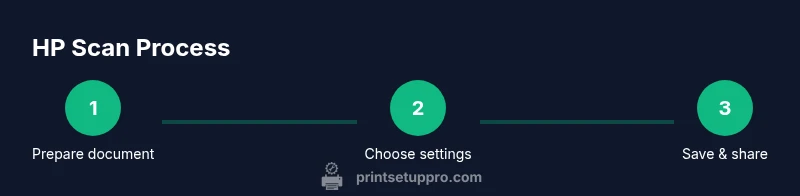
- 1
Place document on scanner
Open the scanner lid and place the document face-down on the glass. Align the top edge with the alignment marks. Close the lid to prevent light leaks and ensure an even scan. This prepares a clean base for accurate text and image capture.
Tip: If you’re scanning multiple pages with the flatbed, flip pages as you finish each side to keep order clear. - 2
Open the scan interface on your device
Launch HP Smart or your preferred scanning utility and select the correct device. Choose color versus grayscale, and set the resolution according to the document type. Preview helps you verify margins and crop before saving.
Tip: Use the preview function to catch misaligned pages; adjust the document edge before final scan. - 3
Run the scan and review the preview
Initiate the scan. If using the ADF, confirm page order and page-timing options. Review the digital image in the preview window for legibility and alignment. Re-scan if necessary to fix blur or skew.
Tip: For multi-page scans, reorder pages in the preview if needed before saving. - 4
Save, name, and store the file
Choose your file type (PDF for multi-page, JPEG/PNG for images), give a clear filename, and select a destination folder or cloud service. If OCR is available, enable it to create a searchable PDF. Confirm the save action and back up regularly.
Tip: Use a consistent naming convention to simplify later search and retrieval.
People Also Ask
Can I scan from an HP printer without a computer?
Yes. Many HP printers support scanning directly to email, cloud storage, or an attached USB drive via the printer’s control panel or HP Smart app on mobile devices.
Yes, you can scan without a computer by using the printer's control panel or the HP Smart app to save or send the file.
What file types can HP scanners produce?
Common options include PDF for documents, JPEG or PNG for images, and TIFF for high-quality archives. Some models support multi-page PDFs with OCR enabled.
Most HP scanners let you save as PDF, JPEG, or TIFF, with OCR available on some models.
How do I scan multiple pages into one file?
Use the Automatic Document Feeder (ADF) if available, and choose the option to combine pages into a single PDF. Ensure the page order is correct before saving.
Use the ADF to scan multiple pages into one PDF and verify the order before saving.
Why is my scan blurry or skewed?
Check for a flat document, clean the glass, and confirm you’ve selected the correct scan region. If using ADF, ensure pages feed straight and without wrinkles.
Blurry scans usually come from a misaligned page or dirty glass; clean and re-scan.
Do I need internet access to scan?
No, USB-connected or local network scans do not require internet access. Internet is only needed for cloud destinations or remote apps.
No internet is needed for local scans unless you’re saving to the cloud.
What about privacy when scanning sensitive documents?
Store scans securely, use encryption when available, and limit access to the stored files. Regularly review permissions for cloud services.
Keep scans secure, enable encryption when possible, and limit access to stored files.
Watch Video
Quick Summary
- Know the scan options: flatbed vs. ADF, and app vs. desktop tools.
- Choose the right resolution and file type for your workflow.
- Organize scans with consistent naming and storage practices.
- Troubleshoot common issues and keep software up to date.