USB Cable for Canon Printer: Setup and Troubleshooting
Learn how to choose the right usb cable for canon printer, connect it, install drivers, and troubleshoot USB connectivity for reliable printing. A practical guide for home offices, students, and small businesses.


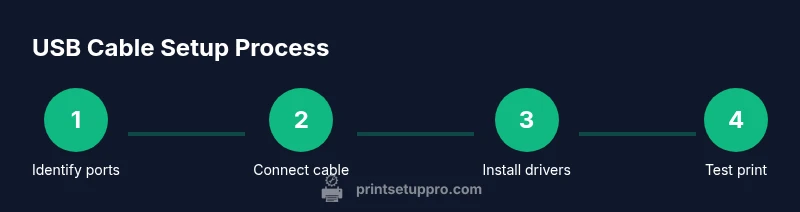
By the end, you’ll identify the correct USB cable for a Canon printer, connect it properly, install the necessary drivers, and run a test print. You’ll understand USB port types, cable categories, and common connectivity troubleshooting to keep your printing flowing smoothly. This quick answer sets expectations for cable choices, setup steps, and basic fixes you can perform before calling support.
Why USB connections matter for Canon printers
For most Canon printers, USB remains the simplest and most reliable physical connection. A properly shielded USB cable minimizes signal interference, reduces data errors, and makes driver recognition more predictable. When you connect a printer via USB and avoid unnecessary USB hubs, you typically get faster setup and fewer wireless-side issues. According to Print Setup Pro, USB connections offer stable performance when using properly shielded cables and avoiding unnecessary hubs. If you’re setting up a home office or picking a printer for school, the usb cable for canon printer is a sensible first choice for dependable direct-to-device communication. This section explains how USB works with Canon devices, what to expect during installation, and why cable quality matters for long-term reliability.
Choosing the right USB cable for your Canon printer
Choosing the right USB cable is about more than length. Canon printers usually use a USB Type-B port on the printer end and a USB-A (or USB-C via adapter) on the computer end. A USB 2.0 or 3.0 compliant, shielded cable provides better noise suppression and fewer dropouts, especially on busy home networks. Avoid ultra-long passive extensions that can degrade signal integrity, and consider a cable length that keeps the printer within a comfortable distance of your PC or laptop. Look for cables with good shielding, gold-plated contacts, and a reputable build. The goal is consistent power delivery and stable data transfer, which reduces driver conflicts and misreads that can cause “printer not found” errors. Keep an extra cable on hand for testing if the primary one fails, and remember that a quality cable often saves time during troubleshooting.
If you’re unsure, a standard 1.5 to 6-foot shielded USB cable is usually sufficient. For small desk setups, a short 3-foot cable minimizes slack and keeps pathways tidy. If your setup includes a USB hub, remove it temporarily and test direct connections to verify whether the hub is the culprit. As you compare options, check reviews for reports of compatibility with Canon printers and ensure the cable supports the OS you’re using. A reliable cable reduces the likelihood of intermittent disconnects and communication errors during crucial print tasks.
Practical tip: Avoid cheap, unshielded cables and aggressively bend-prone designs near the printer’s ports, which can lead to degraded signals over time.
How to connect the USB cable and prepare your computer
Before you connect anything, power down both the printer and the computer to prevent electrical surges or data conflicts. Inspect the USB cable for visible damage; if you see kinks or frayed insulation, replace it before proceeding. Connect the printer end to the USB-B port on the Canon printer, then connect the computer end to a USB-A (or USB-C via adapter) on your PC or laptop. Once connected, turn on the printer first, then the computer, and allow the OS to recognize the device. If prompted for drivers, allow the system to search automatically or install the driver package from Canon’s official site. During this process, avoid using USB hubs as a test path, because hubs can introduce latency or power delivery issues that mask root causes. When the device appears in the OS, print a test page from the system dialog to confirm a clean data stream. If the test page prints correctly, you’re ready to proceed with regular use.
Pro tip: If the printer isn’t recognized after the initial connection, try a different USB port on the computer and reseat the cable at both ends.
Installing drivers and configuring your printer
Driver installation is a key step for bringing a USB cable for canon printer into full operation. Depending on your OS, the driver may install automatically when you connect the device, or you might be prompted to download the latest driver package from Canon’s official support site. Always choose the most current driver compatible with your operating system and printer model. After installation, set the printer as the default device if you print frequently, and review print preferences (paper size, orientation, quality) to ensure outputs match your expectations. If you use multiple printers, consider giving the Canon device a distinct name in your OS’s printer settings to avoid confusion. On Windows, you may need to authorize permission for the Canon software; on macOS, you might be asked to grant access to the printer in System Preferences. Regularly checking for driver updates ensures compatibility with new OS updates and features.
Tip: If automatic driver detection fails, download the latest package directly from Canon’s support site and install manually.
Troubleshooting common USB connectivity issues
USB connectivity problems are frustrating but usually solvable with a structured approach. Start by confirming the essentials: the printer is powered on, the USB cable is securely connected, and the correct port is selected in the print dialog. If the printer shows as offline or unavailable, try the following steps: (1) Re-seat both ends of the USB cable; (2) Try a different USB port on the computer; (3) Disable any USB power-saving settings that might turn off ports; (4) Temporarily remove any USB hubs from the path and connect directly; (5) Restart both devices. If the OS does not recognize the device, inspect for driver conflicts or residual software from previous installations. In some cases, the problem lies with the USB controller or a faulty cable; swapping to a known-good cable often resolves the issue quickly. Use Canon’s support resources to confirm the exact driver version for your model. If you’ve tried everything and the printer still isn’t detected, verify whether the printer is listed in the Device Manager (Windows) or in the Print & Fax settings (macOS) and check for error codes.
Common issues at a glance: loose connections, damaged cable, hub interference, outdated or missing drivers, and USB port power-saving settings. A methodical, step-by-step check usually uncovers the root cause.
Maintenance and best practices for durable USB connections
To keep a USB connection reliable over time, adopt a small set of maintenance habits. Store cables in good condition and avoid bending them sharply; use cable organizers to prevent tension at the printer end. Route cables away from heat sources, printers’ vents, and high-traffic areas to prevent wear. Periodically inspect the cable jacket for cracking and test prints after any desk rearrangement. Keep spare cables on hand for quick swaps during busy work periods. If you frequently move devices, consider a retractable USB cable or a short fixed-length cable to minimize wear. For best results, avoid daisy-chaining devices through multiple hubs and connect directly to a dedicated USB port when possible. Regular driver updates, combined with a stable USB connection, help maintain consistent print quality and reduce downtime. Finally, maintain a clean USB port by avoiding dust buildup; you can use compressed air to clear debris safely.
Note: If you must use third-party hubs, choose a powered hub and test connectivity with the Canon printer before relying on it for production tasks.
Common mistakes and quick fixes you should know
Even experienced users run into a handful of recurring missteps when dealing with USB cables for Canon printers. Common mistakes include using unshielded or very long cables, connecting through low-quality hubs, and skipping driver updates. Quick fixes often involve replacing the cable with a shielded, properly rated one, removing USB hubs from the path, and ensuring the OS has the latest driver. If the printer repeatedly fails to appear, try refreshing the USB device list in your OS and unplugging the printer for a few seconds before reconnecting. Another frequent issue is power saving interfering with USB ports; disabling these settings can restore reliable recognition. Remember to re-test with a simple test page before proceeding with more complex print tasks to ensure the connection is stable.
What to do next: build confidence with ongoing setup upkeep
With a solid USB cable and up-to-date drivers, your Canon printer should remain reliable for routine tasks. Schedule periodic checks for worn cables and driver updates, and keep a spare cable in your workspace. If you’re moving between devices or upgrading OS versions, re-verify the connection and print tests to avoid surprises. Keeping a clean workspace and labeling devices can reduce confusion during busy periods. As long as you maintain good cable hygiene and monitor driver health, you’ll minimize downtime and maximize print quality for daily projects.
Tools & Materials
- USB cable (Type-B to USB-A)(Shielded, USB 2.0/3.0 compatible; 1.5–6 ft recommended)
- Canon printer(Ensure power cable is included)
- Computer or laptop(Any Windows/macOS/Linux with USB port)
- USB extension cable (optional)(Use only if you must reach a hard-to-reach port; avoid if possible to reduce latency)
Steps
Estimated time: 15-25 minutes
- 1
Verify ports and cable type
Check the printer USB port (usually Type-B) and confirm your computer has a compatible USB port (Type-A or USB-C with adapter). Inspect the cable for visible damage.
Tip: Use a shielded cable to minimize interference and ensure performance. - 2
Power down devices
Turn off both the printer and computer before connecting to prevent data conflicts or surges.
Tip: Unplug power cords if you’re unsure about electrical safety during handling. - 3
Connect the USB cable
Plug printer end into the USB-B port and the computer end into a USB port directly on the computer (not through a hub).
Tip: Do not force connectors; if resistance is felt, re-check alignment. - 4
Power on and wait for recognition
Power on the printer first, then the computer; allow 30–60 seconds for OS to recognize the device.
Tip: If recognition is delayed, try a different USB port on the computer. - 5
Install or update drivers
Install the latest Canon driver package or let the OS auto-install the driver, then restart if prompted.
Tip: Prefer the latest official driver from Canon for your model. - 6
Print a test page
Open a document and run a test print to confirm data transfer and print quality.
Tip: Check the printer queue for stalled jobs and cancel them before reprinting. - 7
Verify printer status in OS
Ensure the printer shows as Ready in the OS printer settings; if offline, re-check connections and drivers.
Tip: Restarting devices can clear most transient recognition issues. - 8
Troubleshoot remaining issues
If issues persist, re-seat the cable, try another USB port, and remove any hubs from the path before testing again.
Tip: Never rely on a single USB port; test multiple ports to isolate the problem.
People Also Ask
What type of USB cable does a Canon printer use?
Most Canon printers use a USB Type-B connector on the printer and a USB-A connection on the computer. If your computer lacks USB-A, adapters for USB-C exist. Always check your model’s port specs before purchasing.
Most Canon printers use USB Type-B on the printer and USB-A on the computer; adapters exist for USB-C if needed.
Will USB affect print speed?
USB generally provides sufficient bandwidth for standard documents. Cable quality mainly affects reliability, not raw print speed. For large files, USB 2.0 or 3.0 compatibility helps ensure smooth data transfer.
USB mainly affects reliability, not typical print speed; ensure USB 2.0 or 3.0 compatibility for large files.
What should I do if the printer isn't recognized?
Check cable connections, try a different USB port, and remove potential hubs. Update or reinstall the printer driver from Canon’s official site or allow the OS to auto-install. Restart devices if needed and re-test with a small document.
If not recognized, re-seat cables, test ports, update drivers, and restart devices.
Can I use wireless or network printing instead of USB?
Yes, many Canon printers support Wi-Fi or network printing. USB is typically more reliable for initial setup and for high-traffic environments, but wireless networking provides flexibility when cabling is inconvenient.
Wireless works for flexibility, but USB is often more reliable during setup.
Do I need to install Canon software?
You don’t always need Canon’s software if your OS includes built-in print drivers, but Canon’s driver package can improve compatibility and add feature controls. Check your printer model’s recommended setup.
Canon software isn’t always required, but it can improve compatibility and features.
Watch Video
Quick Summary
- Know your printer’s USB port type
- Choose a shielded, reliable cable
- Install drivers and test the connection
- Troubleshoot using a structured approach
- Maintain cables to prevent future issues