Photo Mobile Printer: A Complete How-To Guide
Learn how to choose, set up, and use a photo mobile printer to print photos directly from your smartphone with practical tips on connectivity, media options, and achieving high-quality results on the go.


You will learn how to choose and use a photo mobile printer to print photos directly from your smartphone. This guide covers wireless connectivity (Bluetooth/Wi-Fi), paper types, app workflows, and basic maintenance for reliable portable photo printing. According to Print Setup Pro, selecting a model with solid battery life and good print quality makes mobile photo printing effortless.
What is a photo mobile printer and who should use one?
A photo mobile printer is a compact device that prints photos directly from a smartphone or tablet. It fits in a bag or on a small desk, enabling physical prints without a computer or a photo lab. Travelers, students, event organizers, and DIY enthusiasts often benefit from on-the-spot proofs, quick memories, or classroom visuals. According to Print Setup Pro, portable photo printing shines when the device is easy to carry, connects reliably to a mobile device, and uses media that matches the desired print quality. When evaluating options, consider print size, speed, color accuracy, and the availability of native apps that simplify transfer from phone to printer. You’ll also want to check whether the printer supports both wired and wireless power and if it can print from both iOS and Android. If you want quick, on-demand prints from your phone, a photo mobile printer could be a strong fit.
Why a portable option matters for mobile photographers and students
For photo enthusiasts, a portable printer turns shots into tangible memories on location—perfect for events, school projects, or quick proofs for clients. A compact model also reduces desk clutter and enables spontaneous prints during fieldwork. When brand-consistency and ease of use matter, a dependable app workflow and reliable wireless pairing become essential, so you can focus on your photo edits rather than device setup.
What you can expect from a well-chosen model
A strong portable photo printer delivers consistent color, reasonable print speeds, and broad media support. It should balance weight with battery life, offer a clear app experience, and provide easy media loading. Printed results depend on media quality and calibration, so your choice of paper and color settings will often be as important as the printer hardware. In practice, the best models keep size practical for travel, but don’t compromise on image fidelity or durability.
Tools & Materials
- Smartphone or tablet(Needed to send photos to printer via the app)
- Photo paper compatible with printer(Check supported sizes (e.g., 2x3, 4x6) and finish)
- Power adapter or charged battery(Ensure enough charge for multiple prints or unplugged use)
- Manufacturer app(Used to select images, cropping, and print size)
- Cables or wireless setup(USB-C/Lightning for wired or ensure Bluetooth/Wi‑Fi is active)
- Optional: Card or USB media adapter(Some printers read from cards; not required for wireless printing)
Steps
Estimated time: 20-40 minutes
- 1
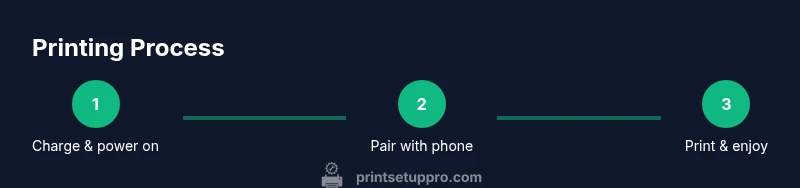
Charge and power on the printer
Plug in the printer or ensure its battery is charged to a healthy level. Power on the device and wait for a ready indicator lights or a status screen. This ensures stable operation for the first connection.
Tip: Charge fully before your first print session to avoid interruptions. - 2
Install the manufacturer app on your phone
Download and install the official app from your device’s app store. Open the app and grant necessary permissions (photos, Bluetooth, location if prompted). A clean setup speeds up future prints.
Tip: Enable notifications in the app for firmware alerts and media updates. - 3
Connect the printer to your phone via Bluetooth or Wi‑Fi
Follow in-app prompts to pair the device. If using Wi‑Fi, connect the printer to the same network as your phone or use a direct connection option if available. Confirm the connection is active before proceeding.
Tip: If you experience issues, toggle Bluetooth off and back on, or restart the printer and phone. - 4
Load compatible paper into the tray
Open the media tray and insert the correct paper type and size for your printer. Align the media properly to avoid skewed prints. Close the tray gently to ensure the printer feeds sheets correctly.
Tip: Always use manufacturer-recommended paper for best color accuracy and longevity. - 5
Choose a photo and set the print size in the app
Browse your gallery and select a photo. In the print settings, choose the target size (e.g., 4x6). Some apps offer in-app cropping; use it to frame the image for the final print.
Tip: Preview the crop and color before printing to reduce waste. - 6
Edit the image for print quality
Apply minor edits if needed—adjust brightness, contrast, and saturation within the app or a photo editor. Avoid over-sharpening to preserve natural detail. Consider soft-proofing using the app’s built-in preview.
Tip: Calibrate color by printing a quick test strip if your printer supports it. - 7
Print a test photo and review results
Send a test print and inspect color, alignment, and paper feed. If colors look off, try a different paper type or refer to the app’s color management options. Re-check the printer’s firmware for updates.
Tip: Waiting a few seconds between prints can help the ink set and reduce smudging. - 8
Finish, store, and maintain the device
Allow prints to dry before handling. Store printer and paper in a cool, dry place. Periodically clean the print head area per the manual and update firmware for bug fixes and features.
Tip: Regular maintenance reduces clogs and prolongs print quality.
People Also Ask
What is a photo mobile printer and who should use one?
A photo mobile printer is a compact device that prints photos directly from a smartphone or tablet. It suits travelers, students, event organizers, and DIY enthusiasts who want quick, on-the-go prints without a computer or lab.
A portable printer prints photos from a phone or tablet, ideal for travel, school projects, or quick proofs on the go.
Do photo mobile printers use ink, dye-sub, or ZINK?
Most portable printers use dye-sublimation or thermal dye transfer; some models rely on inkjet. Check the printer’s specifications to confirm the printing method and media compatibility.
Most portable printers use dye-sublimation or thermal dye transfer; some models use inkjet, so check the specs.
What paper sizes do these printers typically support?
Common sizes include 2x3 and 4x6 inches, with a few models offering additional options. Always verify supported sizes before buying to ensure your preferred prints fit your projects.
Most portable printers support 2x3 and 4x6 prints; some offer more options—check your model's specs.
How do I connect my phone to the printer?
Connection is usually via Bluetooth or Wi‑Fi. Use the manufacturer app to pair devices and send photos. If you have trouble, reset the connection and re-pair.
Connect via Bluetooth or Wi‑Fi using the maker’s app, then send photos to print.
Why is my print quality poor even after setup?
Check media compatibility, color settings, and correct crop for the chosen print size. Ensure the photos are high-resolution and the paper is fresh and stored properly.
If prints look off, verify media compatibility, crop, and color settings; high-res photos help a lot.
Is a photo mobile printer worth it for classroom or travel use?
Yes, for quick proofs and on-site visual aids. It won’t replace lab-quality prints, but it’s excellent for fast feedback, projects, and memory keeping on the go.
Yes—great for on-site proofs and quick visuals, though not a substitute for lab prints.
Watch Video
Quick Summary
- Choose a portable model with reliable battery life.
- Match paper type to your desired finish for best results.
- Use the app workflow to optimize the print size and crop.
- Regular maintenance improves print quality and device longevity.
- Print from mobile with a straightforward setup for quick on-the-go proofs.