Best Way to Print Photos from Your Phone: A Practical Guide
Learn the best way to print photos from your phone with step-by-step methods, printer setup, and practical tips for home offices and students from Print Setup Pro.


To print photos from your phone, use a compatible wireless printer and its mobile app or built-in print service. Connect both devices to the same network, select the photo, tap Print, and choose paper type, size, and borders. For best results, use borderless printing, color management, and a higher DPI image; always preview before printing.
Why printing photos from your phone matters
Printing photos directly from a smartphone is a convenient way to preserve memories, make tactile keepsakes, and share tangible moments with family and clients. The best way to print photos from your phone balances convenience with quality, ensuring colors stay true and details remain crisp. According to Print Setup Pro, using the printer’s native mobile printing features or a trusted app often yields the most reliable results while minimizing steps. Whether you’re decorating a living room, labeling a portfolio, or gifting a printed memory, knowing the right approach saves time and avoids wasted paper or ink. In this guide, you’ll discover practical paths from direct prints to professional-grade results, plus clear tips for color, paper selection, and workflow.
Understanding the basics of mobile photo printing
Mobile photo printing hinges on a few core concepts: supported printing protocols, paper types, and image resolution. Most modern printers offer AirPrint (iOS) or Mopria/Android Print (Android) to simplify sending images from a phone. For best results, start with high-resolution source images (ideally 300 dpi), and choose photo paper designed for inkjet printers. Print color management matters; some printers honor built-in color profiles, while others require manual tweaks. Remember that what looks good on your phone screen may not match print output exactly; reference a test print to calibrate expectations. Print Setup Pro recommends aligning settings with your printer’s capabilities and your photo’s final use, whether a small photo strip or a wall-size print.
Choosing the right printing method for your needs
Your choice depends on speed, control, and final presentation. Direct printing from your phone via AirPrint/Mopria is fastest and simplest for everyday photos. If you want archival quality, consider a dedicated photo printing service or a printer that supports high-end photo paper and pigment inks. For DIY enthusiasts, borderless printing on glossy or luster paper can maximize image area, while matte finishes soften sharp details for portraits. When in doubt, print a test image to compare color balance, contrast, and detail retention before committing to a full batch.
Direct printing vs. cloud services: Pros and cons
Direct printing from your device is quick and privacy-friendly: you keep data local and avoid uploading images to a cloud service. Cloud-based services can offer large format options and easier color matching across devices, but they introduce potential latency and privacy concerns. If you’re printing sensitive family photos, direct printing is often safer. For school projects or business portfolios, cloud-enabled workflows can simplify collaboration and access to multiple printers. Weigh these factors against your timeline, budget, and print quality goals to pick the best path.
Printing from iPhone: AirPrint and beyond
iPhone users typically rely on AirPrint for seamless wireless printing. AirPrint works with many modern printers without installing drivers, assuming both devices share a network. If your printer isn’t AirPrint-enabled, check the manufacturer’s app or Mopria compatibility. Some apps offer enhanced color controls, borderless options, and draft vs. high-quality print modes. When printing from iPhone, always preview the layout, select the appropriate paper size (4x6, 5x7, etc.), and choose borderless settings when you want edge-to-edge prints for a clean, professional look.
Printing from Android: Mopria and third-party apps
Android devices often rely on Mopria or a manufacturer app to initiate printing. Mopria provides a universal printing experience across many printers, but it may not expose all color-management features. If your use case requires precise color control, install your printer’s official app to access advanced settings like ICC profiles, paper type, and print quality. For best results, ensure your paper and ink are matched to the app’s recommended settings, and perform a quick proof print to confirm color accuracy before producing multiple copies.
Step-by-step: print from iPhone to a compatible printer
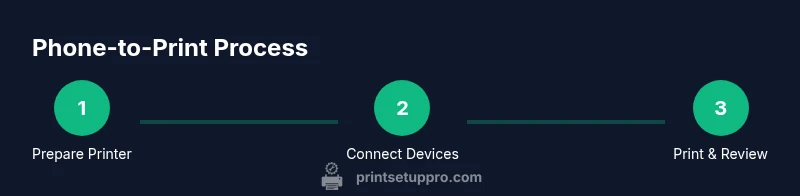
- Prepare the printer: Make sure it’s powered on, connected to the same Wi-Fi network as your iPhone, and has paper loaded. Why: a stable connection prevents print failures and misfeeds.
- Open the photo: Locate the image in Photos and tap the share icon. Why: the share menu provides the Print option across iOS apps.
- Choose Print: Tap Print, then select the correct printer, paper size (e.g., 4x6), and print quality. Why: correct options ensure the image prints at the intended size and sharpness.
- Adjust settings: Enable borderless printing if available; adjust color and brightness as needed. Why: these adjustments affect edge-to-edge quality and realism.
- Preview and print: Use the preview to confirm layout, then tap Print. Why: preview catches issues before ink is used.
- Collect and inspect: Retrieve your print, check for color balance, and store the file securely. Why: early inspection helps catch issues before producing more copies.
Step-by-step: print from Android to a compatible printer
- Verify connectivity: Ensure your Android device and printer share the same network. Why: a shared network is essential for wireless printing.
- Open the image in the gallery: Tap the menu with the three dots or the share icon to access printing. Why: printing options live in the system share/print flow.
- Select Print: Choose Mopria or your printer’s app as the destination. Why: app-specific features can improve control.
- Configure printing options: Set paper size, quality, and borderless if supported. Why: correct settings ensure optimal results.
- Preview and execute: Check the preview and tap Print. Why: a final sanity check reduces waste.
- Retrieve prints: Collect and review for color accuracy and finish.
Photo quality best practices: paper, ink, and color management
Color accuracy starts with paper choice and ink compatibility. Opt for photo papers with suitable weight (often 180–300 gsm) and finish (glossy, semi-gloss, or matte) based on your image type and display plan. Calibrate color using the printer’s built-in profiles or a calibrated device, and avoid over-saturating colors on images with high dynamic range. For consistent results, store photos in a color-managed workflow and print multiple small runs to refine color alignment across batches.
Troubleshooting common issues
If colors look washed out, verify paper type and printer color profile, and consider a test print with a calibrated image. If feeds misalign, check paper thickness and tray alignment. For connectivity issues, restart devices and rejoin the Wi-Fi network, ensuring the printer remains discoverable. If prints smear, inspect printheads and nozzle clogging; run a cleaning cycle and use proper ink/paper combinations.
Cost, timelines and long-term considerations
Printing from your phone is usually cost-effective for small batches, but ink and paper costs add up with frequent prints. Plan a small budget for supplies, especially if you print weekly. For long-term projects, consider a dedicated photo printer that uses archival-quality inks and heavyweight papers. Time-wise, expect 1–2 minutes per 4x6 print on typical consumer-grade hardware, depending on settings and image complexity.
Final checklist before printing
- Confirm device compatibility (AirPrint, Mopria, or manufacturer app).
- Load the correct paper type and size for your image.
- Choose the appropriate print quality and borderless options.
- Preview the print to verify color and layout.
- Do a test print before committing to a larger run.
Tools & Materials
- Smartphone with photo you want to print(Ensure you have the highest-resolution copy available.)
- Wireless printer with mobile printing support(Verify AirPrint (iOS) or Mopria (Android) compatibility with your device.)
- Stable Wi-Fi network(A reliable network reduces print failures and dropouts.)
- Photo paper (glossy, semi-gloss, or matte)(Choose 180–300 gsm for best results; avoid regular office paper.)
- Printer ink or pigment cartridges(Use manufacturer-recommended supplies for color accuracy.)
- Printer app or built-in printing service(Ensure you can access print functions directly from your phone.)
- USB-C or Lightning cable (optional)(Some printers support direct print via cable if needed.)
Steps
Estimated time: 25-45 minutes
- 1
Prepare the printer and network
Power on the printer, confirm it’s connected to the same Wi‑Fi network as your phone, and load the correct paper into the tray. This foundational step ensures reliable communication and correct print sizing.
Tip: A quick reboot of both devices can fix minor connectivity hiccups. - 2
Open the photo on your phone
Navigate to the image you want to print in your gallery or Photos app and open it in full resolution. Higher resolution images reproduce more detail in print.
Tip: If the photo is cropped, resize within the editor to keep important elements in frame. - 3
Access the print option
Tap the share or action menu and select Print. Ensure the correct printer is selected and you’ve chosen the desired paper size.
Tip: Preview the image at print size to avoid surprise cropping. - 4
Adjust print settings
Choose paper type, print quality, and whether to enable borderless printing. Calibrate brightness and color if your printer offers controls.
Tip: Borderless printing maximizes image area for a true photo look. - 5
Print and verify
Send the job to the printer, then inspect the first print for color and detail accuracy before continuing.
Tip: Keep a small test print handy if you’re producing a batch. - 6
Troubleshoot if needed
If the job fails, check connectivity, paper alignment, ink levels, and if the printer requires a driver/app update.
Tip: Consult the printer’s support page for model-specific steps.
People Also Ask
Can I print directly from my phone to any printer?
You can print directly if the printer supports mobile printing protocols (AirPrint for iOS or Mopria for Android) and is on the same network. Some brands require their own app for full functionality.
Yes, if your printer supports mobile printing and is on the same network.
Do I need special photo paper?
Photo paper designed for inkjet printers improves color and longevity compared with regular paper. Choose glossy, semi-gloss, or matte finishes based on your image and display needs.
Yes, use proper photo paper for best results.
Is borderless printing available for most photos?
Many printers offer borderless printing. If available, enable it to maximize image area; some images may still require cropping depending on aspect ratio.
Borderless printing is common but check your printer.
How long does a typical photo print take?
Most 4x6 prints take about a minute or two per image, depending on printer speed and print quality settings. Batch printing increases total time.
Usually around a minute per print, varying by device.
What settings affect color accuracy the most?
Paper type, ink compatibility, and color profiles strongly affect color. Use manufacturer profiles when available and calibrate with test prints.
Color profiles and paper choice matter most.
Should I print from mobile or desktop for best control?
Mobile printing is convenient and adequate for most everyday photos. Desktop can offer more precise color management and batch processing for larger projects.
Mobile is convenient; desktop offers more control.
Watch Video
Quick Summary
- Choose a method that balances speed and quality.
- Ensure all devices share a reliable network before printing.
- Select paper and settings that match your image needs.
- Preview and test print to save materials and time.