Printer on iPhone: A Complete Mobile Printing Guide
Learn how to print from your iPhone using AirPrint or printer apps. This guide covers setup, troubleshooting, and best practices for seamless mobile printing on home or office networks.


Printing from an iPhone is straightforward when you use AirPrint or a compatible printer app. Ensure both devices are on the same Wi‑Fi network, then select Print from the share sheet and pick your printer. This guide from Print Setup Pro shows how to set up, print, and troubleshoot common issues.
Getting started with printing on iPhone
Printing from an iPhone unlocks a flexible workflow for home offices, classrooms, and on-the-go work. The most reliable method is AirPrint, Apple's built-in printing protocol, which supports many modern printers without installing extra software. According to Print Setup Pro, starting with AirPrint reduces setup friction and provides consistent results across apps like Mail, Photos, and Safari. If your printer is not AirPrint-certified, you can still print via the manufacturer’s app or a third-party printing app, but you may need to connect via a shared printer service or install drivers on a computer that acts as a bridge. Before you begin, verify that both devices are connected to the same Wi‑Fi network and that the printer is powered on and ready. Keep in mind that some printers have limited support for certain file types or color management, so checking the app’s help resources ahead of time can save time.
How AirPrint works and when to use it
AirPrint is built into iOS and works with many printers on the same network. When you pick Print, your iPhone queries the printer to confirm capabilities (page size, color, two-sided printing). This approach requires no driver installation on the iPhone, which makes it fast to set up. Print Setup Pro analysis shows that the simplest mobile printing experience happens when the printer is AirPrint-enabled and the device uses iCloud Drive or Photos to populate the print job. If your printer doesn't support AirPrint, you can still print via the manufacturer's app or by enabling a Windows/Mac sharing route, though the setup is typically more involved and may vary by model.
Alternatives to AirPrint: apps and workarounds
Some printers offer their own apps that enable printing from iPhone without AirPrint. These apps can provide extra features such as two-sided printing, grid layouts, or direct printing from cloud storage. Third-party printing apps may also support printers that lack AirPrint, but they might require additional permissions or account sign-ins. When choosing an alternative, verify compatibility with your iPhone’s iOS version and your printer model. For those who frequently print from mobile devices, keeping both AirPrint and the manufacturer app available gives you flexibility across scenarios.
Prepare your printer and network
Successful iPhone printing starts with a stable setup. Ensure the printer is connected to the same secure Wi‑Fi network as your iPhone and that its firmware is up to date. If you use AirPrint, confirm that your printer advertises AirPrint support in its settings or user guide. If you rely on the manufacturer app, install it from the App Store and log in if required. A quick reboot of both devices can resolve many transient connectivity issues. For homes with multiple routers or mesh networks, choosing a single consistent network name (SSID) helps prevent devices from hopping between access points mid-print.
How to print photos and documents from iPhone
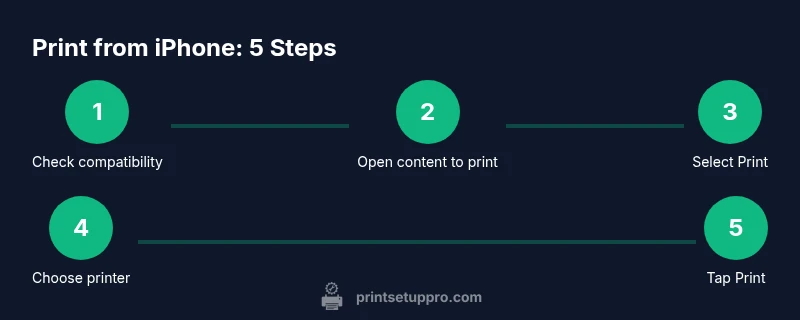
Printing from iPhone generally follows a simple flow: open the item you want to print (Photo, PDF, webpage, or document), tap the Share icon, and choose Print. From the Print Options screen, select your printer, set the number of copies, and adjust color or page options as needed. Tap Print to send the job to the printer. If you’re printing from Photos, you can select multiple photos or a whole album, then use the same Share → Print flow. For files in other apps, look for the Print option within the app’s menu. If your printer supports it, you can also choose to print in grayscale to save ink.
Troubleshooting common printing issues from iPhone
If your iPhone cannot find the printer, first verify both devices are on the same network and that the printer is powered on. Check that the printer is AirPrint-enabled or that the manufacturer app is correctly installed. Some networks require you to permit printer discovery in privacy or firewall settings. A stale cache can be cleared by reopening apps or restarting the iPhone. If printing is still problematic, update both iOS and the printer firmware, rejoin the network, and retry. For persistent problems, consult the printer’s support site or contact the app developer for guidance.
Print Setup Pro verdict
The Print Setup Pro team recommends adopting a clear mobile printing workflow: prefer AirPrint whenever possible to minimize setup friction, and supplement with the manufacturer’s app when AirPrint support is limited. Keep your devices updated and connected to the same secure network for reliable results. In most home and small office scenarios, this approach delivers fast, predictable prints with minimal hassle.
Tools & Materials
- iPhone or iPad with latest iOS(Ensure device is updated to the latest iOS version)
- AirPrint-compatible printer on the same Wi-Fi network(Check printer model for AirPrint support or companion app)
- Stable Wi‑Fi network (2.4 GHz/5 GHz)(Prefer 5 GHz if available and supported by printer)
- Printer manufacturer app (optional)(Useful if AirPrint is unavailable or for advanced features)
- Documents or photos to print(Stored in Photos, Files, or cloud locations accessible from iPhone)
- Printer firmware updated(Update if you encounter compatibility issues)
Steps
Estimated time: 10-15 minutes
- 1
Verify compatibility and network
Check that your printer supports AirPrint or has a dedicated iPhone app. Confirm both devices are on the same stable Wi‑Fi network and avoid guest networks that may block printing.
Tip: Do a quick test print from another app to confirm basic connectivity. - 2
Open the content you want to print
Navigate to the item (photo, PDF, webpage, or document) you want to print within its app or the Files/Photos app, then tap the Share icon.
Tip: If you are printing multiple items, select them in the app before sharing. - 3
Choose Print from the share sheet
From the sharing options, select Print to open the Print Options screen where you choose the printer and print settings.
Tip: If you don’t see Print, swipe left on the app’s bottom row to reveal more actions. - 4
Select a printer and adjust options
Tap Printer to pick your AirPrint-enabled device, then set copies, color options, page range, and two‑sided printing if supported.
Tip: For sensitive documents, print a test page first and verify the preview. - 5
Print the document
Tap Print to send the job to the printer. Monitor the print activity from the iPhone’s status bar if available.
Tip: If printing fails, try canceling and reattempting after restarting the printer. - 6
Troubleshoot common issues
If the printer doesn’t appear, recheck network connections, update firmware, and restart devices. When in doubt, consult the printer’s support resources.
Tip: Keep a log of steps tried to avoid repeating actions.
People Also Ask
Can I print from iPhone to a non-AirPrint printer?
Yes, you can print using the printer's own app or a compatible third-party app, but you may need to configure additional settings. Some models support cloud printing or direct sharing, which requires different steps than AirPrint.
Yes. If AirPrint isn't available, use the printer's app or a supported printing app for your model.
What should I do if my iPhone can't find the printer?
First, confirm both devices are on the same network and that the printer is powered and ready. Restart the devices, update firmware, and reattempt. If it still fails, check for any network restrictions or firewall settings.
Make sure the devices are on the same network and try restarting both the iPhone and the printer.
Is printing from iPhone secure?
Mobile printing typically uses local network protocols. For extra privacy, avoid printing sensitive documents over public networks and consider network encryption and printer password protection where available.
Printing over a secure home network is usually safe; avoid public networks for sensitive documents.
Can I print from iPhone using cellular data?
No. Printing requires a local network connection, usually via Wi‑Fi. Cellular data can’t directly reach a nearby printer unless you set up a remote printing solution.
Printing from a device over cellular data isn’t supported in typical setups.
Why are colors off or prints blurry?
Check printer alignment, cartridge or ink levels, and print quality settings. Ensure you’re using the correct paper type and that the driver or app is configured for color printing.
Make sure ink, paper type, and quality settings are correct, and reprint a test page.
Do I need to enable iCloud or Files sharing to print?
You don’t need iCloud to print, but many apps use the Share sheet to connect to printers. For cloud-based printing, you may access files via iCloud Drive or other services and then print.
You can print directly from apps via the Share sheet; iCloud access isn’t required for basic printing.
Watch Video
Quick Summary
- Connect iPhone and printer on the same network.
- Use Print from the share sheet to start quickly.
- Prefer AirPrint; use manufacturer apps if needed.
- Update firmware on both devices when issues arise.