How to 3D Print a Figure: A Complete Guide
Learn to design, slice, and print a detailed 3d printer figure with durable materials, precise scaling, and clean finishing. A practical, step-by-step guide for home makers and students.


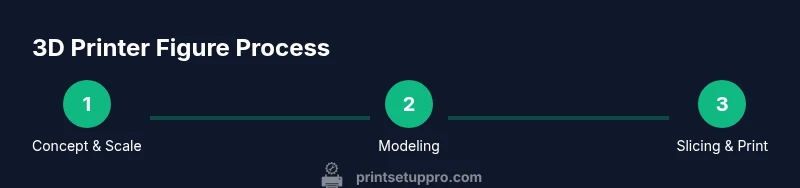
Goal: learn how to design, slice, and print a 3d printer figure that is durable and true to scale. This guide covers modeling considerations, support strategies, slicer settings, and post-processing steps. According to Print Setup Pro, start with a clear concept, run a small test print, and adjust parameters before committing to a full figure.
What is a 3d printer figure?
A 3d printer figure is a small, printable sculpture or character model created with a 3D printer. It combines art with engineering, requiring careful attention to scale, wall thickness, and surface detail to ensure the model prints cleanly. When you pursue a 3d printer figure, consider your printer’s capabilities, the filament you’ll use, and how you’ll finish the surface after printing. For home office makers, students, and hobbyists, this guide centers on creating a sturdy, display-ready figurine with reliable repeatability. As Print Setup Pro notes, starting from a solid concept and a practical scale helps you avoid common print failures while preserving character and detail.
This article uses the term 3d printer figure frequently to remind readers that even small sculptures demand correct geometry, tolerances, and finishing work. You’ll see how design decisions ripple through layering, supports, and post-processing, ultimately influencing how your figure looks once it’s removed from the printer and cured. Throughout, you’ll encounter tips tailored to hobbyist workflows, from carving fine features to choosing the right filament for durability and color fidelity.
Design Intent and Scale
The first step in producing a successful 3d printer figure is defining its character, pose, and scale. Decide whether your figure is a static statue or a dynamic figure with potential articulation. If you plan joints, you’ll need looser tolerances and perhaps modular parts. When choosing scale, map your target display area and what viewers will notice from a few feet away. Common scales for figures range from tiny 1:72 to larger 1:6, but you can adjust to your desk space and printer bed size. Start with a modest scale to verify proportions and detail before committing to a larger print. Pro tip: use reference images and create a baseline silhouette to verify proportions early in the process. With a clear concept, your 3d printer figure will translate more accurately from concept to print.
Design Considerations for Detail and Durability
Detail density, wall thickness, and sectioning influence print success. Fine features like facial expressions or textures demand higher resolution and careful orientation. Plan for minimum wall thickness around 1.5–2.0 mm for sturdy figures and consider adding slight chamfers to shield sharp edges from chip-out. If your printer struggles with tiny features, simplify textures or add micro-textures in post-processing. For durability, consider slightly increasing internal hollow space or adding internal ribs for support without excessive material usage. Print Setup Pro emphasizes balancing detail with print reliability; a small, testable area can guide decisions before committing to the full figure.
Materials and Printer Settings for Quality
Filament choice heavily affects surface finish and strength. PLA is beginner-friendly and prints with minimal warping, making it ideal for intricate figures, while PETG offers higher impact resistance for durable collectibles. If you're aiming for ultra-smooth surfaces, resin printing is a separate path, but FDM figures can still look fantastic with post-processing. For FDM, start with a 0.1–0.2 mm layer height for details, a modest infill (or hollow with internal supports), and a well-calibrated bed. Nozzle size 0.4 mm is standard; larger nozzles speed prints but may reduce detail. Calibrated extrusion and consistent filament diameter are essential to avoid under- or over-extrusion that blurs fine features.
Preparing Your Model for Slicing
Before you send a file to the slicer, ensure your model is manifold, watertight, and free of non-manifold edges that could confuse slicing. Break complex figures into printable parts if needed to reduce overhangs and support requirements. Check that joints or interactive parts have enough clearance to assemble after printing. If you start with an existing model, run a quick mesh repair, decimation optimization, and scale verification to match your target size. Remember that the goal is a printable, well-balanced figure that preserves pose, proportion, and character.
Slicing for Supports, Orientation, and Infill
Slicing is where design meets hardware. Choose orientation to minimize visible seams and reduce heavy overhangs. Place major mass where the bed holds best and use supports only where necessary to protect fine details. Use a light-touch support pattern for delicate features and enable an overhead ramp for easier removal. For figures with limbs, you may opt for separate print parts to reduce risk of stringing or warping. Infill can be as low as 10–15% for light display pieces, but consider higher infill if you expect handling or if the model contains hollow sections that must resist pressure during painting.
Finishing, Painting, and Sealing
Finishing elevates a 3d printer figure from decent to display-worthy. Start with careful sanding to even surfaces; use progressively finer grits (e.g., 200–400, then 600–1000) to smooth transitions. Apply a primer compatible with your filament to enhance paint adhesion, then build color with acrylic paints. Seal with a clear coat to reduce chipping and wear. Pay attention to tiny cavities that can trap dust or paint; gentle brushing helps. A well-prepared finish will reveal the depth and texture of your figure’s design and bring it to life.
Troubleshooting Common Print Issues
Unexpected warping, stringing, or weak layers are common when printing figures. Warping often stems from poor bed adhesion or rapid cooling; adjust first layer temperature and bed leveling. Stringing indicates oozing; tweak retraction settings and nozzle temperature. Infill or wall weakness may require thicker walls or slightly slower print speeds for better layer fusion. If fine features smear or blur, reduce layer height and ensure your extrusion multiplier is calibrated. Print setups that balance speed, temperature, and cooling yield the cleanest 3d printer figure results.
Tools & Materials
- 3D modeling software (Blender, Fusion 360)(For creating or editing the base mesh and preparing for export (STL/OBJ))
- Slicing software (PrusaSlicer, Cura)(Convert model to printable G-code and configure supports)
- 3D printer with calibrated bed and reliable extrusion(Ensure bed leveling and consistent extrusion for small features)
- Filament (PLA recommended for ease; PETG for durability)(Choose color and finish with you 3d printer figure in mind)
- Calipers or digital ruler(For precise scaling and verification against references)
- Post-processing tools (hobby knife, sandpaper, primer, paints, sealant)(Important for surface finish and color fidelity)
Steps
Estimated time: 6-14 hours
- 1
Define concept and scale
Choose the figure’s character, pose, and target scale. Create reference sketches and decide how much detail is feasible at your printer’s bed size. This strategy reduces iterations later in the process.
Tip: Use a quick silhouette to verify proportions before modeling in 3D software. - 2
Create or obtain a base model
Model from scratch or adapt an existing mesh, ensuring it’s manifold and clean. If starting with an external file, run mesh repair and verify scale against references.
Tip: Keep a low-polygon base first to check silhouette before adding fine details. - 3
Prepare the model for print
Check wall thickness, add pose-friendly joints if needed, and slice the figure into printable parts to avoid overhangs. Ensure proper clearance for assembly.
Tip: Plan breaks at natural joints to minimize visible seams. - 4
Set up slicing parameters
Orient the model to minimize supports, select a suitable layer height (0.1–0.2 mm), and configure support density. Choose infill that balances strength with material use.
Tip: Test a small segment to dial in retraction and temperature before committing to the full print. - 5
Print and monitor
Run the first layer slowly to ensure bed adhesion. Watch early layers for warping or detachment; pause if a problem appears.
Tip: Keep a spare nozzle and screwdriver handy for quick fixes during a long print. - 6
Post-process
Remove supports carefully, sand rough areas, apply primer, and paint with acrylics. Seal with a clear coat to protect painted surfaces.
Tip: Work in a ventilated area when sanding and painting. - 7
Evaluate and iterate
Compare the printed figure to references, note any inaccuracies, and adjust the model or print settings for future runs.
Tip: Document settings that worked well for reuse in future projects.
People Also Ask
What is a 3d printer figure?
A 3d printer figure is a figurine created with 3D modeling software and produced on a 3D printer. It combines artistic design with mechanical planning to achieve a display-ready object.
A 3d printer figure is a small figurine printed from a 3D model, designed for display.
What materials work best for figures?
PLA is the easiest for beginners and fine details; PETG adds strength and impact resistance. Resin printers can yield the smoothest surfaces but require post-processing and specific safety steps.
PLA for beginners, PETG for durability, resin for smooth surfaces with proper safety.
How do I scale models accurately?
Use reference measurements and verify scale in your modeling software or slicer. Print a known-size test object to confirm accuracy before committing to the full figure.
Measure references and test print a reference object to confirm scaling.
Do I need supports for figures?
Yes, for overhangs and intricate features. Orient parts to minimize supports and consider breakable joints to reduce post-processing.
Supports are often necessary for overhangs; orient parts to reduce them.
Can I paint after printing?
Yes. Prime first, then apply acrylic paints, and finish with a clear coat to protect the surface and enhance color. Allow adequate curing between steps.
You can paint after printing with primer and acrylics, then seal.
How long does a print take?
Times vary with size, layer height, and complexity. Plan for longer prints and monitor the first layer to prevent failures.
Print times depend on size and settings; watch the first layer closely.
Watch Video
Quick Summary
- Plan the concept and scale before modeling.
- Balance detail with print reliability and durability.
- Test early, iterate, and document successful settings.
- Finish with primer, paint, and sealant for best realism.