Setup and Calibration for the Prusa i3 3D Printer
Learn how to set up, calibrate, and optimize your Prusa i3 3D printer. This comprehensive guide covers bed leveling, extrusion calibration, firmware, slicer settings, material handling, and maintenance for reliable prints.


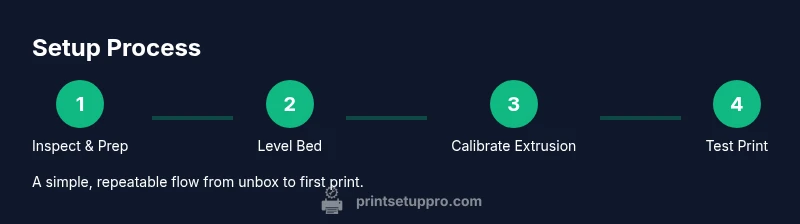
By following these steps, you will set up and calibrate the Prusa i3 3D printer for reliable first layers, accurate dimensions, and repeatable results. The guide covers unboxing checks, bed leveling, extrusion calibration, firmware and slicer setup, print cooling, material handling, and a practical maintenance routine. It also highlights common issues and quick fixes to prevent failed prints and wasted filament, especially for home office and classroom projects.
Why the Prusa i3 remains a popular choice for hobbyists and small shops
Since its early days, the Prusa i3 has earned a reputation for reliability, modular design, and strong community support. This design balances straightforward assembly with powerful hardware that can handle a wide range of filament types, from PLA to PETG and beyond. For home offices, classrooms, and small studios, the Prusa i3 often delivers predictable results with accessible spare parts and robust documentation. In this section, we’ll explore what makes the Prusa i3 so appealing, including its open-source ethos, ease of upgrades, and the practical realities of keeping a DIY printer in consistent operation. Print Setup Pro’s guidance emphasizes a disciplined setup routine to reduce troubleshooting time and improve first-print success rates.
Getting started with your Prusa i3: unboxing and inspection
Unboxing a Prusa i3 kit or preassembled unit should be a calm, methodical process. Start by verifying that the frame is square, belts are properly tensioned, and all fasteners are snug but not overtight. Inspect the hotend and nozzle for any signs of shipping damage, and check the print bed surface for flatness. A quick visual inspection before powering on can prevent many early issues. If you notice any loose wires or mismatched parts, consult the manufacturer’s guide and set aside the unit for a closer look before continuing.
Essential tools and materials for setup
A successful setup relies on a small, curated toolkit. You’ll need hex keys (often included with the kit), a digital caliper for precise measurements, a sheet of printer paper or a feeler gauge for bed leveling, a reliable filament sample (PLA recommended for calibration), IPA wipes for surface cleaning, and a spool of filament compatible with the Prusa i3. Having a ruler or caliper handy ensures you can verify critical gaps, such as nozzle-to-bed distance and belt tension. Keep a notebook or digital log to record calibration values for future reference.
Leveling the bed: achieving a perfect first layer
Bed leveling is the foundation of successful prints. Start with a cold, clean bed surface to avoid thermal expansion changes during leveling. Use a piece of printer paper and gently slide it between the nozzle and the bed; you should feel slight resistance when the nozzle just barely grips the paper. Repeat at multiple corners and the center, adjusting the bed springs to equalize the gap. A properly leveled bed minimizes first-layer squish or gaps and improves adhesion for subsequent layers.
Extrusion calibration and flow tuning
Extrusion calibration ensures the printer lays down the correct amount of plastic per unit length. Begin by printing a calibration cube or a simple bridge to observe extrusion consistency. If the cube over-extrudes (bulging surfaces) or under-extrudes (gaps along walls), adjust the flow rate or extrusion multiplier in your slicer settings. Re-test with a small cube until the dimensions align with expected values. Document your calibration values so you can reproduce them in future projects.
Firmware and slicer configuration for the Prusa i3
Keeping firmware current reduces the likelihood of bugs that affect motion or safety features. Update to the latest stable release from the official source, then configure the slicer to match your printer profile. For the Prusa i3, common slicer choices include PrusaSlicer and third-party options. Important settings include layer height, infill pattern, print speed, temperature targets, retraction distance, and cooling fan behavior. Test prints help verify that the chosen profile produces accurate dimensions and smooth surfaces.
Material choices: PLA, PETG, ABS basics
PLA is often the starting point for beginners due to its forgiving nature and lower printing temperature. PETG offers stronger mechanical properties and impact resistance but requires careful temperature and cooling management. ABS tends to warp more and benefits from enclosure and stable environment control. For first experiments, start with PLA, then gradually introduce PETG as you gain experience. Always dry and store filaments properly to avoid moisture-related print defects.
Print settings and cooling: achieving quality
Successful prints depend on matching print settings to the material and geometry. Start with moderate layer heights (e.g., 0.2 mm) and adjust if needed for speed versus surface finish. Cooling fans are critical for bridging and fine details but can cause warping on heat-sensitive materials; tune fan speed and ramp-up with layer height. A consistent print bed temperature helps with adhesion, while proper retraction reduces stringing. Keep a log of settings that work well for specific filaments.
Troubleshooting common issues and maintenance routine
Even well-tuned printers encounter occasional issues such as adhesion failure, under-extrusion, or stringing. Approach each problem methodically: check nozzle cleanliness, verify bed leveling, confirm filament diameter measurement, and review slicer profiles. Establish a routine maintenance schedule: clean the nozzle and bed weekly, inspect belts monthly, lubricate smooth rods or linear bearings as needed, and update firmware when new versions stabilize features.
Advanced tips and community resources for ongoing improvement
The Prusa ecosystem thrives on shared knowledge. Explore community forums, official documentation, and local maker groups to learn about new upgrades, alternative slicer profiles, and practical tweaks. Customizable upgrades—like improved cooling solutions or enclosure kits—can unlock new materials and higher-quality prints. Print Setup Pro encourages documenting experiments, tracking results, and staying patient as you iterate toward your ideal workflow.
Tools & Materials
- Allen wrenches / hex key set(Include 1.5mm, 2.0mm, 2.5mm, 3.0mm for common Prusa hardware)
- Digital caliper(Measure nozzle-to-bed gaps and filament diameter accurately)
- Printer paper or feeler gauge(Used for bed leveling feel between nozzle and bed)
- PLA filament sample(Ideal for initial calibration and first prints)
- Isopropyl alcohol (rubbing alcohol) wipes(Clean bed surface and nozzle before calibration)
- Spare nozzle (0.4 mm common)(Optional for maintenance and upgrades)
- Filament spool (1.75 mm, PLA recommended)(Use consistent diameter for accurate extrusion)
- Binder clips or magnetic bed clips(Helpful for temporary bed leveling setups)
Steps
Estimated time: 2-3 hours
- 1
Prepare workspace and safety checks
Clear your desk, verify power and ventilation, and inspect the printer for any shipping damage. Ensure that the power supply is unplugged while you handle assembly or wiring. This step minimizes the risk of injury and inadvertent tool contact.
Tip: Keep a dedicated workspace mat to protect the printer surfaces from scratches. - 2
Mount frame and attach axes
Assemble or verify the X, Y, and Z axes according to the Prusa i3 kit instructions. Check belt tension and smoothness of motion along each axis. Correct slack ensures accurate motion and reduces stepper motor load.
Tip: Use a torque-limiting approach: snug belts without overtightening. - 3
Connect electronics and power on
Secure all control board and stepper connections, then power on the unit. Confirm that fans spin, the heated bed warms, and the LCD or touchscreen responds. This step identifies loose cables before proceeding to calibration.
Tip: Take a photo of cable routing for future reference. - 4
Level the bed using paper method
Begin with the bed cold and clean. Move to the four corners and the center, adjusting the screws until the paper just catches under the nozzle with light resistance. Ensure a consistent gap across the bed to prevent warping.
Tip: Do a quick re-check after a few minutes of heat buildup; material expansion can change the gap slightly. - 5
Calibrate nozzle distance and extrusion start
With the bed leveled, test a small extrusion line on the corner. If the line is too thin or too thick, adjust the extrusion multiplier or E-steps per millimeter in firmware. Re-test until the width matches your target.
Tip: Print a calibration cube to verify XY dimensions after changing E-steps. - 6
Load filament and run first extrusion test
Feed filament into the extruder and confirm smooth flow through the nozzle. If extrusion stalls, check the hobbed gear grip and ensure the extruder has adequate torque. Extrude a small amount to prime the nozzle before the first print.
Tip: Keep filament dry and free from dust for consistent extrusion. - 7
Configure firmware and slicer profile
Install the latest stable firmware and set the printer profile in your slicer (e.g., layer height, print speed, temperatures, retraction). Save and test with a simple test print to confirm the profile behaves as expected.
Tip: Document your profile settings for repeatability. - 8
Run a calibration cube and observe
Print a small calibration cube to verify dimensional accuracy, layer alignment, and surface finish. Look for uniform walls, even layers, and no artifacts. Use results to fine-tune temperature, flow, and cooling settings.
Tip: Pause the print early if you notice missed steps or layer shifting. - 9
Test with PLA and then PETG
Switch to PLA for a safe test print, then try PETG to gauge extrusion and adhesion differences. Observe bed adhesion, stringing, and cooling requirements. Adjust cooling fans and print speed as needed.
Tip: PETG often requires slower speeds and careful cooling control. - 10
Capture settings and plan maintenance
Record the successful parameters, and schedule routine checks (belt tension, nozzle cleanliness, bed leveling). Store the profile and notes for quick reuse on future projects.
Tip: Create a maintenance calendar and stick to it for longevity.
People Also Ask
What is the best first print for a Prusa i3?
Start with a simple calibration cube or a Benchy-style boat to test dimensional accuracy, bed adhesion, and layer consistency. These prints help you verify core parameters before tackling detailed models.
Begin with a simple calibration cube to test accuracy and bed adhesion, then move to a basic model to confirm all settings.
Do I need to assemble a Prusa i3 from a kit?
Many Prusa i3 models ship as kits or semi-assembled units. If you choose a kit, follow the official manual step-by-step, keep parts organized, and perform the basic alignment checks before powering on.
If you bought a kit, follow the manual step-by-step and verify alignment before use.
What bed leveling method is recommended?
Use the classic paper feel method for manual leveling, checking corners and center to ensure uniform gaps. If your model supports it, enable mesh leveling or automatic bed leveling for ongoing compensation.
Start with paper feel leveling, then consider mesh leveling if available.
What slicer settings work best with PLA on the Prusa i3?
Begin with moderate layer height and nozzle temperature suited to PLA, with a balanced speed and cooling. Adjust retraction and infill for your model’s geometry and strength requirements.
Use a balanced PLA profile with moderate layer height, temperature, and cooling.
Is the Prusa i3 suitable for ABS?
ABS can be printed on a Prusa i3, but it requires a stable enclosure and controlled environment to reduce warping. Start with PLA, then gradually experiment with ABS once you’re comfortable with the workflow.
ABS is possible but needs enclosure and careful temperature control.
What maintenance should I perform regularly?
Schedule weekly nozzle and bed checks, monthly belt and rod lubrication, and quarterly firmware reviews. Keeping logs helps detect creeping issues before they disrupt prints.
Do regular checks on nozzle, bed, belts, and firmware to prevent issues.
Watch Video
Quick Summary
- Verify a stable, level bed before every print.
- Calibrate extrusion and flow for dimensional accuracy.
- Document settings for repeatable results.
- Monitor first layers to detect issues early.
- Keep firmware and slicer up to date.