How to Fix Printer Driver Unavailable
Learn how to fix printer driver unavailable with a clear, step-by-step process. Print Setup Pro covers common causes, troubleshooting, driver reinstallation, and preventative tips to keep your printing running smoothly.


Goal: fix a printer when the driver is unavailable. This quick guide outlines how to confirm connectivity, identify the correct driver, update or reinstall software, clear error states, and verify printer status on Windows and macOS. You’ll learn practical checks, common pitfalls, and when Print Setup Pro recommends seeking expert help.
Understanding the error and why it happens
The message 'printer driver unavailable' on your computer typically means the operating system cannot locate a compatible driver for your printer, or the existing driver is corrupted. In some cases, a misconfigured port or a blocked service can produce the same symptom. Understanding the root cause helps you choose the right fix rather than trying random updates. According to Print Setup Pro, driver health is the foundation of reliable printing; neglecting it often leads to repeated outages. In this section, we explore common scenarios and how to approach them methodically so you can fix the issue without guesswork. By identifying whether the problem is driver-based, connection-related, or a service issue, you can apply a targeted solution and reduce wasted time.
Quick checks to rule out simple causes
Before diving into driver updates, perform a quick triage to rule out easy fixes. Check that the printer is powered on and connected to the correct port (USB or network). Verify the printer appears in your OS’s devices list and set it as the default printer. Restart the printer and your computer to clear stuck processes. On many systems, simply restarting the Print Spooler (Windows) or the CUPS service (macOS) resolves transient errors and re-establishes communication with the driver. Print Setup Pro notes that most driver-related issues are resolved with these basic steps, saving you time for more involved troubleshooting.
Platform-specific drivers and why you need the correct version
Printer ecosystems differ across Windows, macOS, and Linux. The driver you download must match your operating system version, your printer model, and the language/firmware of the device. A mismatch can lead to compatibility prompts or an outright 'unavailable' error. Windows users often benefit from Manufacturer and Windows Update driver hints, while macOS users may rely on AirPrint compatibility or vendor-signed installers. Always choose the exact model and OS combination from the official vendor site to avoid conflicting software and partial installations. Print Setup Pro emphasizes that platform-specific drivers ensure feature support (scanning, color management, maintenance tasks) and stability over time.
Reinstalling or updating the driver safely
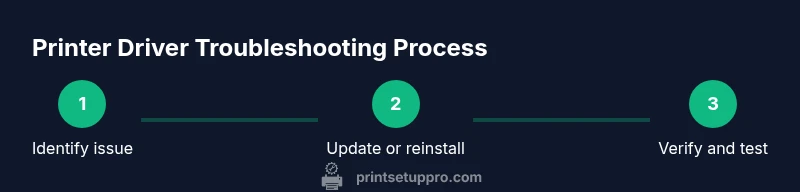
Reinstalling a driver cleanly removes corrupted components and resets integrations with your OS. Start by uninstalling the current driver, then reboot before installing the latest official version. Use a 'clean install' option if offered by the vendor. After installation, reconnect the printer and perform a test print. If you’re updating, remove the old driver first to prevent residual files from causing conflicts. Always download drivers directly from the manufacturer’s site and verify checksums if provided. These practices reduce the risk of software conflicts that trigger the 'driver unavailable' message.
Best practices to prevent future issues and maintain printer health
Maintain driver hygiene by implementing regular checks: keep your OS up to date, install driver updates promptly, and monitor for firmware notes from the vendor. Create a restore point before major changes and document the driver version in case you need to roll back. Use a dedicated printer user profile on your computer to isolate printing software from other system changes. Physical maintenance matters as well: keep cables intact, dust-free ports, and avoid power surges that can corrupt drivers during updates. Print Setup Pro recommends a routine, proactive approach to keep devices aligned with evolving software ecosystems.
Tools & Materials
- Computer or compatible device(Windows, macOS, or Linux; admin access advised)
- Printer model and manual(Have exact model number and vendor information)
- Official driver installer from the manufacturer(Download from the official site for your OS)
- Active internet connection(Needed to download drivers and updates)
- USB cable or stable network connection(For local USB installs or network printers)
- Administrative credentials(Needed to install drivers or modify system services)
- Printer spooler or CUPS service access(Windows: services.msc; macOS: system preferences)
Steps
Estimated time: 30-60 minutes
- 1
Gather device and OS details
Collect the printer model, OS version, and current driver version. This ensures you download the correct driver and avoid mismatches later. Document any error codes you see, as they can point to a specific problem area.
Tip: Having a screenshot of the error message speeds up diagnosis. - 2
Check connections and spooler status
Verify the printer is reachable on the network or connected via USB. Restart the printer, then restart the Print Spooler service (Windows) or the CUPS service (macOS) to clear stuck tasks.
Tip: If the printer shows a yellow warning, resolve that warning before proceeding. - 3
Download the official driver
Go to the printer manufacturer's site and choose the exact driver for your model and OS. Avoid third-party sources. Save the installer in a known folder so you can verify integrity later.
Tip: Check the file size and the digital signature if available. - 4
Uninstall old drivers and perform a clean install
Uninstall any existing printer driver remnants. Reboot, then run the official installer and choose a clean install if prompted. Recreate the printer queue and set default if needed.
Tip: Use a Clean Install option if the installer offers it. - 5
Restart services and test print
Restart the print service again after installation and print a test page from a simple document. Check for status messages and ensure the printer responds promptly.
Tip: If the test page fails, review the error codes displayed on the printer or computer. - 6
Document results and plan follow-up
Record driver version, installation date, and test results. If issues persist, capture logs or screenshots to inform vendor support or the brand’s troubleshooting channel.
Tip: Schedule a follow-up check after a week to catch delayed errors.
People Also Ask
What does 'driver unavailable' mean?
It means the OS cannot locate a compatible driver for your printer or the current driver is corrupted. Confirm model and OS, then proceed with targeted troubleshooting.
Driver unavailable means your computer can't locate a matching driver or the current driver is damaged. Start with model and OS verification before deeper fixes.
Can I fix this without downloading drivers?
In some cases you can use built-in troubleshooters and the printer's native features, but most lasting fixes involve updating or reinstalling the official driver.
Sometimes you can use built-in troubleshooters, but updating or reinstalling the official driver is usually necessary.
Why does this happen after a Windows update?
Windows updates can obscure older drivers or require newer versions. Recheck compatibility, reinstall the updated driver, and test the printer after each update.
Windows updates can block or alter drivers, so rechecking compatibility and re-installing the driver often resolves it.
Is it safe to uninstall and reinstall drivers?
Yes. Create a restore point first, uninstall the old driver completely, then install the latest official driver. This reduces leftovers that can cause conflicts.
Yes, with a restore point first and using the official driver for a clean install.
How long does this typically take?
A typical fix can take 20 to 60 minutes depending on OS differences and driver complexity. More time may be needed for firmware checks.
Most fixes take 20 to 60 minutes, depending on your system and driver setup.
Should I update printer firmware as well?
Firmware updates are not always necessary for driver issues, but they can improve stability. Check vendor notes and only update firmware if advised.
Firmware updates aren’t always needed for driver problems, but check vendor notes before proceeding.
Watch Video
Quick Summary
- Identify your exact driver needs before updating.
- Always use official drivers to avoid conflicts.
- Restart the spooler after changes to ensure clean state.
- Test with multiple file types to confirm success.