Why would a printer driver be unavailable: An urgent troubleshooting guide
Urgent troubleshooting guide to fix 'driver unavailable' printer errors. Learn OS checks, driver updates, spooler resets, and prevention tips from Print Setup Pro.


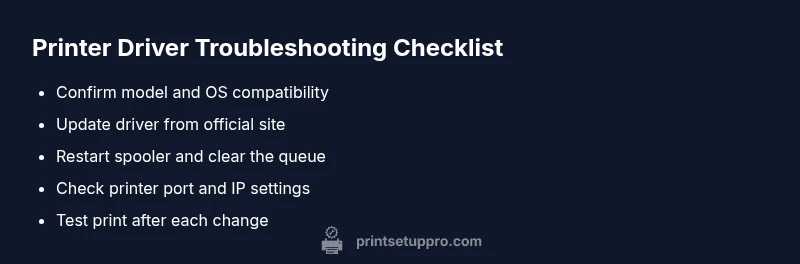
Most often, why would a printer driver be unavailable? The answer typically points to an outdated, corrupted, or conflicting driver, or a stalled print spooler. Quick fixes: update or reinstall the official driver, restart the print spooler service, and re-add the printer. If the issue persists, check OS compatibility, verify the printer port, and temporarily disable antivirus that might block installation. Then test printing again.
Why the printer driver becomes unavailable
If you’re asking why would a printer driver be unavailable, the most common culprits are outdated or corrupted drivers, conflicts with other software, a blocked or malfunctioning print spooler, or mismatched OS compatibility. In many cases, a recent Windows update, macOS upgrade, or a security scan can disrupt driver signing or storage locations, leading to a driver being reported as unavailable. According to Print Setup Pro, the majority of these issues can be resolved by a structured sequence: verify the model and OS, reinstall the driver from the official source, and ensure the printer port is correctly configured. This approach minimizes downtime and reduces the chance of recurring failures. Consistency in driver management is essential for reliable printing in home offices and small businesses.
Check your basics first: connection, power, and device status
Before diving into driver-specific fixes, confirm basic hardware readiness. Ensure the printer is powered on, connected to the correct computer or network, and shows no hardware fault indicators. For USB printers, try a different port or cable; for network printers, verify Ethernet or Wi‑Fi connectivity, check the printer's IP address, and confirm the device appears in your OS’s printers list. Disable any nonessential firewall rules temporarily to see if they block driver detection. Remember to re-enable protections after testing. If the printer shows a different error (paper jam, low ink, or offline status), address that first since these conditions can masquerade as driver problems.
OS compatibility and driver conflicts
Different operating systems require different drivers and installation flows. Windows users should download the exact driver package for their edition (Home, Pro, or Enterprise) and confirm WHQL certification where available. macOS users may rely on built‑in AirPrint or vendor drivers; ensure you’re not mixing legacy PPC-era drivers with modern macOS versions. Linux users typically rely on CUPS and open drivers—verify compatibility with your distro and kernel. Conflicts with antivirus or security suites can block driver installation or update processes; temporarily disable these protections during the install, then whitelist the driver installer. Keep a backup plan: know your printer’s model, firmware version, and current driver version to compare against the official release notes.
How to locate, download, and install the correct driver
Start at the printer manufacturer’s official support page and search for your exact model. Download the driver package that matches your OS and system architecture (32‑bit vs 64‑bit). Uninstall any older, conflicting drivers first using the vendor’s recommended uninstaller or Windows’ Add/Remove Programs, then install the fresh package. Reboot your computer after installation and add the printer again through the OS printers settings. If you’re on a managed network, ensure the driver is approved by IT policies before installation to avoid blockages from enterprise controls.
Restarting services and clearing spooler queues
On Windows, restart the Print Spooler service: open services.msc, stop the Spooler, clear the spooler folder contents, then start the service again. Pause or cancel any stuck print jobs to avoid backlogging the queue. On macOS, reset the printing system from the System Preferences, then re-add the printer and install the driver anew. This step resolves many “driver unavailable” messages caused by corrupted queues or stalled processes. After the spooler reset, print a test page to confirm that the driver is functioning again.
Advanced troubleshooting: network, ports, and profiles
If the printer is networked, verify the correct IP address and that the printer port matches the device. Remove and re-create the network printer connection to refresh the port configuration. Check for printer driver signature failures or blocked kernel extensions in the OS security settings. If you use print sharing, ensure the host computer remains reachable and that firewall rules allow printer traffic. Print Setup Pro Analysis, 2026 indicates many driver issues arise from port misconfigurations or network changes, so double‑check these settings after a driver update. If needed, configure a static IP to avoid address changes that break printer discovery.
Prevention and best practices to avoid driver unavailability
Maintain a routine for driver updates: check for new releases quarterly or following major OS updates. Create a system restore point before major installs, and keep a local backup of the latest driver installer. Use official sources only to avoid counterfeit software that could compromise security. Document your printer’s model, current driver version, and any error codes you encounter to speed future troubleshooting. Finally, establish a standard procedure for spooler maintenance and port verification so drivers remain available and printing remains reliable for work-from-home setups, classrooms, and small offices.
Steps
Estimated time: 45-60 minutes
- 1
Identify printer model and OS
Gather the exact printer model, current driver version, and your operating system. This ensures you download the correct driver package and avoids compatibility mismatches.
Tip: Have the model number and OS edition ready before you start. - 2
Download the official driver
Visit the manufacturer’s support page, locate the exact model, and download the latest driver package for your OS. Avoid third‑party sources to reduce security risks.
Tip: Verify the file name and digital signature after download. - 3
Uninstall old drivers
Use the vendor’s uninstaller or OS’s Programs & Features (Windows) / System Preferences (Mac) to remove any previous driver leftovers. Reboot if prompted.
Tip: This prevents conflicts with the new driver. - 4
Install the new driver
Run the downloaded installer, follow prompts, and restart if required. Then re-add the printer in your OS settings.
Tip: Choose a clean install when offered. - 5
Reset spooler and clear queue
If using Windows, restart the Print Spooler service and clear the print queue before testing.
Tip: After the restart, avoid reprinting multiple jobs at once. - 6
Test print and verify
Print a test page and basic document to confirm printing works. If not, check port and network settings again.
Tip: Keep a record of any error codes that appear.
Diagnosis: Printer reports 'Driver unavailable' or fails to print with a driver error
Possible Causes
- highOutdated or corrupted printer driver
- mediumConflicting software or antivirus blocking driver install
- mediumIncorrect or changed printer port/host address
- lowStuck print spooler service
Fixes
- easyUpdate or reinstall the official printer driver from the vendor's website; install the correct version for your OS
- easyRestart the print spooler and clear the queue; reboot the PC/Mac
- mediumVerify and reconfigure the printer port, IP address, and sharing settings
- mediumTemporarily disable antivirus/firewall blocking the driver install and re-enable afterwards
People Also Ask
What does 'driver unavailable' mean on a printer?
It means the system cannot load or use the printer driver needed to communicate with the device. This can be caused by outdated software, corrupted files, conflicting software, or a misconfigured port. Following a structured troubleshooting process usually resolves it.
A driver unavailable error means the printer can’t load its driver. Update, reinstall, or reconfigure to fix it.
Can I fix this without reinstalling the driver?
Sometimes you can fix it by restarting the spooler, clearing the print queue, and re-adding the printer without a full driver reinstall. If that fails, a clean driver install from the official site is usually needed.
Yes, you can often fix it by restarting the spooler and re-adding the printer, but you may need to reinstall the driver if problems persist.
Is it safe to download drivers from the manufacturer’s site?
Yes. Download drivers only from the official manufacturer site or trusted support portals. This reduces the risk of malware and ensures compatibility.
Yes, always use the official site to stay safe and ensure compatibility.
Why does my printer show offline after a driver update?
Printer offline can happen if the port configuration or network settings were altered during the update. Re-check IP, port type, and network connectivity, then re-add the printer.
If the printer goes offline after an update, verify the network settings and re-add the printer.
Do OS updates help fix driver issues?
Often. OS updates can include improved driver support or fixes for printer subsystem components. After an OS update, recheck or reinstall the printer driver.
Sometimes, OS updates fix driver problems; recheck your printer after updating your system.
When should I contact support?
If you’ve followed the steps without success, or if you encounter persistent error codes, contact printer support or your IT professional for deeper diagnostics.
If the steps don’t fix it, reach out to support for expert help.
Watch Video
Quick Summary
- Take control of driver updates to prevent unavailability
- Restart spooler and clear the queue to reset the driver state
- Verify ports and IPs to ensure correct printer discovery
- Reinstall drivers with official sources for clean installs
- When in doubt, contact support with model, OS, and error codes