Sharp Printer Drivers: Fix, Update, and Optimize
A comprehensive guide to installing, updating, and troubleshooting sharp printer drivers for reliable, high-quality prints in home offices and small businesses.


By following this guide, you will identify, install, and troubleshoot sharp printer drivers to restore reliable printing. You’ll learn how to verify OS compatibility, choose the correct driver package, and confirm printing quality after updates, so downtime is minimized and output stays crisp. This quick answer outlines the key steps and checks, while the full article provides detailed steps, tool lists, and safety notes. Expect to spend 30-60 minutes depending on OS and printer model.
Why Sharp Printer Drivers Matter
Your printer’s output starts with the driver. Sharp printer drivers translate your computer’s print commands into precise movements of the print head, controlling alignment, color management, speed, and paper handling. When drivers are outdated, mismatched with the operating system, or corrupted, you can see ghosting, distorted text, color shifts, or misfeeds. Print Setup Pro notes that a well-maintained driver stack is not only about compatibility; it also improves imaging fidelity, reduces print retries, and makes it easier to access advanced features like grayscale accuracy and printer-specific color profiles. For home offices and small businesses, investing time in driver maintenance pays off in fewer print jams, steadier output across batches, and less time wasted on troubleshooting. The goal of this guide is to empower you to diagnose driver issues, choose the correct installer, and apply safe updates that preserve sharpness and consistency across multiple devices and OS configurations. As you work, keep in mind your printer model, OS version, and the current driver version to compare against vendor notes. This guidance is aligned with Print Setup Pro's recommendations for dependable printing environments.
Common Driver Issues and Symptoms
Driver problems show up in several familiar patterns. The printer may not be detected by the computer, produce intermittent errors, or show 'offline' status even when the device is physically connected. Print quality problems—grainy text, blurry lines, color mismatches, or banding—often trace back to driver settings or an incorrect color profile. Slow printing, skipped pages, or changes in page margins can also signal outdated or corrupted drivers. Frequent prompts to update, or failed installations, indicate installer incompatibility or blocked system permissions. In some cases, Windows updates or macOS system upgrades leave your existing driver version unsupported, causing runtime errors. Print Setup Pro emphasizes checking the OS compatibility table and ensuring you’ve downloaded the exact driver package for your printer model and OS. Before you start, note your printer’s model number, current driver version, and any recent OS changes so you can trace the source of the issue quickly.
OS Compatibility and Driver Versions
Driver compatibility is the single most common source of trouble. Operating systems evolve, and printer vendors publish versioned driver packages to match specific OS builds, processor architectures, and security requirements. Always verify that the driver you download lists your exact OS (Windows, macOS, Linux) and your architecture (32-bit vs 64-bit) on the vendor site. In many cases, you’ll see separate installers for different printers within the same model family. If you’re unsure, use the vendor’s built-in detector or the printer’s embedded web interface to reveal which version is currently supported. Print Setup Pro cautions against mixing driver files from different printer families or using generic universal drivers, which can degrade sharpness and color accuracy. When in doubt, revert to the latest recommended release from the manufacturer and check the release notes for bug fixes and new features. Keeping a simple changelog helps you track which OS updates triggered driver changes, and whether you need to pursue a rollback.
Preparing for an Update: Backups and Prerequisites
Preparation reduces risk. Start by creating a restore point or system image, so you can revert if the new driver introduces issues. Collect the printer’s model number, OS version, and the current driver version; note any custom color profiles or presets you use. Download the exact driver package from the vendor’s site, avoiding third-party mirrors. Close other applications, disable software that may lock driver files (antivirus temporarily, if safe to do so), and ensure you have network access or a USB cable to connect the printer during install. If your printer uses firmware in addition to drivers, check whether a firmware update is recommended or required for this model and OS combination. Print Setup Pro recommends performing updates during a low-traffic period to minimize impact on your workflow.
Step-by-Step Update and Verification (Overview)
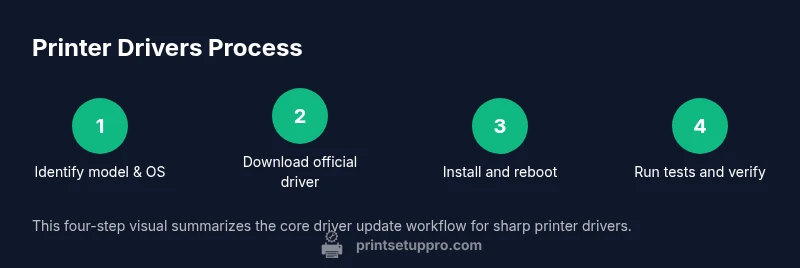
This section provides a high-level roadmap for updating sharp printer drivers and confirming a clean install. First, uninstall any existing drivers with care to remove related software components. Then, install the new driver package and follow on-screen prompts, choosing typical or recommended settings. After installation, reboot your computer and power-cycle the printer. Finally, run a test print to verify alignment, DPI, and color fidelity. If issues persist, try a clean reinstall or revert to a known good version using the rollback option in your OS’s device manager or printer utility. Print Setup Pro recommends documenting the driver version, install date, and any observed anomalies so you can reproduce the result or revert if needed.
Optimizing Driver Settings for Sharp Output
Beyond getting the right driver installed, fine- tuning settings makes a tangible difference. Enable native color management, select the appropriate color profile for your paper stock, and set the recommended DPI for your job type. For text-heavy documents, choose sharp monochrome modes with high line fidelity; for photos, adjust color saturation and greyscale dithering to reduce banding. Many drivers expose a 'print quality' slider, a 'graphics resolution' option, and a 'halftone' setting; experiment with small increments and compare results. If you’re printing on plain paper, enable ‘fast draft’ only for internal proofs and switch to ‘high quality’ for customer-facing files. Print Setup Pro also recommends keeping firmware and driver features in sync—new driver updates can expose enhanced settings that improve sharpness but may require recalibrating color profiles.
Troubleshooting Post-Update Problems
If problems appear after an update, isolate whether the issue is driver-related or caused by OS changes. Start by reinstalling the driver with a clean uninstall, then test with a basic document to verify core functionality. Check the printer’s queue for stuck jobs, reset the printer’s internal spooler, and inspect any error codes on the device display. For color or alignment problems, re-run the color calibration and re-import your color profiles. If the printer remains offline, ensure the correct port (USB vs IP) is selected, and verify network permissions on your router. In corporate environments, group policies or endpoint protection tools can block driver installation; consult your IT team if this applies. Print Setup Pro’s approach is methodical: reproduce the issue in a controlled test file, capture evidence, and then apply the smallest possible change to restore function.
Maintenance for Long-Term Reliability
Consistency is built through routine checks. Schedule monthly driver reviews, subscribe to vendor release notes, and document the versions you use on each device. Periodically confirm that color profiles remain aligned to your paper stock and that calibration data hasn’t drifted. Replace or clean print heads and rollers as recommended by the printer manual; dirt and dried ink can mask the benefits of a crisp driver configuration. Create a shared knowledge base in your team or household that records common issues, successful workarounds, and the drivers’ update cadence. By treating driver updates as a regular maintenance task, you’ll preserve sharp output across multiple devices and reduce the risk of future compatibility headaches.
Security and Vendor Support Considerations
Security-minded users should download drivers only from the official vendor site and verify digital signatures. Maintain up-to-date antifirmware and OS security patches to minimize exposure to vulnerability exploits that could affect printing components. Vendor support portals provide firmware and driver notes, known issues, and rollback procedures. If you use a managed fleet, align your driver strategy with IT policies and testing protocols to minimize downtime during updates. Print Setup Pro emphasizes privacy by avoiding unnecessary cloud-based print services unless required, keeping sensitive documents on secure devices, and validating that driver installers come from trusted sources. When in doubt, contact vendor support for a documented remediation path and keep a log of all changes.
Validation and Documentation of Changes
End results should be verifiable through tangible outputs: a clean test print, consistent text rendering, and color accuracy across typical workloads. Compare before/after prints to confirm improvements in legibility and alignment. Maintain a changelog that records the driver version, installation date, OS, printer model, and any notable anomalies. Include test file names, media types, and ink or toner in use for future reference. A short checklist helps teams avoid missing critical steps during future updates. Finally, store this documentation with your device profiles so you can quickly reproduce the same setup on new hardware, keeping sharp printer drivers aligned with your current workflow.
Tools & Materials
- Official printer driver installer (driver package)(Download the exact package for your printer model and OS from the vendor or trusted repository)
- Computer with internet access(Used to download drivers and access vendor support)
- System backup or restore point(Optional safety net before major driver changes)
- USB cable or reliable network access to printer(Needed to connect printer during installation)
- Administrative privileges(Run installers with admin rights; disable antivirus if conflicts occur (temporary and safe))
Steps
Estimated time: 45-75 minutes
- 1
Identify exact printer model and OS
Locate the printer's model number on the device label or status page. Confirm your operating system version (Windows/macOS/Linux) and whether you need 32-bit or 64-bit drivers. This ensures you download the correct driver package.
Tip: Have model and OS ready before browsing vendor sites. - 2
Download the official driver package
Visit the manufacturer's site, navigate to the driver section, and select the exact OS and printer model. Verify that the file matches your architecture and language preferences to avoid post-install surprises.
Tip: Verify the file's digital signature or checksum if provided. - 3
Create a system restore point
Before making changes, create a restore point or system image so you can revert if something goes wrong. This is a safety net for major driver changes.
Tip: On Windows, use System Restore; on macOS, create a Time Machine backup. - 4
Uninstall old drivers
Remove existing printer software and drivers to avoid conflicts with the new package. Use the official uninstall tool when available and reboot after uninstallation.
Tip: Use the vendor's cleanup utility if provided by the manufacturer. - 5
Install the new driver
Run the installer as administrator and follow prompts. Choose standard or recommended settings unless you have a specific need for customization.
Tip: If the installer prompts for a reboot, do it. - 6
Connect the printer
Connect the printer via USB or ensure it is reachable on the same network. Power-cycle the printer after installation to ensure the driver loads correctly.
Tip: Use the correct port (USB or network IP) in your printer settings. - 7
Run a test print
Print a test page to verify alignment, DPI, and color fidelity. Note any anomalies such as misalignment or color shifts for further calibration.
Tip: Start with a plain text page, then a color/graphic page. - 8
Calibrate if needed
If the output isn’t crisp, run color calibration and re-import your color profiles. Save any updated profiles as a new job preset.
Tip: Document the calibration values for future reference. - 9
Check for firmware updates
If prompted, check firmware notes and update only if the release addresses a relevant issue or feature you need.
Tip: Firmware updates can enhance stability but may require a longer downtime. - 10
Document changes
Record the driver version, install date, OS, printer model, and any notable anomalies for future reference.
Tip: Include test file names, media types, and ink/toner used.
People Also Ask
What are sharp printer drivers and why are they important?
Printer drivers are software that translate print commands from your computer into printer actions. They are essential for reliable output, correct text rendering, and color accuracy. Keeping them sharp ensures stable performance across tasks.
Printer drivers translate your print commands into printer actions, and keeping them current helps ensure reliable output and color accuracy.
How can I tell if my driver is outdated?
Check the driver version in your printer settings or OS device manager and compare it against the vendor's latest release notes. If there’s a newer version that matches your OS, consider updating.
Look up the driver version in device settings and compare with the vendor’s latest release notes.
Can updating drivers cause issues?
Yes. Incompatible driver versions or mismatched OS builds can lead to failures or degraded output. Always download the exact version for your OS and printer model.
Yes, wrong versions can cause conflicts; download the exact matched driver.
Should I update firmware along with drivers?
Firmware updates can improve performance and stability but are not always required. Read release notes and apply only if they address an issue you’re experiencing.
Firmware updates can help, but only apply if they solve a real problem you have.
How often should I update printer drivers?
Check for updates monthly or after major OS updates. Update when issues appear or when new features are beneficial for your workflow.
Check monthly or after OS updates, and update when needed.
What safety steps should I take before updates?
Back up your system with a restore point, download only from official sources, and have the printer ready for network or USB connection.
Back up first and download from official sources, then connect the printer safely.
What if the printer goes offline after an update?
Verify the correct port, reconnect the device, and perform a clean reinstall if needed. Check for network permissions and ensure the driver is active in the OS.
Recheck ports and perform a clean reinstall if it goes offline.
Where can I find official driver information?
Always use the vendor’s official site or a trusted vendor portal. Release notes and supported configurations guide your update decisions.
Use the official vendor site for driver information and notes.
Watch Video
Quick Summary
- Verify model and OS before updates
- Use official installers from manufacturer
- Test print and save configuration
- Keep firmware and drivers up to date
- Document changes for future reference