Where Do Printer Drivers Install on Windows 11? A Practical Guide
Learn where printer drivers install on Windows 11, how to locate their install paths, and how to verify or update them for reliable printing. A comprehensive, step‑by‑step guide from Print Setup Pro.


To locate where printer drivers install on Windows 11, use Device Manager or Print Management to view driver details, then inspect the DriverStore and spooler directories. This guide helps you verify the active driver path, understand Windows driver organization, and safely update or reinstall drivers for stable printing. Follow the steps below for precise results.
Understanding Windows 11 Driver Management
According to Print Setup Pro, understanding where printer drivers install on Windows 11 helps diagnose printing issues quickly and prevents misconfigurations. Windows stores driver components in layers: the DriverStore, the spooler service, and the printer-specific directories. By knowing how Windows 11 organizes these elements, you can locate the installed driver files, verify their integrity, and anticipate how updates will affect your printers. This foundation applies whether you use USB-connected devices or network printers, and it sets the stage for precise troubleshooting and safe updates.
The Anatomy of a Printer Driver on Windows 11
Printer drivers on Windows 11 comprise multiple components that work together to translate your print jobs into device-specific commands. The core package includes INF files for installation, DLLs for runtime support, and catalog files that validate the driver’s authenticity. When Windows detects a compatible printer, it may pull a driver from the local DriverStore or fetch one from Windows Update. Understanding these parts helps you interpret where the files live and how Windows loads them at print time.
Where Windows Stores Printer Drivers (DriverStore and Spooler)
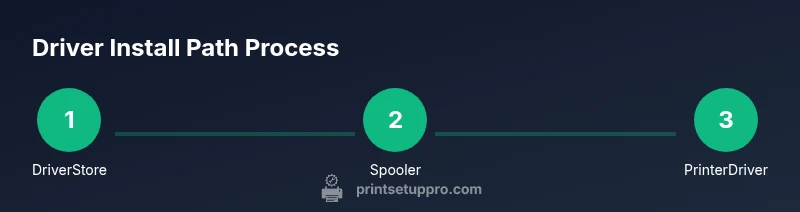
Two main storage areas shape how Windows 11 handles printer drivers: the DriverStore, which holds all driver packages for offline installation, and the spooler directories that the Print Spooler service uses to feed data to printers. In practice, you’ll find driver packages under C:\Windows\System32\DriverStore\FileRepository and spooler components under C:\Windows\System32\spool\drivers and related subfolders. These locations vary slightly by architecture (x64 vs. ARM), but the general pattern remains constant. Keeping track of these paths helps you verify that the correct driver version is active and isolates problems when updates happen.
How to Find the Install Path: Quick Methods
There are several reliable ways to identify where printer drivers install on Windows 11. Start with Device Manager: locate your printer, open Properties, switch to the Driver tab, and choose Driver Details to see installed files and their paths. If you have Print Management (a feature you can enable in Windows), you can inspect Driver Packages directly. Finally, a folder search of the DriverStore (C:\Windows\System32\DriverStore\FileRepository) and the spooler directory (C:\Windows\System32\spool\drivers) can reveal exact locations for the active driver set. Always cross-check a found path against the system’s driver version to confirm it’s current.
Revealing Paths with Windows Tools: Print Management & DISM
For those who prefer built-in admin tools, Print Management (printmgmt.msc) exposes printers and drivers in a consolidated view. From there, you can export a driver list and correlate it with the actual files. DISM commands can also help expose driver packages installed on the system, giving you a readable report of provider names and version numbers. Combining these tools with file-system evidence yields a robust map of where Windows keeps printer drivers on your machine.
USB vs Network Printer Drivers: Where They Live
USB printers typically install local driver packages that reside in the system's DriverStore and spooler subfolders, then send jobs to the printer via USB. Network or shared printers may rely on drivers installed on the host PC or on a print server; in those cases, Windows may cache a driver subset for client-side processing or rely on driver installations on the server. In either case, the install location concept remains the DriverStore-and-spooler model, with the actual active driver loaded at print time.
Security, Signatures, and Verification
Driver integrity is crucial for reliable printing. Windows uses digital signatures to verify driver packages before installation, and you should verify that installed drivers come from trusted vendors. Use the Driver Details dialog and the signature tab to confirm authenticity, and avoid third-party sources that lack proper verification. Regularly check for driver updates from official vendor sites or Windows Update to maintain compatibility and security.
Troubleshooting If the Path Isn’t Visible or Accessible
If you cannot access certain folders due to permissions, run your file explorer or management tools as administrator. If Windows hides system folders, enable viewing of protected OS files. Use PowerShell or Command Prompt with elevated rights to query installed drivers (for example, Get-WmiObject Win32_PnPSignedDriver). The key is to confirm that the active driver matches your printer model and that Windows has not loaded a stale package from a previous install.
Reinstallation, Upgrading, and Best Practices
When upgrading a printer driver, always back up current packages and create a system restore point. Use official installer packages whenever possible, and prefer clean installs over in-place updates to avoid stale components. After installing a new driver, print a test page to verify proper communication, and re-check the DriverStore and spooler directories for any changes. Finally, document the driver path you rely on for future troubleshooting.
Tools & Materials
- Windows 11 PC with admin access(Needed to inspect system folders and apply changes)
- Printer model or official driver package(Essential for validation or manual install)
- USB cable or network access to the printer(Used to test and verify the driver)
- Internet connection(Optional for downloading drivers from vendor sites)
- Administrative access to File Explorer/PowerShell(Needed to view protected directories)
Steps
Estimated time: 25-40 minutes
- 1
Open Device Manager
Right-click the Start button and choose Device Manager. Locate your printer under Printers or Print queues, then right-click and choose Properties. This reveals the driver currently loaded for the device and its basic metadata.
Tip: If the printer is not visible, enable Show hidden devices from the View menu. - 2
View Driver Details
In the printer's Properties, switch to the Driver tab and select Driver Details to see the files involved (INF, DLLs, and catalogs). This confirms the actual driver components Windows loads.
Tip: Note the path shown for key files; you may need it later for verification. - 3
Open Print Management
Press Win+R, type printmanagement.msc, and press Enter to open the Print Management console. This centralized tool shows installed drivers and packages in one place.
Tip: If prompted, enable the feature from Windows features as needed. - 4
Inspect Driver Packages
In Print Management, navigate to Driver Packages to see the list of installed drivers and their associated source folders. This helps you map back to the actual file locations.
Tip: Cross-check package names with the Vendor’s driver version. - 5
Search DriverStore
Open File Explorer and browse to C:\Windows\System32\DriverStore\FileRepository. Look for folders named after your printer vendor and model; these are the local driver packages Windows stores for installation.
Tip: Filter by the printer model to narrow results. - 6
Verify Active Driver in Spooler
Navigate to C:\Windows\System32\spool\drivers and confirm the driver version in use by checking the corresponding subfolders or files related to your printer.
Tip: Printing a test page helps confirm the loaded driver is in use.
People Also Ask
Where are printer drivers stored in Windows 11?
Printer drivers are stored in Windows DriverStore and spooler directories. Common locations include the DriverStore FileRepository and spooler-related folders.
Printer drivers live in the DriverStore and spooler folders in Windows 11; you can view them with Device Manager or Print Management.
Do printer drivers install automatically on Windows 11?
Windows Update often downloads drivers automatically, but some printers require manual installation from the vendor site or using a bundled installer.
Windows may install drivers automatically, but check vendor sites for the latest versions.
How do I uninstall a printer driver in Windows 11?
Open Print Management or Device Manager, select the driver, and choose Uninstall. You may need to remove associated printer queues afterward.
You can uninstall drivers from Device Manager or Print Management, then delete old queues.
Can I move a printer driver to another drive?
Windows stores drivers in protected system folders; moving them is not recommended and can cause instability.
It's generally not advised to move driver files to a different drive.
What if Windows can't find the driver?
Check the vendor's website for an updated package, use Windows Update, or try the built-in Windows printer troubleshooting. Ensure compatibility with Windows 11.
If Windows can't find the driver, download from the vendor or use Windows Update for a compatible version.
Is there a difference between 32-bit and 64-bit drivers in Windows 11?
Windows 11 is 64-bit; ensure you use a 64-bit driver that matches your printer, as 32-bit drivers are not typically supported.
Make sure you pick a 64-bit driver; 32-bit drivers usually won't work on Windows 11.
Watch Video
Quick Summary
- Identify the DriverStore and spooler locations
- Use Device Manager or Print Management to inspect drivers
- Verify driver version and test after updates
- Back up drivers before upgrading
- Document the active driver path for future issues