How to Get Rid of Printer Lines: A Practical, Step-by-Step Guide
Learn practical steps to diagnose and fix printer lines caused by head clogs, misalignment, or media settings. This educator-friendly guide covers cleaning, alignment, cartridge checks, firmware, and maintenance for home offices and small businesses.


To fix printer lines, you’ll clean the print head, align the cartridges, check ink levels, and run a nozzle check with proper printer software. Start by turning off the printer, unplugging, and gathering cleaning supplies and replacement cartridges if needed. Also verify media settings, avoid paper jams, and update firmware if line issues persist.
Understanding printer lines: what they look like and why they happen
Printer lines are common quality issues that appear as horizontal streaks or bands across printed pages. They can vary from faint, ghost-like lines to bold bars that interrupt text. Knowing what you're dealing with helps you choose the right fix. In 2026, home office printers still rely on fine ink or toner delivery through tiny nozzles, ducts, and print heads. When any part of this pathway becomes compromised, lines show up.
The most frequent culprits are clogged or dried ink from the print head or nozzles, which blocks ink flow. Misalignment of print heads can create shifted lines or bands, especially after cartridge changes or printer moves. Using low-quality or incompatible paper or incorrect media settings can also cause lines to appear. Environmental factors such as humidity and temperature can influence ink flow and drying times. Before taking apart the device, run built-in diagnostics like nozzle checks and alignment utilities in your printer software. These steps help you distinguish between simple maintenance tasks and more serious hardware issues.
If you see lines only in certain colors, the issue may be limited to one ink channel. For devices with multiple cartridges, you may find that cleaning one channel resolves most of the problem. Remember that excessive cleaning can waste ink and potentially push air into the head, making the problem worse. Always follow the manufacturer’s guidance for your specific model.
Quick diagnostic checks you can perform before disassembly
Start by inspecting the basics: confirm the printer is plugged in, turned on, and has a recent firmware update. Then check ink or toner levels and replace empty cartridges. Print a built-in nozzle check pattern (usually available from the printer maintenance menu) to see if all color channels lay down ink evenly. If any line appears in the check pattern, you likely have a clogged nozzle or air in the line.
Next, test with fresh paper of a recommended weight and finish. Paper quality and alignment can cause lines or shading. Run the printer’s alignment routine after swapping cartridges to ensure print heads are properly seated. If your printer allows, print a simple grayscale test page to isolate color channels. Finally, try a different USB or network connection to rule out signal issues. If you still see lines after these checks, the problem likely involves the print head or cartridges.
Cleaning the print head: step-by-step and best practices
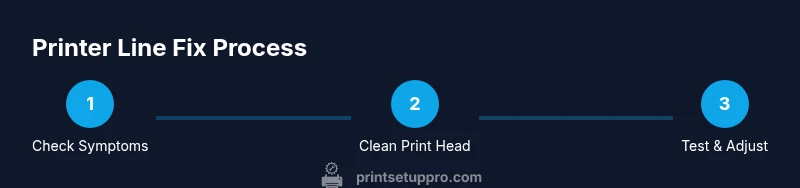
Begin with the printer’s built-in cleaning function. From the control panel, navigate to Maintenance > Clean Print Head and run the cycle. Do 2-3 cycles with short 5–10 minute pauses between cycles to give fresh ink a chance to circulate. After cleaning, print a nozzle check to assess improvement. If lines persist, consult your printer manual for a more thorough cleaning method, which may involve dampened lint-free swabs and careful cleaning of contact pins—only if the manufacturer approves this approach. Avoid aggressive scrubbing or applying liquids directly to the nozzles. Safety first: unplug the device when performing any manual cleaning and use distilled water or manufacturer-approved solutions only.
Head cleaning vs. cartridge alignment vs. nozzle check: when to use which
Nozzle checks reveal whether a color channel is delivering ink properly. If you see gaps or missing lines in the pattern, a nozzle check is a sign you may need a cleaning cycle. Cartridge alignment ensures the print heads line up with the cartridges, which helps prevent misregistration and streaks. Run alignment after cartridge changes or if you notice misaligned text. Head cleaning is a maintenance action that loosens dried ink and clears minor clogs. Use each tool in sequence: nozzle check first, then clean if needed, then align if lines persist after cleaning. If after several cycles the issue remains, the problem may be more serious and require professional service.
Replacing ink cartridges or refilling: signs to look for and how
Low or uneven ink levels can cause lines, especially in color prints. If your nozzle check shows persistent gaps and you observe color imbalance, consider replacing or refilling affected cartridges. Use only manufacturer-approved cartridges or compatible inks recommended for your model. After replacement, perform a full nozzle check and print a test page to confirm consistent flow. If lines return soon after replacement, the issue may involve dried ink in the print head or a faulty cartridge. In that case, reseat cartridges, run a few cleaning cycles, and re-check alignment.
Paper and media settings that reduce lines: DPI, type, and feed
Paper type and weight influence ink deposition and drying behavior. Always use media recommended by the printer manufacturer. Incorrect weight or finish (e.g., glossy vs. matte) can cause ink to smear or collect, forming lines. Set the correct print quality and DPI for the paper you use, and verify the paper is loaded straight in the tray. Avoid belts or guides that press paper against the head area. A simple test: print the same page on two different papers to gauge which yields cleaner lines.
Firmware updates and driver settings: keep your printer current
Firmware updates fix bugs, improve ink flow management, and enhance printer diagnostics. Check the manufacturer’s website or the device’s settings menu for available updates. Update drivers if you see color misregistration or line artifacts that don’t respond to cleaning. After any update, run a nozzle check and a test page to confirm that the issue is resolved. If problems persist, review driver settings such as print mode, color management, and paper type to ensure they align with the media used.
Preventive maintenance routine to avoid future lines
Establish a monthly maintenance routine that includes a nozzle check, a print head cleaning cycle, and a brief alignment test. Use high-quality paper and appropriate inks, and avoid leaving cartridges empty for long periods. Keep print drivers up to date and store the printer in a stable environment with moderate humidity. If you share the device with others, set a maintenance reminder and post clear steps for users to follow when lines appear. Regular checks reduce the frequency of line artifacts and extend printer life.
When to seek professional service
If lines persist after multiple cleaning cycles, alignment attempts, and cartridge reseating, it may indicate a failing print head or other hardware issue. In such cases, consult the manufacturer’s service options or a qualified technician. Do not attempt invasive disassembly beyond the manufacturer’s recommended steps, as this can void warranties and cause further damage.
Quick-start checklist after completing maintenance
- Run nozzle check and alignment
- Inspect output with a test page
- Replace or refill cartridges if needed
- Update firmware and drivers
- Note any recurring patterns in lines and report to service if unresolved
Tools & Materials
- Lint-free microfiber cloth(For wiping print head exterior and cartridge contacts without fibers.)
- Soft lint-free swabs(For precise cleaning of nozzles and contact pins.)
- Distilled water(Use for gentle head cleaning if recommended by manufacturer.)
- Replacement ink cartridges or refill kit(Keep spares on hand for quick swaps when ink runs low.)
- Test paper (plain printer paper)(Used for nozzle checks and test prints to evaluate improvements.)
- Isopropyl alcohol (optional, 70% or higher)(Only use if the manufacturer permits; apply with care to avoid head damage.)
Steps
Estimated time: 60-90 minutes
- 1
Power down and prep
Power off the printer and unplug it. Gather your cleaning supplies, spare cartridges, and a fresh test page. This reduces risk and ensures you have everything ready before you begin.
Tip: Keep a clean workspace and avoid liquids near electrical components. - 2
Run a nozzle check
Access the printer’s maintenance menu and print the nozzle check pattern. Observe for gaps or lines in color channels to identify which inks are affected.
Tip: If a color channel is missing lines, you’ll focus cleaning on that channel. - 3
Perform a cleaning cycle
From the control panel, start the build-in cleaning cycle. Run 2–3 cycles with 5–10 minute pauses between runs to allow ink to circulate.
Tip: Don’t over-clean; excessive cleaning wastes ink and can weaken the head. - 4
Print another nozzle check
After cleaning, print a new nozzle check. Compare to the previous pattern to gauge improvement in line quality.
Tip: If lines persist, consider a more thorough clean or consult the manual for advanced steps. - 5
Align the cartridges
If alignment is off, run the printer’s alignment utility. This corrects shifts that cause lines to appear across the page.
Tip: Alignment is often needed after cartridge changes or printer movement. - 6
Test with different media
Print a grayscale test page on different paper to rule out media as the cause. Some finishes absorb ink unevenly, creating lines.
Tip: Always match media settings to the paper in the tray. - 7
Replace cartridges if needed
If ink levels are low or a channel continues to fail, replace the affected cartridges and re-run nozzle checks.
Tip: Use manufacturer-recommended cartridges for best results. - 8
Finalize with a test page
Print a full test page to confirm consistent output and verify that lines are resolved.
Tip: Document the steps you took for future reference.
People Also Ask
What are the common causes of printer lines?
Printer lines are usually caused by clogged or dried nozzles, misaligned print heads, or wrong media settings. Ink flow can also be affected by cartridge issues or environmental factors. Running a nozzle check and alignment helps determine the best fix.
Common causes include clogged nozzles and misaligned heads; start with a nozzle check and alignment.
Can I fix printer lines without replacing ink cartridges?
Yes. Most lines improve with nozzle cleaning, head alignment, and verifying paper settings. If ink levels are very low, replacement may become necessary.
Usually you can fix lines with cleaning and alignment; replace cartridges only if needed.
How often should I run print head cleaning?
Only run cleaning cycles when you notice lines or color issues. Excessive cleaning wastes ink and can cause more harm than good.
Clean only when you see issues.
Is it safe to use third-party cleaning solutions?
Stick to manufacturer-recommended cleaners. Some third-party products can damage print heads or void warranties.
Use manufacturer-approved cleaners to be safe.
When should I seek professional service?
If lines persist after multiple cleaning and alignment attempts, or if there are signs of hardware damage, contact a qualified technician.
If issues persist after home fixes, seek service.
Watch Video
Quick Summary
- Identify the cause with nozzle checks and alignment first
- Use manufacturer-approved cleaning steps to avoid head damage
- Replace cartridges when ink is low or channels fail
- Keep firmware and drivers up to date to prevent recurring lines
- Establish a monthly maintenance routine to prevent future issues