HP Printer Not Printing Properly: A Step-by-Step Troubleshooting Guide
Urgent, step-by-step guide to fix hp printer not printing properly. Diagnose common causes, apply safe fixes, and prevent future issues to restore reliable print quality quickly.


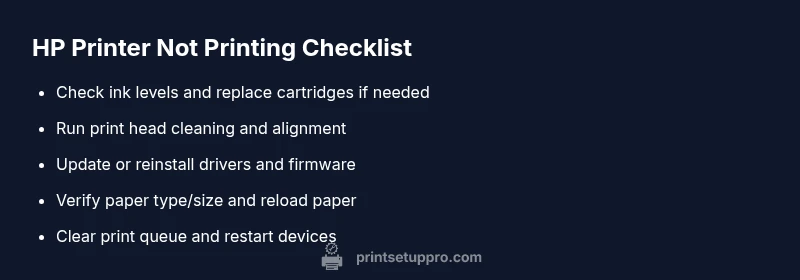
HP printer not printing properly is usually due to low ink, a clogged print head, or outdated drivers. Start with ink levels, run a print-head cleaning, and update or reinstall drivers. If it still fails, reset the printer, run a test page, and verify connections before seeking help.
Quick diagnosis for hp printer not printing properly
According to Print Setup Pro, when the hp printer not printing properly issue appears, the root causes are usually simple and fixable: low ink, a clogged print head, or outdated drivers. Start with a quick triage: check for error codes on the panel, confirm the device you’re printing from is the correct model, and run a basic test page. If you see streaks or blank pages, note whether the problem happens with text, graphics, or photos. By documenting symptoms and ruling out the obvious, you can often narrow the culprit within 15-20 minutes and decide whether you can finish the repair yourself or need more help. This approach prevents unnecessary service calls and keeps your home office workflow intact.
Verify power, cables, and network connections
Power stability is essential; an unstable power supply can cause intermittent printing. Ensure the printer is plugged into a grounded outlet and that the power light is steady. Check USB or Ethernet cables for damage, and replace them if needed. If you print over Wi‑Fi, confirm the printer shows as connected to the expected network and that there’s no IP address conflict. Restarting the router and printer can resolve temporary DNS or DHCP hiccups. Finally, verify that the correct printer is selected in your application, and print a test page. These basic checks catch the vast majority of connectivity and recognition issues before moving on to consumables or software diagnostics.
Check ink levels, cartridges, and print head health
Low ink or empty cartridges are a very common cause of poor print results. Check cartridge status through the printer’s display or your computer’s printer settings, and replace any cartridge that is low or empty. Inspect the cartridges for damage or leaks and reseat them firmly. For HP printers, a recessed or damaged print head can also produce poor quality; if supported, run a cleaning cycle from the printer control panel or HP software. After replacement, print a diagnostic page and a plain text page to compare results. If colors look off, try aligning the print head. This step often resolves most color or streaking issues without expensive service.
Print head cleaning and alignment procedures
Print head clogs are a frequent source of not printing properly. Use the built-in cleaning utility accessible from the printer’s control panel or from the HP software on your computer. Run both a cleaning and an alignment cycle, then print a nozzle check pattern to verify alignment. If streaks persist, perform a second cleaning cycle, but avoid excessive cleaning as it wastes ink. Consider replacing or rotating cartridges if color balance is off. For deeper clogs, you may need to remove the print head and flush with distilled water, but only if you’re comfortable and the printer design permits it. Always refer to your model’s manual for safe procedures.
Paper, media, and print settings considerations
Paper jams or using the wrong media type can degrade print quality. Remove any stuck sheets and check the paper path for obstructions. Ensure you’re using the recommended paper weight, finish, and size for your model. In the print settings, verify that the correct paper size and type are selected, and avoid features like borderless printing if your media doesn’t support it. For photos or graphics, select a high-quality print setting and a suitable DPI. Also check that the printer language is set correctly (PCL vs PS) as mismatches can cause artifacts. By aligning the paper, media, and settings, you’ll reduce misfeeds and improve overall output.
Drivers, firmware, and software for HP printers
Outdated drivers or firmware can cause inconsistent output or printing failures. On your computer, check for updates to the HP printer driver and the printer firmware; reinstalling the driver can fix corrupted components. If you’re using a third-party printing app, test with the native HP app or a different program to determine whether the issue is software-specific. Run the HP Print and Scan Doctor or equivalent diagnostic tool to automatically detect common problems. Ensure Windows Update or macOS updates aren’t rolling back essential printer components. After updates, restart the printer and try a test page again.
Connectivity, queue management, and when to seek professional help
Uneven results or intermittent prints often come from the print queue or device communication. Clear the print queue, cancel pending jobs, and restart both computer and printer. If printing from mobile, ensure the device is on the same network and update the HP Smart app. For USB printers, try a different port. If you’ve tried all the above and the printer still misbehaves, it’s time to contact HP support or a qualified technician. In the meantime, keep a log of symptoms, error codes, and performed actions to speed up service and prevent recurrence.
Steps
Estimated time: 30-45 minutes
- 1
Check ink/toner levels
Open the printer status page or control panel and verify all cartridges show ink or toner. Replace any cartridge that is low or empty. Print a test page to confirm improvements.
Tip: Keep spare cartridges on hand to minimize downtime. - 2
Run print head cleaning
Use the printer’s built-in cleaning utility, followed by a nozzle check. If streaks persist, run a second cleaning cycle. Avoid over-cleaning to conserve ink.
Tip: Clean on a flat, stable surface to prevent moisture on electronics. - 3
Update drivers/firmware
Visit HP’s official support site and install the latest drivers and firmware for your exact model. Reboot the printer after installation and print a test page.
Tip: Do not interrupt updates; they can fix core communication issues. - 4
Verify paper/media and settings
Ensure you selected the correct paper type and size in both the printer and application settings. Remove jams, reload fresh paper, and reset the tray if needed.
Tip: Use HP-recommended media to avoid misfeeds. - 5
Check connectivity and queue
Restart the computer and printer, clear the print queue, and try a new print job. For wireless setups, ensure both devices are on the same network.
Tip: Disable VPNs or security software that may block printing. - 6
Final test and escalate if needed
Print a mixed-text/graphics page to verify color fidelity and alignment. If issues persist after all steps, schedule professional support.
Tip: Document error codes and steps you’ve tried for faster support.
Diagnosis: HP printer not printing properly
Possible Causes
- highLow or empty ink/toner cartridges
- mediumClogged print head or dried ink deposits
- mediumOutdated or corrupted printer drivers/firmware
- lowIncorrect paper type/size settings or paper jam/misfeed
- lowConnectivity issues or print queue stuck
Fixes
- easyCheck and replace ink/toner cartridges as needed
- easyRun print head cleaning and alignment in printer software
- mediumUpdate or reinstall printer drivers/firmware
- easyVerify paper settings, reload paper, and clear any jams
- easyRestart devices and clear the print queue; re-test
- mediumIf problem persists, contact HP support or a service technician
People Also Ask
Why is my HP printer not printing properly?
Common causes include low ink, clogged print head, or outdated drivers. Check ink levels, run cleaning, and update software before investigating hardware faults.
Most issues come from ink, head clogs, or drivers. Start with ink checks, cleaning, and updates.
How do I clean the print head on an HP printer?
Use the built-in cleaning utility in the printer menu or HP software. Run at least one cleaning cycle and print a nozzle check pattern to assess results.
Run a cleaning cycle and print a nozzle check to verify the head is clear.
What should I do if the print quality is faded or streaky?
Check ink/toner levels, perform print head cleaning and alignment, and ensure paper quality is appropriate. Consider switching paper or lowering print speed if issues persist.
Check ink, clean the head, and align; adjust paper quality if needed.
Can outdated drivers cause printing issues?
Yes. Update or reinstall the HP driver and firmware to fix compatibility and communication problems. Use HP’s official site for the latest versions.
Yes, drivers can cause issues. Update or reinstall them to fix compatibility.
How do I reset an HP printer?
Power off, unplug for a minute, then plug back in and power on. If available, perform a factory reset from the settings menu following the model manual.
Turn it off, unplug, wait a minute, then power back on; use reset via settings if available.
What if the printer shows offline?
Check connectivity, ensure the printer is set as default, restart devices, and verify the network or USB connection. Reinstall the driver if the issue persists.
Make sure it's online, reconnect, and restart devices. Reinstall drivers if needed.
Watch Video
Quick Summary
- Begin with ink, head cleaning, and driver updates
- Verify media, settings, and paper path to prevent misfeeds
- Use official HP tools to diagnose and fix issues
- Escalate to professional support if problems persist