Brother Printer Not Printing: Quick Troubleshooting Guide
Is your Brother printer not printing? This step-by-step guide helps home offices diagnose common issues—from jammed paths and offline queues to driver problems and network connectivity—so you can fix it fast and keep prints moving.


Start with basic checks: ensure the printer is online, the paper path is clear, and there are no paused jobs. If the issue persists, update drivers and verify ink/toner levels. For Brother printers, confirm USB/network connectivity is stable, clear the print queue, and run a test page.
Why the Brother printer is not printing
According to Print Setup Pro, when brother printer is not printing, most issues stem from a handful of common causes you can verify quickly. Paper jams, a paused or offline print queue, or outdated drivers are the usual culprits. By following a simple, methodical approach, you can isolate the problem without guessing, saving time and avoiding costly service calls. This guide focuses on practical steps you can take right away, with a tone of urgency to get your documents out on time. Whether you’re at a home office or a small business, the goal is to restore reliable printing with minimal disruption.
The path to resolution often starts with the simplest checks and progresses to targeted fixes. You’ll learn how to differentiate between a queue issue, a driver problem, or a hardware fault, and you’ll understand which fixes are safest to try first. Print Setup Pro emphasizes a systematic approach to avoid unnecessary steps and reduce downtime.
Quick checks if brother printer is not printing
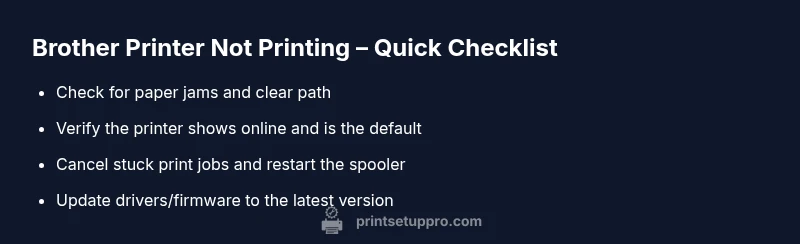
Before diving into complex settings, perform these quick checks that cover the most common causes. These steps apply to both USB and network configurations used by Brother printers. - Verify the printer status on the control panel: ensure it shows as online and ready. - Check for a paper jam or an empty tray; clear any obstructions and reload paper. - Look at the print queue on your computer and cancel any stuck jobs. - Confirm the printer you select in your application is the default printer. - If using a network connection, verify the Ethernet/Wi‑Fi link is stable and the printer has a valid IP address. - Try printing a Test Page from the printer menu to isolate whether the issue is with the device or the computer. - If the area around the printer is quiet and cool, reseat cables gently and restart the printer.
If you’re seeing persistent offline status, repeat these checks with a fresh power cycle: turn the printer off, wait 15 seconds, then back on. This reinitializes electronics and often resolves minor communication faults. These basic checks are the quickest path to a fix and should be performed before moving to deeper troubleshooting.
Diagnostic flow overview for “brother printer is not printing”
A structured diagnostic flow helps you move from symptom to solution without guesswork. Start with clear symptoms and gather context: when did the issue start, what changed recently, and which applications reproduce the problem. Map each symptom to a likely cause (e.g., jam/queue, driver, connectivity) and apply the first-line fixes that address the most common root causes. If the issue persists after the initial fixes, escalate to advanced steps such as driver reinstallation or firmware checks. This approach minimizes downtime and reduces the risk of unnecessary adjustments.
Print Setup Pro recommends keeping notes during troubleshooting to track what you’ve attempted and what remains unresolved. In this guide, you’ll see a progressive flow: simple checks, queue management, driver health, network considerations, and hardware status. By following the flow, you’ll quickly identify the bottleneck and implement a reliable solution for your Brother printer.
Step-by-step fix for the most common cause: print queue and connectivity
- Clear all jobs in the print queue: open the queue window, cancel all pending tasks, and restart the print spooler service if you’re on Windows. 2) Restart both the printer and the computer to refresh connections and reset memory. 3) Check USB or network cables and confirm the printer’s IP address (for network setups). 4) Update or reinstall the Brother printer driver to ensure compatibility with your operating system. 5) Print a test page from the printer control panel, then from a desktop app to confirm consistent output. 6) If the issue persists, temporarily disable any firewall or antivirus that could block communication and re-test. 7) Reconnect to the printer using a different USB port or a different network path (wired vs wireless) to isolate the connectivity issue. 8) If printing still fails, consult the printer’s built-in diagnostics or firmware status indicators for error codes.
Pro tip: Do not mix USB and network printing in the same setup; pick one path and stick with it during troubleshooting for clarity and faster results.
Advanced fixes for persistent issues: drivers, firmware, and resets
When basic fixes don’t restore printing, advanced steps are warranted. Uninstall and perform a clean reinstallation of the Brother driver, ensuring you remove all remnants from the previous installation. Update the printer firmware from Brother’s official support site and verify compatibility with your OS version. Consider pairing the printer with a fresh user profile or another computer to rule out software conflicts. If you have a multifunction unit, verify that the scanner/fax components aren’t affecting printing. In some cases, a factory reset on the printer is necessary, but back up settings first. Always perform firmware and driver updates with a stable power supply to avoid bricking during the process.
Safety notes and when to seek professional help
Printer hardware can be sensitive to power surges and improper handling. Always unplug the unit before opening access panels or reseating internal components to avoid electric shocks or damaged sensors. If you notice unusual noises, leaking toner, or persistent paper jams beyond simple clearing, discontinue attempts and contact Brother support or a certified technician. When the device is under warranty, check coverage and request authorized service to prevent voiding guarantees. Safety first ensures you don’t create further issues that require expensive repair.
Preventive maintenance to avoid future issues
To reduce the odds of future printing interruptions, adopt a routine maintenance cycle. Clean the printer’s exterior and paper path monthly, replace empty ink/toner cartridges promptly, and run regular nozzle checks if applicable. Keep drivers up to date and enable automatic firmware updates if available. Periodically print a test page to verify quality and alignment, and inspect cabling for wear or looseness. Maintain a clean working environment to minimize dust ingress and ensure stable power. Proactive maintenance helps keep your Brother printer reliable and ready when you need it.
Common error codes and what they mean
Many Brother printers display error indicators or codes that guide troubleshooting. While exact codes vary by model, typical categories include paper jam alerts, low ink/toner warnings, and communication faults. If you encounter an error code, consult the user manual or Brother support with the model number and the code. Document the context in which the code appeared (what you printed, which program, and whether it happened after a system change). Understanding the code accelerates targeted fixes and reduces downtime.
Steps
Estimated time: 30-45 minutes
- 1
Check power, cables, and basic status
Ensure the printer is plugged in, powered on, and showing a ready status on its control panel. Inspect USB cables or Ethernet wires for damage and reseat them firmly. This quick check often reveals a simple disconnect.
Tip: Re-seat connections with the printer powered off to avoid short or arcing. - 2
Clear print queue and restart devices
Open the print queue on your computer, cancel all jobs, and restart both the printer and the computer. This resets the communication channel and clears stuck tasks.
Tip: If the queue re-populates with the same jobs, delete them from the print job list after a reboot. - 3
Verify path and test page
Run a Test Page from the printer’s control panel. Then print from a document in a different application to verify consistency across programs.
Tip: Try a document with simple text to rule out complex graphics as a source of failure. - 4
Update or reinstall drivers
Download the latest driver/firmware from the official Brother site and perform a clean install. Remove old drivers first to prevent conflicts.
Tip: Choose a clean install option if available, and restart after installation. - 5
Check network settings
If using a network connection, verify the printer’s IP address and network status. Consider temporarily switching to USB to isolate the issue.
Tip: Disable any VPN or firewall rules that might block printer traffic during testing. - 6
Advanced diagnostics if needed
If basic fixes fail, perform a firmware reset or contact support for model-specific guidance. Keep a log of steps performed for faster assistance.
Tip: Document error codes and exact steps to reproduce the issue for support.
Diagnosis: Brother printer is not printing
Possible Causes
- highPower issue
- highPrint queue stuck/paused
- mediumDriver or firmware outdated
- highNetwork connectivity problem
- mediumLow ink/toner or empty cartridge
Fixes
- easyCheck outlet and power cord; plug into a known-good outlet and verify the printer shows power on. If power cycling is needed, turn off, wait 15 seconds, then turn back on.
- easyClear print queue and restart the spooler service (Windows) or clear the print queue on macOS. Reprint a test page.
- mediumUpdate or reinstall the Brother printer driver/firmware to ensure compatibility with your OS and applications.
- mediumTest network connectivity: switch from Wi‑Fi to a wired connection or verify the printer’s IP address; ensure there is no IP conflict.
People Also Ask
Why is my Brother printer offline even though it’s connected to power?
Offline status is usually caused by a communication fault between the computer and the printer. Check the printer’s network or USB connection, ensure the printer is set as default, and restart both devices to re-establish a fresh link.
A common reason for offline is a disrupted communication link. Check cables and set the printer as default, then restart both devices.
How can I clear a jam that causes a print failure?
Open the printer doors carefully, remove jammed paper slowly, and check for any torn pieces left inside. Run a test page afterward to confirm the path is clear.
Carefully remove any jammed paper and test again to confirm clearance.
What should I do if printing stops after a Windows update?
After a Windows update, driver compatibility can break. Reinstall or update the Brother driver from the official site and reboot the computer.
Reinstall or update the driver after Windows updates and reboot.
How do I know if the issue is network related?
Try printing from a device directly connected via USB; if it works, the issue is network-related. Check printer IP, Wi‑Fi strength, and router settings.
If USB works but network doesn’t, focus on network configuration.
When should I contact support rather than continue troubleshooting?
If the printer stays unresponsive after driver updates, firmware checks, and multiple restarts, professional help is recommended, especially under warranty.
When basic steps fail, contact support for model-specific guidance.
Watch Video
Quick Summary
- Start with power and connectivity checks
- Clear the print queue before deep fixes
- Update drivers/firmware to restore compatibility
- Test print from multiple apps to confirm consistency
- If needed, seek authorized support to avoid warranty issues