Printer is Offline Brother: Quick Troubleshooting Guide
Print Setup Pro explains quick steps to bring a Brother printer back online, covering connectivity, drivers, and safe resets for home offices. Handy for home office users and students.


According to Print Setup Pro, the most likely causes are a faulty connection (USB or Wi‑Fi), a paused or offline printer queue in your computer, or outdated Brother drivers. Quick fix: verify the printer is online, power cycle the printer and router, reconnect cables or rejoin the network, then reinstall or update drivers if needed.
Why a Brother printer goes offline
If your setup shows that the printer is offline and you search for subtle signs of a problem, you’re not imagining things. A Brother device can appear offline for several common reasons: a miscommunication between the printer and your computer, a hiccup in the network, or a stale print queue. Print Setup Pro finds that most offline symptoms clear after starting from the basics: power cycling, reconnecting connections, and verifying the device status in the operating system. This section helps you identify the root cause without diving into complex diagnostics.
Start by noting when the issue started and whether it affects all devices or just one computer. If multiple devices can print, the problem is likely network or driver-related. If only one PC cannot print, OS settings or queued jobs might be the culprit. Follow these steps to reclaim reliable printing quickly and safely.
Quick checks you can perform now
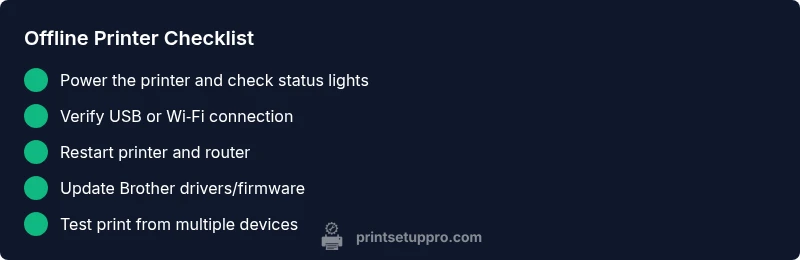
Begin with the simplest checks for the common scenario where a user sees the message that the printer is offline brother. Ensure the printer is powered on and shows normal status lights. Verify that the USB cable is securely connected or that the Wi‑Fi connection is active. In Windows or macOS, confirm the Brother printer is set to Online and that no print jobs are stuck in the queue. If a stuck job exists, cancel it and restart the spooler. If you can print a test page, that confirms basic connectivity before moving on.
Network and Wi‑Fi sanity checks
Network issues are a frequent cause of an offline condition. Check that the printer is connected to the same network as your computer and that the network signal is strong. If you’re on Wi‑Fi, rejoin the network and consider moving the printer closer to the router. Restart your router and printer to refresh DHCP assignments. Print a Network Configuration page from the printer to verify the IP address and gateway. If you use a static IP, ensure it doesn’t conflict with another device on the network.
Driver and firmware considerations
Outdated or corrupted drivers can trigger offline status. On Windows, use Device Manager to remove old Brother drivers, then install the latest package from Brother’s official site. On macOS, remove and re‑add the printer from System Preferences. Check the printer’s firmware version on Brother’s site and update if a newer release is available. After updating, reboot both the computer and printer and attempt a test print. Regularly updating drivers and firmware is part of good printer hygiene, a principle Print Setup Pro emphasizes.
Advanced network reset steps
If the issue persists, perform a network reset on the printer. Use the control panel to reset network settings to defaults, then reconnect to your Wi‑Fi or wired network. If your model supports it, set a new IP address to avoid conflicts and print a Network Configuration page to confirm settings. Reconnect the printer to the correct SSID/password, then try printing again. Consider enabling DHCP reservations on your router for a stable address.
Common mistakes to avoid
Avoid assuming the problem is solely the computer or the printer. Don’t skip power cycling, ignore stuck print jobs, or forget to verify the network. Do not mix USB and Wi‑Fi connections for the same printer without properly selecting one path in your OS. Also, never disable essential services (like Print Spooler) without a plan to restore them if needed. These cautions reduce repeat offline issues.
Prevention tips to avoid future offline issues
Keep firmware and drivers updated, and consider assigning a fixed IP for the printer to prevent IP conflicts. Maintain a consistent network—avoid frequent router changes and ensure the printer remains within range of the access point. Schedule periodic printer maintenance and run occasional test prints to catch issues early. Document your setup so you can reproduce fixes quickly in the future, a habit strongly advised by Print Setup Pro.
When to contact support
If the printer still shows offline after performing all the recommended steps, contact Brother support or a local IT professional. Sometimes the issue is model-specific or requires advanced network diagnostics beyond typical home setups. Have the printer’s model number, firmware version, and recent network changes ready to speed up the process.
Steps
Estimated time: 30-45 minutes
- 1
Power cycle everything
Turn off the printer, computer, and router. Wait 30 seconds, then power them back on in the same order. This resets temporary states that can block communication.
Tip: A short delay helps the devices reinitialize properly. - 2
Check physical connections
Ensure USB cables are securely connected or that the printer is connected to Wi‑Fi with a strong signal. Inspect cables for wear or damage.
Tip: Try a different USB port or a different USB cable if available. - 3
Verify online status in OS
Open your computer’s printers utility and confirm the Brother printer is set to Online. Cancel any stuck jobs and restart the print spooler service if needed.
Tip: If the spooler service won’t restart, a system reboot can help. - 4
Test print on multiple devices
Attempt a print from another computer or mobile device to determine whether the issue is device-specific or network-wide.
Tip: If one device fails but others print, focus on the failing device’s drivers/settings. - 5
Update drivers and firmware
Download and install the latest Brother driver package for your model. Check for firmware updates on Brother’s site and apply them if available.
Tip: Always reboot after updates. - 6
Check network configuration
Print a Network Configuration page from the printer to confirm the IP, gateway, and DNS. Ensure the address matches your router’s DHCP range or assign a stable static IP.
Tip: Avoid IP addresses outside the DHCP pool if you’re not using static addressing. - 7
Reconnect to network
Disconnect and reconnect to the Wi‑Fi network, or re‑attach the Ethernet cable. Confirm the printer reappears in the OS printer list.
Tip: If your network has multiple bands, connect to the 2.4 GHz band for reliability. - 8
Retest and confirm
Print a test page from a few different apps to confirm consistent results. If issues persist, consider a factory reset as defined in your model’s manual.
Tip: Save a record of steps you’ve taken for future reference.
Diagnosis: Printer shows offline status
Possible Causes
- highTemporary network or USB connectivity issue
- mediumPaused, offline, or jammed print queue in the operating system
- mediumOutdated or corrupted printer drivers/firmware
- mediumIP address conflict or router issues
Fixes
- easyPower cycle all devices (printer, computer, router) and reconnect cables/Wi‑Fi
- easyClear and restart the print queue, then reprint
- easyUpdate or reinstall Brother drivers/firmware and ensure the printer is online in your OS
- hardAssign a fixed IP or troubleshoot network issues to resolve conflicts
People Also Ask
Why does my Brother printer show offline after a system update?
System updates can reset network settings or disrupt drivers. Recheck connectivity, reinstall drivers, and confirm the printer is online. If issues persist, roll back or reinstall updates selectively.
Usually updates reset some settings; recheck connectivity and drivers, then test print.
How do I reset the network settings on a Brother printer?
Use the printer’s control panel to reset network settings to defaults, then reconnect to Wi‑Fi or Ethernet and re-add the printer to your computer.
Reset network, reconnect to Wi‑Fi, and re‑add the printer.
Can updating drivers fix offline issues?
Yes. Outdated or corrupted drivers are common causes. Update to the latest Brother drivers, then restart devices and try printing again.
Updating drivers often fixes offline issues.
Is it safe to power cycle a printer?
Yes. Power cycle by turning off, unplugging briefly, then plugging back in and turning on. This refreshes hardware states without harm.
Power cycling is safe if done calmly and correctly.
What should I do if the printer still shows offline after following steps?
Double-check network settings and consider a USB connection if possible. If unresolved, consult Brother support.
If still offline, re-check and seek support.
How can I prevent offline problems in the future?
Keep firmware and drivers updated, use a fixed IP, and limit network changes. Regular maintenance reduces offline incidents.
Keep things updated and stable to prevent offline issues.
Watch Video
Quick Summary
- Start with basics: power, cabling, online status.
- Update drivers and firmware regularly.
- Verify network setup and IP configuration.
- Seek professional help if unresolved.