Fix Printer Offline on Windows 11: Step-by-Step Troubleshooting
Learn how to fix printer offline on Windows 11 with step-by-step checks, driver updates, spooler reset, and network tweaks. Fast, reliable guidance for home offices, students, and small businesses.


According to Print Setup Pro, when Windows 11 shows a printer as offline, the two most common culprits are driver problems or a stopped Print Spooler service. Start with quick checks: verify the device is online, ensure 'Use Printer Offline' is not enabled, and restart the Print Spooler. Update or reinstall the printer driver if needed. If the issue persists, print a test page from another device or a different USB port to rule out cable or port faults.
Quick checks you can perform before diving in
When your printer shows offline on Windows 11, the first step is to rule out quick, non-destructive issues. Confirm the printer is powered on, the cable is securely connected (for USB), or the device is connected to the same Wi‑Fi network if it is wireless. Look for a physical mute button or error indicators on the printer panel. In Print Setup Pro's guidance, starting with these low-effort checks saves time and avoids chasing software issues that aren’t there. If you have multiple printers installed, make sure you’re selecting the correct device in Windows Settings > Devices > Printers & scanners. Finally, consult the printer manual for model-specific indicators and reset options if available.
As noted by Print Setup Pro, many offline scenarios clear up after cable re-seatings, a quick restart of related services, or confirming the printer isn’t accidentally placed in offline mode. These steps establish a solid baseline before moving to driver or network diagnostics. This block helps you distinguish between simple user errors and deeper software problems.
Common causes of offline status on Windows 11
Offline status is usually triggered by a small set of root causes, not a mysterious hardware flaw. The most frequent culprits include the printer being set to offline in Windows, a paused or stopped Print Spooler service, outdated or corrupted printer drivers, and connectivity issues (USB cable faults, wireless network changes, or printer IP address changes). Other common triggers include multiple printers installed on the same PC, a misconfigured default printer, and pending print jobs stuck in the queue. Print Setup Pro emphasizes diagnosing these core causes first, as they explain the majority of offline cases in home and small-office environments.
In more complex networks, firewall rules, printer sharing settings, and router configurations can also interfere with print traffic. If you recently updated Windows 11 or the printer firmware, backward compatibility or driver compatibility shanges may surface as an offline state. Keeping a clear list of recent changes helps isolate the issue quickly.
Check printer status and Windows settings
Begin by examining Windows settings for the selected printer. Open Settings > Bluetooth & devices > Printers & scanners, then click your printer and select Manage. If you see a status like "Offline" or "Paused," correct it with a single click to set as default or resume printing. Verify that the printer’s port matches the physical connection (USB or network) and that the correct port type is selected (USB001 for USB, a valid IPv4 address for network printers).
Ensure there is no global policy forcing offline mode, and confirm that the option "Use Printer Offline" is not checked in the printer queue. Running a test print from Windows will confirm the issue is not due to a single job. Print Setup Pro notes that consistent default printer settings across devices reduce recurrent offline problems.
Test connectivity: USB, network, and wireless printing
If you are USB-connected, try a different USB port and a different cable to rule out port or cable faults. For network printers, verify the printer is on the same local network as your PC and that you can reach the printer’s IP address by pinging it from Command Prompt. Check that the firewall isn’t blocking printing traffic and that printer sharing is configured correctly if you’re printing from a laptop on a different device.
A simple diagnostic is to print a configuration page from the printer itself, which shows network status, IP address, and firmware version. If you encounter intermittent connectivity, updating the router firmware and re-assigning a static IP to the printer can stabilize the connection. Print Setup Pro highlights keeping consistent network credentials to prevent future offline incidents.
Step-by-step fix workflow for most offline printers
This section guides you through a practical, ordered flow to resolve the majority of offline issues.
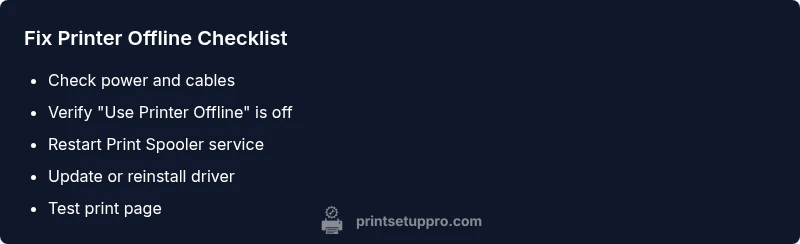
- Reboot everything: power off the printer, router, and PC, then power up in that order. 2) Check the queue: cancel all pending jobs and restart the spooler service. 3) Verify the correct printer is selected as default and that "Use Printer Offline" is not checked. 4) Update or reinstall the printer driver from the manufacturer’s site. 5) Reconnect network settings or USB connections, depending on your printer type. 6) Print a test page and check for success.
Print Setup Pro emphasizes following this sequence because it isolates the most common software-based causes first before attempting deeper network or hardware changes.
Update drivers and firmware safely
Driver and firmware updates can fix compatibility issues that lead to offline states. Download only from the official vendor site or Windows Update, avoiding third-party sources. Before updating, export current printer settings if the option exists, and create a system restore point in case the new driver causes unexpected behavior. After installing updates, reboot all involved devices and run a test page.
If updating the driver did not help, reinstall the driver entirely using a clean install, removing old driver traces first. Print Setup Pro notes this approach resolves many stubborn offline problems caused by corrupted driver files or misregistered components.
Prevention, maintenance, and when to call support
To prevent future offline incidents, schedule regular driver checks and firmware updates, keep your printer firmware aligned with the printer model, and maintain consistent network configurations. Periodically review printer queue settings and keep a simple spare USB cable on hand for quick hardware swaps. If problems persist after performing the standard diagnostic flow, contact the printer manufacturer’s support or your IT professional for deeper analysis. Print Setup Pro’s guidance is to escalate when the printer remains stubbornly offline after all standard fixes have been attempted.
Steps
Estimated time: 30-60 minutes
- 1
Verify physical connections and power
Check that the printer is powered on and connected to the computer or network. For USB, try a different port and a known-good USB cable. For network printers, ensure the printer is connected to the same Wi-Fi or LAN as your PC.
Tip: A loose USB cable or router reboot often resolves minor connectivity hiccups. - 2
Check the Windows printer status
Navigate to Settings > Devices > Printers & scanners, select your printer, and confirm the status is not Offline or Paused. If needed, right-click the printer and choose Set as default. Cancel all stuck print jobs in the queue.
Tip: Make sure you’re working with the correct printer if multiple devices are installed. - 3
Restart the print spooler
Open Services, locate Print Spooler, stop it, wait a few seconds, then start it again. Clear the printer queue and re-present a test page.
Tip: Restarting the spooler clears stuck jobs and resets the print pipeline. - 4
Update or reinstall drivers
Visit the printer manufacturer’s site or use Windows Update to install the latest driver. If updating fails to help, uninstall the driver completely and perform a clean install.
Tip: Keep a backup of any custom settings before uninstalling. - 5
Check network settings and IP
If printing over a network, verify the printer’s IP address, ensure no IP conflicts exist, and consider assigning a static IP to stabilize access. Reconnect the device if necessary.
Tip: A fixed IP reduces fluctuations caused by DHCP renewal. - 6
Test print and confirm
Print a test page from Windows and, if possible, from another device to confirm the issue is resolved. If problems recur, proceed to firmware checks with the manufacturer’s guidance.
Tip: Document the results to compare with future incidents.
Diagnosis: Printer shows as offline in Windows 11
Possible Causes
- highPrinter set to offline in Windows
- mediumPrint Spooler service paused or stopped
- mediumOutdated or corrupted printer driver
- mediumNetwork/USB connectivity issues or IP address mismatch
- lowDefault printer misconfiguration or stuck print job
Fixes
- easyOpen Devices & Printers and ensure the printer is online and set as default
- easyRestart the Print Spooler service and clear the printer queue
- mediumUpdate or reinstall the printer driver from the manufacturer or Windows Update
- easyCheck USB cables/ports or verify network connectivity and IP address
- mediumReset printer network settings or assign a static IP if needed
People Also Ask
Why does my printer show as offline in Windows 11 when it’s clearly powered on?
Most commonly, the printer is set to offline in Windows or the Print Spooler service is paused. Other frequent causes include outdated drivers or network issues. Verifying these items in order helps pinpoint the exact cause.
Often it’s a settings or spooler issue rather than a hardware failure; check offline status and spooler, then update drivers if needed.
How do I reset the Print Spooler service in Windows 11?
Open Services, find Print Spooler, click Restart, and clear the print queue. If necessary, stop the service, delete the contents of the spool folder, then restart.
Restart the spooler from Services and try printing again.
Can USB cable issues cause a printer to appear offline?
Yes. A loose or faulty USB cable/port can prevent communication between the PC and printer. Try a different port and cable to rule this out.
A bad USB cable is a common culprit; try another port and cable.
Should I update the printer driver even if the printer is working?
Yes, updating drivers proactively helps prevent future offline issues and ensures compatibility with Windows updates.
Keeping drivers current reduces the risk of offline problems after system updates.
What if the printer is on Wi‑Fi but still offline?
Check the router, confirm the printer’s IP address, and try reconnecting the printer to the network. Consider giving the printer a static IP to avoid changes.
Network hiccups happen; re-connecting often fixes the issue.
When should I contact support for printer offline issues?
If you’ve followed the diagnostic flow and the printer remains offline, contact the manufacturer’s support or a qualified technician for deeper diagnostics.
If nothing works after following these steps, seek professional help.
Watch Video
Quick Summary
- Identify the most common causes first
- Follow a structured flow to isolate software vs hardware
- Always restart the spooler before driver changes
- Use a test page to verify fixes