Help with Printer Problems: Quick Troubleshooting Guide
Struggling with printer problems? This urgent, step-by-step guide from Print Setup Pro helps home offices diagnose issues, fix common errors, and prevent future outages.


If your printer won’t print or shows offline, the most likely cause is a simple connectivity or driver issue. Start with the basics: check cables or Wi‑Fi, restart the printer and computer, and confirm the device is set as online and the default printer. This quick fix often clears the problem in minutes, keeping you productive.
Why printer problems happen
If you’re looking for help with printer problems, the root causes are usually simple to identify and fix. Most issues stem from connectivity glitches, outdated drivers, or jammed paper paths rather than mysterious hardware faults. In many cases, the fastest resolution comes from methodical checks of power, cables, and network status. Print Setup Pro has seen a wide range of home-office failures resolve after confirming the basics: the printer is powered, connected, and recognized by the operating system. By understanding how problems arise, you can apply targeted steps rather than guessing, saving time and frustration. This mindset is essential for keeping a busy workstation online and productive. In this guide we’ll walk you through a practical sequence designed for speed, clarity, and safety, so you can regain printing capability as soon as possible.
Quick wins you can try right now
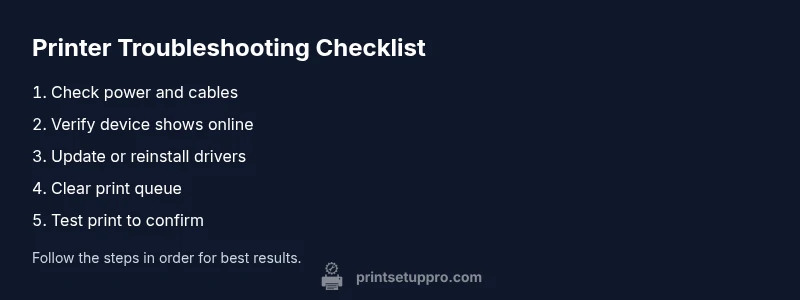
Before diving into deeper diagnostics, try a few fast, low-risk actions. First, power cycle every device involved: turn off the printer, computer, and router, unplug for 30 seconds, then power up in sequence. Check cables and wireless connections for looseness, interference, or misconfiguration. Print a simple test page from your computer, and confirm the selected printer is the default. If the issue persists, verify there are no active print jobs stuck in the queue and cancel them if needed. A surprising number of problems are resolved by this short reset and queue-clearing routine. Finally, update or reinstall the printer drivers to match your OS version.
Check connections and basic settings
Connectivity is the most common fault line for printers. For USB printers, try a different USB port and replace any suspect cables. For network or wireless printers, confirm the device is connected to the correct Wi‑Fi network and appears in your router’s connected devices list. On Windows, check the Print Management console and ensure the printer is not offline or paused. On macOS, use System Preferences > Printers & Scanners to set the correct default and remove any duplicate printer entries. If you’re sharing a printer over a network, ensure that firewall settings aren’t blocking communication.
Diagnosing common failure modes
Printers fail in predictable ways. Common modes include a rejected print job, offline status, paper jams, or low consumables. Start by printing a test page from the device to isolate the issue. If the test page fails, focus on drivers, cables, or firmware. If the test page succeeds but ordinary documents fail, examine the document’s settings, color management, and page size. For wireless printers, verify IP addresses, gateway access, and whether the printer appears in both the printer list and the queue. Record any error codes shown on the panel as they guide the fix.
A practical diagnostic flow you can follow
A structured flow minimizes guesswork:
- Symptom: printer reports offline or prints blank pages
- Diagnosis: connectivity or driver issue
- Solution: reboot devices, reselect printer, update drivers
- Symptom: error codes appear on the panel
- Diagnosis: specific hardware or firmware fault
- Solution: consult manual, reset network, update firmware
- Symptom: prints slowly or with poor quality
- Diagnosis: ink/toner levels or media type mismatch
- Solution: replace consumables, adjust print settings, verify media
Following this flow helps you isolate root causes quickly and safely.
Preventive maintenance to avoid future issues
Prevention is faster than repair. Schedule regular maintenance checks, including firmware updates, driver updates, and printhead cleanings when your printer’s manual recommends it. Keep consumables stocked and use genuine or compatible supplies rated for your printer model. Create a simple maintenance routine every 4–6 weeks, especially if you print often. Clear old drivers and printers you no longer use from the OS, which reduces confusion and misrouting of jobs. Finally, maintain a clean work area and regularly inspect cables for wear or damage to prevent intermittent faults.
When to seek professional help
Some problems require expert intervention. If you’ve exhausted basic diagnostics, the printer still won’t respond, or you encounter persistent hardware errors, contacting the manufacturer’s support or a qualified technician is wise. Be prepared with the printer model, serial number, firmware version, and any error codes. If you rely on critical printing for business, consider a service contract or on-site visit from an authorized repair center. Always follow safety guidelines when dealing with electronic devices and avoid opening sealed components if you’re not trained.
Troubleshooting by printer type (quick orientation)
Different printer types require slightly different approaches. Inkjet printers may benefit from printhead cleaning and nozzle checks, while laser printers often require drum and toner checks, along with fuser temperature considerations. Thermal printers rely on ribbon or film integrity and correct media compatibility. Always consult the user manual for model-specific steps and avoid using incompatible media that can damage internal components. The “help with printer problems” workflow remains the same: verify power and connectivity, run built-in diagnostics, and methodically test with known-good media.
Steps
Estimated time: 60 minutes
- 1
Power cycle devices
Turn off the printer and computer, unplug for 30 seconds, then plug back in and boot in sequence. This clears memory and can reset stuck processes.
Tip: Unplug from wall outlet, not just switch off. - 2
Check power and cables
Ensure the power cord and data cables are firmly connected. If USB, try a different port; if Ethernet, verify the link status on both ends.
Tip: Avoid using damaged cables. - 3
Verify printer status in OS
Open the OS printer settings, confirm the printer is online and set as default, and cancel any paused or stuck jobs.
Tip: Set a test print after each change. - 4
Update or reinstall drivers
Visit the manufacturer site to download the latest drivers for your OS version; install, then restart.
Tip: Keep a note of your printer model and firmware. - 5
Test print from multiple apps
Print a simple page from a text editor and from a different program to rule out document-specific issues.
Tip: If it fails in one app but not another, focus on the app's print settings. - 6
Check paper path and consumables
Inspect for jams, ensure paper type matches the settings, and verify toner/ink levels and cartridge seating.
Tip: Perform jams removal slowly to avoid further damage. - 7
Reset network settings (wireless)
If wireless, forget the network on the printer, reconnect to Wi‑Fi, and re-enter credentials; verify IP address compatibility.
Tip: Document SSID and password before resetting. - 8
If unresolved, contact support
Provide model, serial, firmware version, and a detailed symptom log to support staff for faster resolution.
Tip: Have proof of purchase handy if under warranty.
Diagnosis: Printer shows offline or won't start printing
Possible Causes
- highPower issue or loose connection (USB/Ethernet/Wi‑Fi)
- highOutdated or missing printer drivers
- mediumPrint queue is stuck or a job is paused
- lowFirmware glitch or misconfigured network settings
Fixes
- easyCheck power and reseat all cables; reboot printer and computer
- easyUpdate or reinstall drivers; run built-in troubleshooters
- easyClear the print queue and restart the spooler/service on your OS
- easyReset network settings or reconfigure Wi‑Fi; rejoin network
People Also Ask
Why is my printer showing offline even though it's connected?
Offline status is usually caused by a communication issue between the printer and computer or network. Start by confirming the device is online in the OS, check cables or Wi‑Fi, and reset the connection. If the problem persists, reinstall the driver and run the built-in troubleshooter.
Printer offline is usually a connection problem. Check power, cables, and drivers, then reconnect the device and run the troubleshooter.
How do I fix printer driver issues on Windows?
Download the latest driver from the manufacturer’s site and install it as an administrator. Reboot after installation and print a test page. If Windows keeps a conflicting older driver, remove the old entry from the printers list and repeat installation.
Get the latest driver from the manufacturer, install as admin, reboot, and test a page.
What should I do if the print queue is stuck?
Open the printer queue and cancel all documents. Restart the print spooler service if needed and attempt to print again. If repeated, clear the drivers and reinstall the printer.
Cancel stuck jobs, restart the spooler, then retry printing.
Is it safe to reset network settings on my printer?
Yes, but note your Wi‑Fi password and network details before resetting. Reconnect afterward and verify the printer has an IP address on your network.
Resetting is safe if you have network details ready to reconnect.
Why do I get a paper jam message when there’s no jam?
Sometimes sensors misread path obstructions or foreign objects. Inspect rollers, sensors, and the paper path for small obstructions, then run a self-test to confirm status.
Check for sensor obstructions and run a test page.
When should I replace ink or toner versus repair?
If print quality is poor and consumables are close to end of life, replacing a cartridge is often cost-effective. For recurring faults despite fresh supplies, a professional service may be more economical in the long run.
Consider new ink or toner first; if problems continue, seek professional service.
Watch Video
Quick Summary
- Check power, cables, and network first.
- Update drivers to fix compatibility issues.
- Follow a structured diagnostic flow to isolate causes.
- Keep firmware current to prevent issues.
- Escalate to support when needed.