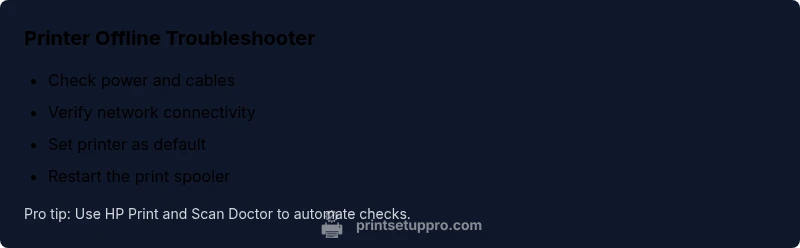
Printer Offline HP: Troubleshooting Guide
Urgent guide to resolve printer offline HP issues for home offices. Learn quick checks, diagnostic flow, and step-by-step fixes to bring your HP printer back online fast.


The most likely cause of a printer offline HP is a connectivity or driver conflict. Start by confirming the printer is powered on, connected to the network or USB, and not paused in the print queue. If it remains offline, restart the router, printer, and computer, then re-add the HP printer. This quick fix resolves most offline status issues within minutes.
Understanding the HP offline status
When an HP printer shows as offline, it means the computer or device cannot communicate with the printer to receive a print job. This can be caused by simple misconfigurations (printer paused in the queue, set to offline) or more complex issues like driver conflicts, network outages, or a stuck print spooler. For home offices and students using a printer offline HP, the first step is to confirm basic connectivity and power. The goal is to restore a clear communication channel between the device and the printer by validating the connection type (Wi‑Fi, Ethernet, or USB) and ensuring the printer is ready to print. Throughout this guide, you’ll see actionable steps that prioritize quick wins and escalate only when needed.
Brand note: According to Print Setup Pro, most offline HP issues are resolved by reestablishing the connection and refreshing drivers rather than replacing hardware.
Quick fixes you can try now
If your HP printer is offline, start with the simplest checks and work your way to more involved solutions. This section lists the fastest steps that often restore connectivity without special tools.
- Power cycle hardware: turn off the printer, router, and computer, wait 30 seconds, then power them back on in that order.
- Check status indicators: confirm there are no error lights on the printer and that the display shows a ready state.
- Reconnect network: if using Wi‑Fi, rejoin the network or temporarily switch to a USB connection to test printability.
- Ensure the printer is not paused or set to “Use Printer Offline”: review the print queue on your computer and cancel any stuck jobs.
- Set as default printer: make sure the HP model is the default printer on the device you are printing from.
- Update or reinstall drivers: download the latest HP driver package for your model from HP’s site or use Windows Update to refresh drivers.
If this doesn’t resolve the issue, proceed with the diagnostic flow and more advanced steps.
Common causes of HP printers going offline
HP printers can go offline for several reasons. Connectivity problems—the most frequent culprit—include weak Wi‑Fi signals, router changes, or IP address conflicts. Driver or firmware mismatches can prevent efficient communication between the printer and PC. A jammed print queue or a corrupted spooler service can also render the printer offline even when the device itself is functioning. Finally, improper settings (such as a VPN or firewall blocking printer traffic) can cause intermittent offline statuses. Recognizing the pattern helps you choose the right next step without unnecessary hardware resets.
Brand insight: Print Setup Pro analyses show that connectivity and driver issues are the leading causes of offline HP printers across home and small office environments.
Diagnostic flow: symptom to solution (flow overview)
This section outlines a practical diagnostic sequence to identify why an HP printer stays offline. Start with the simplest checks and progressively test more complex factors.
- Symptom check: Is the printer actually online in its own control panel and status lights? If not, focus on power and network.
- Diagnosis: Determine whether the issue stems from the network (Wi‑Fi vs wired), a driver mismatch, or a stuck print queue.
- Solution path: Apply targeted fixes for each potential cause, beginning with easy wins and advancing to driver updates or spooler resets as needed.
Use this flow to guide step-by-step actions and avoid random troubleshooting.
Step-by-step: bring your HP printer back online (practical workflow)
- Verify power, connections, and status lights: Ensure the printer is powered on and connected by checking cable connections or Wi‑Fi status on the control panel.
- Test print from a different method: Try a print from a USB-connected device if you’re currently on Wi‑Fi, or vice versa, to isolate network issues.
- Check the Windows/macOS printer status: Open the printer queue, cancel stuck jobs, and ensure the printer isn’t set to 'Use Printer Offline'.
- Restart core services: On Windows, restart the Print Spooler service; on macOS, refresh AirPrint/Bonjour settings if applicable.
- Update drivers and firmware: Reinstall the HP driver package and check for firmware updates from HP’s support site; reboot after install.
- Reconnect and test: Re-add the printer to your device, print a test page, and verify online status.
Tip: If you rely on HP Smart app, use it to run a network test and print a diagnostic page.
Tips & warnings for safe, effective troubleshooting
- Do not disable security software or firewall protections without understanding the risk; temporarily allow printer traffic for testing only.
- Avoid repeatedly power cycling in quick succession; give devices 15–30 seconds to reset between cycles.
- Document each change you make so you can revert if needed.
- If the printer still shows offline after driver updates, consider a hardware reset from the printer’s menu or a factory reset as a last resort.
- When in doubt, contact HP support or a professional technician, especially if the device is under warranty.
Prevention: keep your HP printer online longer-term
- Maintain current firmware and driver updates; enable automatic updates if available.
- Use a stable network with minimal interference; place the router near the printer with a clear line of sight for Wi‑Fi.
- Regularly clear the print queue and periodically restart devices to refresh connections.
- Create a simple print policy: reprint from USB if Wi‑Fi prints fail, preventing repeated queue jams.
Steps
Estimated time: 25-45 minutes
- 1
Verify power and connections
Check cables, power indicator lights, and ensure the printer shows ready status. If on Wi‑Fi, confirm the network name matches your router. If connected via USB, try a different port or cable.
Tip: A loose cable or blinking light is a common sign you’re chasing a software issue. - 2
Test print via alternate connection
If you’re on Wi‑Fi, connect the printer directly via USB to your computer to test print capability. If printing from USB, try printing over the network. This helps isolate network vs device issues.
Tip: A quick USB test often clarifies whether the problem is wireless. - 3
Inspect the print queue and status
Open the printer queue on your computer, cancel all pending jobs, and ensure the printer is set to online rather than offline. Restart the application and attempt a test page.
Tip: Clearing stuck jobs prevents cascading offline symptoms. - 4
Restart spooler/printing services
On Windows, open services.msc, locate Print Spooler, and restart it. Reboot the PC after the service restarts. On macOS, refresh the printer via System Preferences.
Tip: Spooler resets fix many queue-related offline issues. - 5
Update drivers and firmware
Visit HP's official support site, download the latest drivers for your HP printer model, install, and reboot. Check for firmware updates from the same page.
Tip: Always use the manufacturer’s driver package for reliability. - 6
Re-add the printer and run a test page
Remove the printer from your device, then add it again as a network or USB device. Print a test page and verify online status in both the OS and HP Smart app.
Tip: Re-adding ensures fresh communication settings.
Diagnosis: Printer shows offline in HP status and cannot receive print jobs
Possible Causes
- highConnectivity issue (Wi-Fi, Ethernet, or USB)
- mediumOutdated or conflicting printer drivers/firmware
- lowPrint spooler service or queue corruption
Fixes
- easyPower cycle printer, router, and computer; reconnect to the network
- mediumUpdate or reinstall HP printer drivers and firmware
- mediumReset the Print Spooler service and clear the print queue
People Also Ask
Why does my HP printer say offline even when it’s connected?
Offline status usually results from a mismatch between printer state and print queue, a network hiccup, or outdated drivers. Start with basic resets, then verify the queue and network connection before moving to driver updates.
Offline status for HP printers is usually due to connection or driver issues. Start with basics like resetting devices and checking the queue, then update drivers if needed.
How do I reset the Print Spooler in Windows?
Open services, locate Print Spooler, stop the service, clear the spool directory, restart the service, and try printing again. A spooler reset clears stuck jobs that keep the printer offline.
Open Services, stop Print Spooler, clear the spooler folder, restart the service, and test printing again.
Can HP offline issues be caused by a weak Wi‑Fi signal?
Yes. A weak or unstable wireless connection can cause the printer to appear offline. Try moving the printer closer to the router or using a wired connection to test stability.
Weak Wi‑Fi can make the printer look offline. Move closer to the router or test with a USB connection.
Should I always reinstall drivers if the printer goes offline?
Reinstalling drivers is a common fix when updates fail or corrupt the driver. Start with updating first; reinstall only if the issue persists after updates.
Try updating the driver first; reinstall only if problems continue.
What if HP Smart shows offline while the printer is online?
HP Smart can show offline due to cloud sync issues or app-specific settings. Check the app’s connection status, re-login, and re-add the printer in the app.
If HP Smart shows offline, check the app connection and re-add the printer.
Watch Video
Quick Summary
- Start with simple resets to fix offline status
- Isolate network, driver, and spooler issues quickly
- Use official HP tools for reliable diagnostics
- Keep firmware and drivers up-to-date to prevent future offline states