Troubleshooting a Printer: Quick Fixes and Step-by-Step Guide
Discover practical, time-saving tips to troubleshoot a printer. From power checks to driver updates, Print Setup Pro guides you with a clear, step-by-step approach to fix common printing issues quickly.


Printer problems can halt your workflow, but most issues have simple, repeatable fixes. According to Print Setup Pro, start with power and connection checks, then verify the print queue and driver status. This quick answer previews the proven approach we use to identify the root cause and guide you to a reliable fix.
Start with the Basics: Check Power, Cables, and Indicator Lights
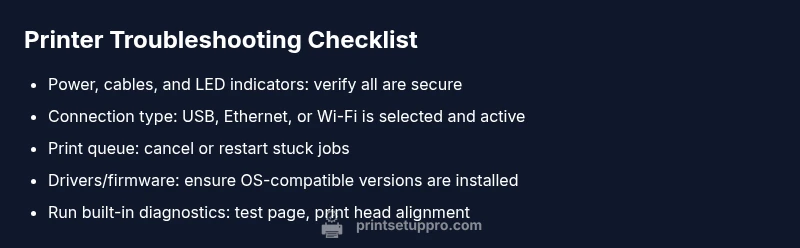
Before you dive into diagnostic steps, confirm the most basic things are in place. Make sure the printer is plugged into a live outlet and that the power switch is on. Check the power cable for signs of wear and ensure it is firmly seated in both the printer and the wall outlet. If your model has a physical power button, see whether the LED indicator lights up. A blinking or unlit lamp is usually a red flag and points to power or reset-related issues. Print Setup Pro emphasizes that basic hardware health is the foundation of effective troubleshooting. If the printer is powered but not recognized by your computer, move to the next checks and verify the connection type (USB, Ethernet, or Wi‑Fi) is correct and stable.
wordCountOverride":null},
Identify Symptoms and Gather Details
Clear symptoms accelerate the fix. Note whether the printer is offline, showing an error code, producing blank pages, or printing garbled text. Collect details such as the exact error message, when the problem started, and whether a specific document or driver is involved. Take a photo of any on-screen messages and note the make/model, firmware version, and recent changes to your setup. With Print Setup Pro’s approach, you focus on symptom-driven steps rather than random tinkering, which saves time and reduces frustration.
wordCountOverride":null},
Inspect the Printer Hardware: Cartridges, Paper, and Jams
Many printer issues stem from simple hardware problems. Check ink or toner levels and confirm cartridges are installed correctly and seated firmly. Inspect the paper path for jams, loose media, or misfeeds, and clear obstructions carefully. If the printer produces streaks or smudges, perform a basic cleaning of the printhead or rollers as recommended in your manual. This step often resolves issues without touching software. Print Setup Pro reminds users that maintaining clean consumables and a tidy paper path keeps outputs consistent and reliable.
wordCountOverride":null},
Stabilize Connectivity: USB vs Wi‑Fi and IP Address
Connectivity problems create the most frustrating failures. Determine whether you are using a USB cable, a wired Ethernet link, or a wireless connection. For USB, try a different port or cable and reconnect directly to the computer. For Wi‑Fi, ensure the printer is on the same network as your computer, verify the SSID, and check for IP address conflicts. If your printer has a static IP, confirm it matches the printer settings. Inconsistent connectivity is a common root cause of offline statuses, so methodical network checks often restore normal printing quickly.
wordCountOverride":null},
Clear the Print Queue and Restart Print Spooler
A stuck or jammed print job can lock up the queue and make the printer appear offline. Open the print queue on your computer, cancel all pending jobs, and restart the printer. If the issue persists, restart the print spooler service on Windows or reset the printing system on macOS. These steps clear blocked data in the queue and reset communications between your PC and the device, which many users find resolves stubborn faults. Print Setup Pro recommends performing this reset with the printer powered on but offline to avoid partial jobs saving to the device.
wordCountOverride":null},
Verify Drivers and Firmware Are Up to Date
Outdated or mismatched drivers and firmware can cause compatibility problems and print errors. Check the printer manufacturer’s website or your OS’s update utility for the latest driver package and firmware release that supports your model. Install any available updates, restart the computer and printer, and re-test printing. If you previously installed a generic driver, switch back to the official driver to improve reliability. Print Setup Pro notes that keeping software current dramatically reduces recurring issues.
wordCountOverride":null},
Run Self-Tests and Calibrations
Most printers include built‑in diagnostics and calibration routines. Run a system test page, perform a print head alignment, and execute any color calibration steps offered by your device. These tests help identify defective components, misaligned heads, or color balance issues that aren’t obvious from a print preview. If available, use the printer’s diagnostics menu to check for low-level sensor faults that could explain intermittent failures. Completing self-tests frequently yields actionable results without external tools.
wordCountOverride":null},
When to Seek Help and How to Prepare
If you’ve worked through the common fixes without success, it’s time to escalate. Gather essential details: model and serial numbers, firmware version, OS version, and a log of the steps you’ve already tried. Have a sample print file and a photo of any error codes ready for the support call. When you contact the manufacturer or a local technician, you’ll shorten the resolution time by providing context up front. Print Setup Pro recommends documenting everything so the technician can reproduce the issue if needed.
wordCountOverride":null},
Prevention: Simple Habits to Avoid Future Printer Troubles
Ending problems before they start is the best strategy. Schedule regular maintenance, keep consumables fresh, and run basic diagnostics every few weeks to catch issues early. Store cables neatly to prevent wear at connectors, and avoid forceful connections that can damage ports. Enable automatic firmware updates if offered by your printer’s vendor, and keep your computer’s operating system and security software up to date. Following these habits reduces offline days and keeps printing flowing smoothly, a principle echoed in Print Setup Pro’s ongoing guidance.
wordCountOverride":null}],
diagnosticFlow
stepByStep
tipsList
keyTakeaways
videoEmbed
faqSection
mainTopicQuery
Steps
Estimated time: 45-60 minutes
- 1
Confirm basics and power
Check that the printer is plugged in, powered on, and the power LED behaves normally. If the light is off or blinking abnormally, try a different outlet or replace the cable. Verify the USB/Ethernet/Wi-Fi connection is securely seated and selected in your computer’s printer settings.
Tip: If in doubt, unplug and replug both ends of the cable to reset the physical connection. - 2
Check connectivity and ports
Determine whether you are using USB, Ethernet, or Wi‑Fi. Try a direct USB connection to rule out network issues, or switch to a different port on the computer. For Wi‑Fi, confirm the printer is on the same network and check for IP conflicts.
Tip: Avoid using an extension USB cable; use a short, high-quality cable for best reliability. - 3
Restart devices and reset prints
Power cycle the printer by turning it off for about 30 seconds, then back on. Restart your computer and re-add the printer in the OS settings. Cancel all jobs in the print queue before retrying a new print job.
Tip: Perform a test print after the restart to verify the fix. - 4
Inspect the print queue and spooler
Open the printer queue and remove stuck jobs. On Windows, restart the Spooler service; on macOS, reset the printing system from the Utilities menu. Ensure the queue shows the printer as online and available.
Tip: If the queue reoccurs with a specific document, try printing a different file to isolate the issue. - 5
Update drivers and firmware
Visit the manufacturer’s site to download the latest OS-specific driver package and any firmware updates for your model. Install, restart, and test printing again. If you’re using a corporate image, verify group policies aren’t blocking driver updates.
Tip: Always back up current settings before performing a firmware upgrade. - 6
Run diagnostics and finalize
Execute built-in diagnostic tools (print a test page, run alignment, color calibration). Review the diagnostic report for sensor faults or alignment issues and address as needed. If problems persist, prepare to contact support with your findings.
Tip: Document the results of each diagnostic test to share with support.
Diagnosis: Printer is offline or not responding
Possible Causes
- highLost or unstable network/USB connection
- mediumPrint queue jammed or blocked by a stuck job
- lowOutdated or incompatible printer drivers or firmware
Fixes
- easyCheck power, cables, and indicator lights; reconnect USB/Wi-Fi; select the correct port or network
- easyRestart the printer and your computer, then re-add the printer in your OS
- easyClear the print queue and restart the Windows Spooler service or macOS Printing System
- easyUpdate or reinstall drivers and firmware from the official site
- easyRun built-in diagnostics or contact support if the issue persists
People Also Ask
What is the first thing I should check when my printer won't print?
Start with power, cables, and the active connection (USB, Ethernet, or Wi‑Fi). If the printer is powered and connected but won’t print, move to the print queue and driver status. This approach saves time by addressing the most common causes first.
First check power and cables, then the connection and print queue. If that doesn’t fix it, proceed with driver updates.
How do I reset the printer spooler on Windows and macOS?
On Windows, open Services, find Print Spooler, and restart the service. On macOS, go to System Preferences > Printers & Scanners and reset the printing system, then re-add your printer. These steps clear blocked jobs and refresh communication.
Reset the spooler service on Windows or reset the printing system on Mac, then re-add the printer.
Can Wi‑Fi interference cause a printer to go offline?
Yes. Poor signal, crowded channels, or a weak router can cause the printer to appear offline. Reconnect to the network, move the printer closer to the router, and switch to a less congested channel if needed.
Yes, network interference can make a printer seem offline; rejoin the network and check signal strength.
Is it safe to update firmware on a hot printer?
Firmware updates should be performed with the printer cooled and plugged in to avoid interruptions. Use the manufacturer’s official tool, and don’t disconnect power during the update.
Keep the printer powered and don’t unplug during firmware updates.
What should I do if none of the steps fix the issue?
If problems persist after trying the standard steps, contact the manufacturer or a qualified technician. Have your model, firmware version, and a summary of what you tried ready to share.
If nothing works, it’s time to get professional help with all your prior steps documented.
Watch Video
Quick Summary
- Begin with power and connections to rule out the simplest causes
- Clear the print queue before deeper diagnostics
- Keep drivers/firmware up to date to prevent recurring faults
- Use built-in diagnostics to quickly identify hardware or alignment issues