Why Is My HP Printer Off Line? A Practical Troubleshooting Guide
Urgent guide to fix an HP printer offline issue with a clear, step-by-step diagnostic flow. Learn common causes, quick checks, and safety tips for home offices and small businesses.


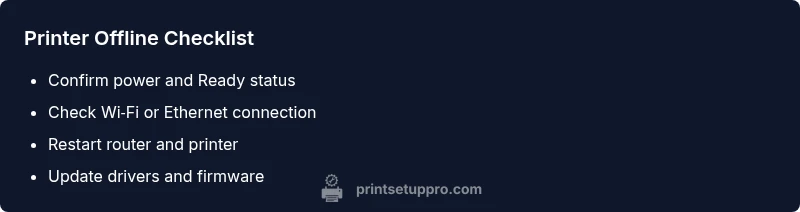
The quickest answer: most offline HP printer issues stem from connectivity or driver problems. Start with the simplest checks: confirm the printer is powered and showing Ready, verify it’s on the correct network or cable connection, and reopen the HP Print & Scan (or HP Smart) app to re-establish the queue. If it persists, update drivers and firmware and retry the connection.
Why HP Printers Go Offline
If you’re asking why is my hp printer off line, you're not alone. In many homes and small offices, offline status isn’t caused by a blown fuse or a missing part; it’s usually a network or software hiccup. The printer may be physically connected, but the network assigns devices dynamic IP addresses, and routers can reassign those addresses after a reboot. When this happens, the printer appears offline in your computer’s queue. Outdated drivers or firmware can also cause the device to report an offline state even when it’s ready to print. Understanding these patterns helps you recover quickly and avoid repeat issues.
Beyond basic causes, consider your environment: crowded Wi-Fi channels, a modem with frequent reboots, or a mixed wired/wireless setup can all contribute to intermittent connectivity. Print jobs might pile up if the queue gets stuck, or a software conflict may block communications between the computer and the printer. In many cases, the fix is less about hardware and more about refreshing connections and updating software.
Print settings on individual devices can also force a printer offline if the default printer is changed, or if a user prints from an app that points to a different driver. When you see offline status, take a methodical approach: verify power, confirm network status, then review drivers and firmware. This sequence covers the majority of scenarios and aligns with best practices from Print Setup Pro.
Quick Checks to Get Back Online
The first step is always the simplest. Confirm the printer is powered on and showing a Ready status on its display panel. If it’s a wireless model, check the network icon on the printer’s screen; if the icon indicates a poor or disconnected state, focus on network troubleshooting. Then verify the computer or device sending the print job is connected to the same network as the printer. If you’re using a USB connection, inspect the cable for wear, reseat the plug, or try a different USB port. Open the HP Print & Scan Doctor (Windows) or HP Smart app (Windows/macOS/iOS/Android) to see the current status and re-establish the connection.
Next, check the print queue on your computer. Cancel stuck jobs and restart the spooler service if you’re on Windows. On macOS, use the Print Center or System Preferences > Printers & Scanners to reselect the default printer. Finally, ensure you’re using the most current driver and firmware. If you’re unsure, visit HP’s official support site or run HP Support Assistant to identify and apply updates.
If problems persist after these basics, move on to deeper checks and consider resetting network settings on the printer or re-adding the printer to your device. Remember, simple steps often solve the majority of offline cases, and updating software closes many gaps that cause offline scenarios.
Understanding Common Culprits: Network, Drivers, and Firmware
The majority of HP printer offline issues boil down to a few predictable culprits. Network-related problems are most common: router firmware updates, IP address changes, or misconfigured wireless settings can cut the line between printer and computer. Driver and firmware mismatches can also throw the system offline; even a minor version difference can prevent a device from communicating properly. Finally, queue or spooler problems—like a stuck print job or corruption in the print queue—can mislead the OS into reporting the printer as offline.
To isolate these causes, start with a network diagnostic: ping the printer’s IP address, check if other devices can print, and verify that the printer and computer are on the same subnet. If the network looks solid, verify driver status: in Windows, check Device Manager for warnings, and on macOS, inspect the Printer list for any “Paused” or “Offline” states. Firmware should be updated to the latest version from HP’s site. In business environments, ensure you don’t have conflicting firewall or router settings that block necessary printing ports.
Keep in mind that HP Smart and HP Support Assistant can help run automated checks and propose targeted fixes. These tools guide you toward correct driver installation, firmware updates, and network reconfiguration, making the path from offline to online more predictable.
Diagnostic Flow: Symptom → Diagnosis → Solutions
This section maps a typical end-to-end troubleshooting path so you can proceed confidently. If you see the symptom “Printer shows Offline,” the likely causes are network issues (high likelihood), driver/firmware problems (medium), or a stuck queue (medium). The recommended fixes vary from easy (refresh connections) to medium (driver updates) to hard (network resets in some routers).
- Symptom: Printer offline in the queue despite power and network indicators.
- Likely Causes: Network issues (high); Drivers/firmware (medium); Stuck queue or spooler (medium); USB / port problems (low).
- Solutions: Reconnect network, update drivers, restart spooler, reseat USB, or reset network settings on the printer.
Follow this flow: verify hardware indicators, test with another device, refresh or reset the network, update software, re-add the printer, and test print. If you reach a point where the printer never becomes online, consider a professional assessment to check for deeper hardware faults or network configuration complexities.
Step-by-Step: Detailed Fix for Most Common Cause
- Confirm power and Ready status on the printer display. Ensure the printer is connected to the same network as your computer. 2) Reconnect the network: reboot the router/modem, reconnect the printer to Wi‑Fi using the printer’s control panel or HP Smart app, and verify the IP address is valid and not duplicated. 3) Update or reinstall drivers: run HP Support Assistant or download the latest driver from HP’s site, then add the printer again if required. 4) Clear the print queue and restart the print spooler: in Windows, stop the spooler service, delete queued items, then restart the service and try printing a test page. 5) Test on multiple apps and devices: print a test page from the printer itself and from another app to confirm consistency. 6) If the problem persists, perform a network reset on the printer and re‑add it to your devices.
Tip: Keep a record of the printer’s IP address and network settings so you can quickly reconfigure if the router changes.
2-3-2: Runtime Check
Tip: If you reach step six and still have offline issues, contact HP Support with your printer model, firmware version, and a note of the steps you’ve already tried to avoid repeat advice.
Steps
Estimated time: 30-45 minutes
- 1
Verify power and readiness
Check that the printer is on, warmed up, and showing a Ready status. Make sure there are no error indicators on the panel. This step confirms you’re starting with a healthy device before delving into network issues.
Tip: If the display is blank, try plugging the printer into a different outlet to rule out power issues. - 2
Check network connectivity
Ensure the printer is connected to the correct network. If using Wi‑Fi, reselect the network on the printer and verify the signal strength. If using Ethernet, confirm the cable is seated firmly and the link speed is stable.
Tip: Pause any guest networks that isolate devices from the main router. - 3
Update drivers and firmware
Open HP Support Assistant or visit HP’s official site to download the latest drivers and firmware for your model. Reinstall if necessary and re-add the printer to your devices after updates.
Tip: Keep a note of your printer model and current firmware version for quick reference. - 4
Reset network settings on the printer
If connectivity remains inconsistent, reset the printer’s network settings and reconfigure the Wi‑Fi or Ethernet connection. This can clear stubborn IP conflicts or DNS issues.
Tip: After reset, re-enter your Wi‑Fi password carefully to avoid typos. - 5
Remove and re-add the printer on devices
On Windows, remove the printer from Devices and Printers, then reinstall it via Add a Printer. On macOS, delete and re-add through System Preferences > Printers & Scanners.
Tip: Use the printer’s IP address instead of automatic discovery if it has trouble being located. - 6
Test print from multiple apps
Print a test page from at least two different apps (e.g., a document and a photo) to confirm the issue is resolved across use cases. If one app still fails, the problem may be app-specific or the document format.
Tip: If a single app still fails, consider exporting the file to a compatible format before printing.
Diagnosis: Printer shows offline in print queue despite power and network indicators
Possible Causes
- highNetwork connectivity problems (router/modem, IP address mismatch, interference)
- mediumOutdated or corrupted printer drivers/firmware
- mediumStuck or corrupted print queue
- lowLoose USB connection or port issues (for USB-connected models)
- lowFirewall or router blocking required printing ports
Fixes
- easyTest network by printing from another device; reconnect to same network and verify IP address
- easyUpdate or reinstall drivers/firmware via HP Support Assistant
- easyClear print queue and restart the spooler service
- easyReseat or replace USB cable; switch to wired/wireless setup as applicable
- mediumAdjust firewall/router settings to allow printing traffic
People Also Ask
Why does my HP printer show offline even when it’s connected to Wi‑Fi?
Offline status often results from IP address changes, driver or firmware mismatches, or a stuck print queue. Verifying network configuration and updating software usually resolves the issue.
Offline status is usually due to network or software issues. Update drivers or firmware and check the network to reconnect the printer.
How do I reconnect my HP printer to Wi‑Fi?
Use the printer’s control panel or the HP Smart app to select your Wi‑Fi network again. Enter the password carefully and confirm the printer obtains a valid IP address.
Reconnect to your Wi‑Fi via the printer panel or HP Smart app, then verify it has a valid IP address.
Should I reset my HP printer to factory settings to fix offline issues?
A factory reset can help if the settings are corrupted, but it should be a last resort. After a reset, reconfigure network settings and drivers from scratch.
A factory reset is a last resort and will require you to reconfigure everything from scratch.
Can I still print if my computer is offline?
If the computer is offline, you may still print from other devices or directly from the printer’s memory card or USB, depending on the model. Check the printer’s onboard memory options.
Yes, you can print from other devices if the computer is offline, depending on the model.
Why is HP Smart saying offline?
HP Smart can show offline if the app cannot locate the printer due to network issues or outdated software. Restart the app, re-add the printer, and update the app if needed.
HP Smart offline usually means connectivity issues or outdated software; re-add the printer and update the app.
Watch Video
Quick Summary
- Verify power and readiness before changing settings
- Keep drivers/firmware up to date to prevent offline status
- Re-add the printer to devices after network or driver changes
- Use a structured diagnostic flow to isolate network vs. software problems
- Resolve offline issues promptly to avoid job backlog and frustration