Why Is My Printer Offline When It’s On? A Troubleshooting Guide
Discover why a printer can appear offline even when powered on, with a practical diagnostic flow, quick fixes, and prevention tips for home offices and small businesses.


Printer offline while it's on is usually caused by network, IP, or driver issues rather than a power problem. Start by confirming the printer is set as default, check that the USB/Ethernet/Wi‑Fi cable is secure, and verify the printer IP matches the PC. If it’s still offline, restart the printer and network gear.
Why this happens when the printer is on
According to Print Setup Pro, a printer that appears offline while it’s on is usually a sign of a local connectivity issue rather than a power failure. Home offices and classrooms often run into it when devices share Wi‑Fi or a USB path with many other peripherals. The most common culprits are misconfigured default settings, a dormant or disabled print service, or a dynamic IP that has changed since the last print job. Printers are designed to connect through a specific route—USB, Ethernet, or Wi‑Fi—and if that route is interrupted or misreported by the computer, the status can flip to offline even while the device is clearly powered. Understanding these possibilities helps you triage quickly and avoid unnecessary replacements. In this guide, Print Setup Pro walks you through a practical, step‑by‑step approach to restore online status and keep it there.
Further, the problem isn’t always in the printer itself; sometimes the issue lies in the computer’s perception of the device. A misbehaving driver, an outdated firmware component, or even a stale print spooler can manifest as an “offline” state. The good news is that most offline-on-while-on scenarios are repeatable and fixable with a structured approach. By focusing on one variable at a time—default status, physical connections, IP configuration, and driver health—you can quickly isolate the bottleneck and confirm stability before moving on to more advanced steps.
This section sets the stage for an efficient triage, with practical checks you can perform without special tools. Keep the printer powered on, have your PC ready, and make notes as you go so you can revert any changes if needed.
Quick checks you can perform before deep diagnostics
Before diving into complex tweaks, run through a short battery of checks that cover the most common causes. First, verify that the printer is set as the default device on your computer. Next, inspect physical connections—USB cables seated securely, Ethernet cables plugged in, or Wi‑Fi enabled with the correct network selected. If you’re using a wireless connection, ensure the printer is connected to the same network as the PC. Check the printer’s status on its control panel for any warning icons or messages. Finally, confirm the printer IP address shown on the device matches what your computer is attempting to reach, and that the IP hasn’t changed due to a DHCP refresh or router restart. If any of these basics are wrong, you’ll see an offline status even when the device is powered.
If the problem persists after these quick checks, proceed to the diagnostic steps for network, IP, and driver considerations. You’ll want to document the IP, network name, and printer model so you can apply consistent settings across reboots and future sessions. This approach reduces back-and-forth and speeds up the resolution.
Investigation: common causes and how to verify them
The most frequent causes of an offline-on-while-on printer fall into four buckets: (1) incorrect default printer status, (2) network connectivity or router issues, (3) driver or software conflicts, and (4) IP address conflicts or DNS problems. Start by confirming the default printer setting; if the wrong device is set as the default, print jobs may be routed incorrectly, resulting in an offline designation. Then, test the connection path: for USB, try a different port or cable; for Ethernet, verify link light status on the printer and switch; for Wi‑Fi, run a quick network scan to ensure signal strength is adequate and there are no double‑NAT issues. If drivers are out of date or corrupted, reinstallation or a clean update often resolves the discrepancy between the printer and the host.
Additionally, printers with modern firmware are sensitive to IP changes. A dynamic IP assigned by DHCP can confuse the host if the device’s address changes between sessions. In such cases, binding a static IP to the printer can stabilize connectivity, provided your router supports it. Finally, keep in mind that some antivirus and firewall configurations can block printer traffic; verify that the necessary ports and services are permitted. By understanding these four causes, you’ll be able to triage logically and avoid chasing phantom issues.
Network and driver diagnostics you can run safely
A solid diagnostic flow starts with the network, then moves to drivers and services. Begin by pinging the printer’s IP from your computer to confirm basic reachability. If ping fails, there’s a lower‑level network or router issue—check if the printer appears on the router’s device list and confirm you’re on the same subnet. If ping succeeds, but the printer still shows offline, inspect the printer’s network settings to ensure it’s on the same SSID and that the correct network band (2.4 GHz vs 5 GHz) is used. Next, check the Windows or macOS printers panel for a status like
or
and run the built-in troubleshooter to see if it flags a specific driver problem. Updating or reinstalling the driver often resolves driver conflicts that manifest as offline statuses. If using a USB connection, try a different USB port and, if possible, a different cable to rule out a physical fault.
When all basic tests pass but the issue persists, consider more in‑depth checks such as flushing the print spooler, restarting the spooler service, and ensuring the printer firmware is current. For Windows users, make sure the Print Spooler service is running and set to automatic. On macOS, remove and re-add the printer in System Preferences > Printers & Scanners. These steps remove stale jobs and rebuild the print pipeline, clearing stuck states that can trigger an offline readout.
If you’re still stuck after these steps, the issue may require a more advanced diagnosis such as DNS name resolution problems or router firewall rules. At that point, it’s wise to gather logs from the printer and PC to share with support or a technician.
Step-by-step resolution and configuration best practices
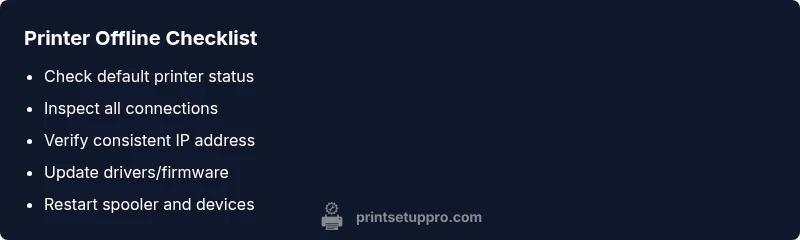
- Confirm default printer: Open the printers list on your computer, select the correct printer as default, and try a test page. Tip: keep a small sticky note with the exact printer name at your workstation. 2) Verify connections: For USB, unplug and reinsert the cable; for Ethernet, check the LED indicators; for Wi‑Fi, rejoin the network or switch to a different channel if interference is suspected. Tip: try a temporary USB connection to eliminate network variables. 3) Check IP stability: Print a network configuration page from the printer and compare the IP to what your computer uses. If it changes, configure a static IP on the printer. Tip: reserve the IP in your router’s DHCP settings to avoid conflicts. 4) Update drivers/firmware: Download the latest driver from the manufacturer’s site and install; update the printer firmware if an update is available. Tip: perform updates one at a time to isolate issues. 5) Service checks: On Windows, ensure the Print Spooler service is running; on macOS, remove and re-add the printer. Tip: reboot after each major change to ensure changes take effect. 6) Test print and monitor: Print a diagnostic page, observe status indicators, and note any error codes. If the page prints successfully, monitor for a few sessions to confirm stability. Tip: keep a log of changes for future reference.
Estimated total time: 25-50 minutes.
Tips & Warnings
- Pro tip: Label each network step (default printer, IP address, DNS) so you can retrace changes quickly if the issue recurs.
- Warning: Do not disable essential security features or firewall protections to force printing; instead, adjust permissions for printer ports and services.
- Note: Regularly restarting printers and routers can refresh network states and prevent stale offline statuses from reappearing.
Prevention and maintenance to keep printers online
Preventing offline scenarios is easier than fixing them after they occur. Schedule quarterly checks of printer status, driver versions, and firmware updates. Maintain a consistent network environment by minimizing wireless interference and using a dedicated printer channel if possible. Create a simple reset routine: power cycle the printer, then reboot the computer and router. Document your standard configuration (default printer name, static IP if used, and preferred driver version) so you can restore it quickly after accidental changes. By building these habits, you reduce the likelihood of future offline events and improve overall print reliability.
Steps
Estimated time: 25-50 minutes
- 1
Check default printer status
Open your computer’s Printers & Scanners settings and confirm the correct printer is set as default. Try printing a test page to verify immediate results.
Tip: If you have multiple printers, name matches help avoid selecting the wrong device. - 2
Inspect physical connections
For USB, reseat the cable and try a different port. For network printers, verify the Ethernet/Wi‑Fi connection and confirm the printer shows a valid IP on its display or configuration page.
Tip: A loose USB or flaky Ethernet cable is a common culprit. - 3
Verify IP address and network settings
Print a configuration page from the printer and compare the IP to what your computer is using. If it changes frequently, set a static IP and reserve it in your router.
Tip: Keep a log of the IP and network name for future reference. - 4
Update drivers/firmware
Download the latest driver for your exact printer model from the manufacturer’s site and install. Check for a firmware update on the printer if supported.
Tip: Install one update at a time to identify potential issues. - 5
Restart services and devices
Restart the printer, computer, and router. After reboot, re-add the printer if necessary and try a test print.
Tip: Power cycling helps clear stuck jobs and reinitialize network state. - 6
Test and monitor
Print a diagnostic page and observe if the status remains online. If the problem recurs, collect logs and consider professional help.
Tip: Keep a short checklist of changes to reproduce the issue.
Diagnosis: Printer shows offline despite being powered on
Possible Causes
- highWrong default printer setting
- highTemporary network issue or router blocking printer
- mediumDriver or software conflict
- lowIP address conflict or DNS issue
- lowPrinter service not running on PC
Fixes
- easySet the correct printer as default
- easyRestart printer, computer, and router; reconnect network cables
- easyUpdate or reinstall printer drivers; run Windows/macOS troubleshooter
- mediumDisable IPv6 or assign a static IP; ensure firewall allows printer traffic
- mediumMake sure the Print Spooler service is running on Windows, or reset the spooler
People Also Ask
Why does my printer show offline even though it is powered on?
Common causes include an incorrect default printer setting, network connectivity problems, or an IP address conflict. Start with the simplest check—ensure the correct printer is default and that the device is reachable on the network. If necessary, update drivers and reboot the spooler.
Printer offline on power is usually caused by default settings, network problems, or IP conflicts. Start with the simple checks and then update drivers if needed.
How do I set a printer as default in Windows/macOS?
On Windows, open Settings > Devices > Printers & scanners, select your printer, and click Manage > Set as default. On macOS, go to System Preferences > Printers & Scanners, right-click the printer, and choose Set as default. Test print afterward.
Set the printer as default in Windows or macOS printer settings, then test print.
Can a USB cable cause offline status even when using USB?
Yes. A loose, damaged, or low-quality USB cable can cause intermittent or no communication, making the printer appear offline. Try a different cable and port to confirm.
A bad USB cable can make the printer look offline; swap cables and ports to test.
What should I do if IP address changes frequently?
Assign a static IP to the printer or reserve an IP in your router's DHCP settings. This prevents the printer from appearing offline due to IP changes.
If IPs change often, set a static IP or reserve one in the router.
When should I contact professional support?
If you’ve followed the steps and still see offline status, or if the printer displays hardware error codes, contact support. They can diagnose hardware faults, complex network setups, or firmware issues.
Call support if the issue persists after all basic steps or hardware errors show up.
Is it safe to reset the printer spooler service?
Yes, resetting the spooler is a standard, safe step when print jobs get stuck. Stop the service, clear the spooler folder, restart the service, then try printing again.
Reset the spooler service if print jobs are stuck; then test printing again.
Watch Video
Quick Summary
- Identify the root cause before changing settings
- Keep software and firmware up to date
- Stabilize IP and network settings for reliability
- Use a structured, repeatable workflow