Print from iPad: The Essential AirPrint Printer Guide
Learn how to print from your iPad to AirPrint-enabled printers or via manufacturer apps. This complete guide covers compatibility, setup, troubleshooting, and best practices for home offices, students, and DIY enthusiasts.


According to Print Setup Pro, you can print from an iPad to a printer that supports AirPrint or has a compatible app. This guide explains how to connect, print, and troubleshoot, with practical steps for home offices, students, and DIY enthusiasts. Print Setup Pro confirms that AirPrint remains the simplest path for iPad printing. This quick answer sets the stage for the deeper steps below.
Compatibility landscape for iPad printing
Printing from an iPad is largely straightforward when you use printers that support AirPrint, the built-in Apple printing protocol. Most modern printers from major brands include AirPrint compatibility, which means you can send a print job from any iPad without installing extra drivers. If your printer is AirPrint-enabled, both devices must be on the same Wi-Fi network, or the printer must be discoverable via Bluetooth on supported setups. For those using older or budget printers, AirPrint availability is hit-or-miss, and you may rely on the manufacturer's app or cloud printing alternatives. Print Setup Pro recommends prioritizing AirPrint when choosing a new printer, because it reduces setup friction and ongoing troubleshooting. In practice, the process is usually as simple as selecting Print from the share sheet, choosing your printer, and tapping Print. If the printer isn’t listed, double-check your network, ensure both devices are connected to the same network, and confirm the printer is powered on and not in sleep mode.
How AirPrint works with iPad
AirPrint is a network-based printing feature that doesn’t require you to install drivers on the iPad. The iPad uses Bonjour discovery to find compatible printers on the same network, and the printer responds by presenting itself as an available option in the iPad’s print dialog. When you tap Print, the iPad sends a print job to the printer in a standard format that the printer understands. This makes basic documents, photos, emails, and web pages print quickly and with predictable results. If you’re using a printer from a major brand, you may also access advanced features through the vendor’s app, such as selecting paper size, color vs. black-and-white, or double-sided printing. The Print Setup Pro team notes that relying on AirPrint reduces the number of moving parts and thus minimizes setup confusion compared with non-AirPrint workflows.
Alternatives when AirPrint isn’t available
Not all printers include AirPrint, particularly older units or budget models. In these cases, you can still print from your iPad by using the printer’s own app, which often offers more control (scan, copy, mobile-friendly cloud printing). You may also connect the printer to the network and use a cloud-printing service if supported. Some manufacturers provide a separate printing interface that mimics AirPrint’s Share Sheet, letting you print from apps that don’t have a built-in print option. If none of these approaches work, you can print from a computer that is connected to the printer, then use a personal cloud service to access the document on your iPad; however, this adds steps and potential privacy considerations. Print Setup Pro highlights that choosing a printer with strong app support and robust mobile printing features can save time and headaches in the long run.
Checking printer compatibility before you buy
Before purchasing a printer to pair with your iPad, verify AirPrint support on the manufacturer’s site; AirPrint compatibility labels are typically found on the product page or in the printer’s user manual. If you already own a printer, look for the AirPrint logo on the device or packaging. Check iPadOS version requirements; newer iPads and iOS versions improve reliability, discovery, and feature parity. Consider the printer’s connectivity options: Wi‑Fi, Ethernet, or USB-C with wireless sharing; the best option is one that supports wireless printing without requiring a computer. Read independent reviews or user test reports focusing on mobile printing success rates, not just advertised specs. Print Setup Pro emphasizes that practical tests—printing photos, documents, and emails—are more informative than spec sheets. If possible, borrow or demo the printer in-store to confirm AirPrint visibility, app availability, and the ease of adding the device to your home or office network.
Prepare your devices and network for printing
Make sure your iPad is connected to the same network as the printer. Update iPadOS to the latest version to ensure the most stable AirPrint experience. If your router has guest networks, disable them or ensure the printer is visible within the primary network. On the printer, enable wireless printing and ensure it has a valid IP address on your network. If your printer relies on a USB connection to a desktop, confirm that the printer remains bridged to the network through printing software provided by the manufacturer. For best results, avoid mixed networks and ensure strong Wi-Fi signal strength near both devices. If you must switch from 2.4 GHz to 5 GHz, test printing after changing bands to confirm compatibility, as some printers struggle when moving between bands.
Printing from iPad: scenarios and tips
Printing from the iPad is highly context-dependent; photos, documents, and web pages each map to slightly different print behaviors. In most apps, tap the Share icon, then choose Print. From there, select the AirPrint printer and adjust settings such as number of copies, color or grayscale, and page range if printing a document. For photos, you may choose a specific photo size or layout; for websites, the print preview often includes headers and footers, which you can hide in some apps. If your printer has a dedicated app, open the app first to access features like borderless photo printing or custom paper sizes, then use the app’s built-in sharing options. Print Setup Pro recommends testing a short draft print of a document to confirm margins and alignment before printing a larger batch. Remember that some apps don’t expose print settings in the OS dialog; always check the app’s own print options. If you run into trouble, close and reopen the app, restart your iPad, or re-connect to the printer, as this resets the print job queue.
Troubleshooting common issues
If your iPad doesn’t see the printer, confirm both devices are on the same network and that the printer is turned on and awake. Restart the printer and the iPad to reset Bonjour discovery. Ensure the printer’s firmware is up to date; check the manufacturer’s app for firmware upgrade prompts. If printing yields poor results, verify that you selected the correct paper size and print quality settings, and try a test page. For AirPrint to work reliably, you should minimize network congestion by limiting other devices on the network during initial setup. If the printer still does not show up, try temporarily disabling firewall or guest network features on your router, then re-test. Print Setup Pro notes that the most common reasons for failure are misconnected networks, devices on different subnets, and printers that fail to advertise themselves on the local network.
Privacy, security, and maintenance considerations
Printing from a mobile device benefits from good network hygiene. Keep your printer firmware updated to patch security vulnerabilities and to improve reliability. Use devices on a secure home network rather than public Wi-Fi. Review the printer’s privacy settings to ensure sensitive documents are not stored unnecessarily in the printer’s memory. Regularly check for firmware updates and apply them in a timely fashion. Limit the use of shared printers if you are on a public or guest network, and disable web printing if the feature is disabled by policy. For households with children or shared devices, enable login screens or user codes if supported by the printer to prevent accidental prints and maintain privacy. Print Setup Pro’s guidance is to prioritize devices with strong security features and vendor-supplied mobile apps to keep your iPad printing experience smooth and safe.
Authoritative sources and further reading
- The official Apple AirPrint overview: https://support.apple.com/en-us/HT204360
- A major technology publication with practical printing guidance: https://www.pcworld.com/article/273391/how-to-print-from-your-ipad.html
- A trusted technology outlet with mobile printing tips: https://www.cnet.com/how-to/how-to-print-from-an-ipad/
For readers who want in-depth steps, Print Setup Pro recommends reviewing the printer manufacturer’s documentation and exploring the printer’s built-in help resources for iPad printing. If you want a structured path, consider a quick-start guide that covers AirPrint setup, app-based workflows, and long-term maintenance. Print Setup Pro’s team suggests testing across common scenarios—photos, documents, and web pages—to ensure a smooth experience. By following the guidance above, you can confidently print from your iPad to a compatible printer without headaches.
Tools & Materials
- AirPrint-enabled printer or a printer with vendor app(Ensure the printer explicitly supports AirPrint or offers a reliable iPad app.)
- iPad with latest iPadOS(Keep iPadOS up to date for best AirPrint compatibility.)
- Stable Wi-Fi network(Both devices must be on the same network for discovery and printing.)
- Printer power supply and cables(Some printers require a power cord or network bridge; optional for most modern AirPrint setups.)
- Printer app (optional)(Useful for advanced settings, photo options, and maintenance tasks.)
Steps
Estimated time: 15-25 minutes
- 1
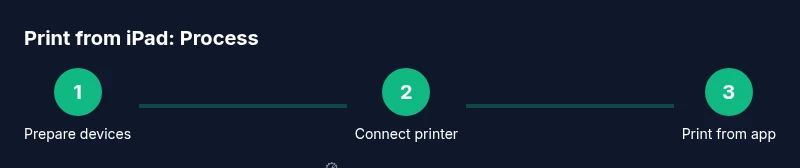
Prepare your devices
Ensure both the iPad and printer are on and connected to the same network. Update the iPad to the latest iPadOS. If you use a guest network, switch to the main network so discovery works reliably.
Tip: Verify Wi‑Fi strength near both devices to avoid intermittent drops. - 2
Confirm AirPrint availability
Check the printer’s documentation or display for an AirPrint label. If absent, download the manufacturer’s app to enable mobile printing.
Tip: If you’re unsure, contact support or visit the printer’s official support page. - 3
Connect the printer to your network
Follow the printer’s network setup flow to join the same Wi‑Fi. If supported, you can use WPS for quick join; otherwise, enter the network credentials manually.
Tip: Restart the printer after joining to refresh Bonjour discovery. - 4
Open a document or image on the iPad
Navigate to the content you want to print. Use the app’s Share or Options menu to access the Print option.
Tip: Some apps hide print options; check the app’s menu or export/share options. - 5
Select the printer and adjust settings
From the Print dialog, choose the AirPrint printer, set copies, color/grayscale, and paper size as needed.
Tip: Preview pages to catch margins and layout issues before printing multiple copies. - 6
Print a test page
Print a single page first to confirm orientation, margins, and color accuracy.
Tip: If colors look off, check the printer’s color profile or reset to default settings. - 7
Print additional content
Proceed with the rest of your documents, photos, or web pages, using the same steps.
Tip: If printing from multiple apps, repeat the steps per content type for best results. - 8
Troubleshoot if the printer isn’t visible
Recheck network settings, restart devices, and rejoin the printer to the network. Ensure no firewall blocks Bonjour discovery.
Tip: A quick toggle of airplane mode on the iPad can reset local network discovery.
People Also Ask
Can I print from an iPad to any printer?
No. You need an AirPrint-enabled printer or a printer with a dedicated iPad app. Some printers support cloud printing or have companion apps that enable mobile printing.
Most printers on the market will print from an iPad if they support AirPrint or have a compatible app. If not, you’ll need the manufacturer’s app or another workaround.
What if my printer doesn’t support AirPrint?
Use the printer’s mobile app or a driverless printing option provided by the manufacturer. Some printers still work over Wi‑Fi via a vendor app that emulates AirPrint-like behavior.
If AirPrint isn’t available, use the printer’s own app or the vendor’s setup guide to enable mobile printing.
Do I need a constant Wi‑Fi connection?
Yes, for most AirPrint setups both the iPad and printer must be on the same Wi‑Fi network. Some printers support direct wireless ad hoc connections, but that isn’t universal.
A stable Wi‑Fi connection on the same network is usually essential for AirPrint.
Why can’t my iPad find my printer?
Check that the printer is on the same network, awake, and not in power-saving mode. Restart both devices if necessary and confirm firmware/app updates are current.
If the printer isn’t visible, verify network alignment and reboot devices to refresh the connection.
Is it safe to print from iPad on a shared network?
Printing over a home network is generally safe with standard protections. Enable device-level security and keep firmware updated to minimize risks.
Yes, as long as you maintain good network security and keep firmware current.
Can I print from iPad via Bluetooth?
Bluetooth printing from iPad is less common and depends on printer drivers. Most setups use Wi‑Fi with AirPrint for reliability.
Bluetooth printing isn’t widely supported; AirPrint over Wi‑Fi is usually the easiest route.
Watch Video
Quick Summary
- Choose AirPrint-enabled printers for easiest setup
- Keep iPad and printer on the same network
- Use the iPad Share/Print option to print
- If AirPrint isn’t available, use vendor apps
- Regularly update firmware and apps